Percentage Price Change
% Price Change
Section titled “% Price Change”The ”% price change” filter checks how much the price of an asset has changed over the selected timeframe and allows the bot to enter a trade (or not) depending on this condition.
This is useful for:
- protecting against entering at the peak of a sharp rise,
- preventing trades from being opened during a strong downtrend,
- filtering out impulse movements.
Without specifying a custom value, the filter works as ”% price change, Greater than 0”.
To set your own filter parameters, click the Pencil button in the settings.
Example conditions
Section titled “Example conditions”-
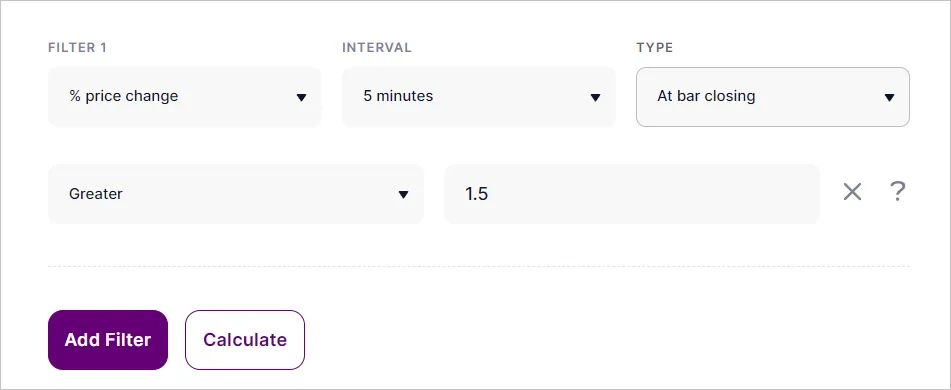
% price change, 15 minutes, greater than 5
The bot will enter a trade after the green 15-minute candle closes if it rises by more than 5%. -
% price change, 5 minutes, greater than 1
The green 5-minute candle closes with a rise of more than 1% → entry signal. -
% price change, 1 minute, less than -1.5
The red 1-minute candle closes with a fall of more than 1.5% → entry signal. -
% price change, 1 minute, greater than -1
Red 1-minute candle drops less than 1% → entry signal is allowed; green candles are unlimited.
Trade Entry Limitation
Section titled “Trade Entry Limitation”This filter is useful for cutting out unwanted signals:
-
To prevent the bot from opening a trade during a sharp rise (protection against buying at the peak): % price change, 1 minute, less than 0.5 → If the candle grows >0.5%, the bot will skip the entry.
-
To prevent the bot from opening a trade during a sharp decline (protection against opening or averaging in the middle of the drawdown): % price change, 1 minute, greater than -0.5 → If the candle falls deeper than 0.5%, entry will be blocked.
Using as Exit Condition
Section titled “Using as Exit Condition”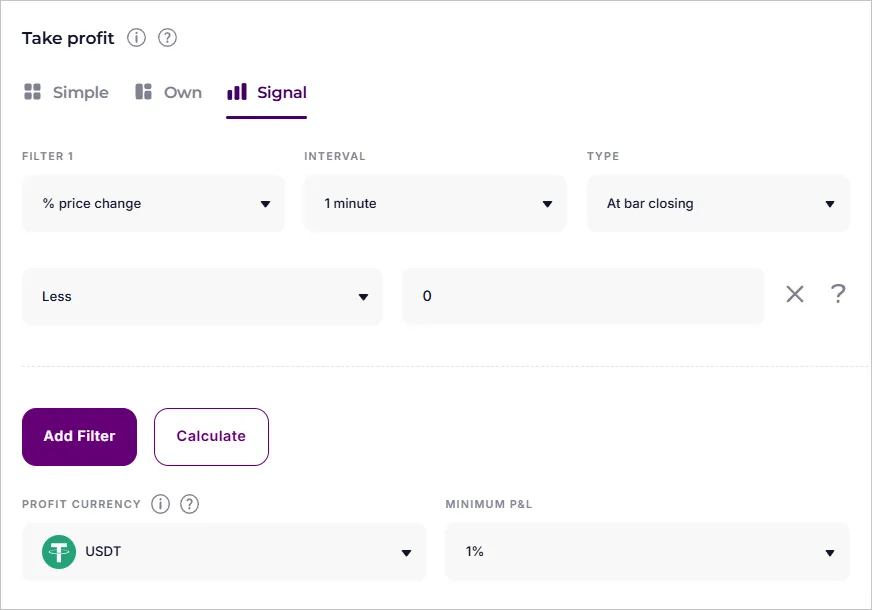
% price change over N candles
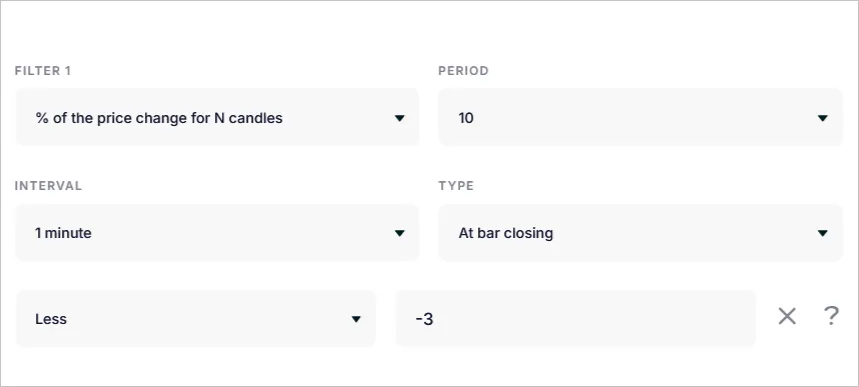
Section titled “% price change over N candles”Another filter option is to check the price change over several consecutive candles. You can select the number of candles: 5, 10, 20, 30, 50, or 100.
This helps take into account not only a single sharp movement but also the accumulated trend.
Click the Pencil to set the parameters.