
Create an Account on BingX
Registration on BingX
Section titled “Registration on BingX”-
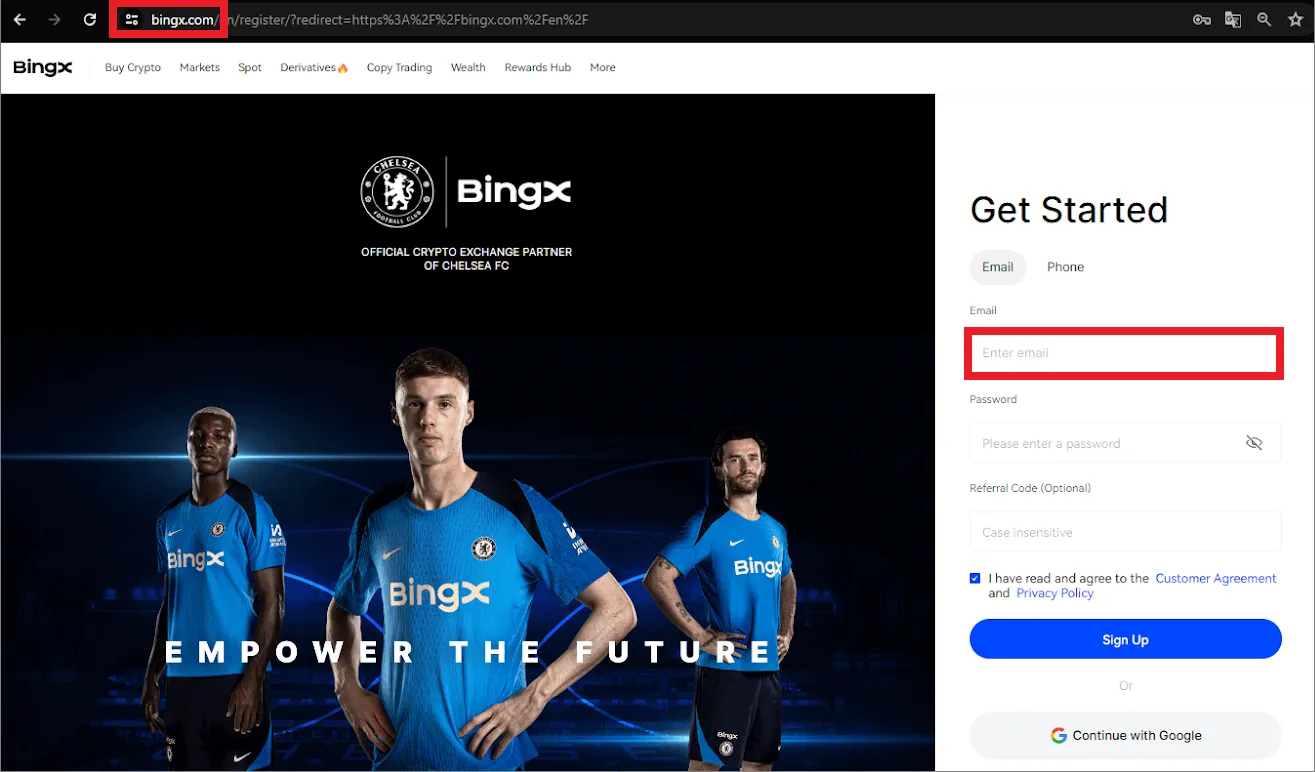
Go to the registration page of bingx.com.
-
On the registration page, specify email and strong password. It is recommended to store the password outside the computer — in a password manager or an offline notebook. Click “Register”, and the confirmation page will open.
-
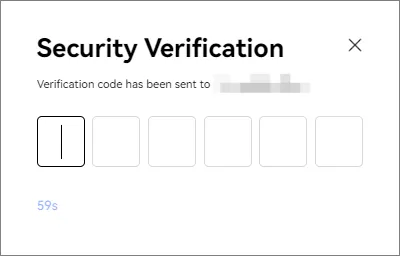
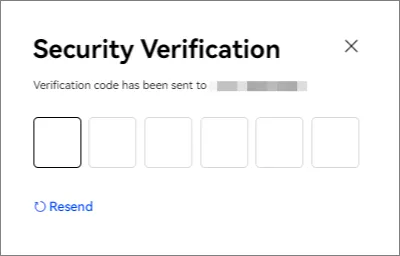
Enter the six-digit code sent to your e-mail. Check the Spam folder if the email did not arrive in the Inbox.
-
Copy the code from the email and paste it on the registration confirmation page. The code is valid for 30 minutes.
Account Security
Section titled “Account Security”Storing cryptocurrencies requires increased attention to security. To protect your account, enable Two-Factor Authentication (2FA).
-
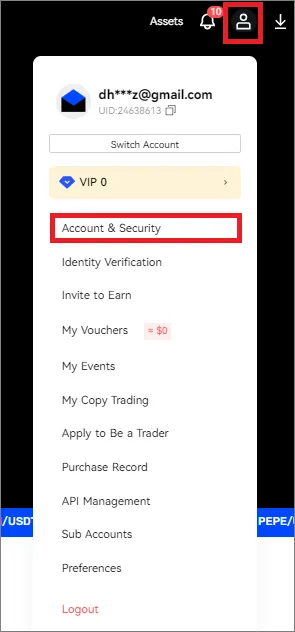
In the upper-right corner of the page, click on the profile icon and select Account and Security.
-
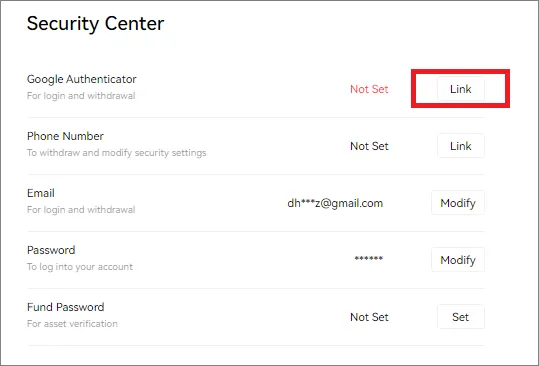
Scroll down to the “Security Center” section and click “Link” next to Google Authenticator.
-
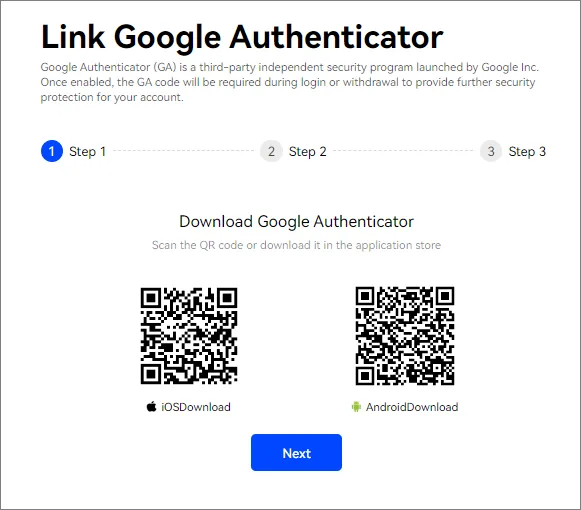
Install the Google Authenticator app on your phone.
-
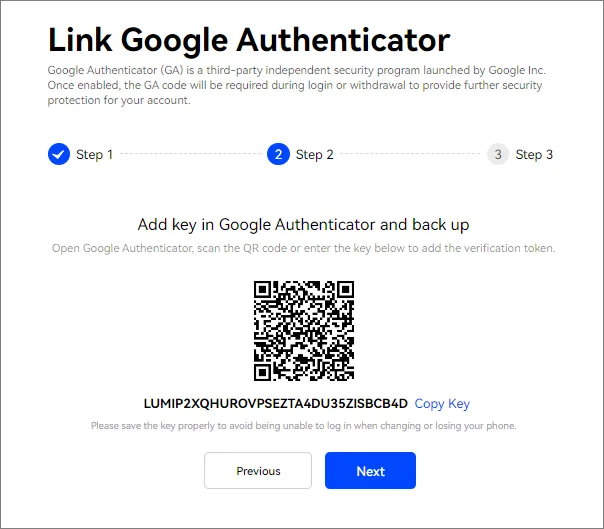
A QR code and a 16-digit key will appear on the screen. Scan the code or enter the key manually in the application.
-
Send an SMS code to your phone number, then enter the 6-digit code from the Google Authenticator app.
-
Click “Confirm” to complete the setup.
Congratulations! 🎉 You have successfully registered and enabled Two-Factor Authentication. Now your BingX account is ready for replenishment and connection to Veles.