
Connecting API BingX
Fast connection to BingX
Section titled “Fast connection to BingX”A Fast connection is available for main accounts. Subaccounts are connected only manually.
-
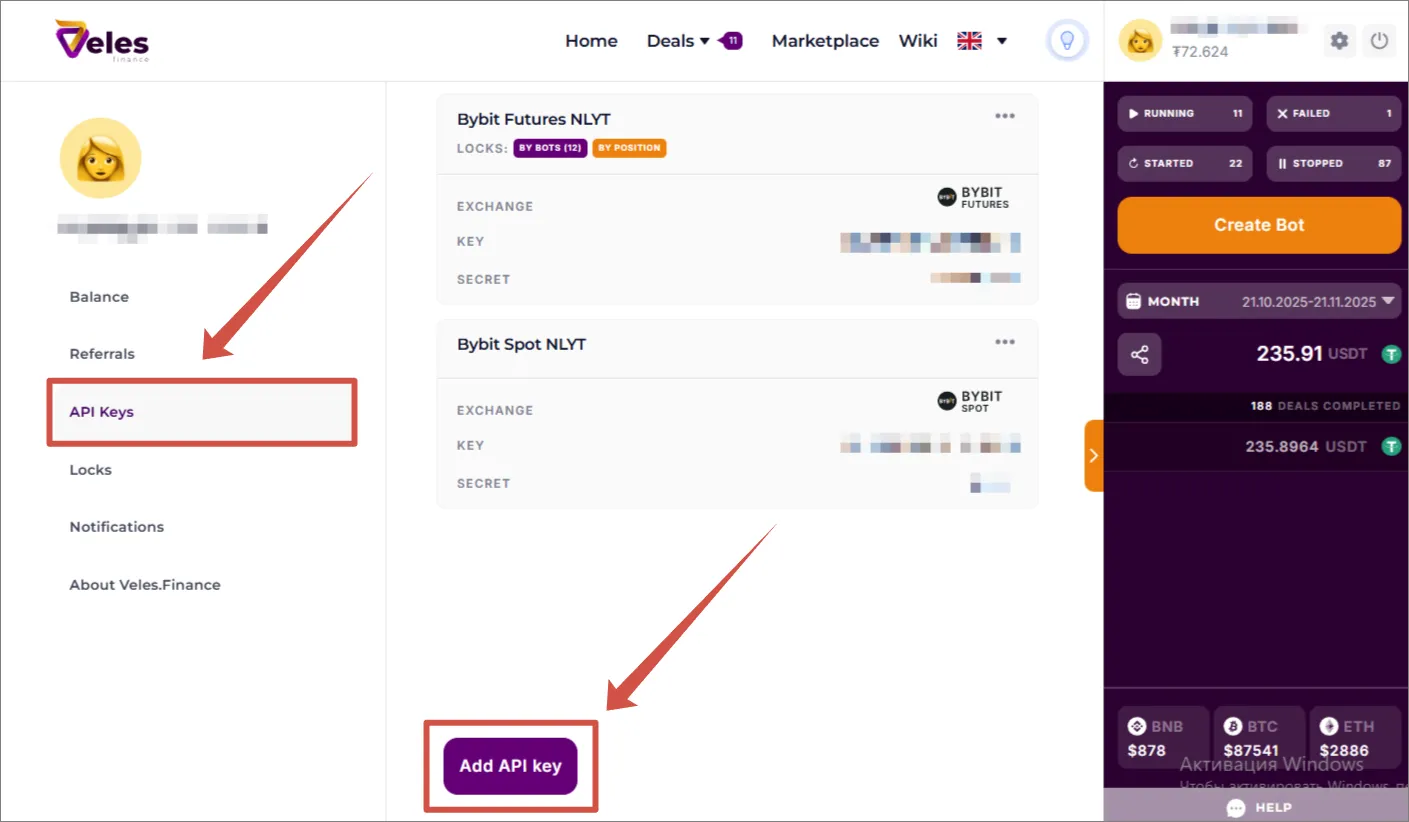
Go to the API Key Management page or open the bot creation window.
-
Click “Add API Key” and select BingX.
-
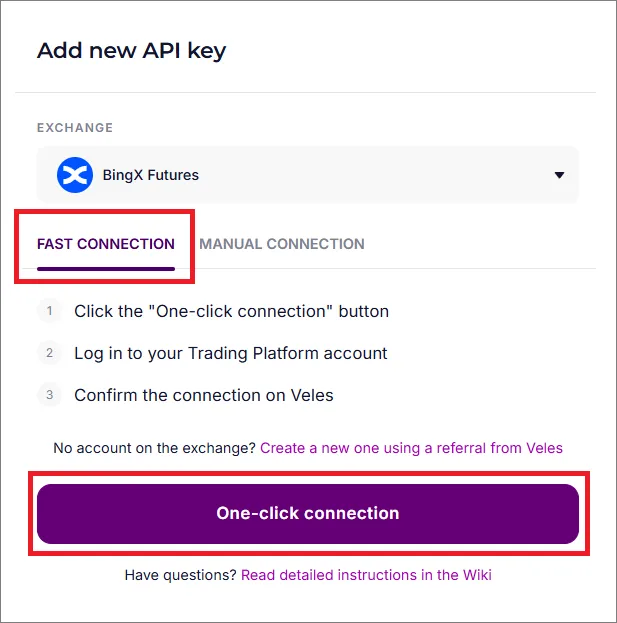
Click “One-click connection”.
-
After authorization, click “Agree” to confirm the request.
Manually creating a BingX API key and linking to Veles
Section titled “Manually creating a BingX API key and linking to Veles”If the “Fast Connection” is unavailable or does not work, use the manual procedure.
Creating API Key on the exchange
Section titled “Creating API Key on the exchange”-
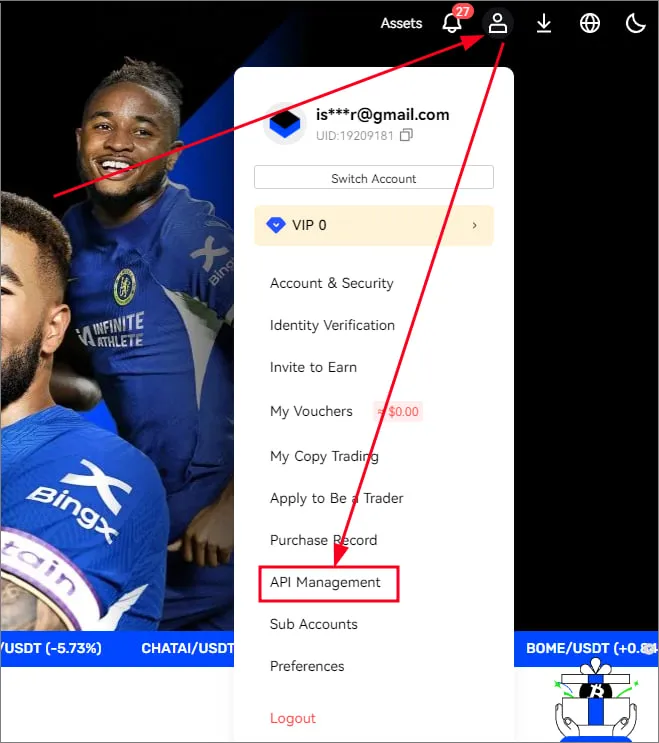
Log in to your BingX account, click on the profile icon and select “API Management”.
-
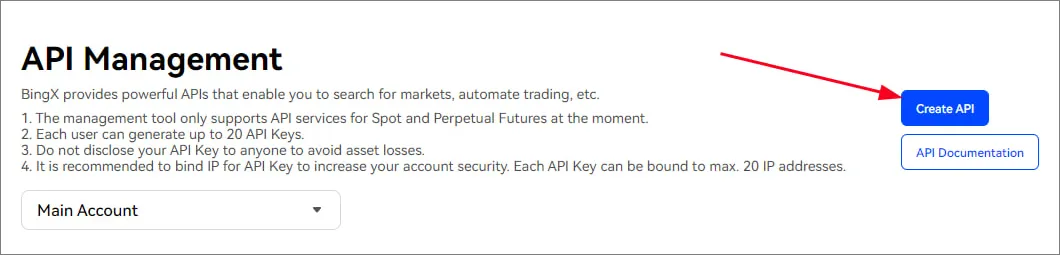
Click “Create API”.
-
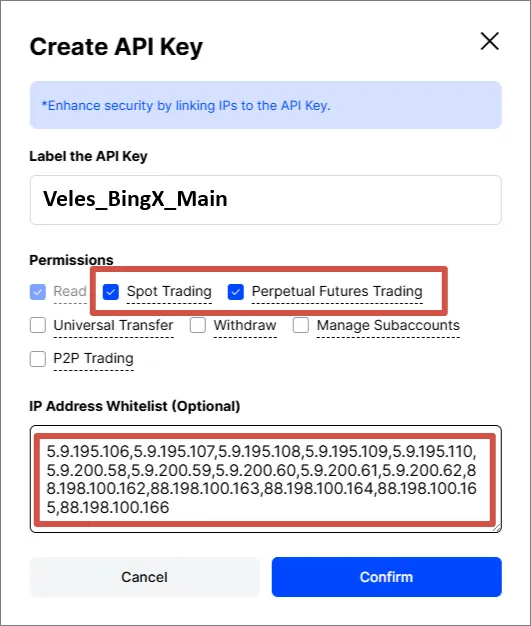
Set an informative name for the key, allow Futures trading and provide a list of Veles IP addresses for security: 5.9.195.106,5.9.195.107,5.9.195.108,5.9.195.109,5.9.195.110,5.9.200.58,5.9.200.59,5.9.200.60,5.9.200.61,5.9.200.62,88.198.100.162,88.198.100.163,88.198.100.164,88.198.100.165,88.198.100.166 If you plan to trade on the Spot, then also mark “Spot trading”.
-
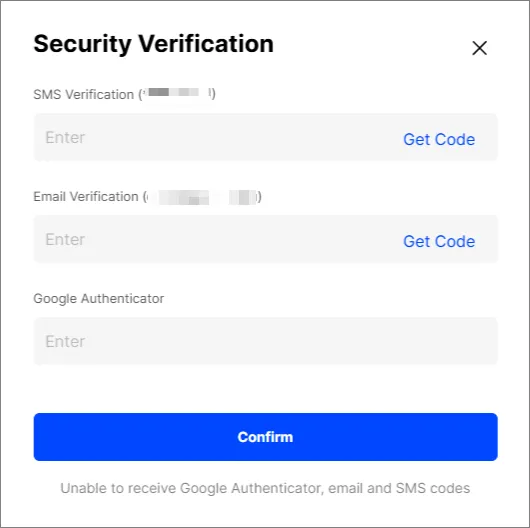
Confirm the creation of the key using the code from mail and Google Authenticator.
-
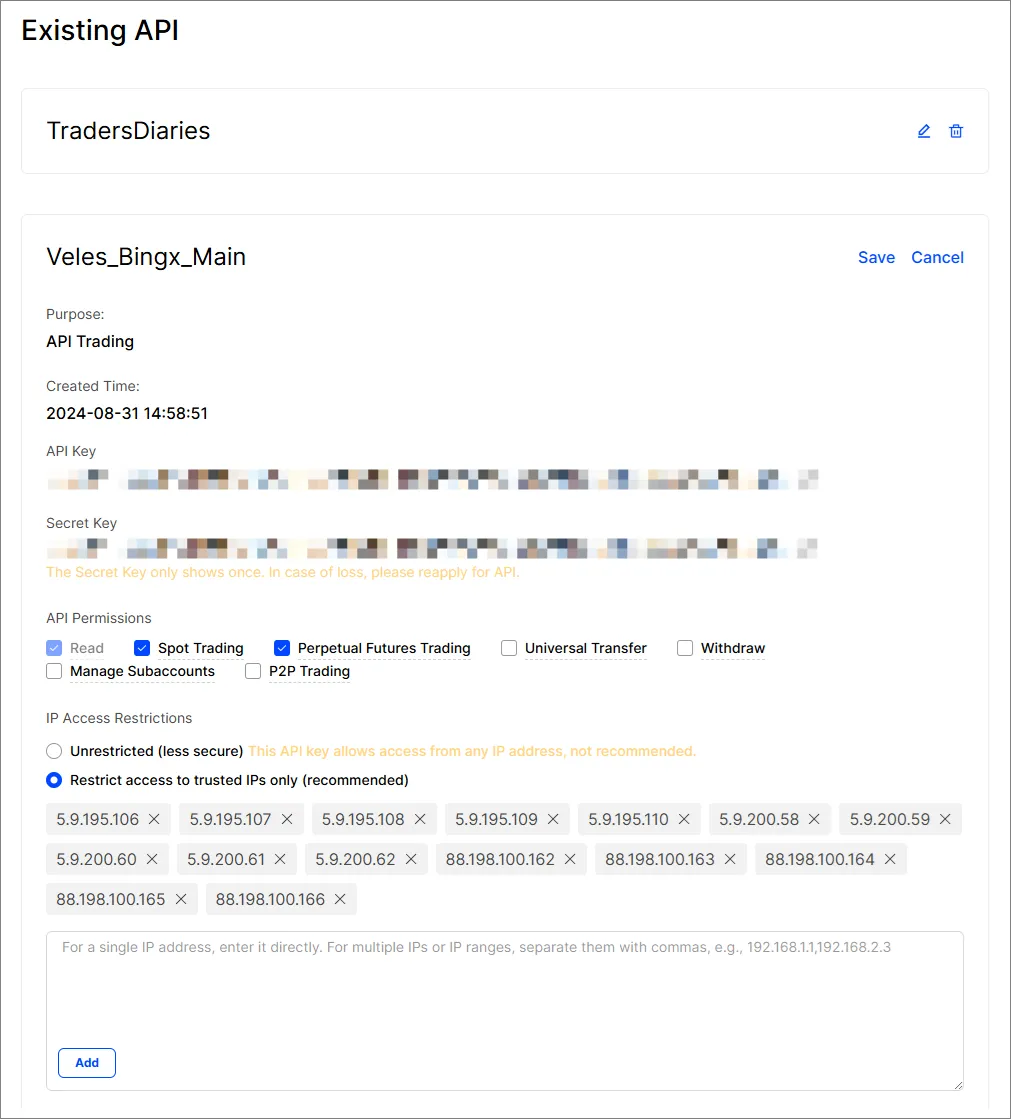
After confirmation, the exchange will show a window with API Key and Secret Key. Copy them and save in a safe place — the “Secret Key” is displayed only once.
Creating an API key Binding to Veles
Section titled “Creating an API key Binding to Veles”-
Log in to your Veles personal account and open the “API Keys” section ( ⚙ icon → API Keys).
-
Click “Add API Key” and select BingX.
-
Select “Manual Connection”, fill in the API key data from BingX and click “Connect”.
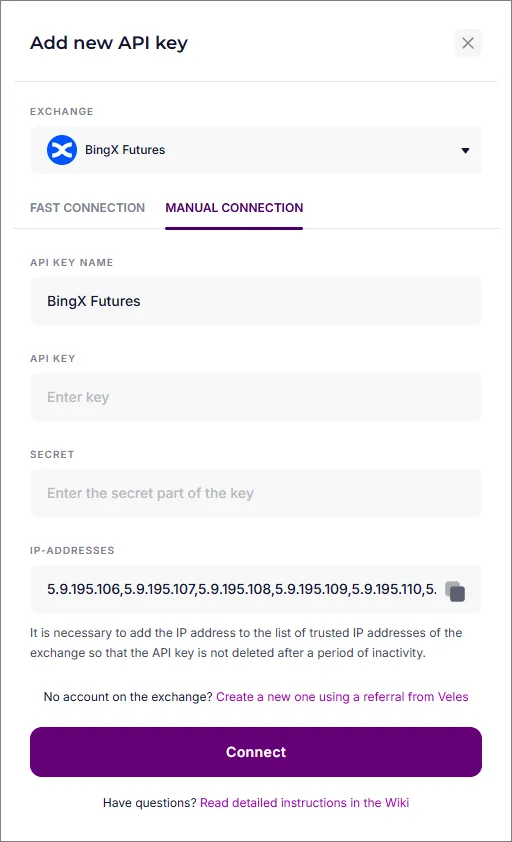
Now your BingX account is successfully linked to Veles, and you can launch trading bots on the Futures market.