
Mobile application
Veles mobile application allows you to manage trading bots directly from your smartphone — without having to open the web version. The official app is available for iOS (iPhone) and Android.


Log in to the mobile app
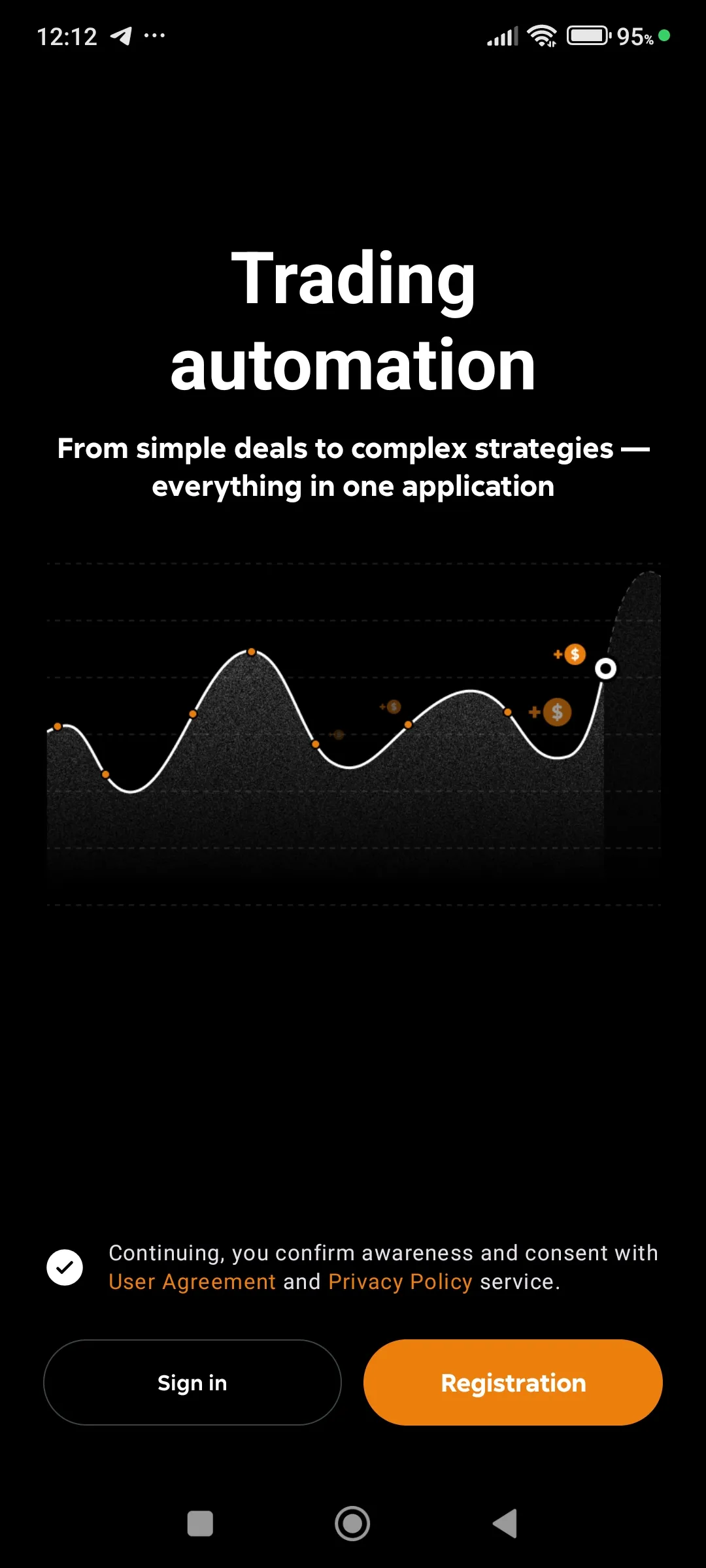
Section titled “Log in to the mobile app”To launch the application, please mark that you agree to the Terms of Use and Privacy Policy of our platform.
Accept the Agreement
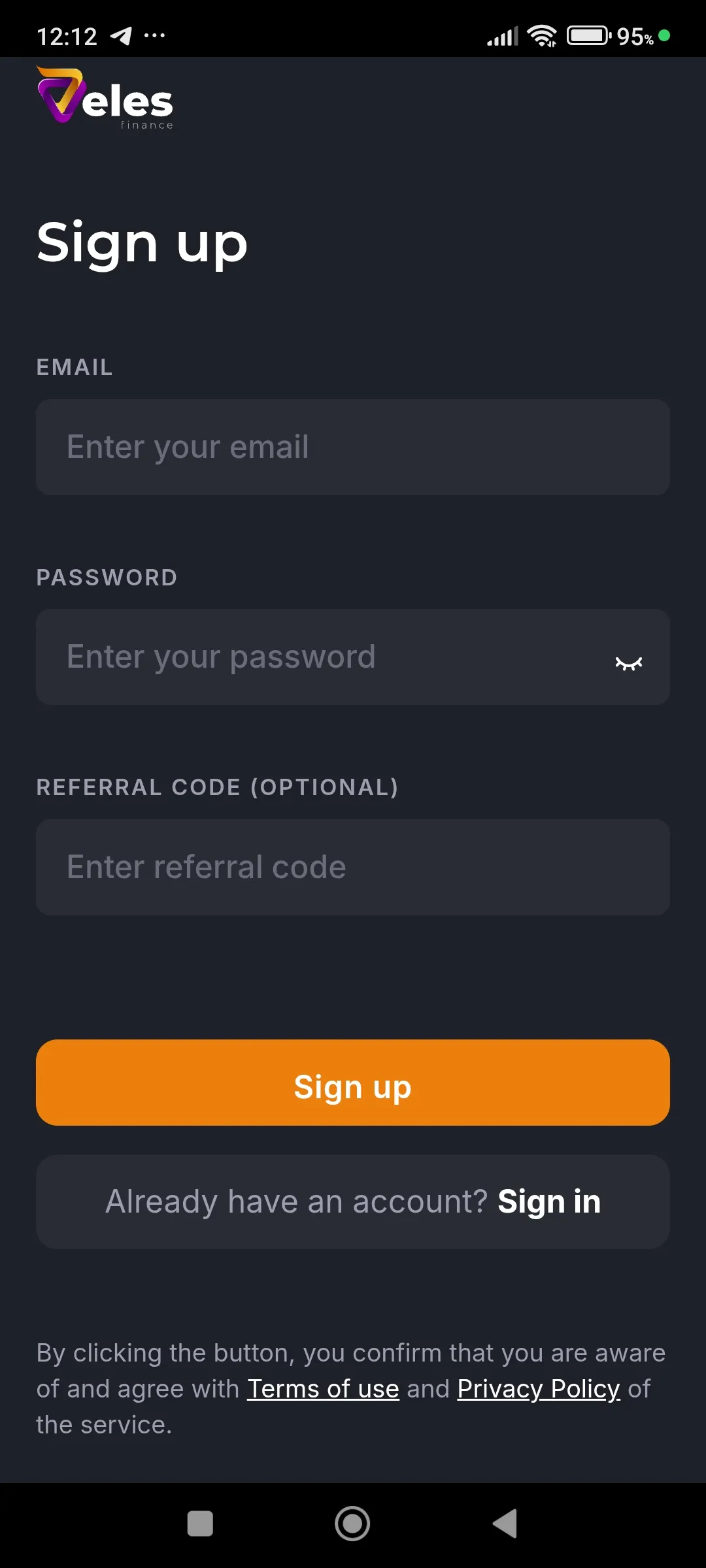
To register a new account on the platform, specify a valid email address and a complex password. If necessary, provide the referral code of your invitee (do not enter fictitious values here).
Sign up on the platform
To log in to your existing account, enter your username (email) and password.
Sign in
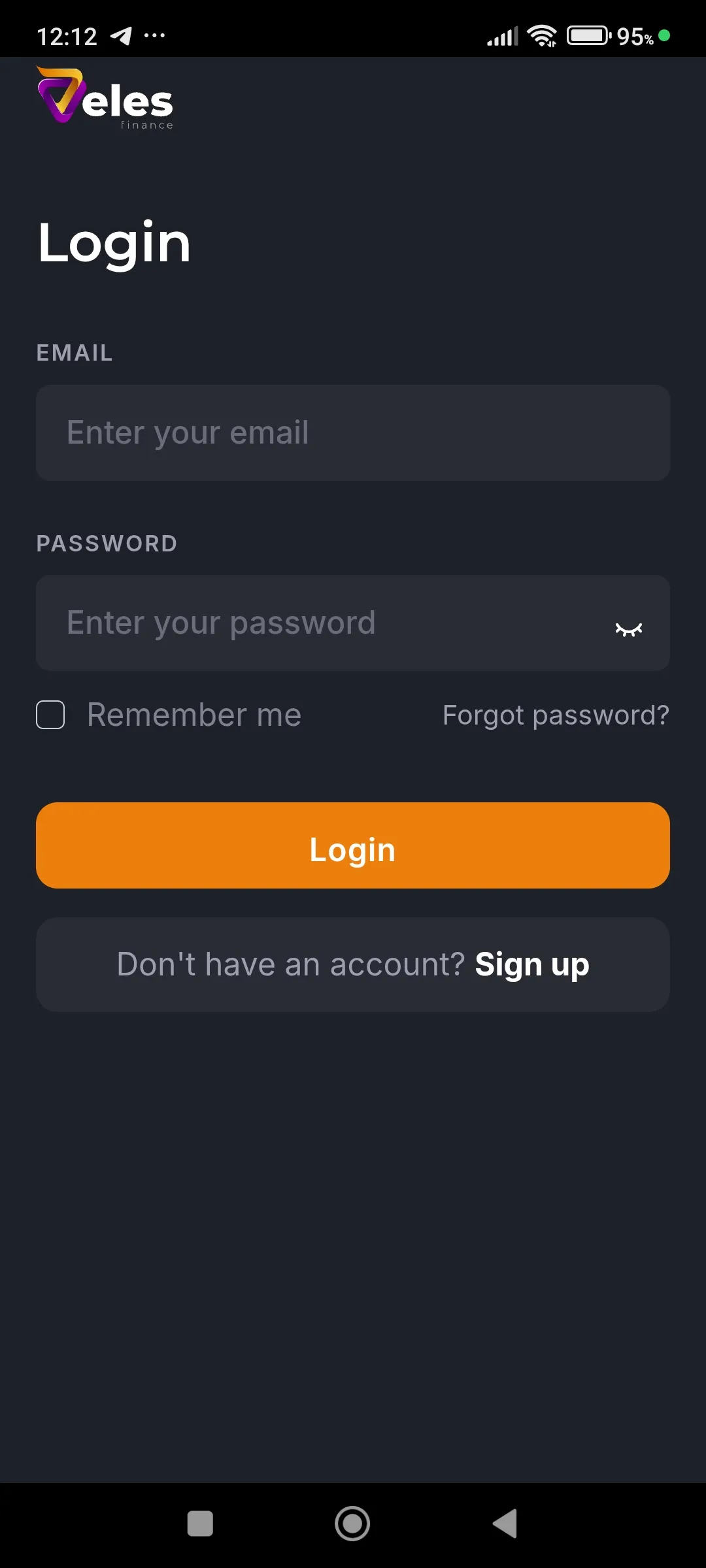
“Remember me” checkbox saves the authorization session for 14 days from the last login. The session is valid only on the device where the most recent login was made — all other sessions are reset!
If the password for your account is lost (or even unknown), use the password reset form.
Navigation
Section titled “Navigation”At the bottom of the application there are five buttons for quick access to the most important functions of the platform.:
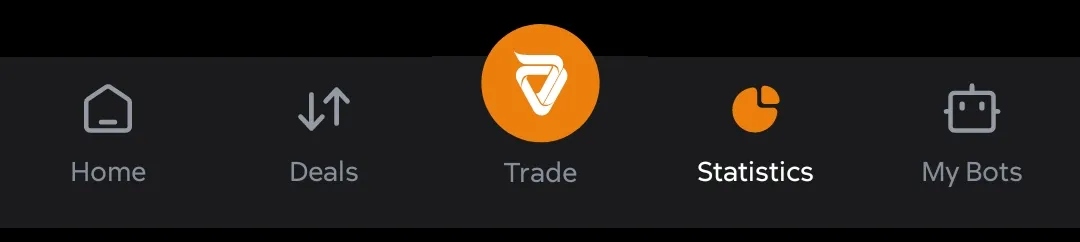
- Home — a start screen with summary trade statistics, a showcase of ready-made strategies and a block of recent active deals.
- Deals - a list of all active deals’ cards of your bots.
- Trade (central button) — editor for creating a new bot and launching it.
- Statistics — summary of results on bots and deals filtered by period.
- My bots — a list of all your bots’ cards with current status and controls.
Below we will describe the main sections of the application.
Home page
Section titled “Home page”The main screen consists of the following elements:
-
The button to open your “Personal account”.
-
The button to chat with support in Telegram.
-
The block Trade statistics — summary data for all bots for the selected period (24 hours, 1 week, 1 month, 6 months, its own interval).
-
The block Ready-made bots is a showcase of educational trading strategies. Tap on the card and drag to the left to see all the available configurations.
-
The block Active Deals — a block with the total number of open deals and recently updated ones. Click “Show all” to go to the full list.
Personal account
Section titled “Personal account”All account settings, balance data, and trade management tools are concentrated here.
Personal account
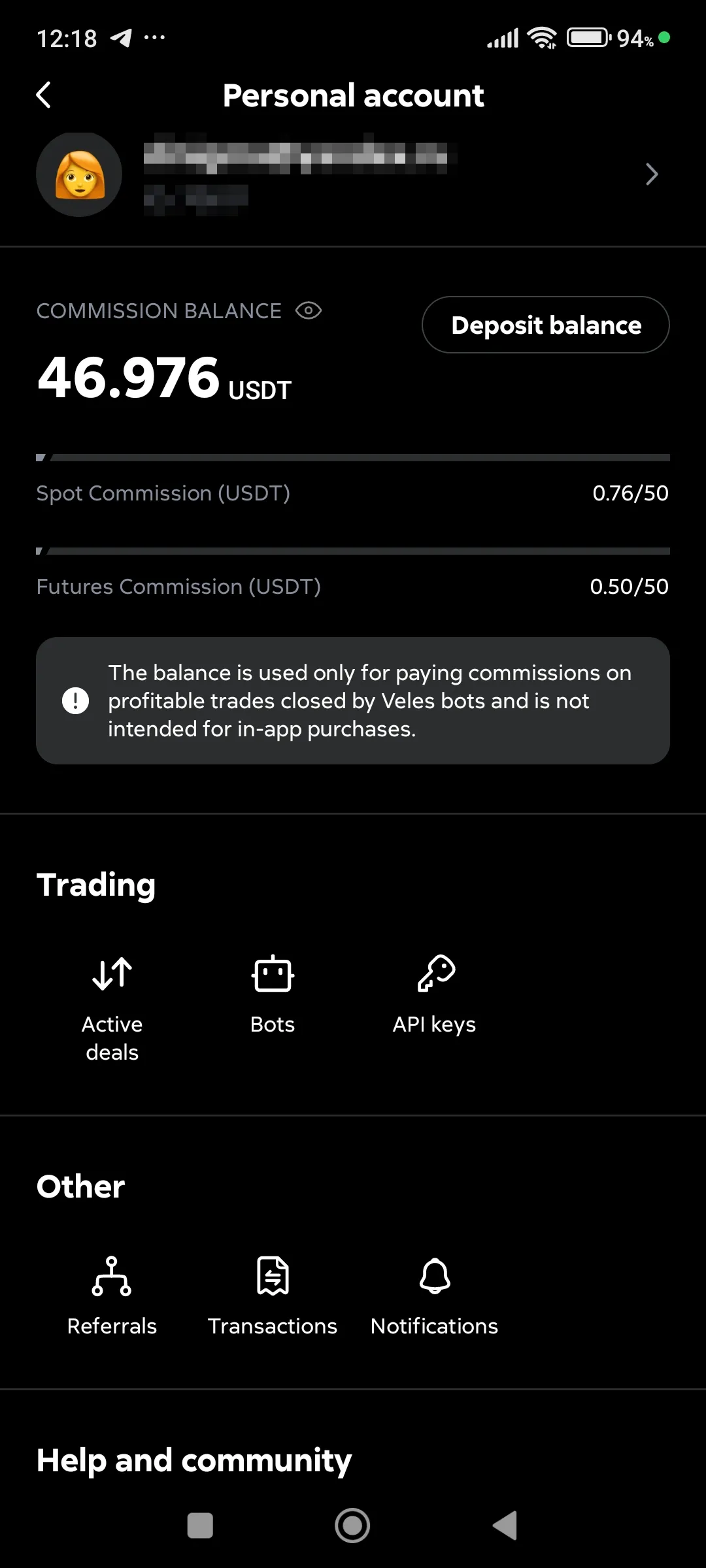
In the upper part of the personal cabinet see the service balance — an internal account for paying [the commission on the platform] (../../../getting-started/pricing/veles/) (must be greater than 0 so that bots can start).
To top up your balance:
- Click “Top up your balance”.
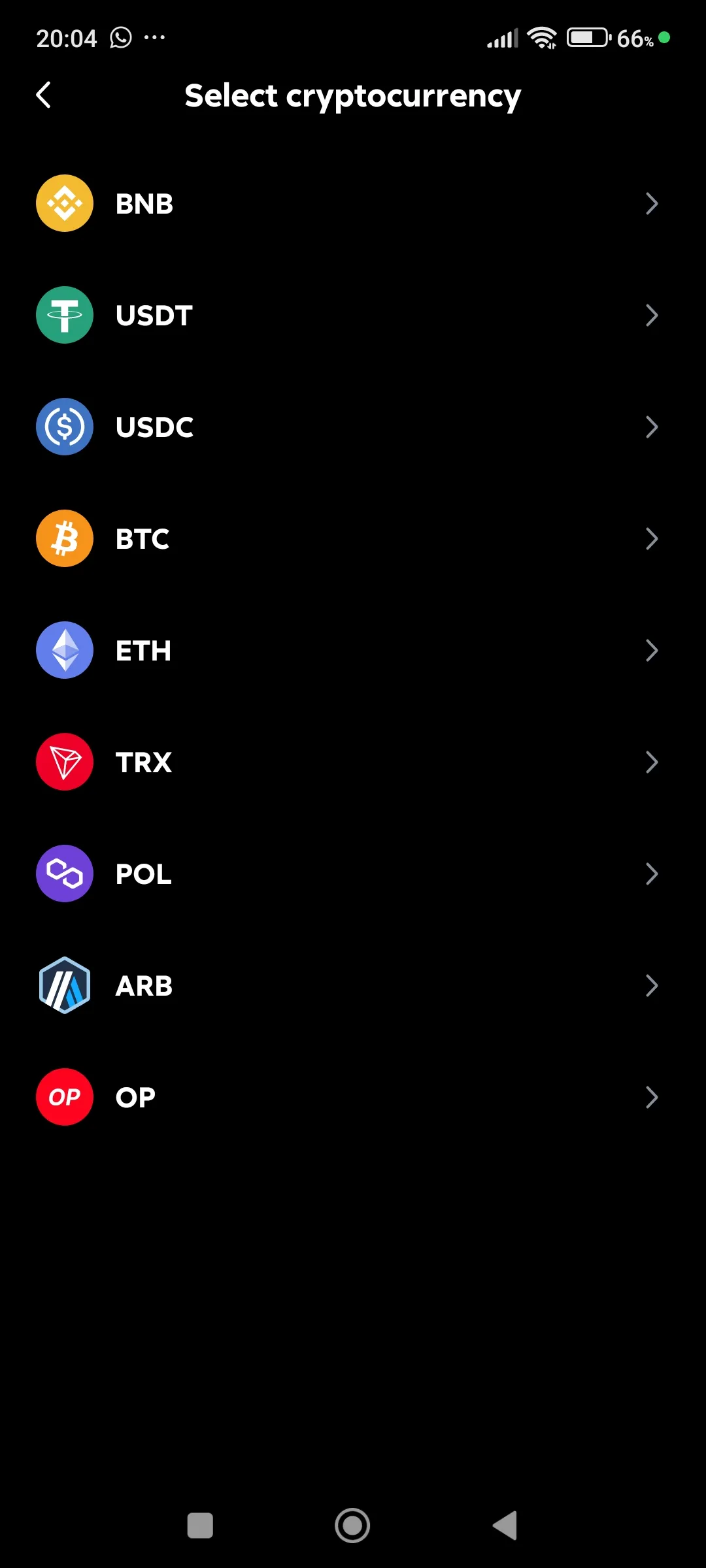
- Select the deposit currency (it will be converted to USDT after the deposit).
Choosing a replenishment coin
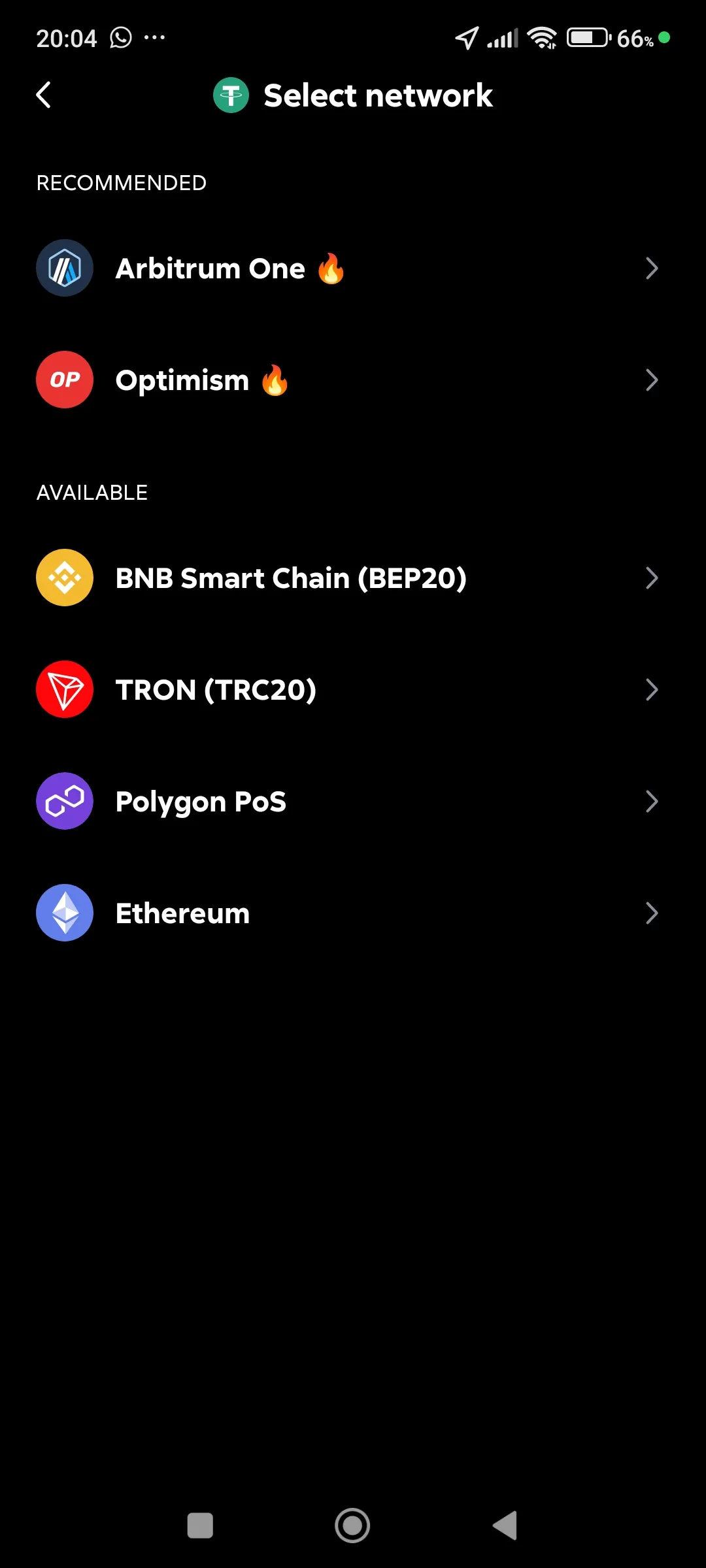
- Select the replenishment network.
Choosing a replenishment network
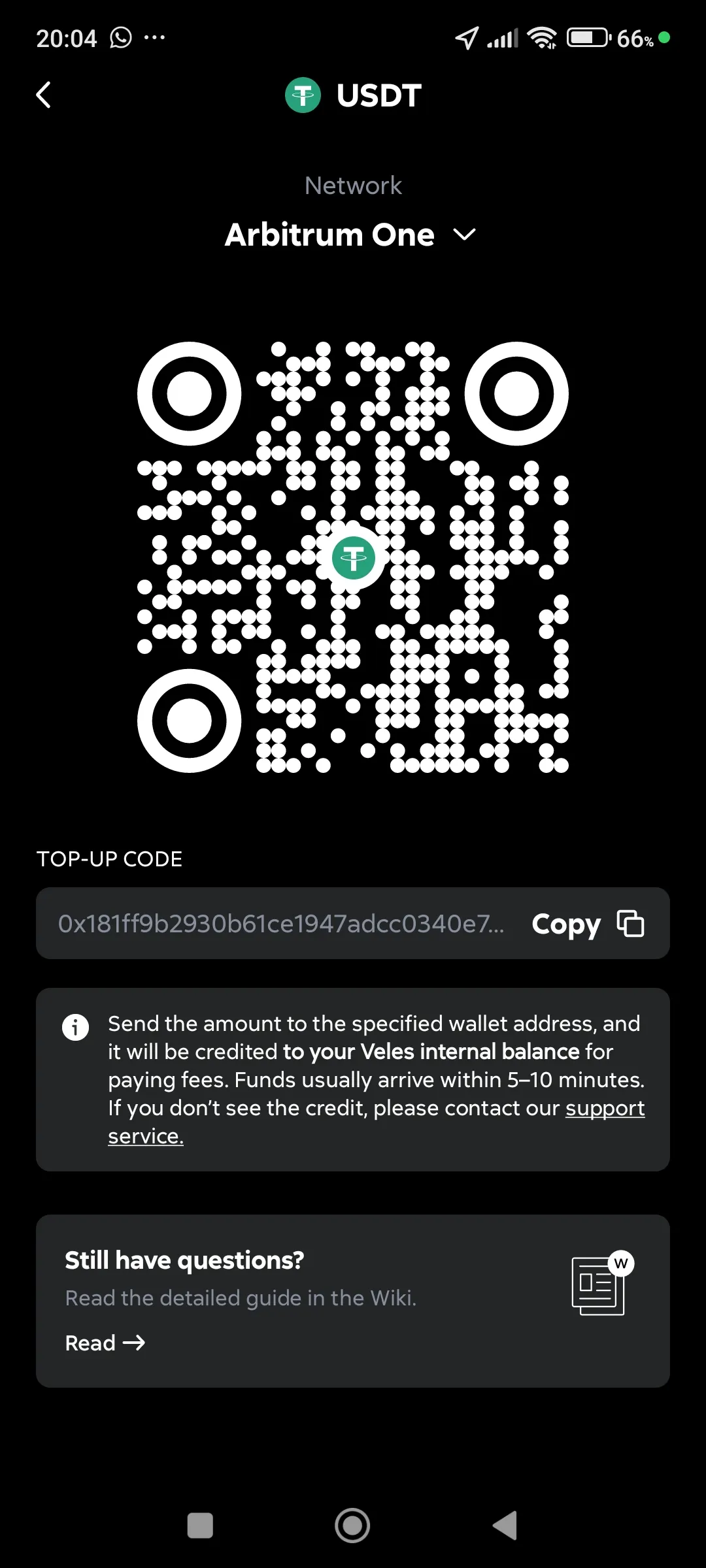
- Use the displayed address in the transaction — carefully check all transfer parameters before sending funds.
The wallet replenishment address for commissions
User data
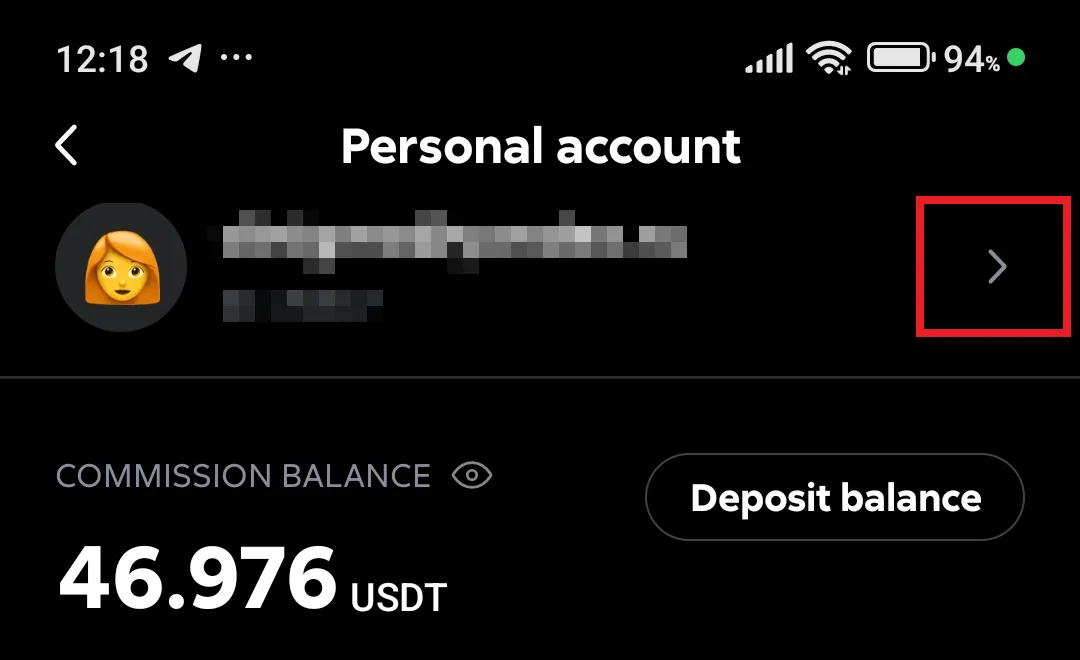
Section titled “User data”Press ”>” to go to the personal information menu.
“Profile” tab:
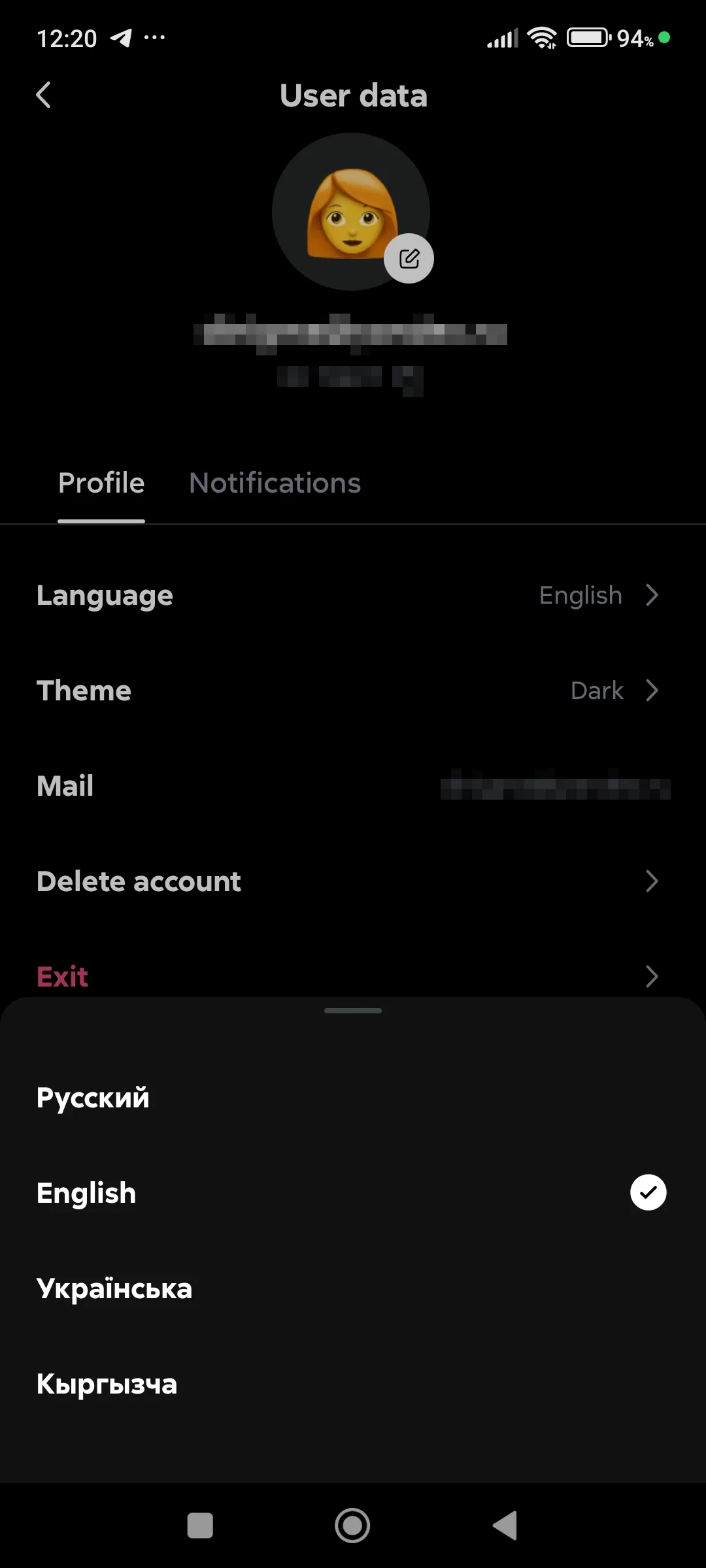
- Choice of interface language (Russian, English, Ukrainian, Kyrgyz),
Interface language
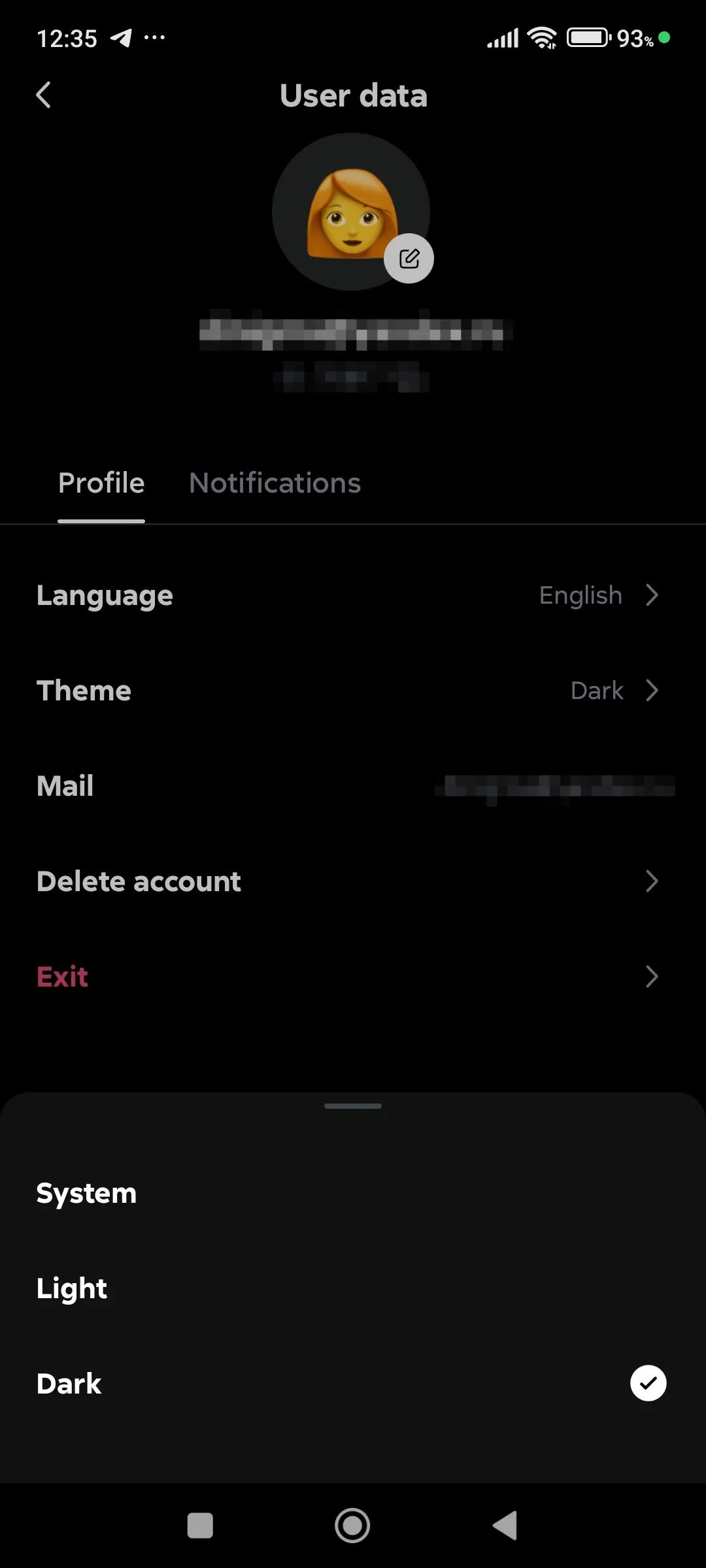
- Color theme of the cabinet (light, dark, system),
Color theme
- Mail (login for the cabinet, it can be changed upon request to support),
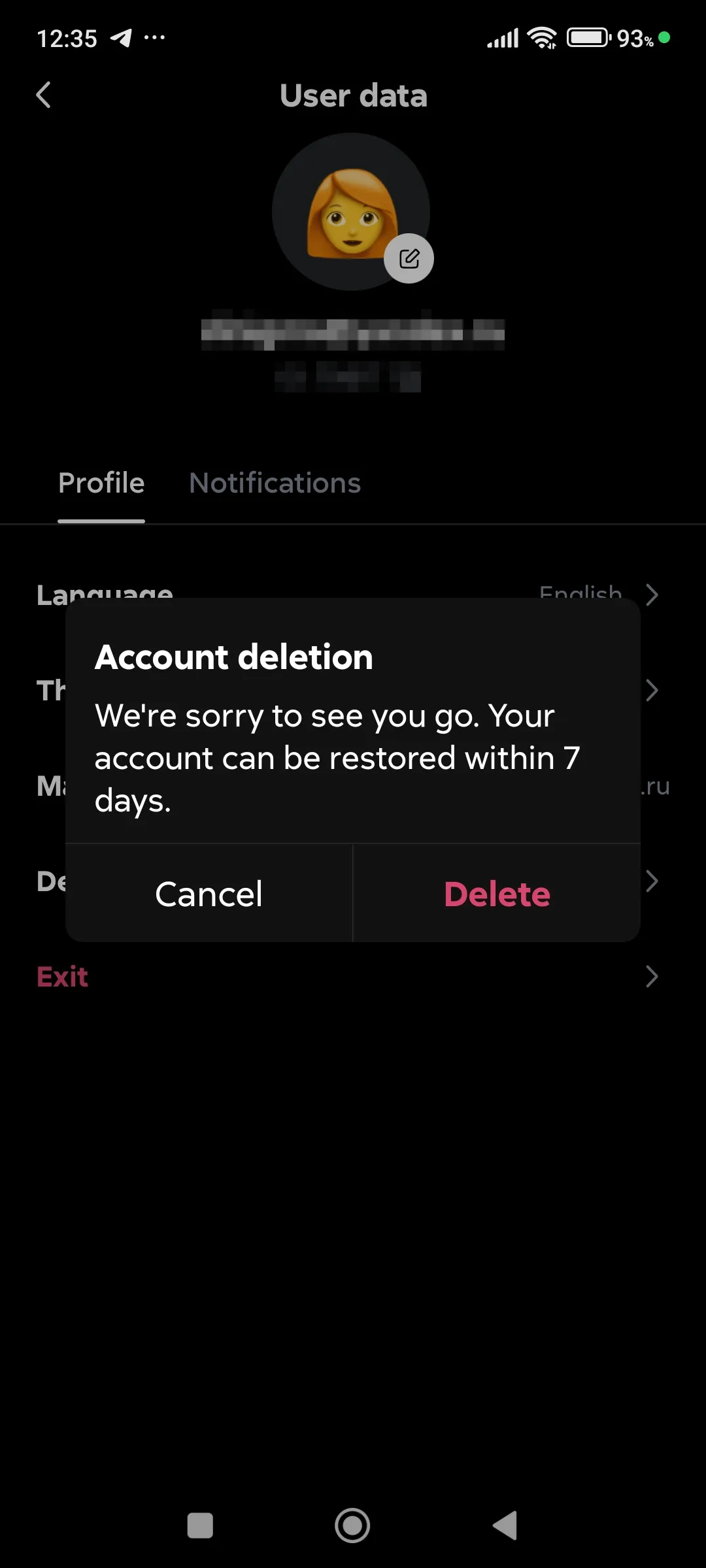
- Delete Account (opens a request, processed for 7 days, can be canceled),
Delete account
- Exit from the current session.
The “Notifications” tab:
The platform uses two notification channels - Telegram chat and push notifications. Telegram notifications may be delivered with a delay (depending on the load on the channel).
Enabling notifications
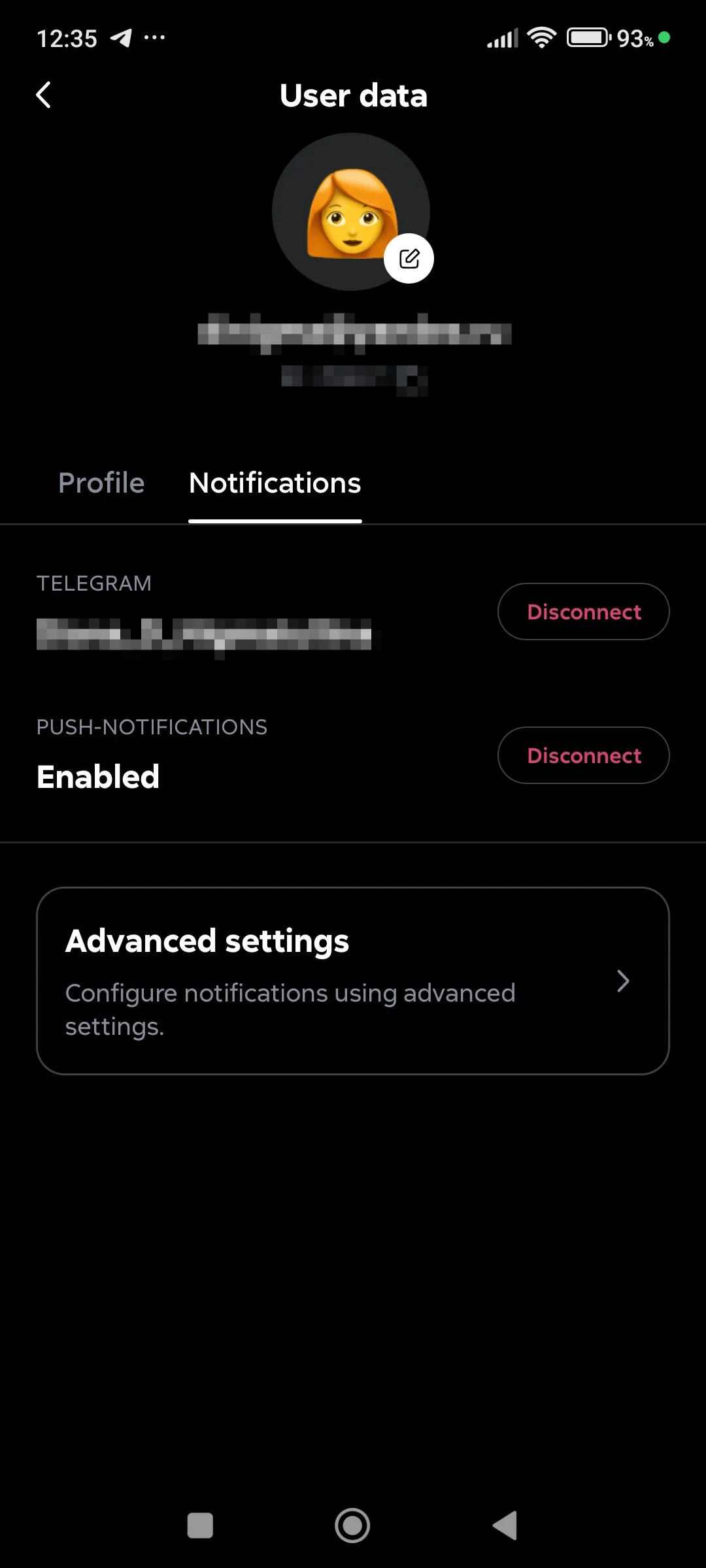
Setting up Notifications
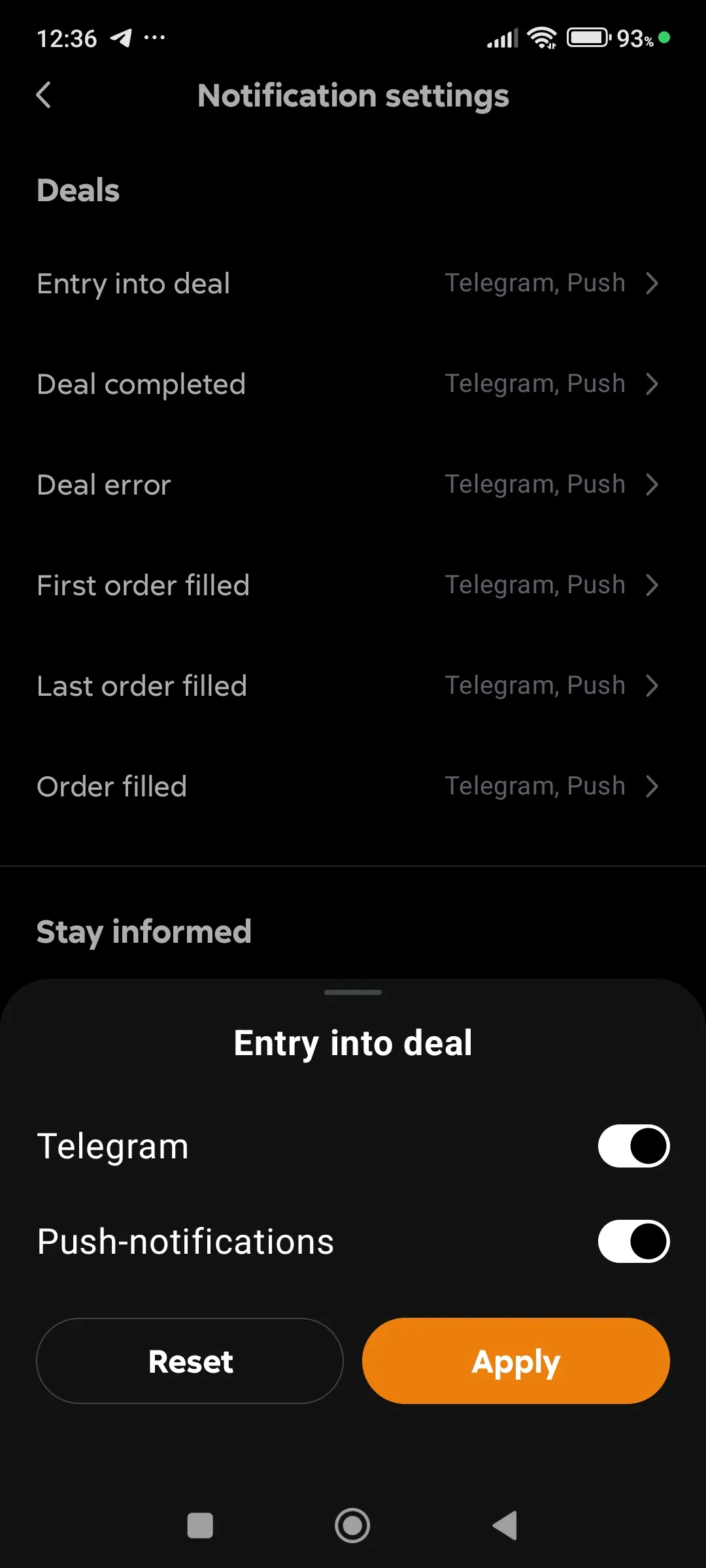
Here you can:
- link and unlink your Telegram username to the Veles account,
- activate push notifications about all [events in the app](../../dashboard/notifications/#notification types),
- set up notifications in Telegram by [event types] (../../dashboard/notifications/#notification types).
The section provides quick access to key trading data:
-
Active Deals: go to the list of active deals’ cards,
-
Bots: go to the list of all bots’ cards,
-
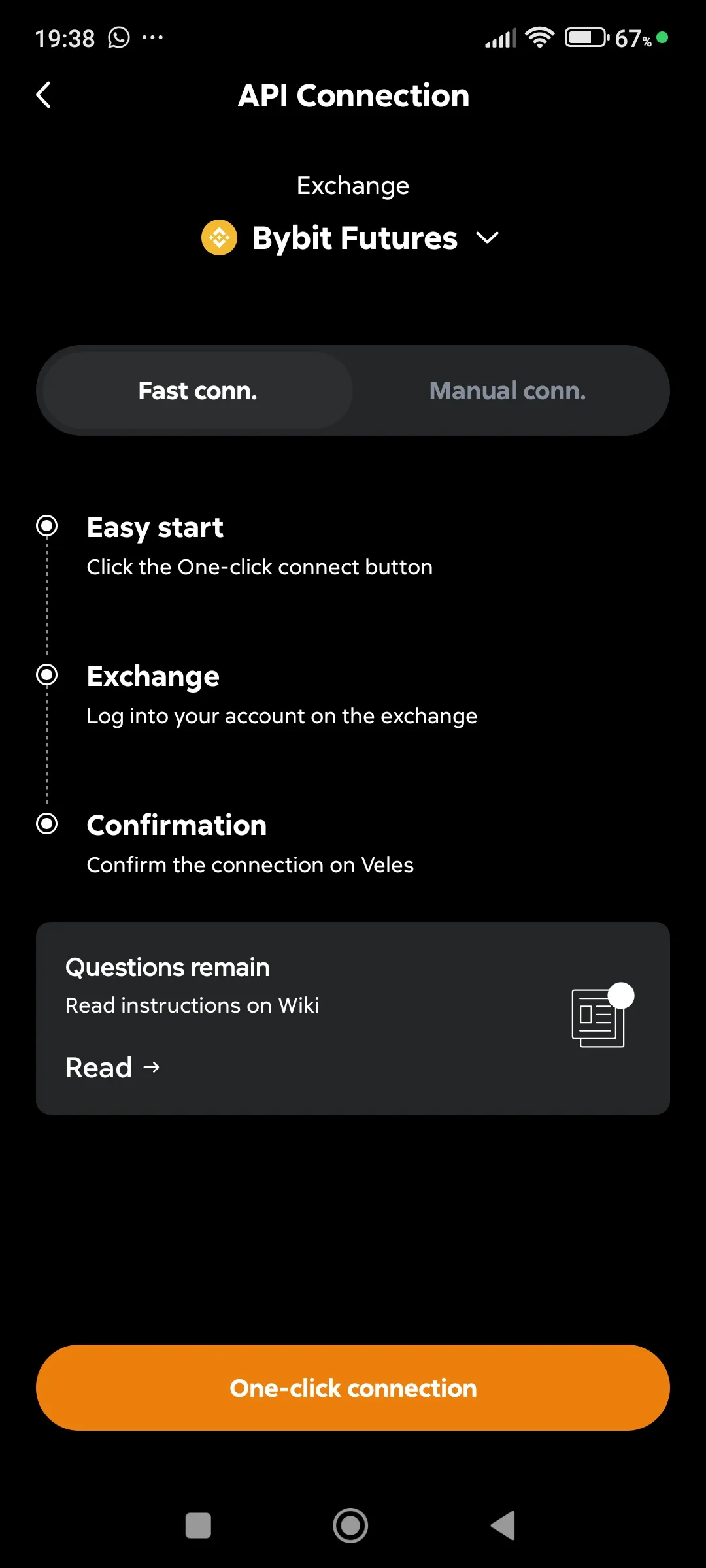
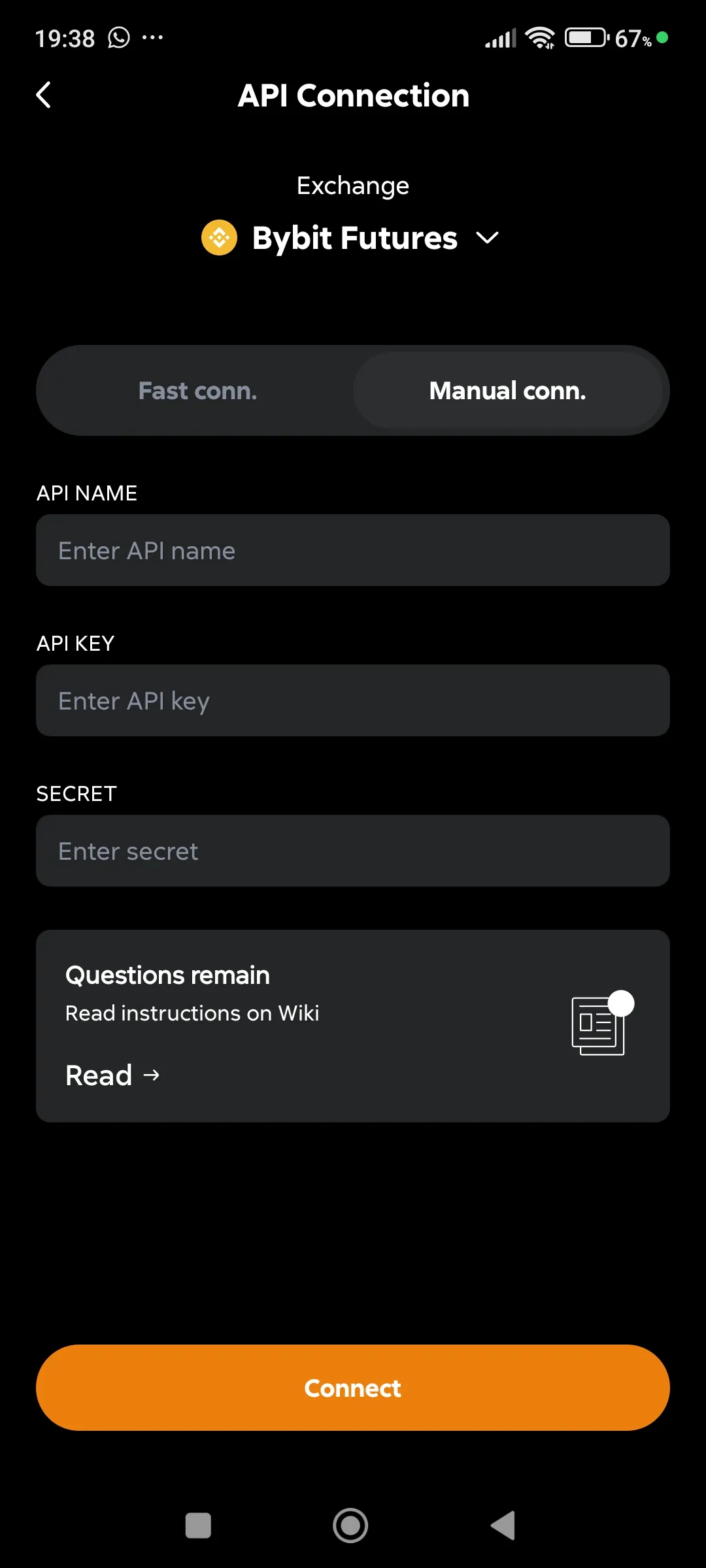
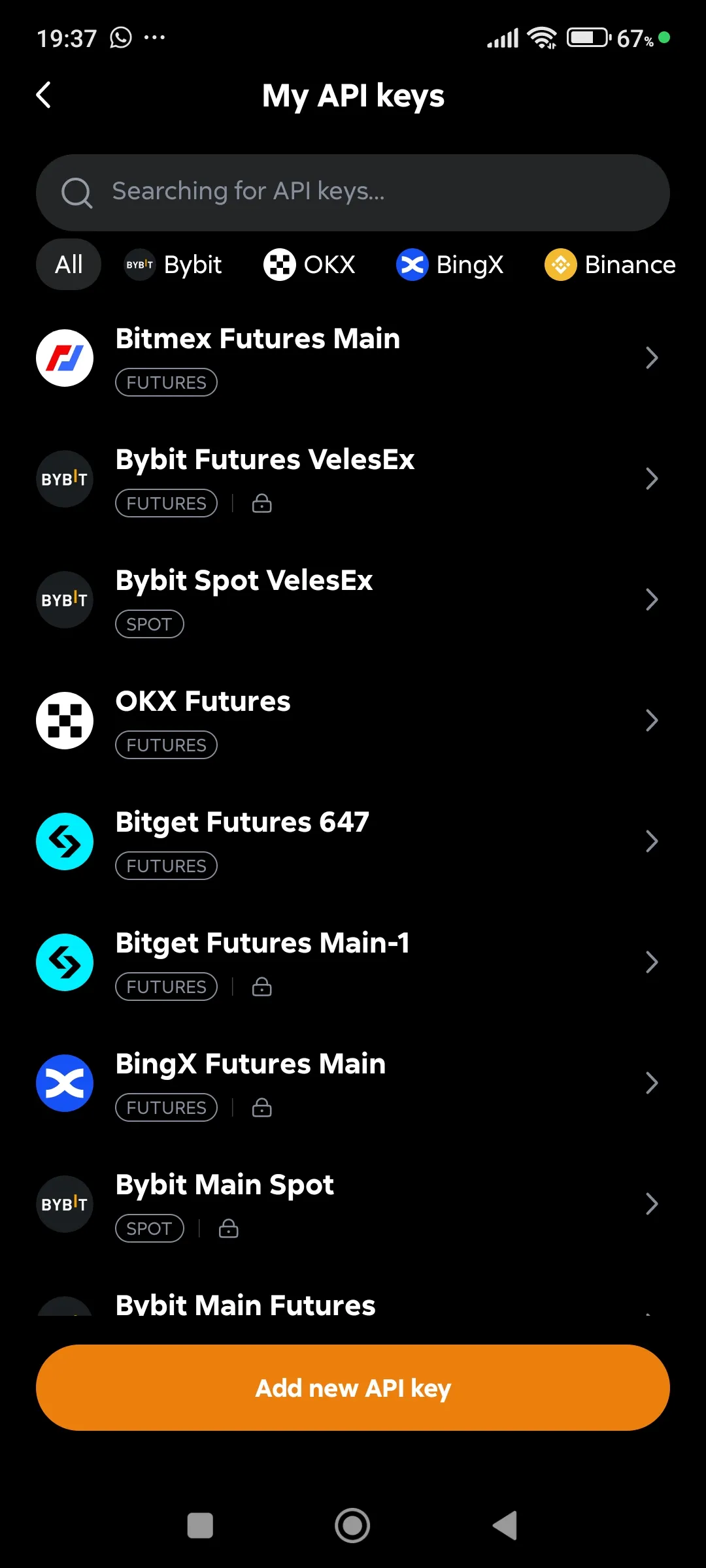
API keys: management of API bindings (connections to exchanges).
API keys - Quick connection
API keys - Manual activation
API keys - List of created Bindings
API keys - Binding properties
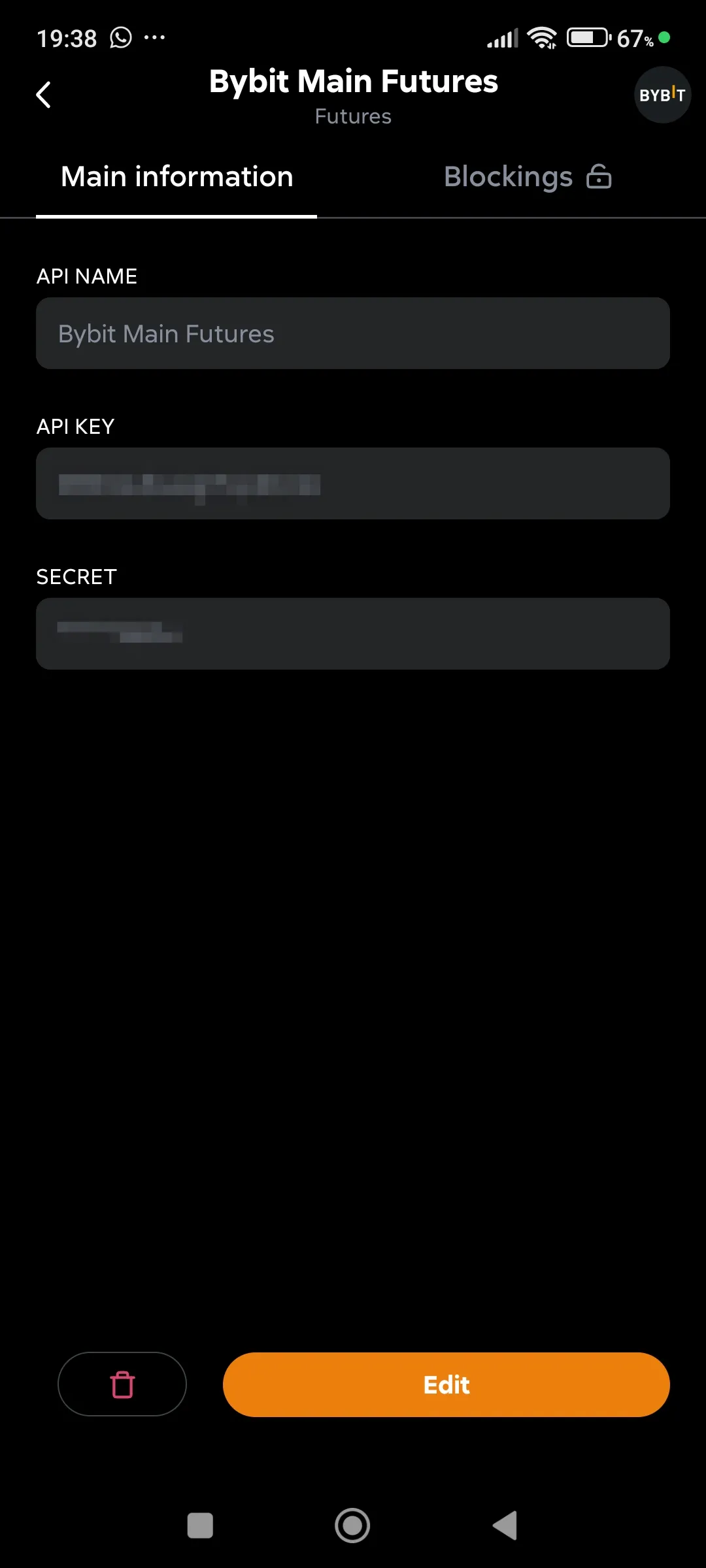
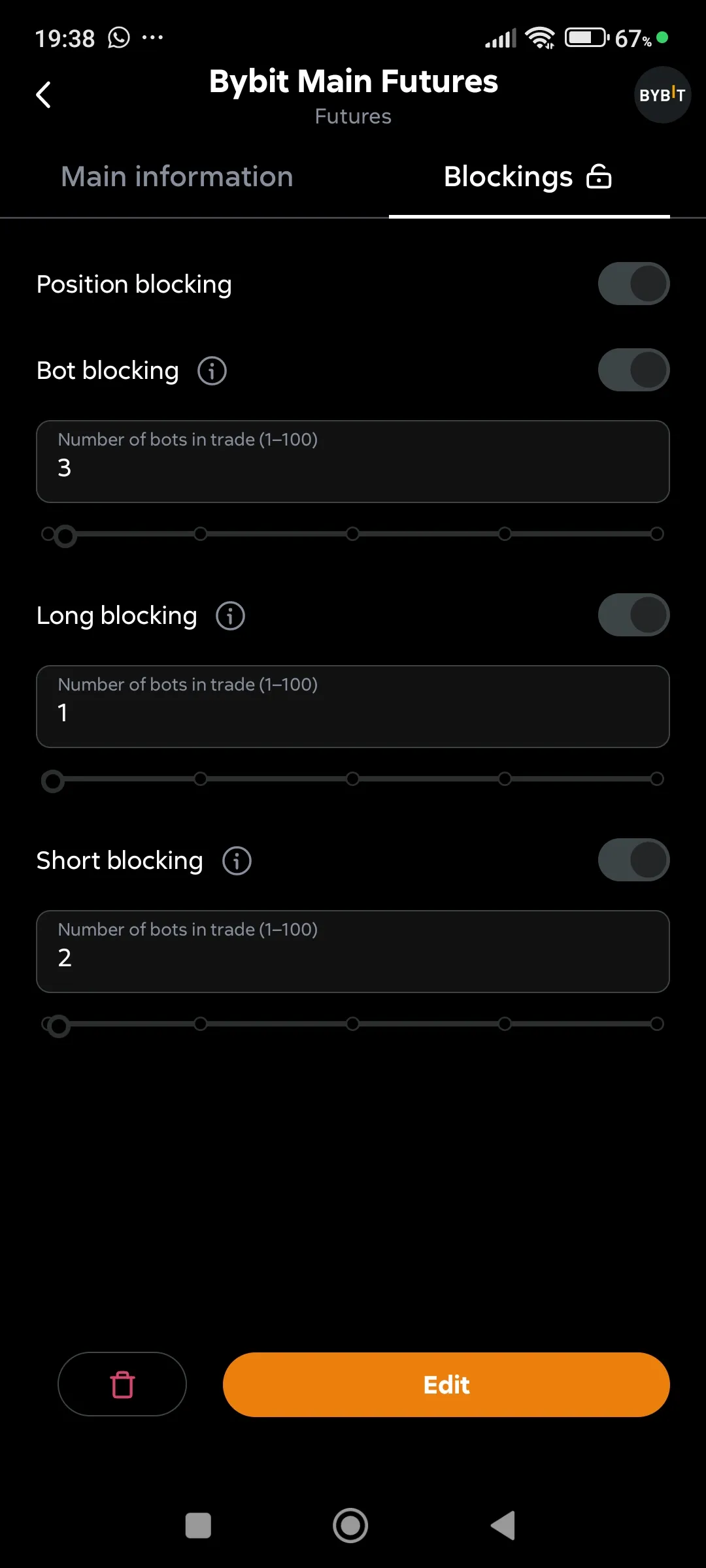
API keys - Locks for Binding
-
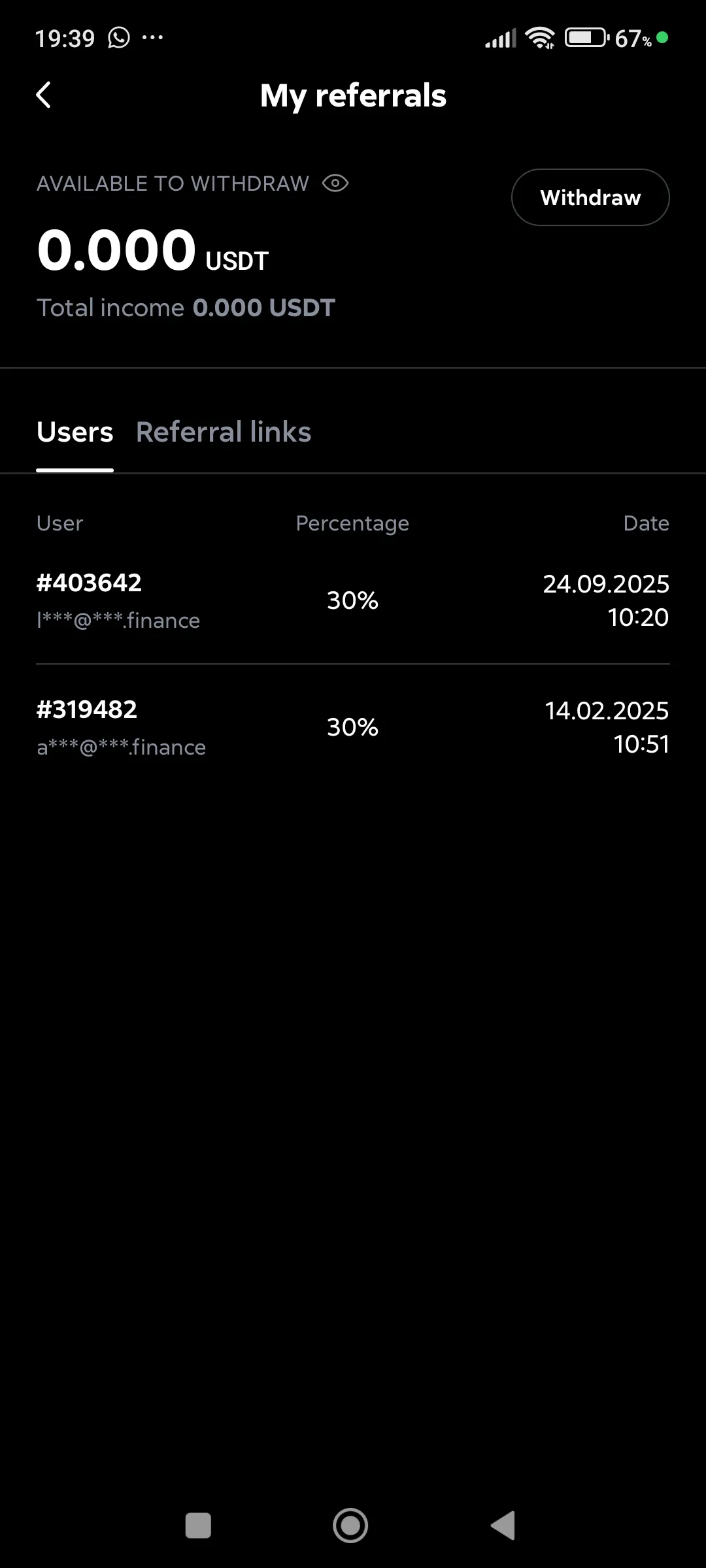
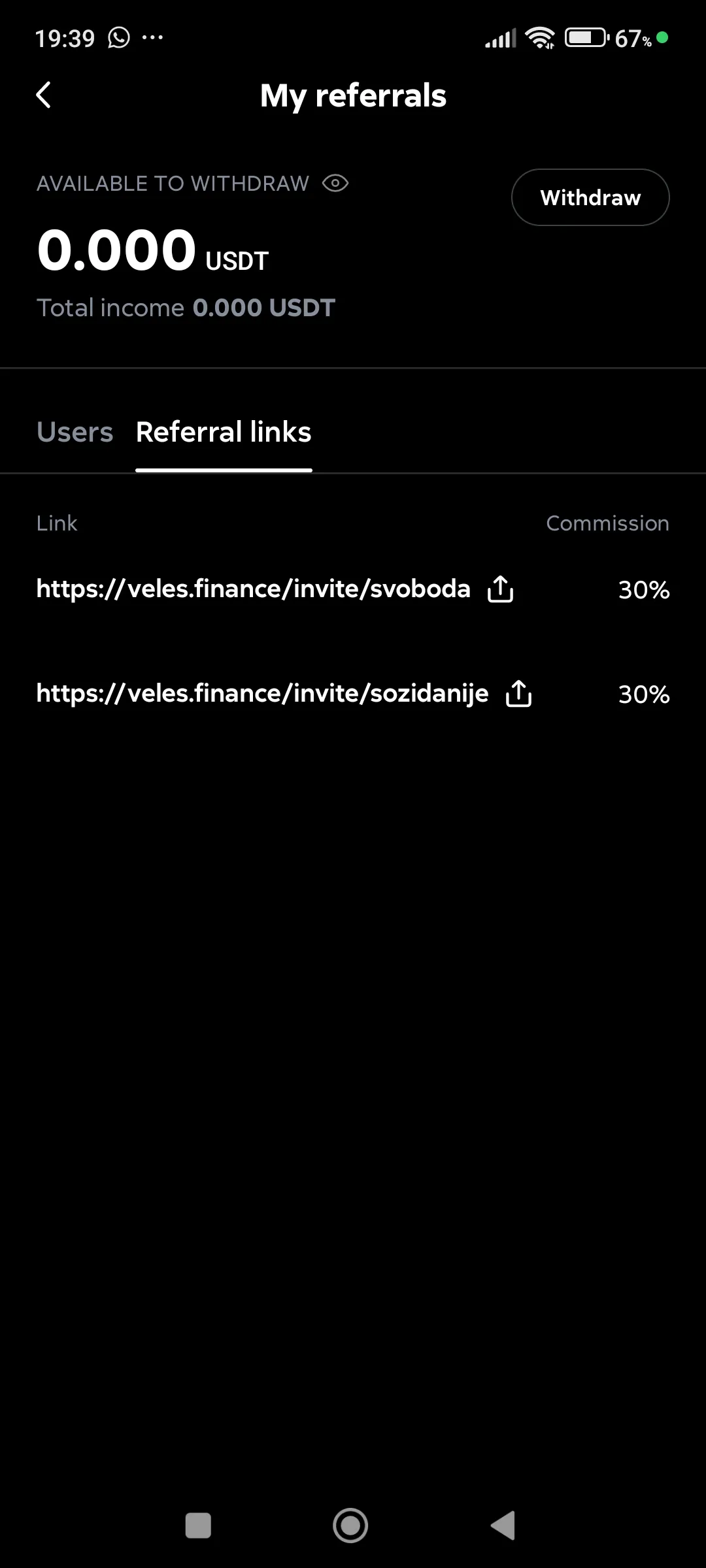
Referrals: a section with information about the available referral balance, a list of invited users and your referral links.
List of invited users
Referral links
-
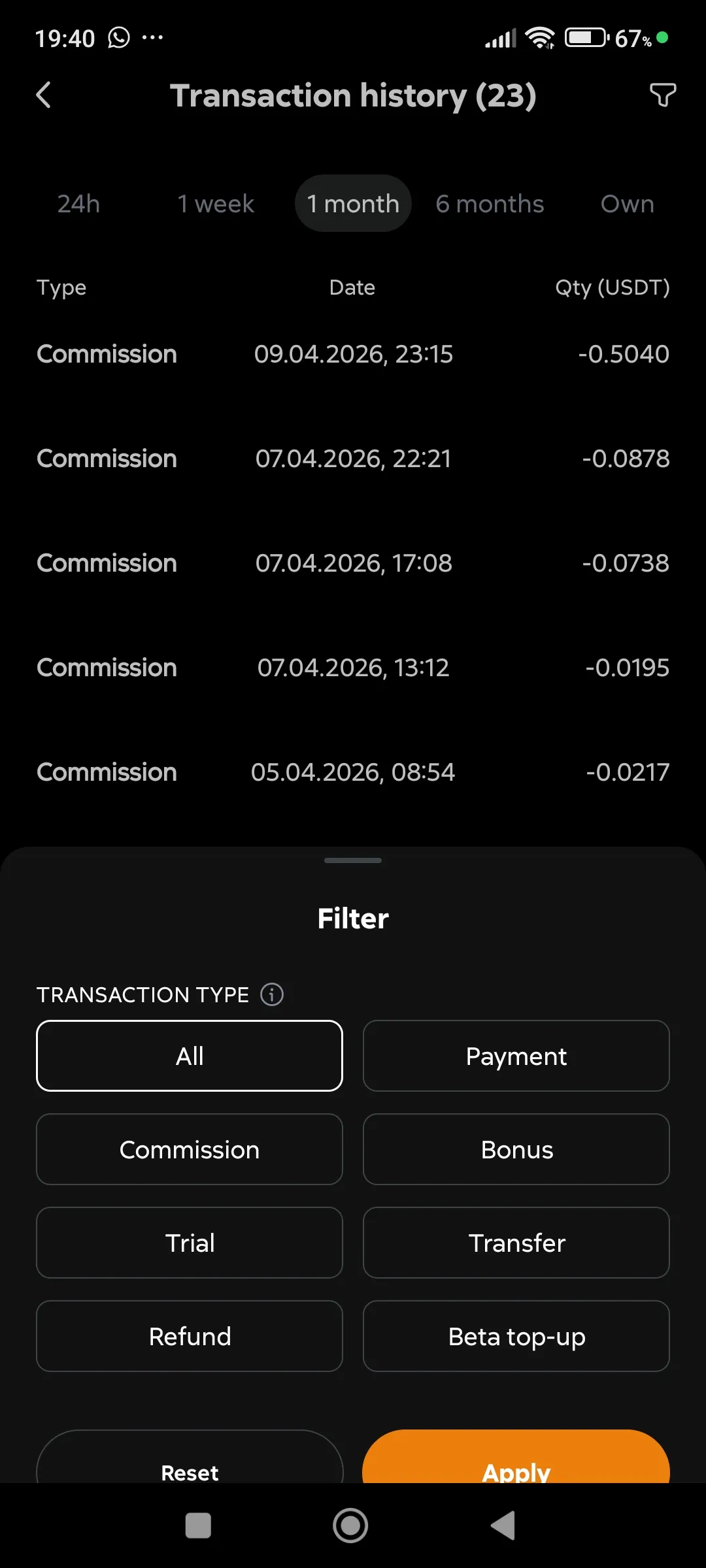
Transactions: the history of all deposits, deductions of commissions and other operations on the Veles internal account. Filter the list to keep only the desired transaction type.
Transactions on the balance of the service
-
Notifications: Linking a Telegram account to Veles, managing push notifications, and setting up subscriptions for each event category separately. Learn more about configuring notifications →
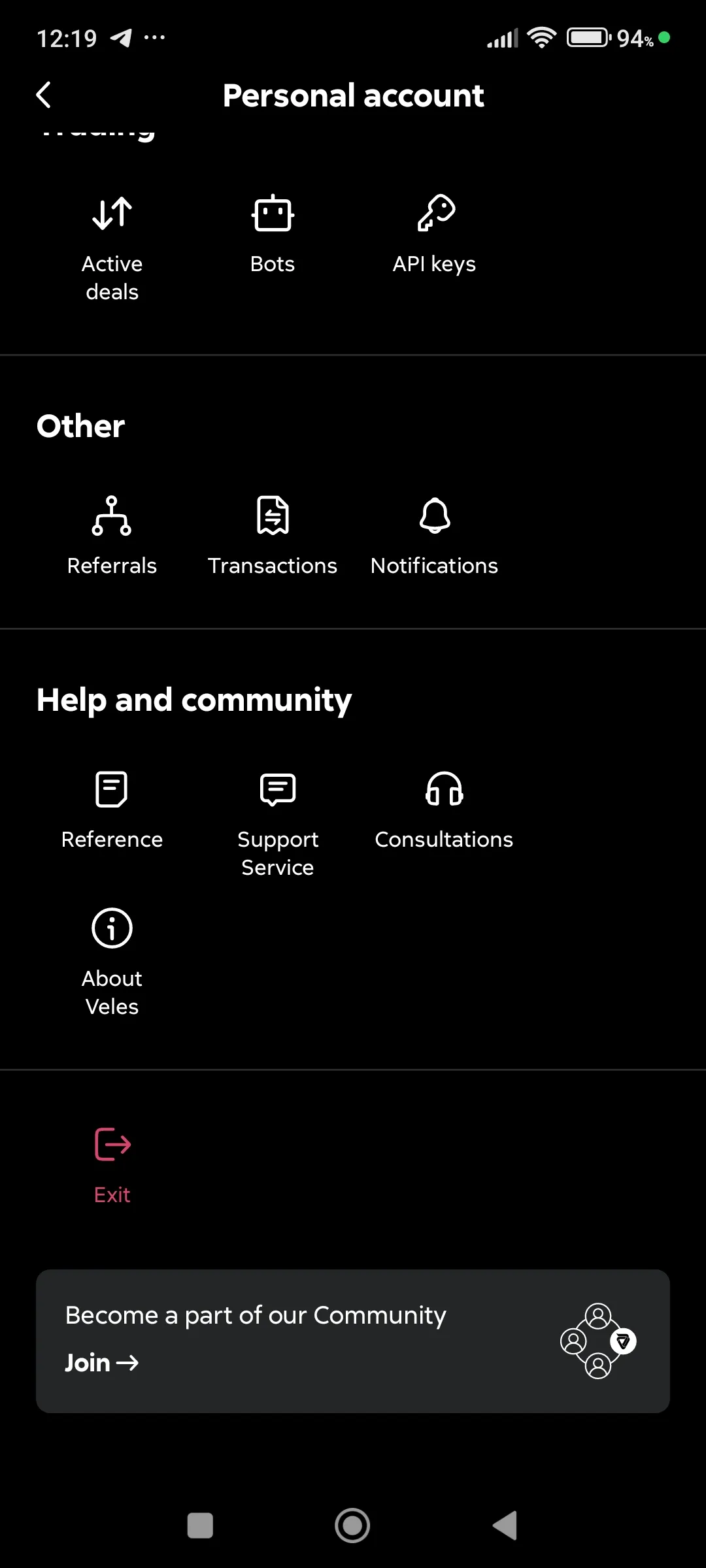
Help and community
Section titled “Help and community”- Help: link to the Veles Help Center page,
- Support Service: opens Telegram chat with support,
- Consultation: opens the appointment form for a personal consultation via Calendly,
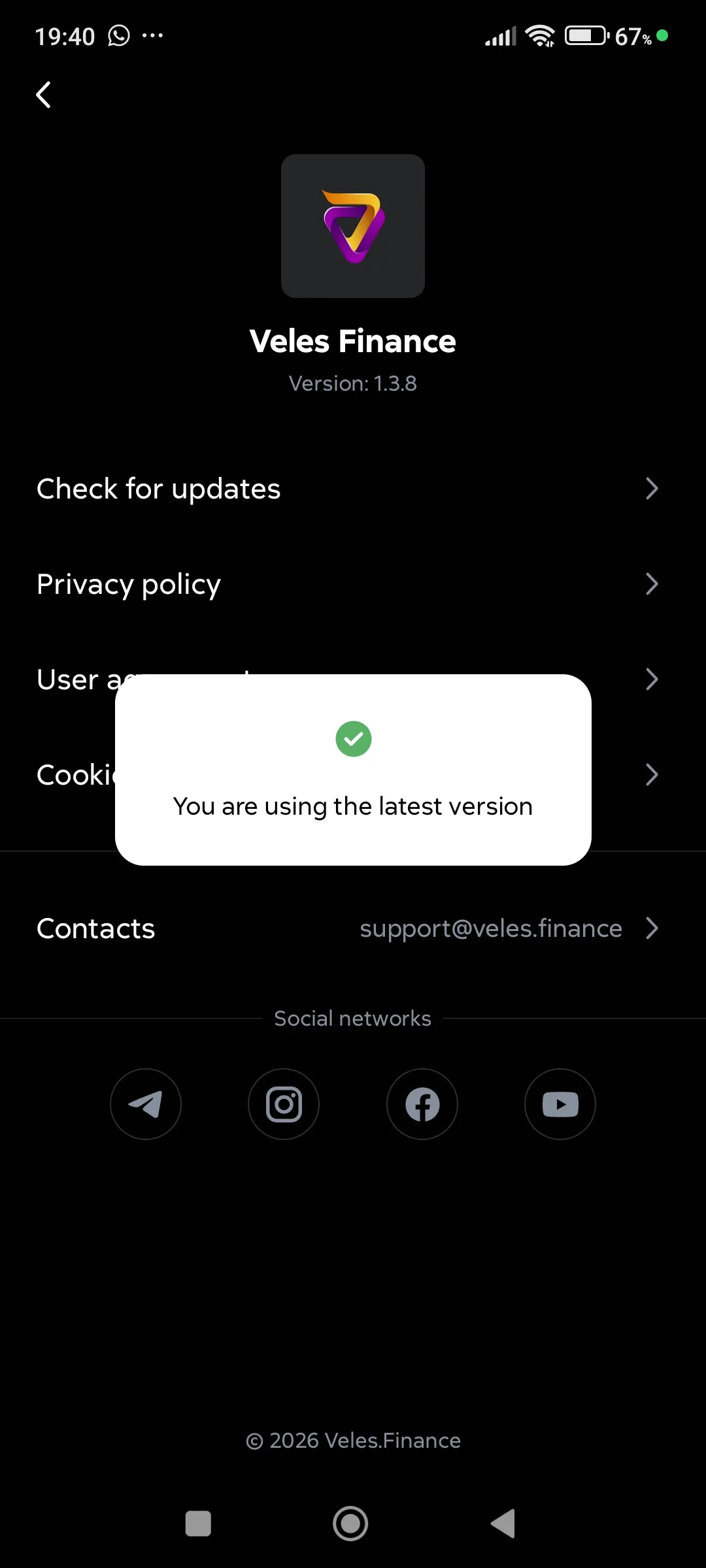
- About Veles: Privacy policy, terms of use, cookie policy, contact information and links to social networks.
Documents →
About Veles, checking the app version
Active deals
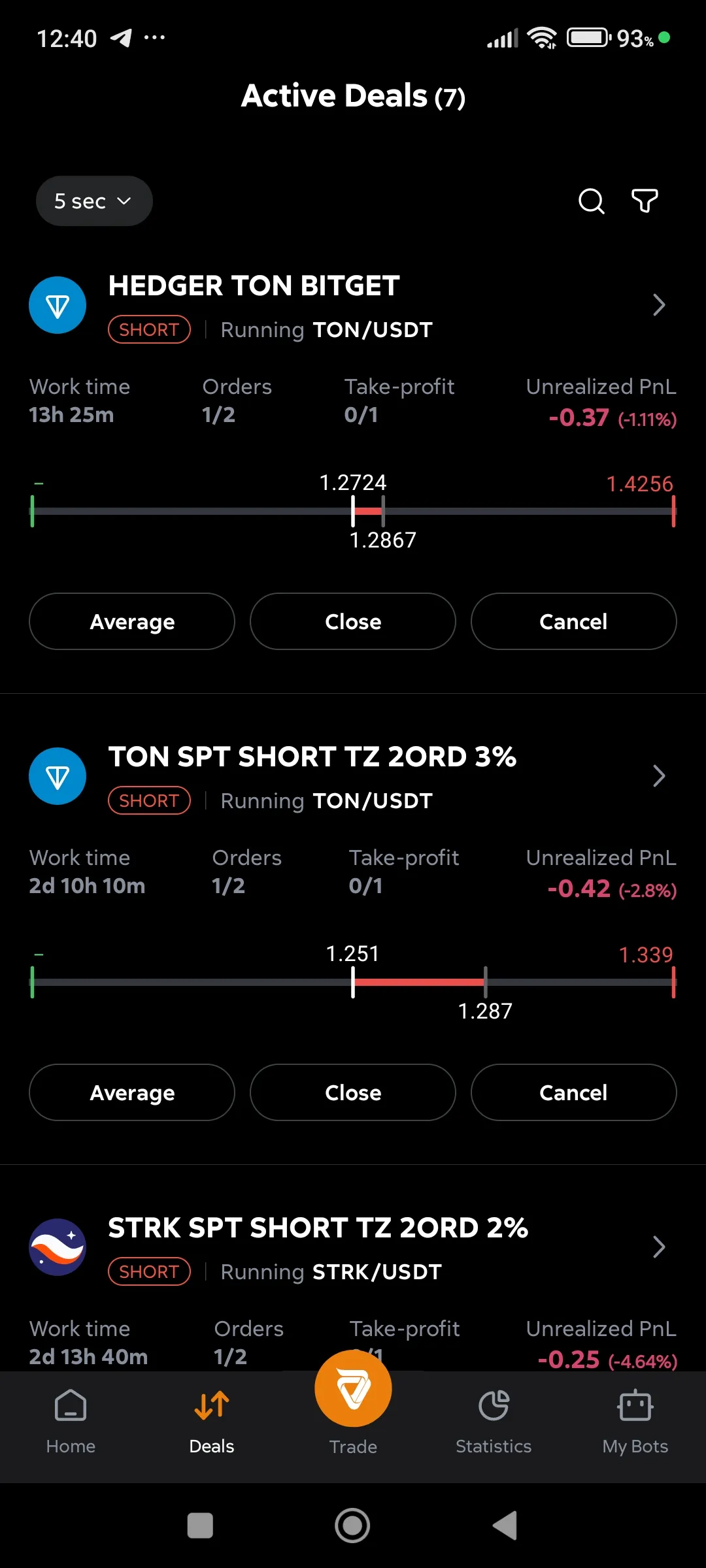
Section titled “Active deals”Here are the cards of all active deals, with search and filtering.
List of all deals
Filter for the list of deals
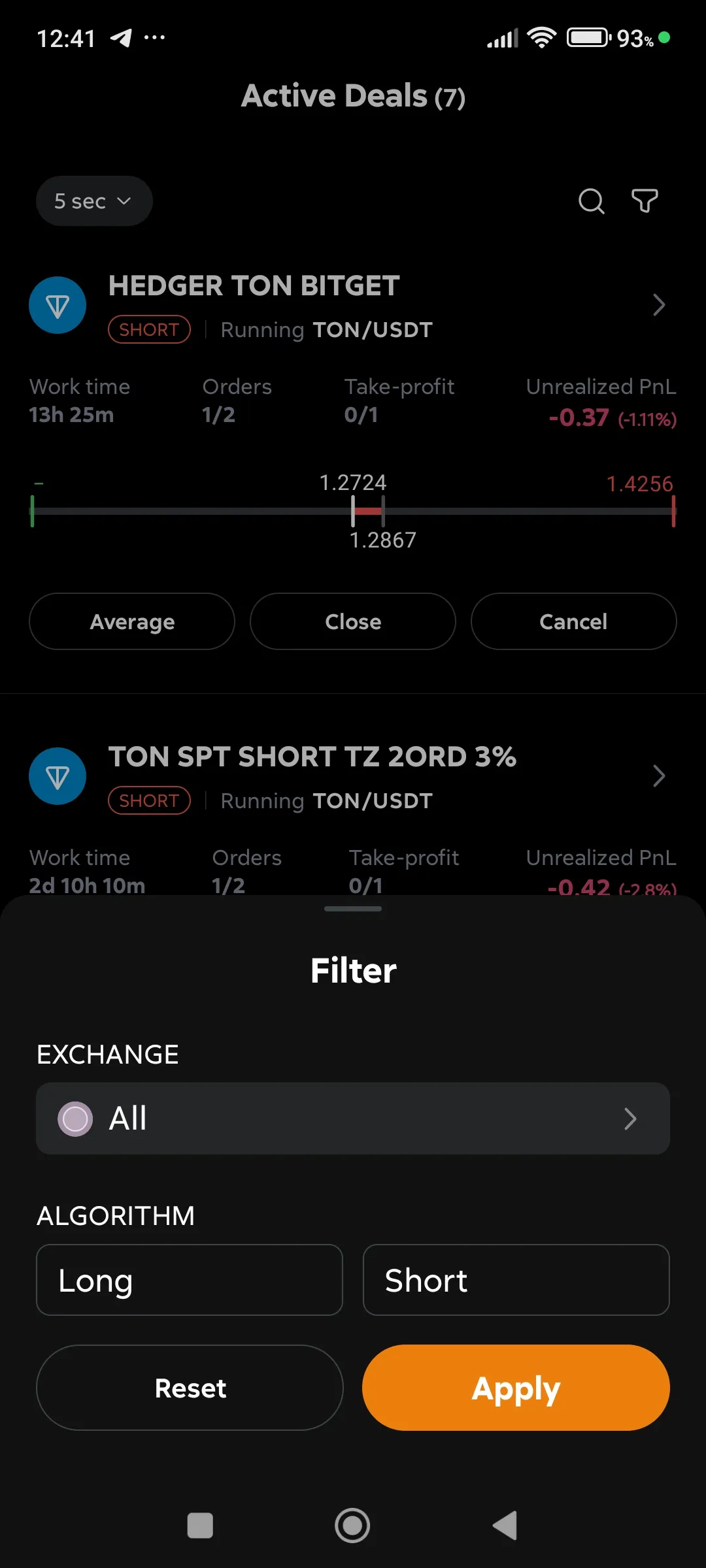
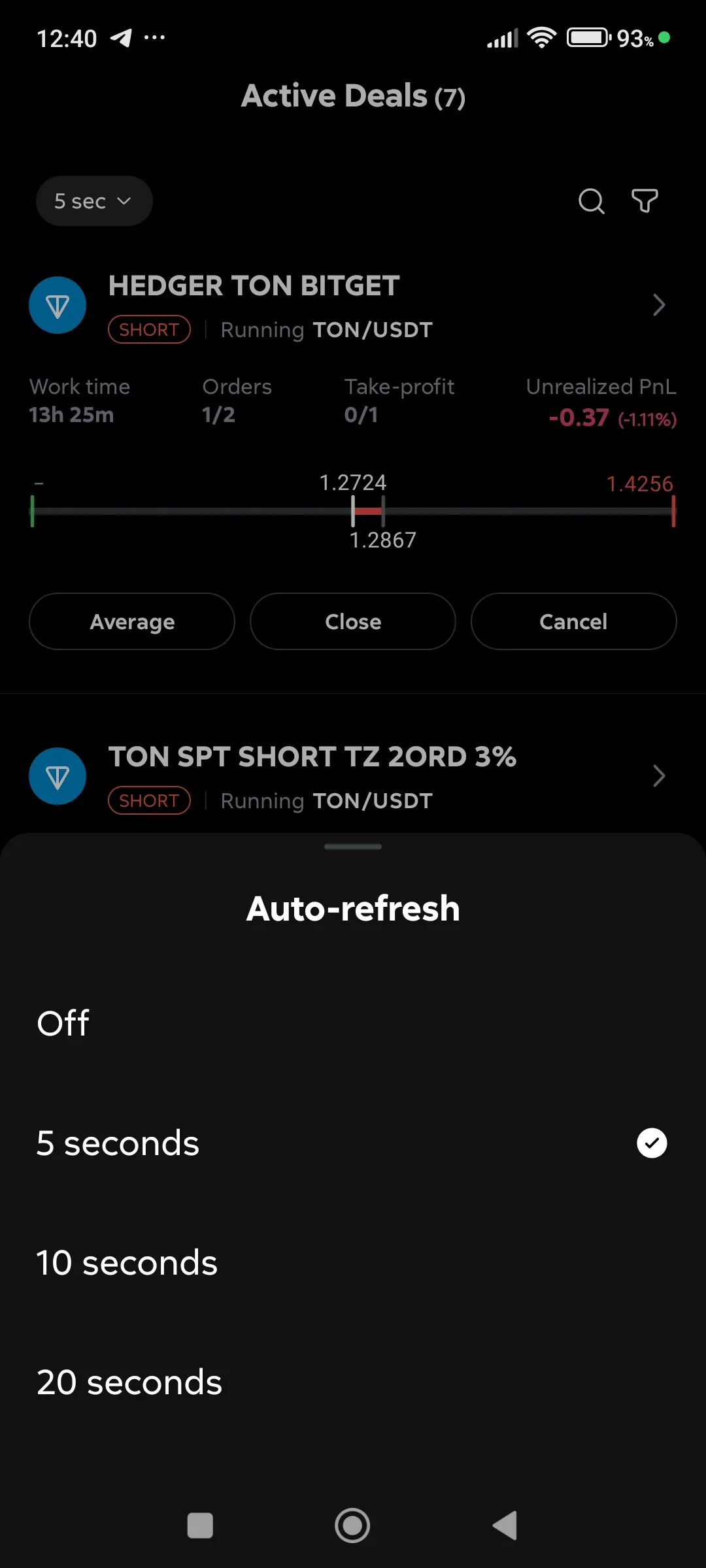
You can adjust the refresh rate of the list of deals (5 sec, 10 sec, 20 sec, disabled).
Auto-updating the list of deals
Available deal management buttons:
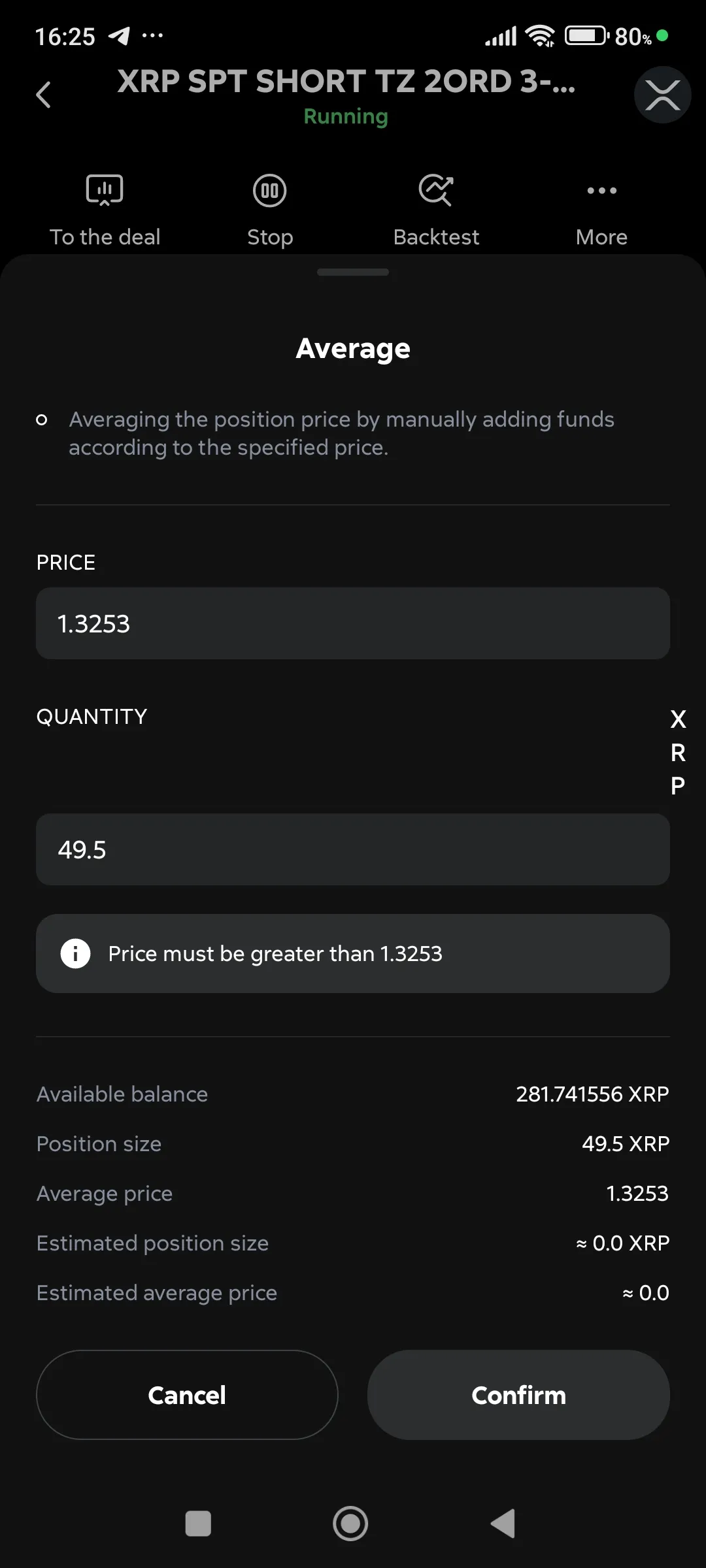
- Average: add a limit averaging order to the deal,
Manual averaging
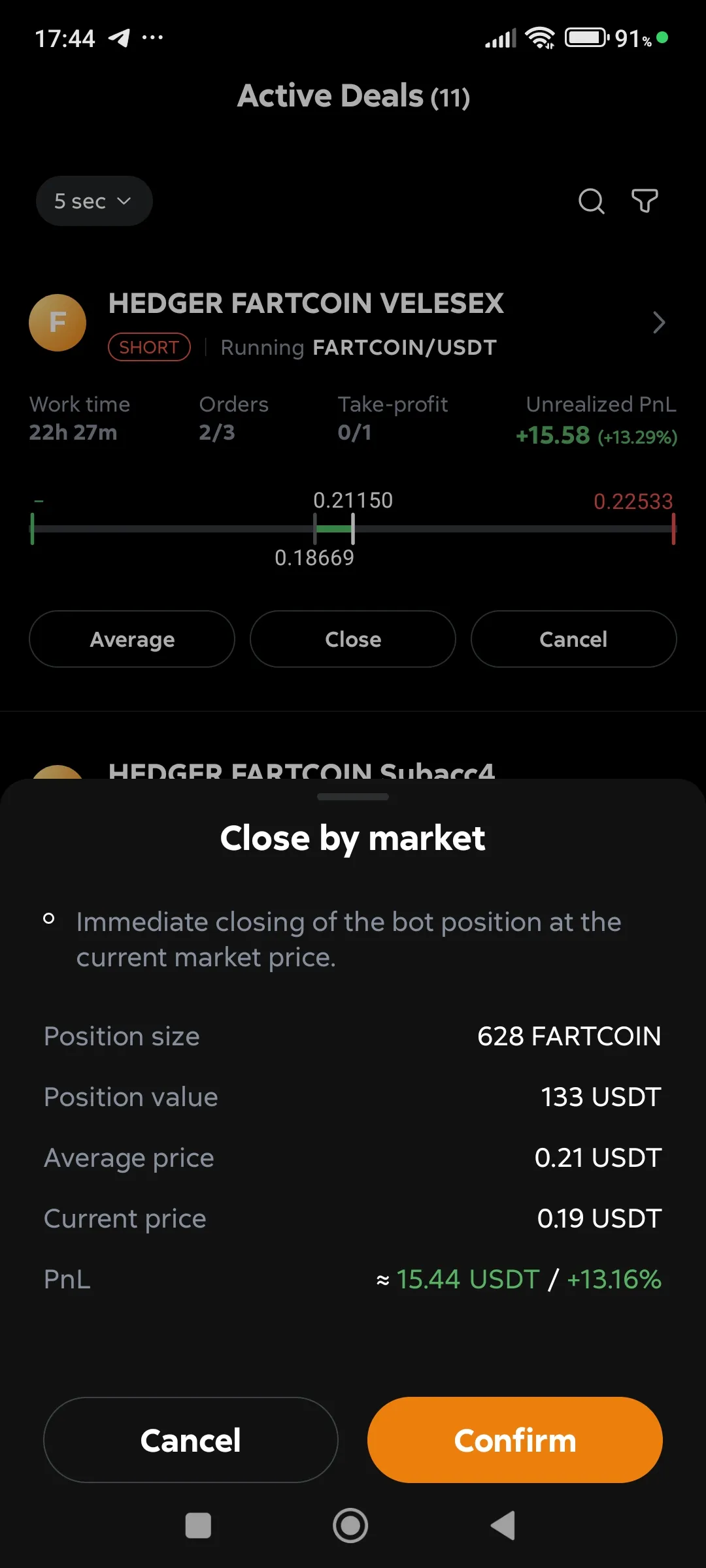
- Close (by market): fix the current PnL and look for a new entry point,
Close the deal by market
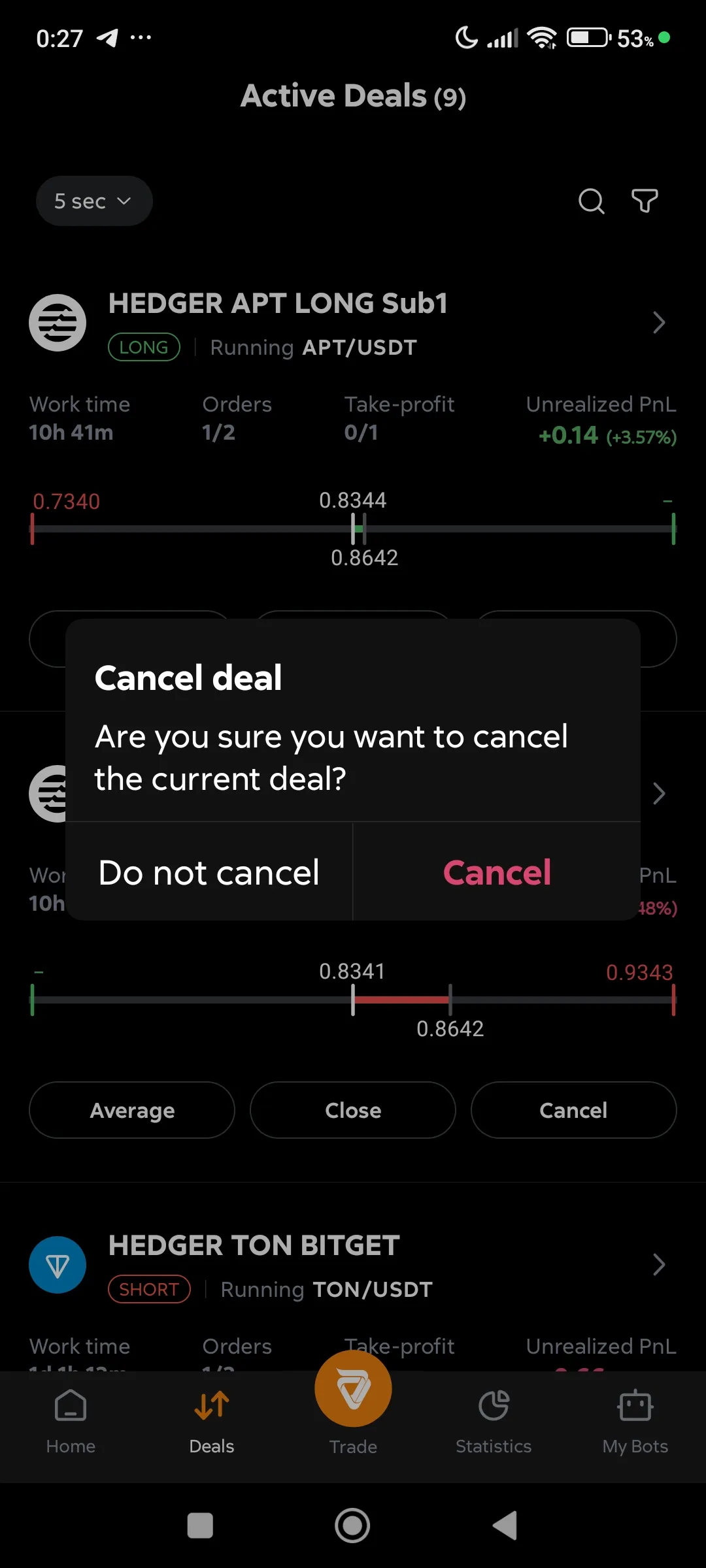
- Cancel: delete all bot orders from the exchange and stop it (the deal will remain on the exchange),
Cancel the deal
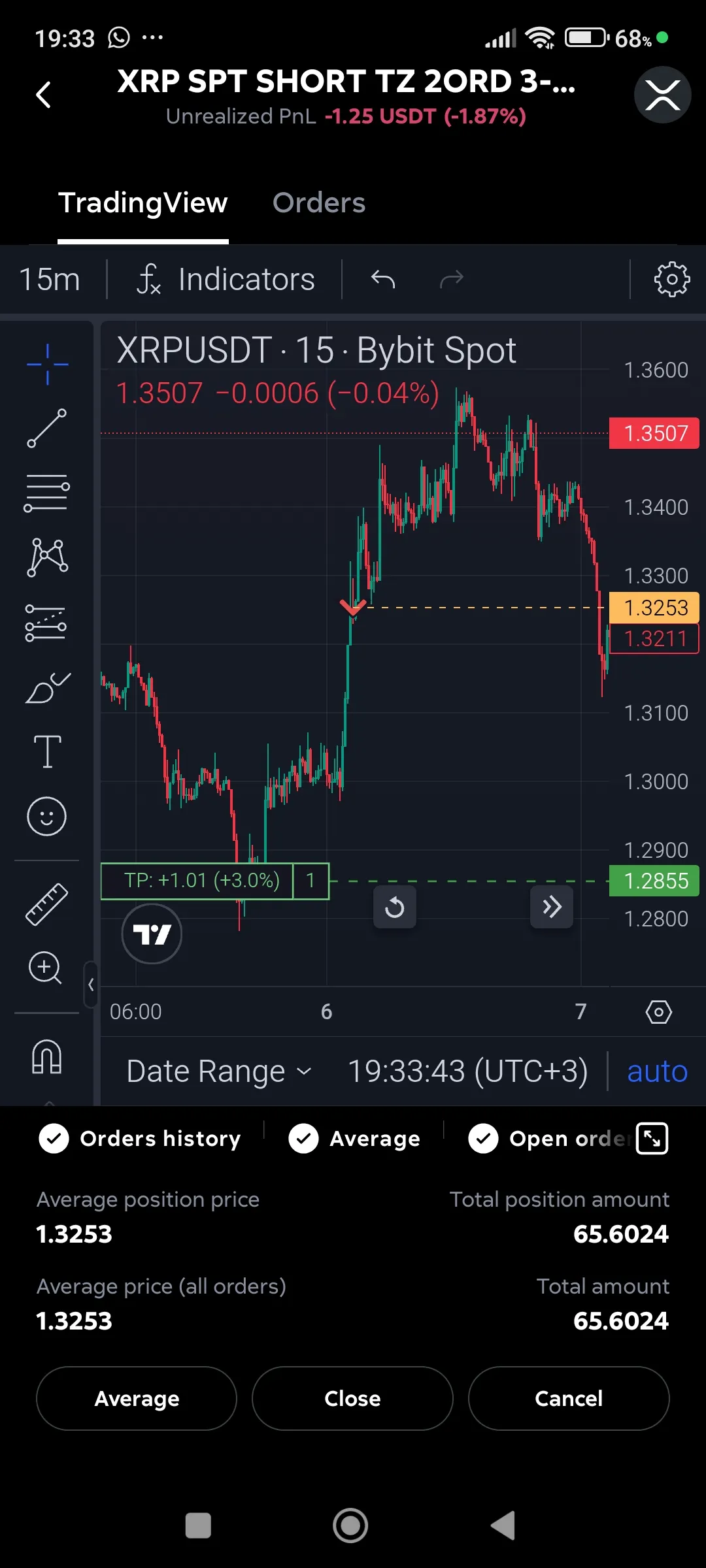
- The arrow ”>”: go to the bot card with the added tab “Trade” and the button “To deal”, where the progress of the active deal will be visible.
Chart of the current deal
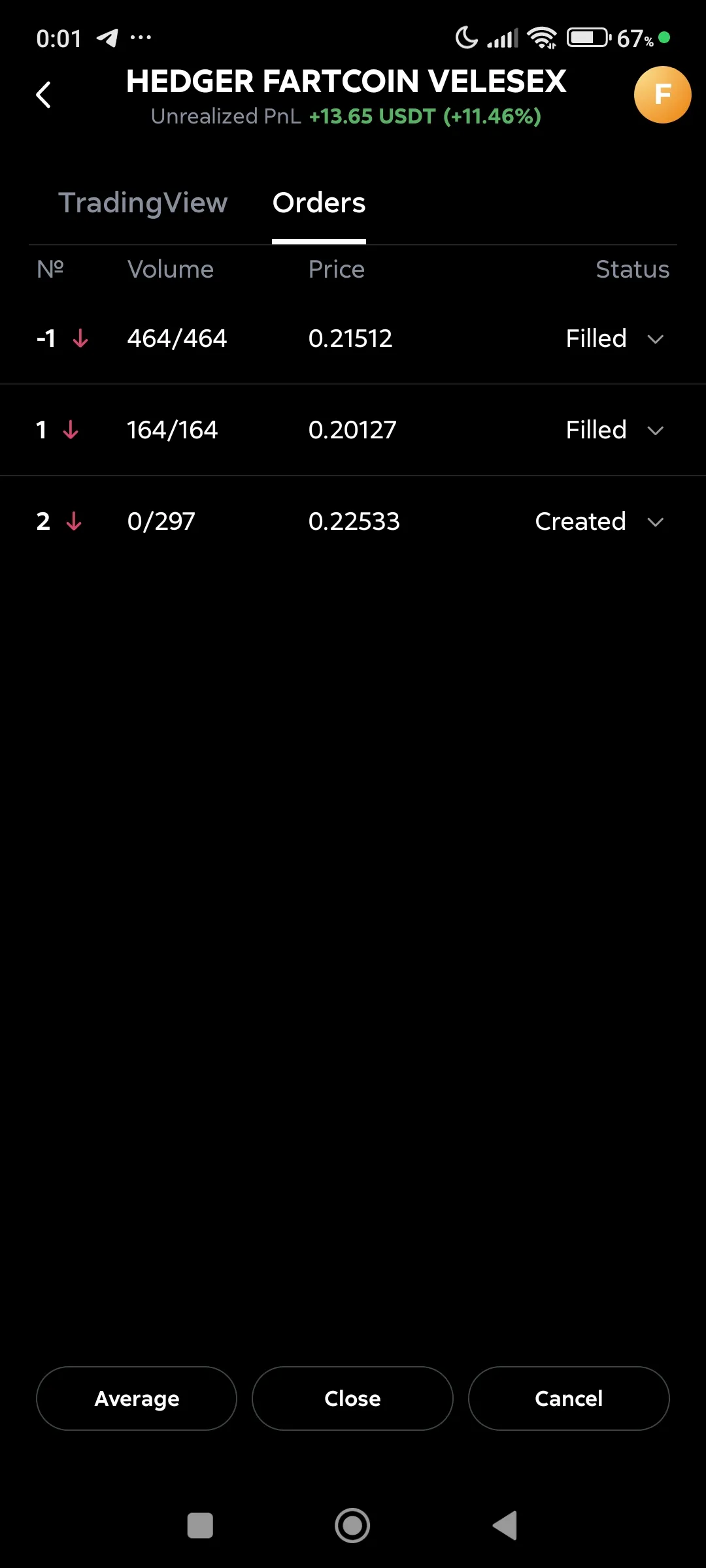
Deal orders
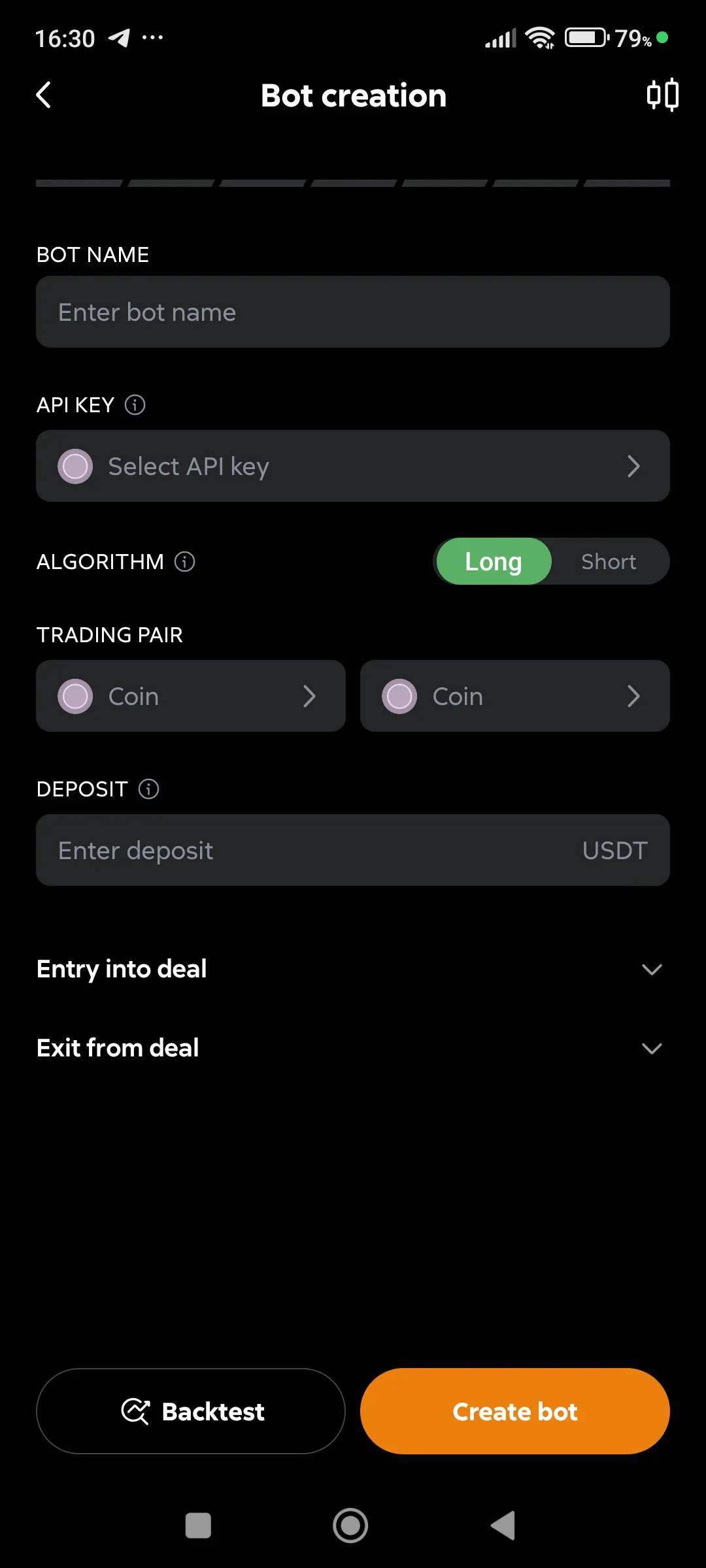
The central button on the bottom panel opens the bot editor to create a strategy from scratch.
-
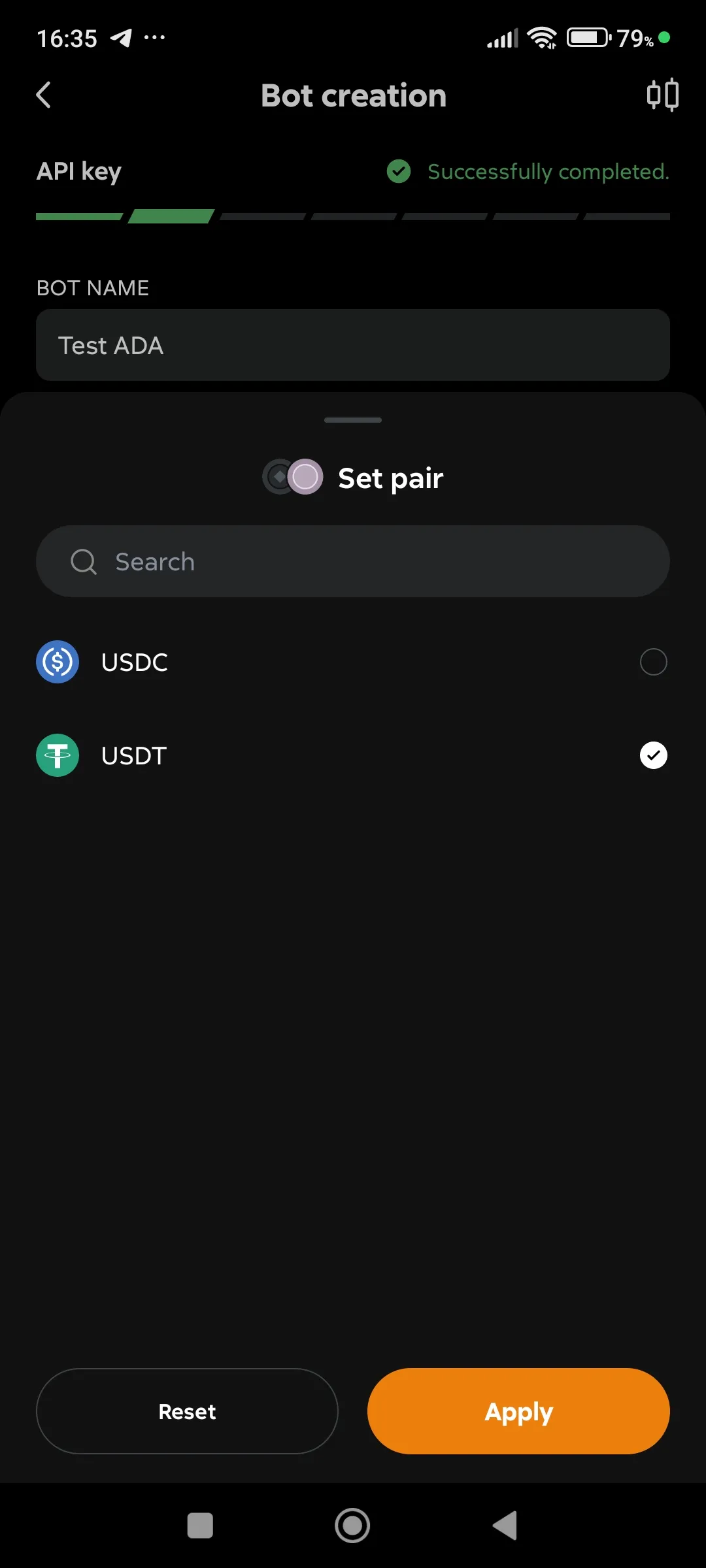
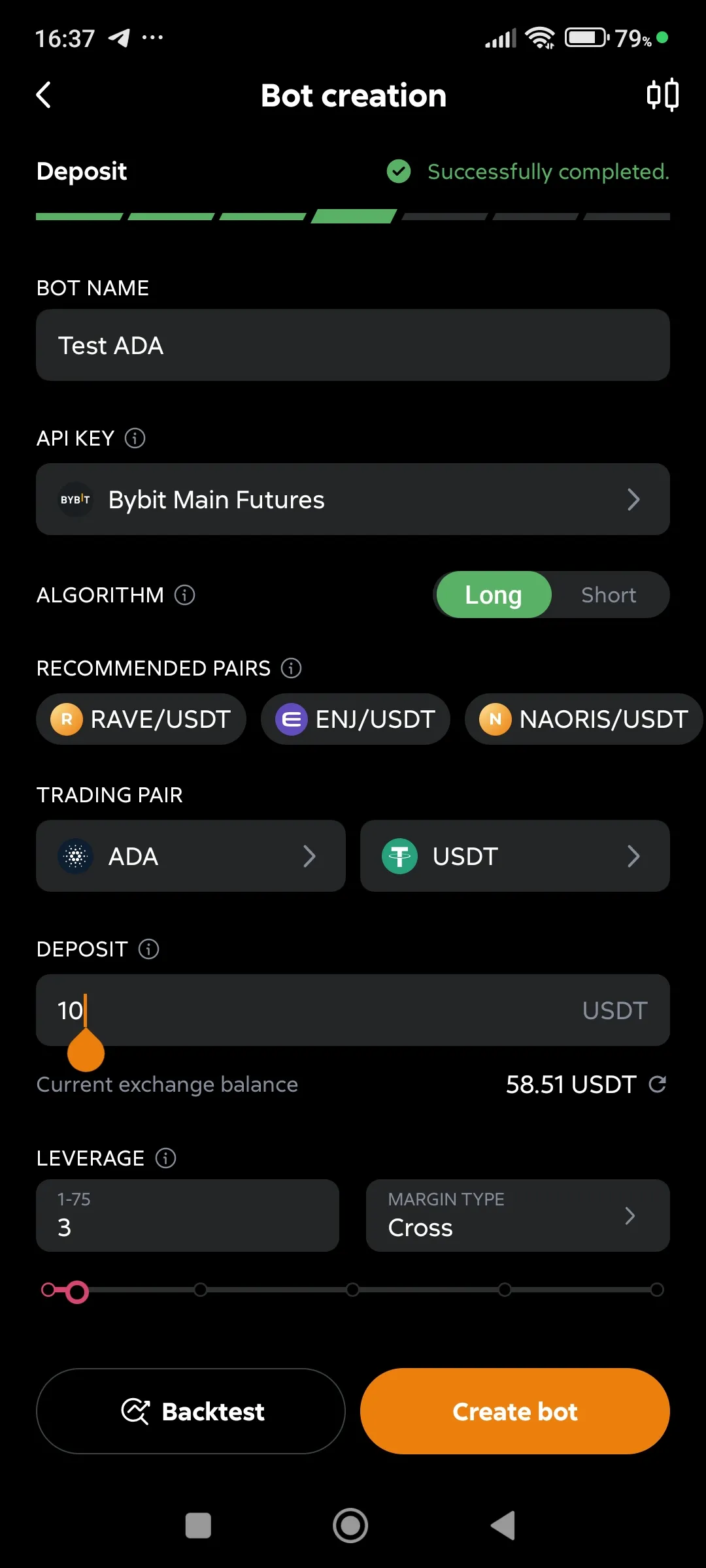
Specify the name of the bot, its API binding, trading pairs, deposit, leverage, and margin type.
Bot Editor (blank)
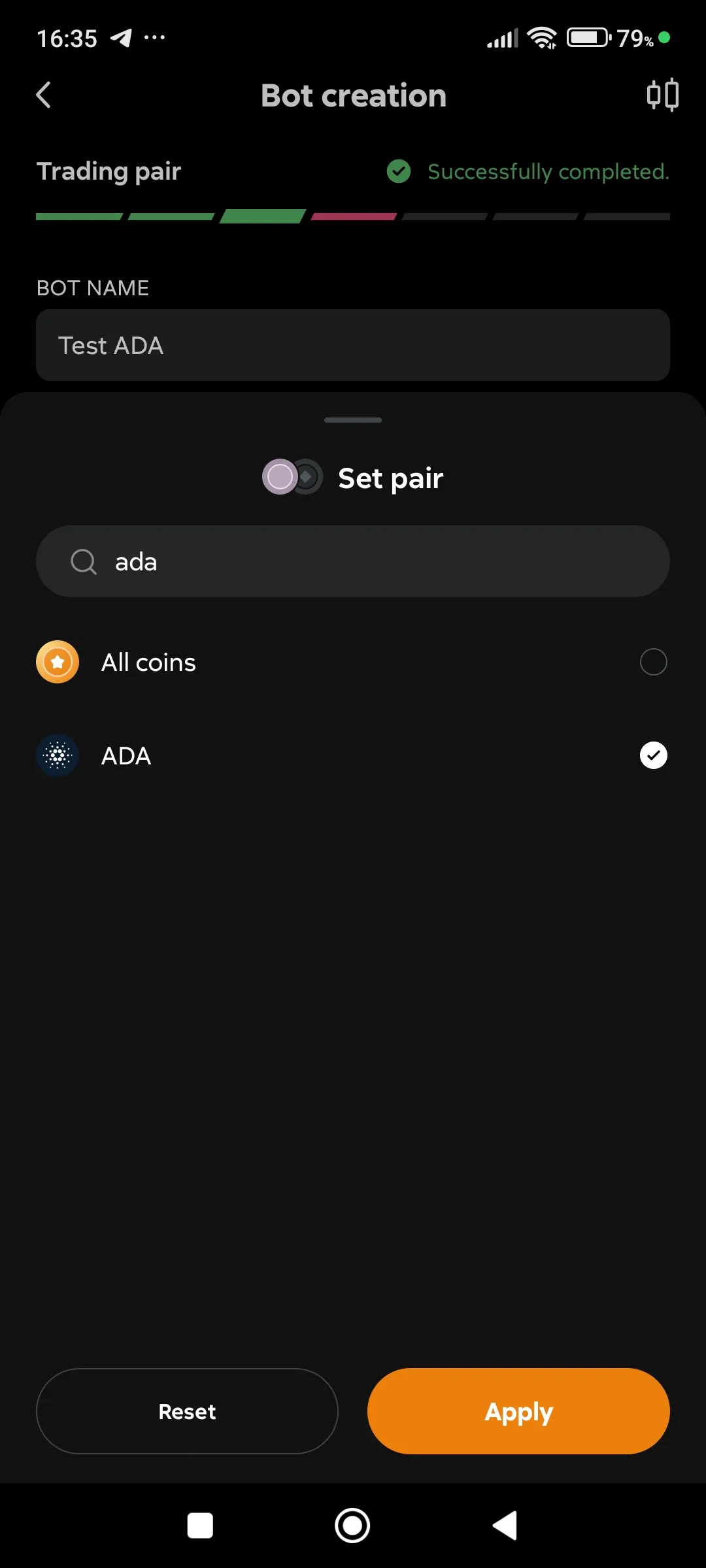
Choosing the base currency
Choosing the quote currency
Setting up deposit, leverage, margin type
-
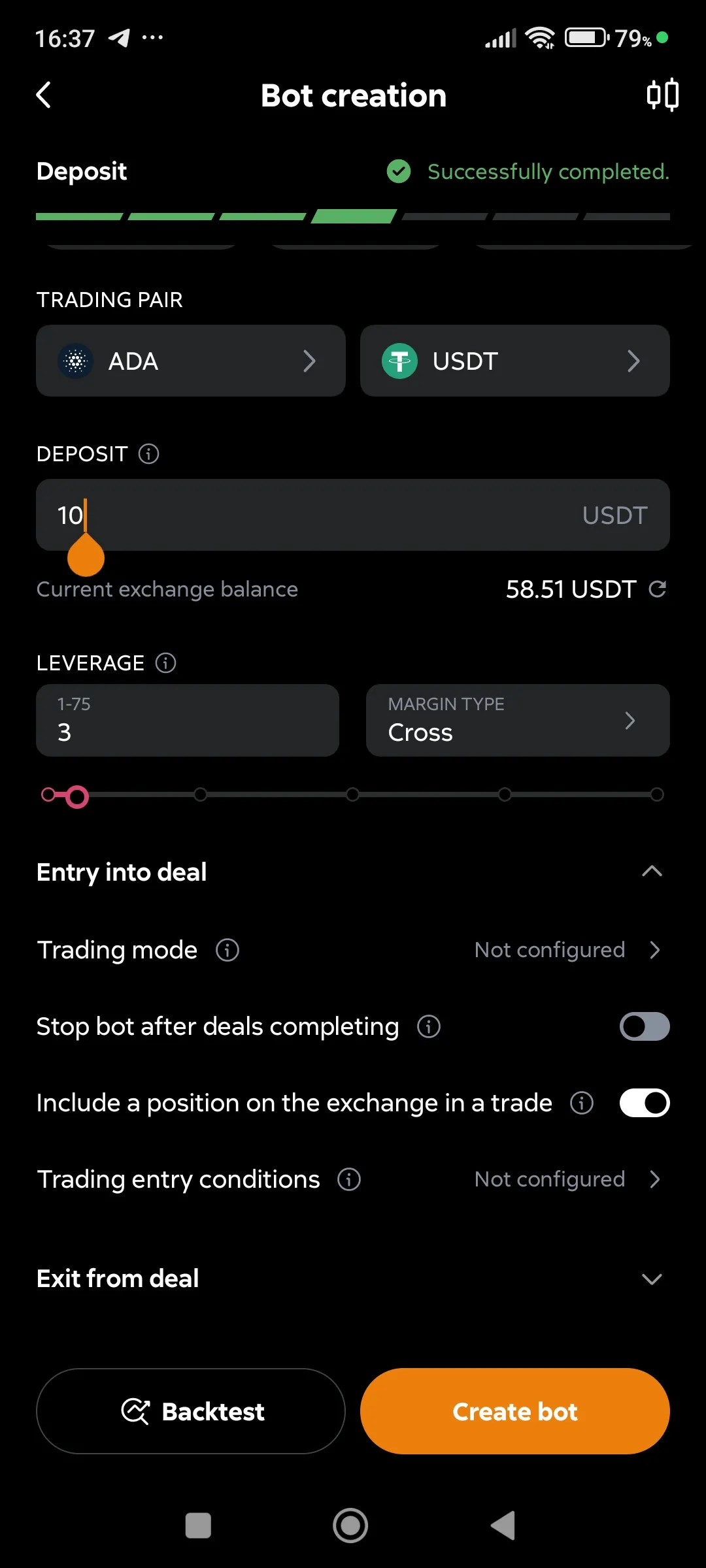
Specify whether it is necessary to include an existing futures position on the exchange in the deal (recommended).
Include a position on the exchange in the deal
-
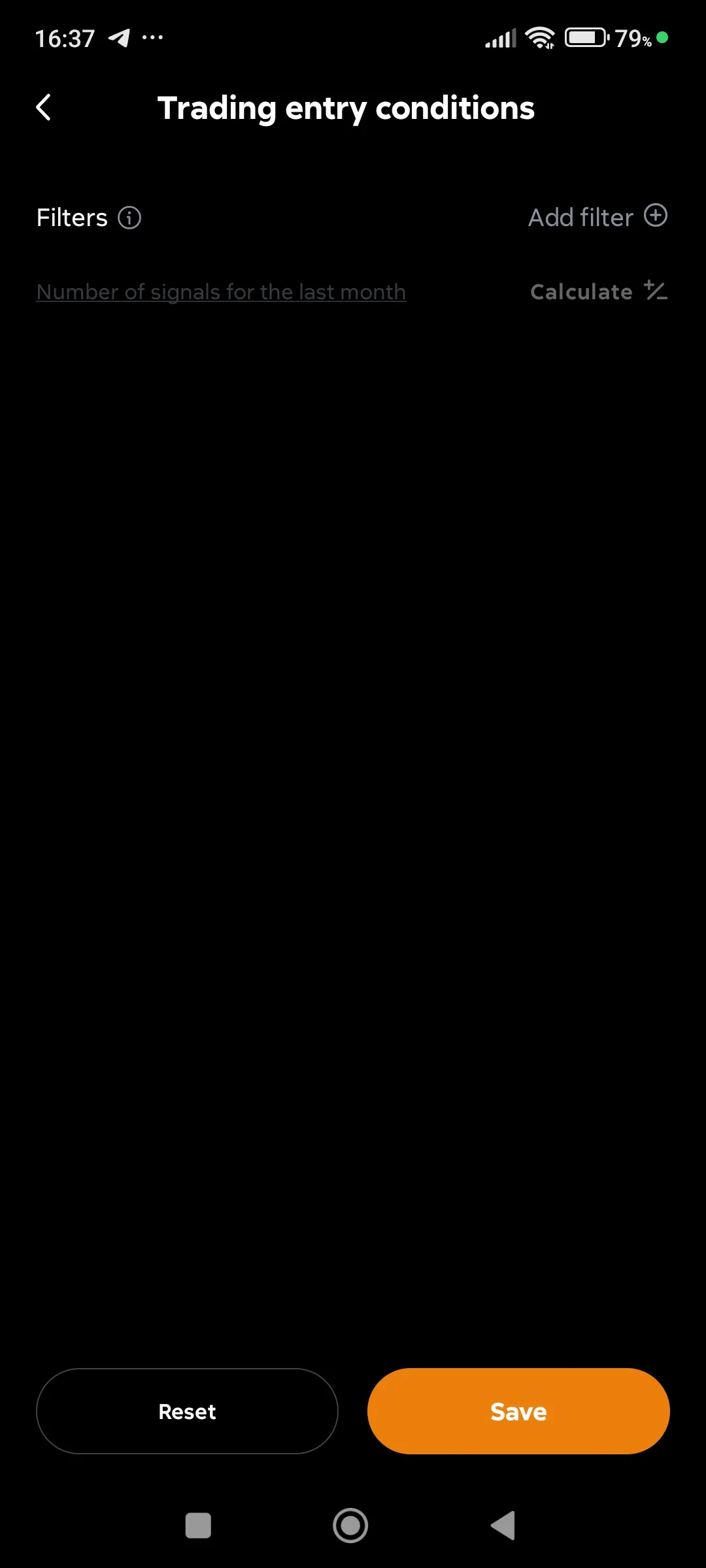
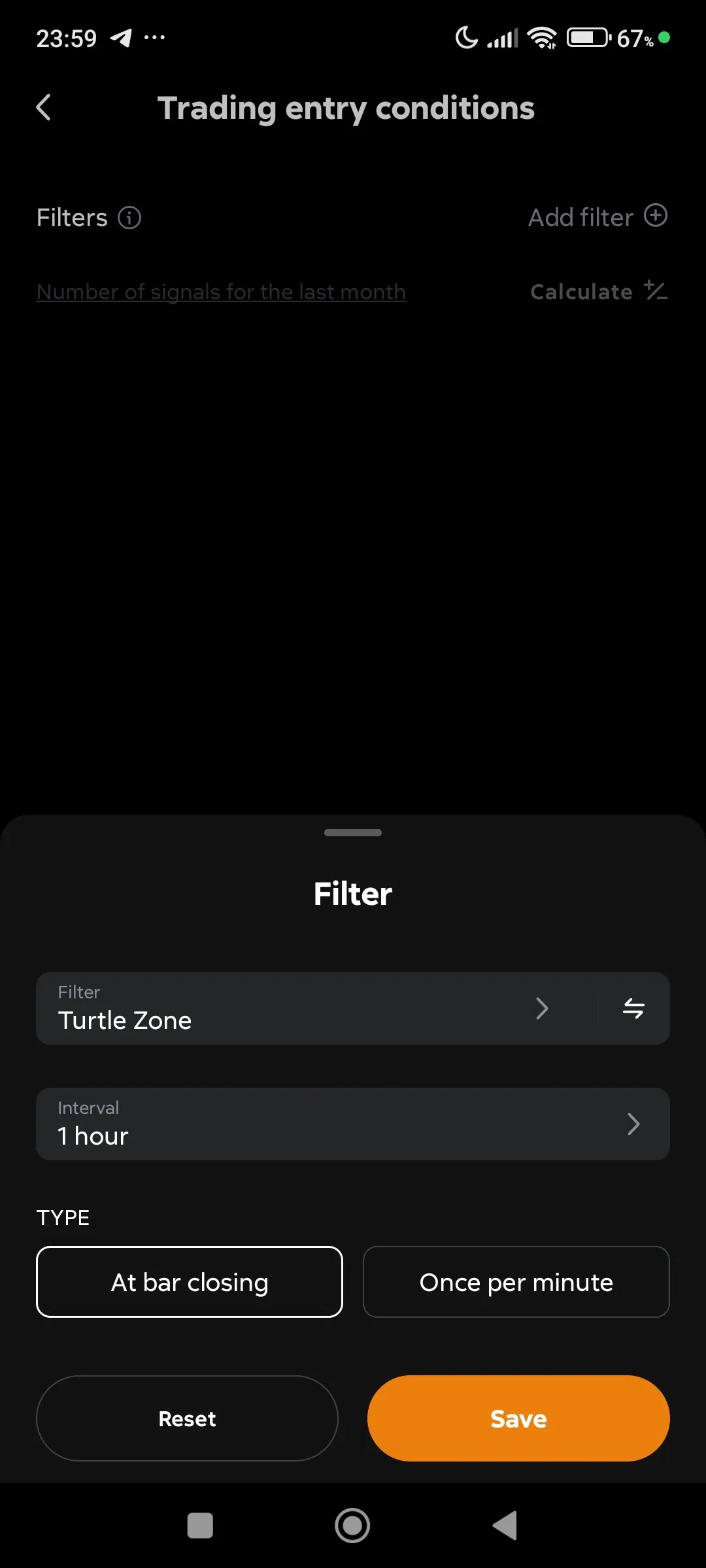
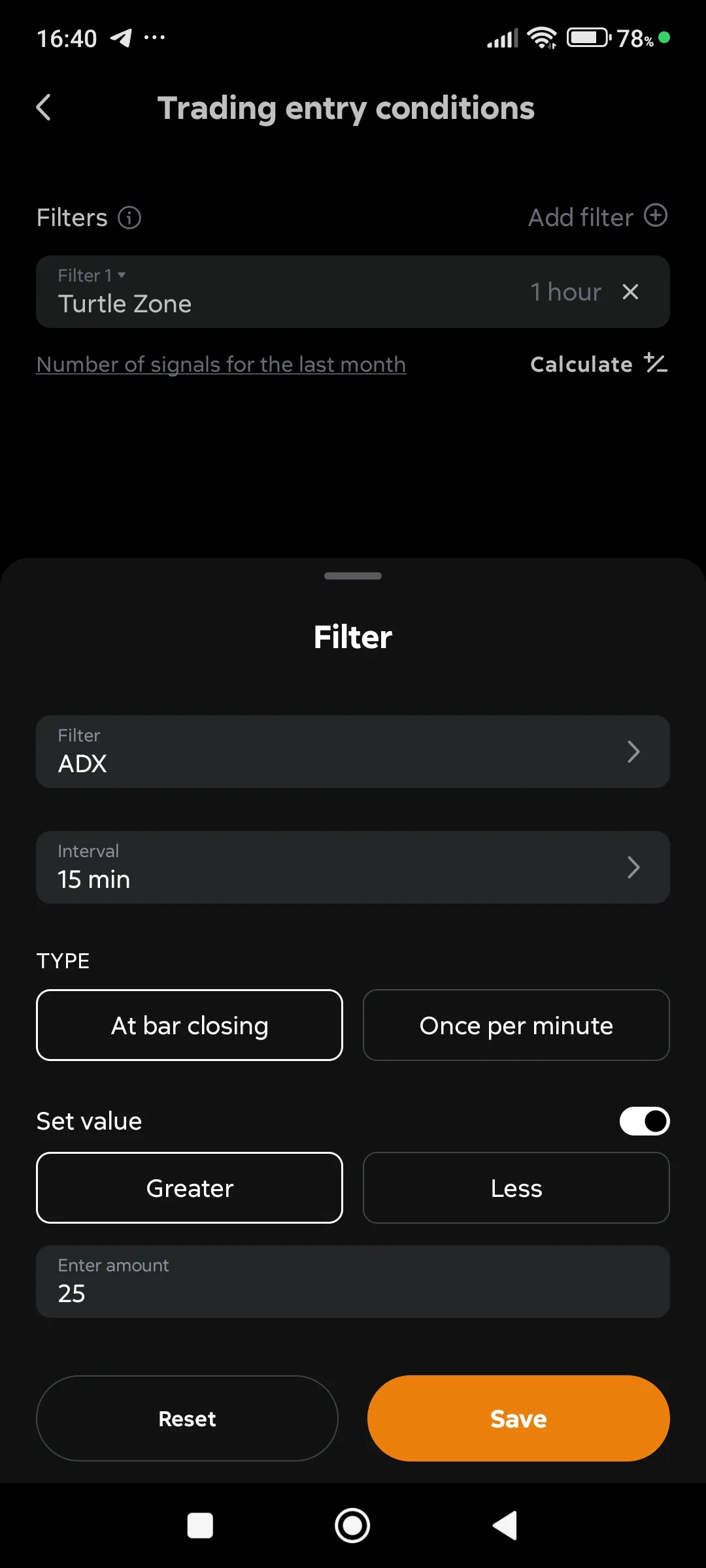
Set up conditions (filters) to enter the deal. This is an optional parameter, but it is very important for the success of trading.
Filters to entry into the deal
Adding a first filter to start
Adding a second filter to start
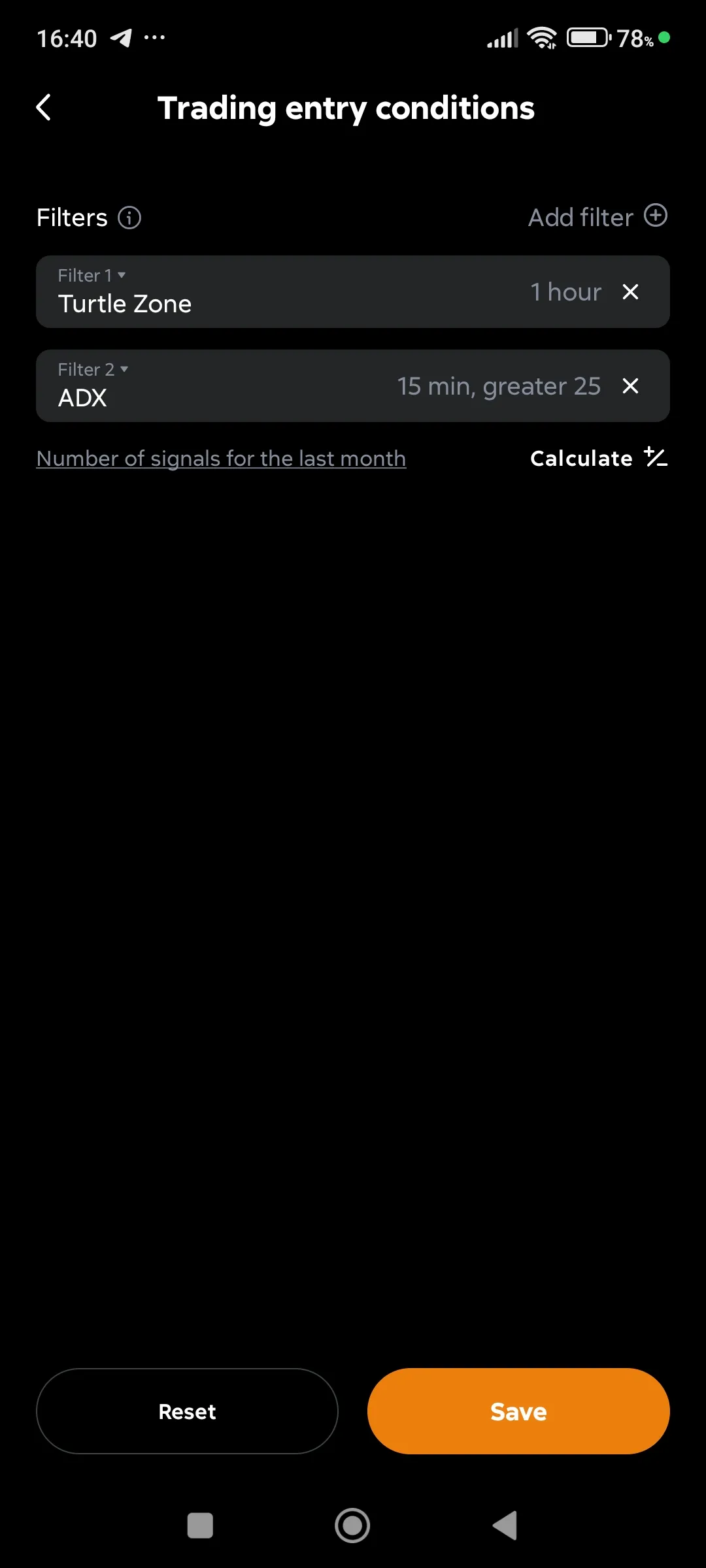
Calculate the signals for specified filters
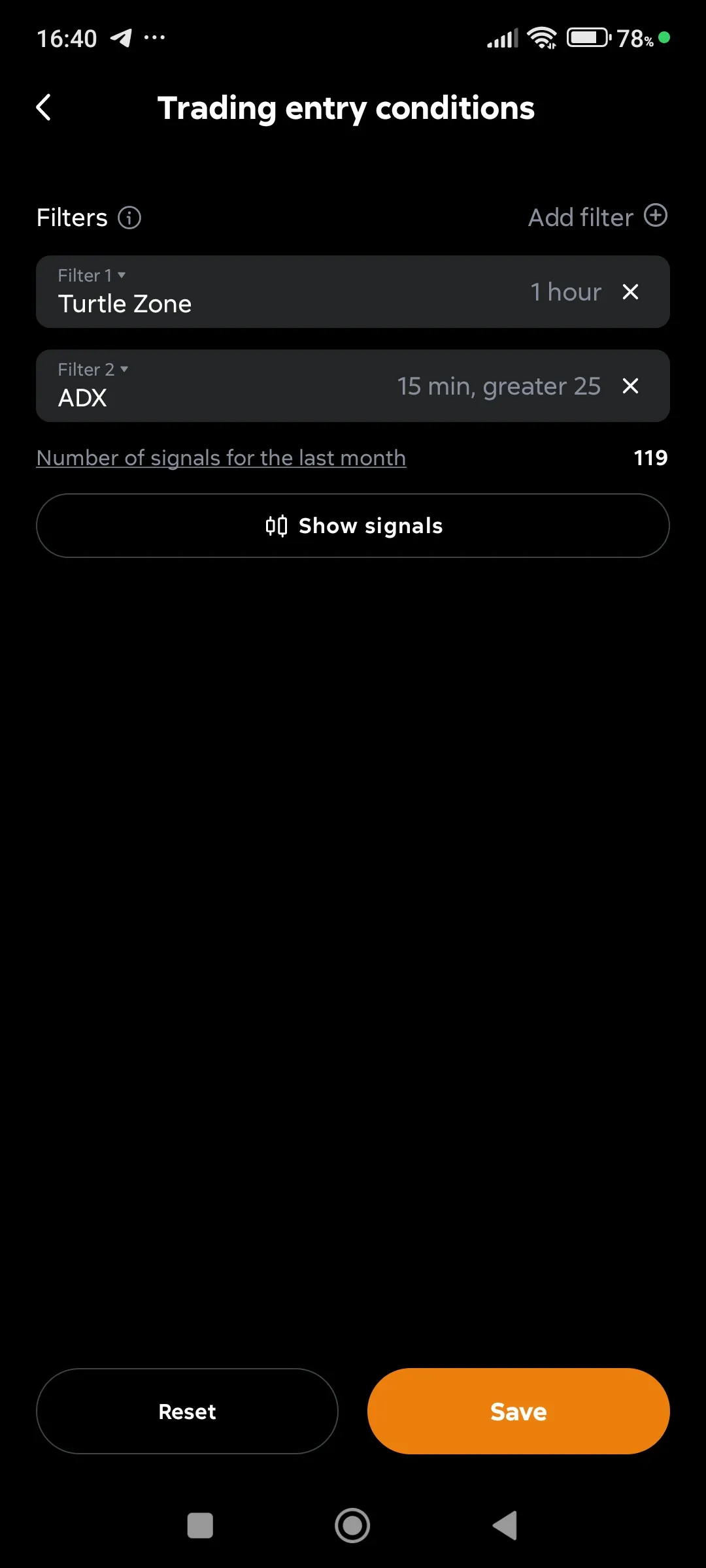
Showing the number of signals for specified filters
Displaying signals on a chart
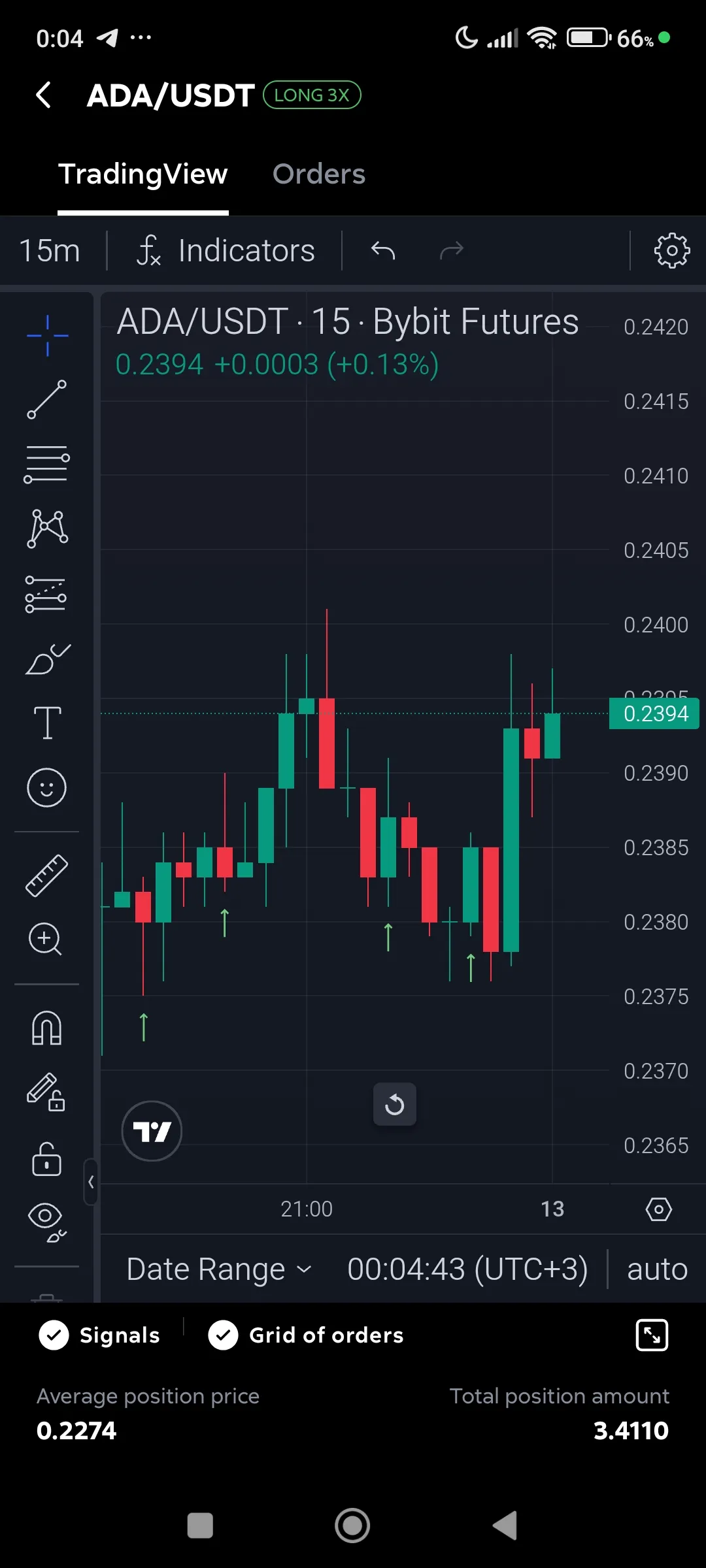
-
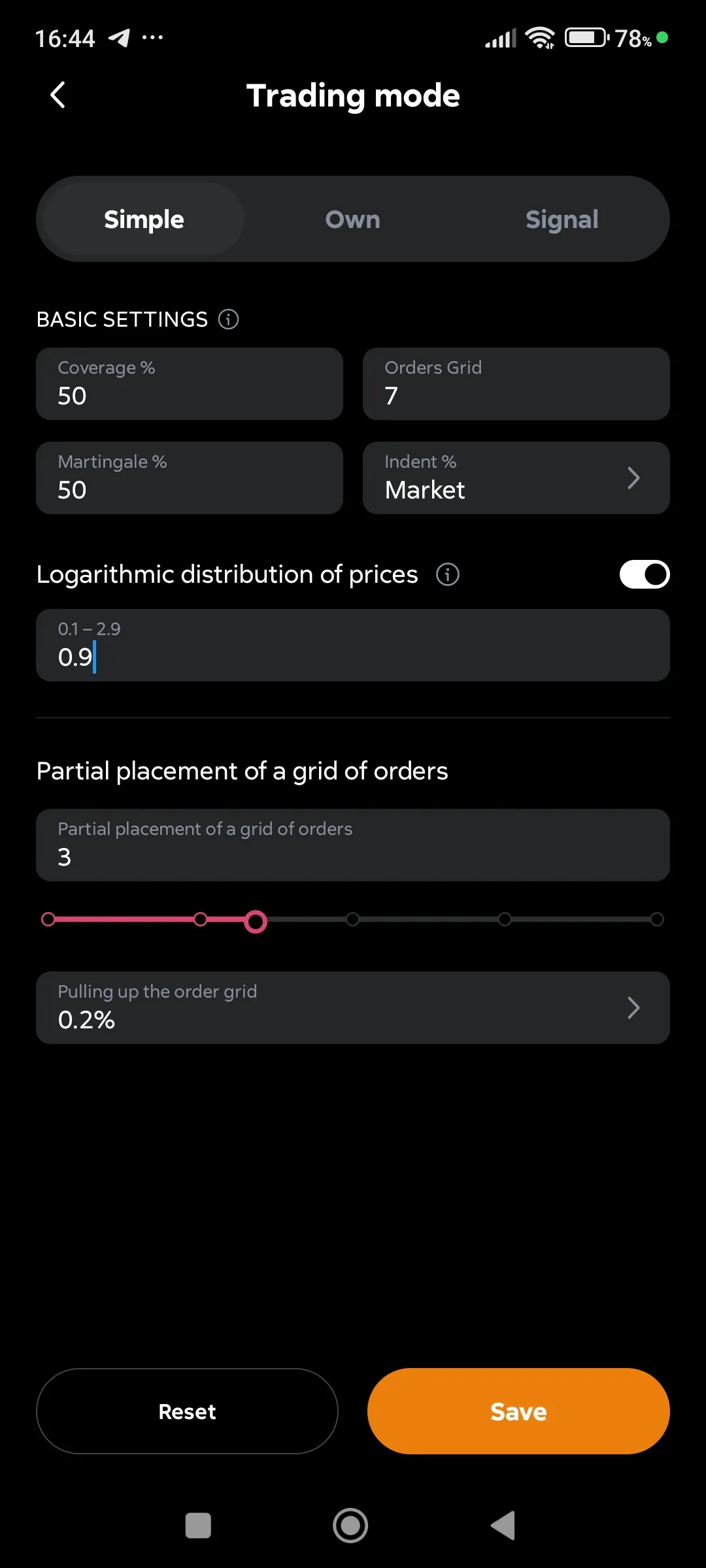
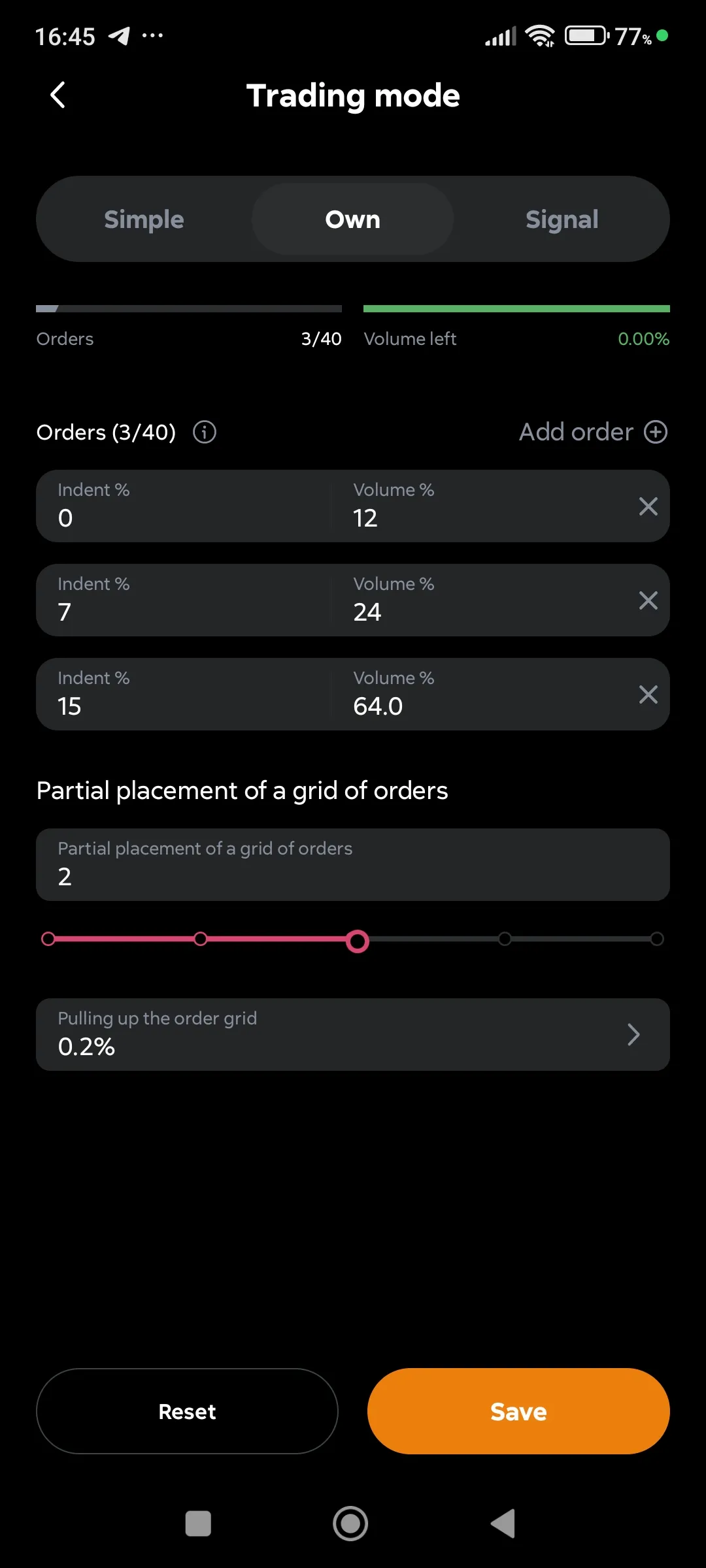
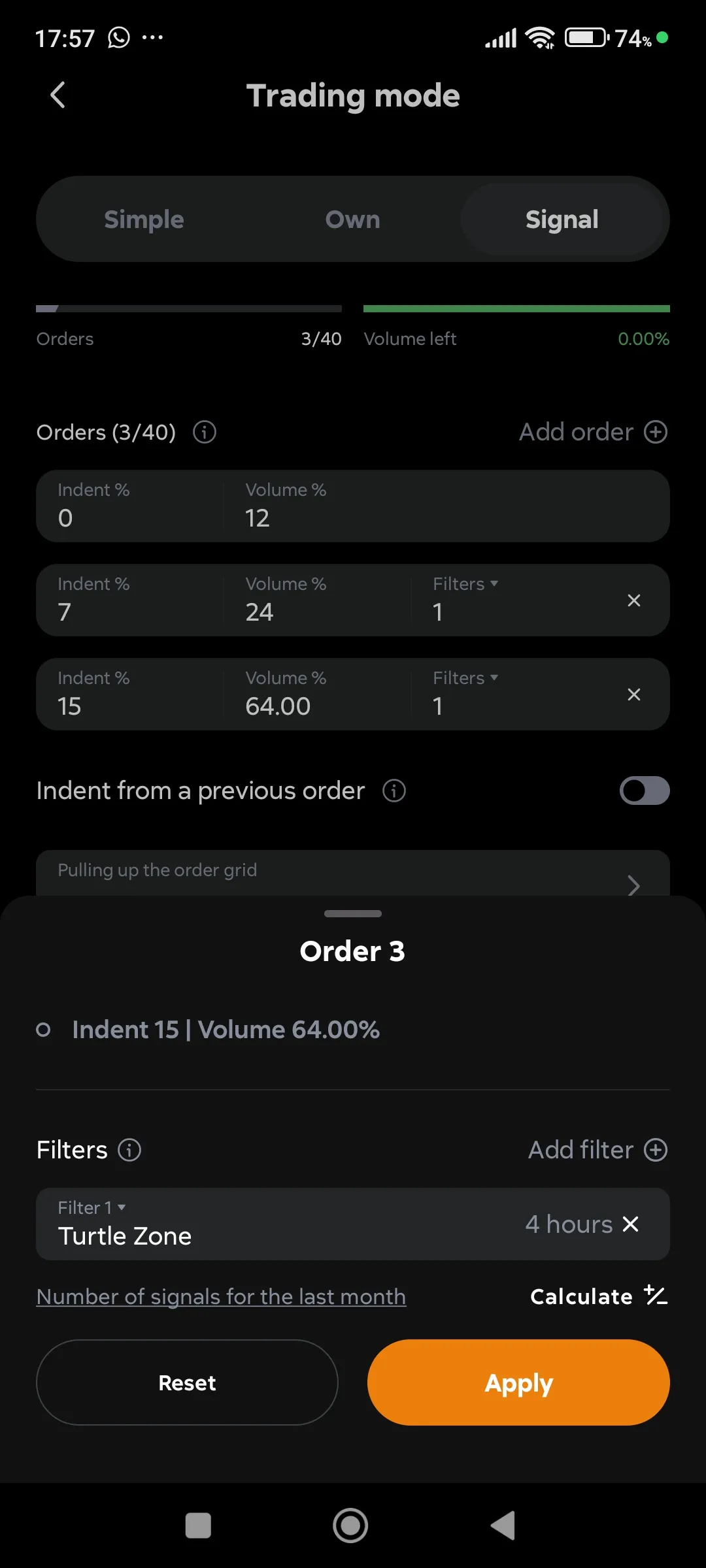
Set up trading mode - with one order or a grid of averaging orders (limit or signal).
Trading mode Simple
Trading mode Own
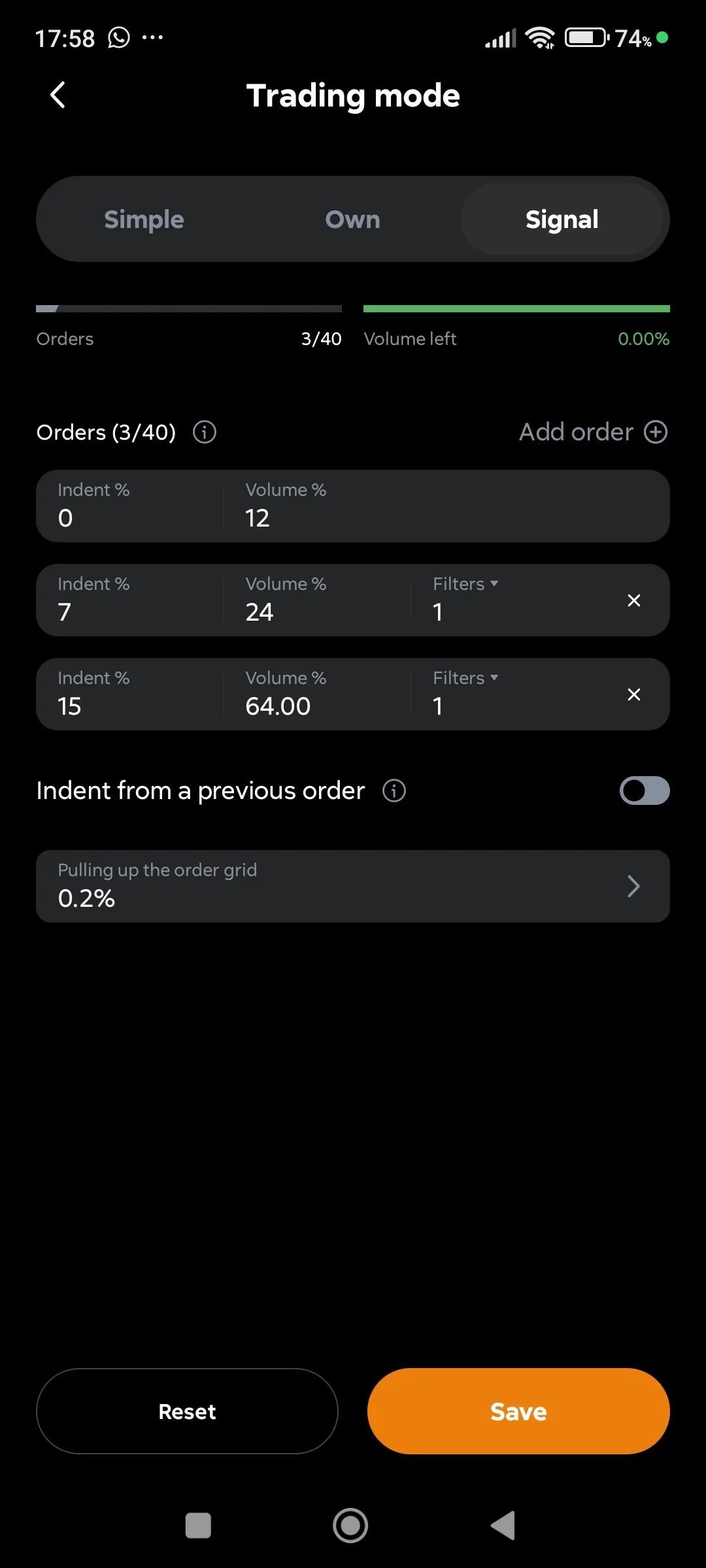
Trading mode Signal, Adding a filter to the order
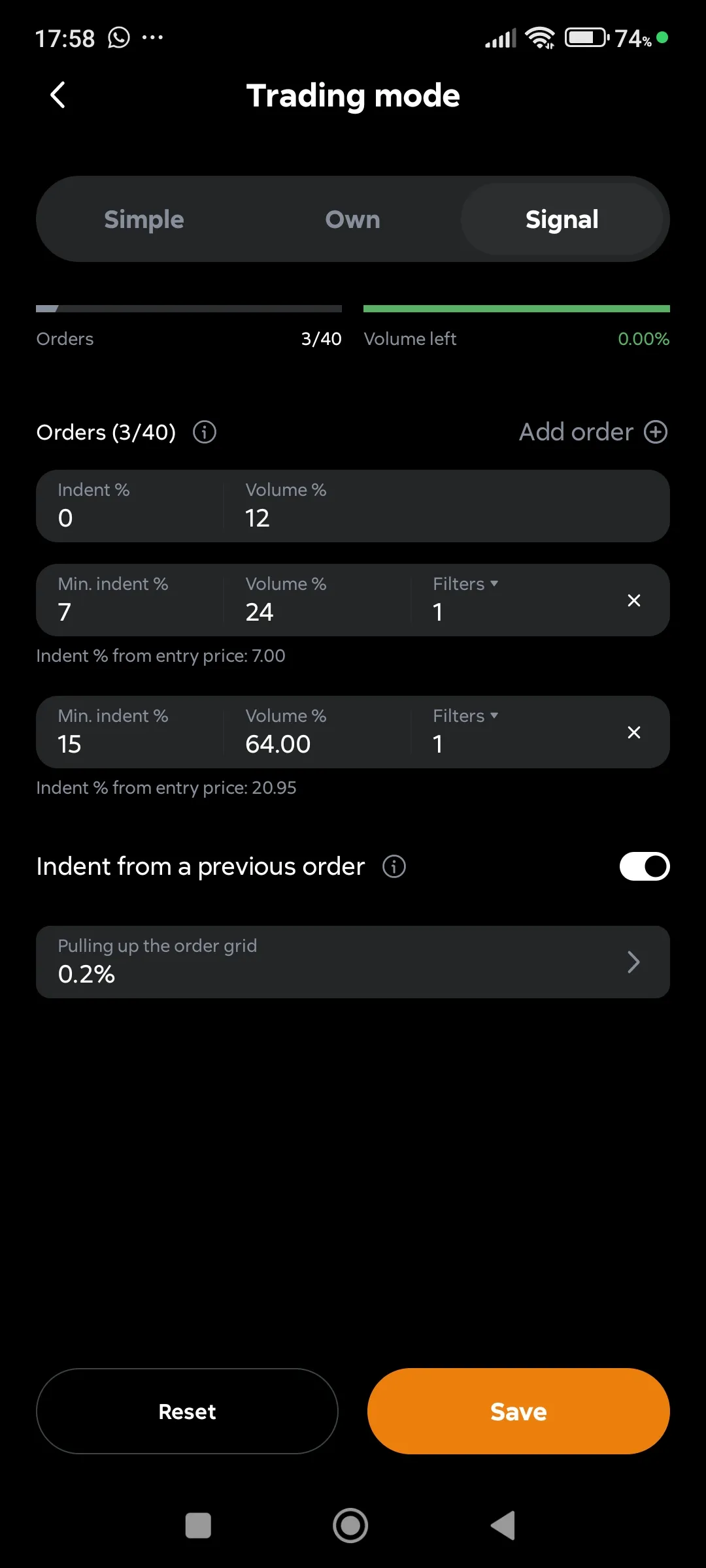
Trading mode Signal, Indent from the entry price
Trading mode Signal, Indent from the order price
-
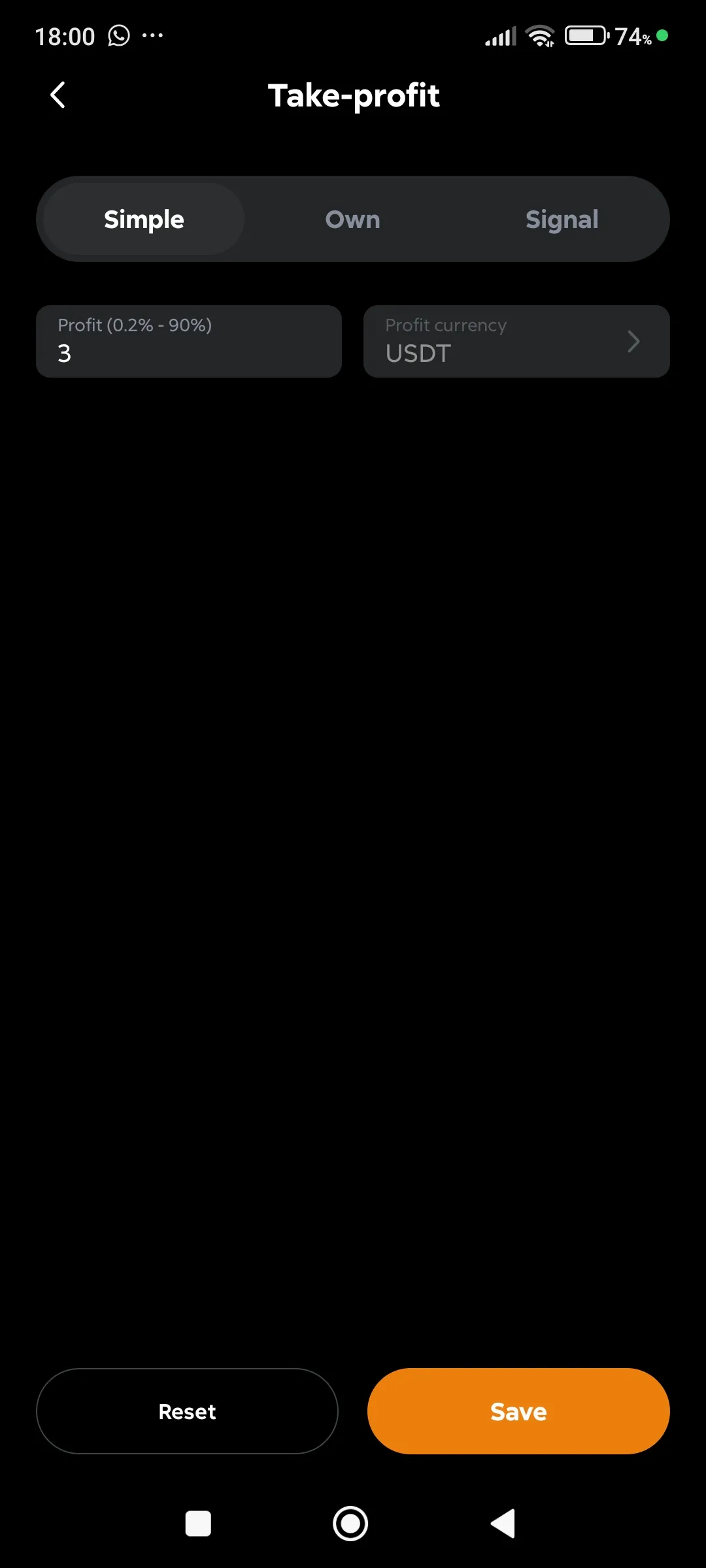
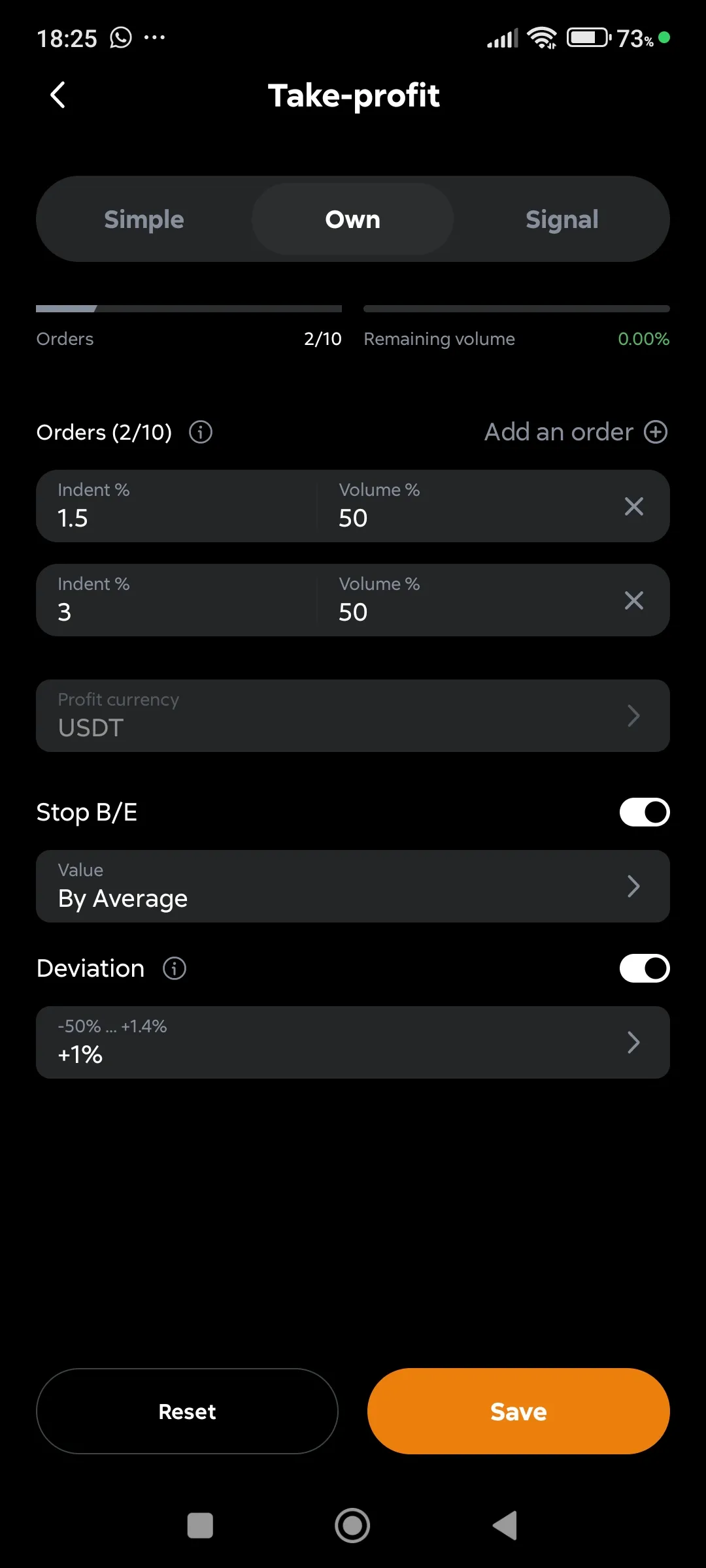
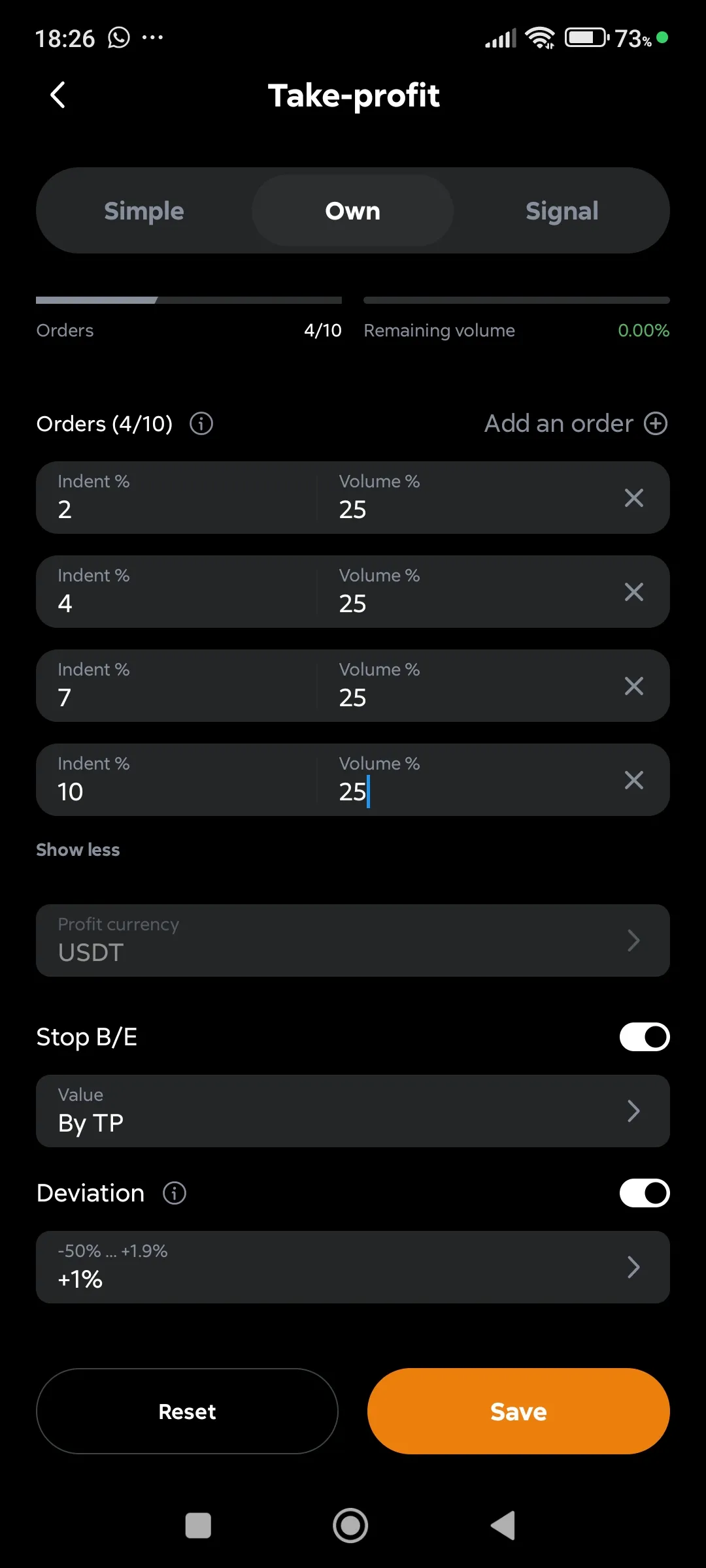
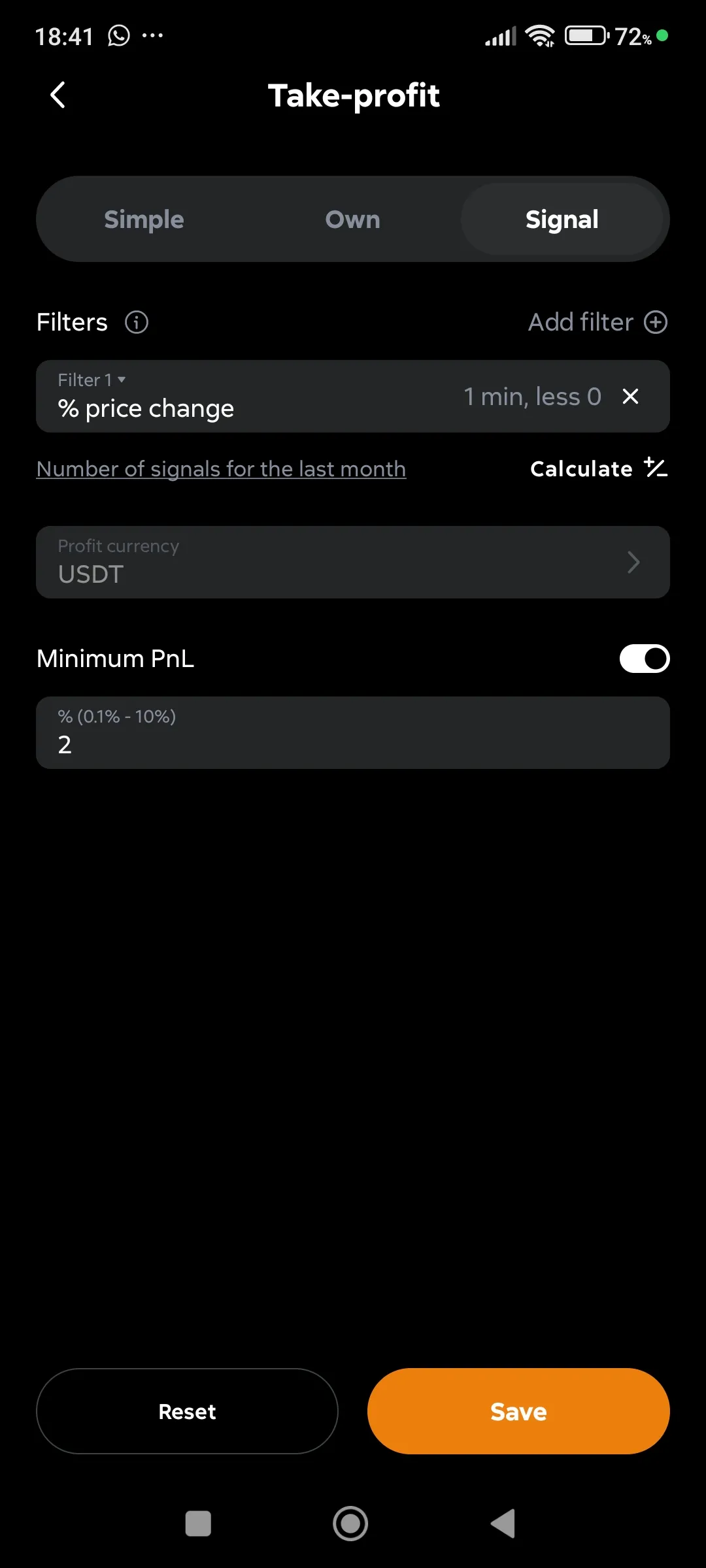
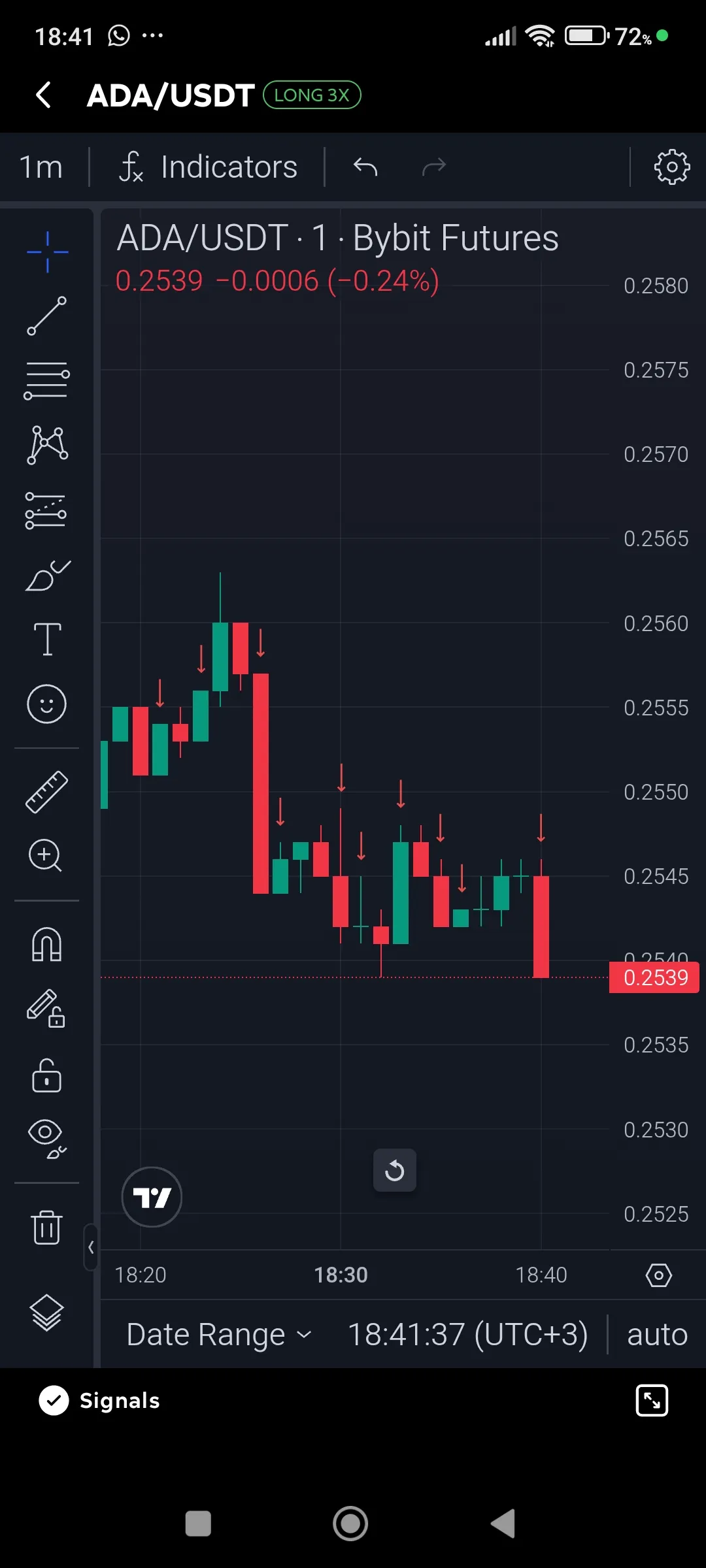
Set the conditions for take-profit in the deal.
Take profit Simple
Take profit Own
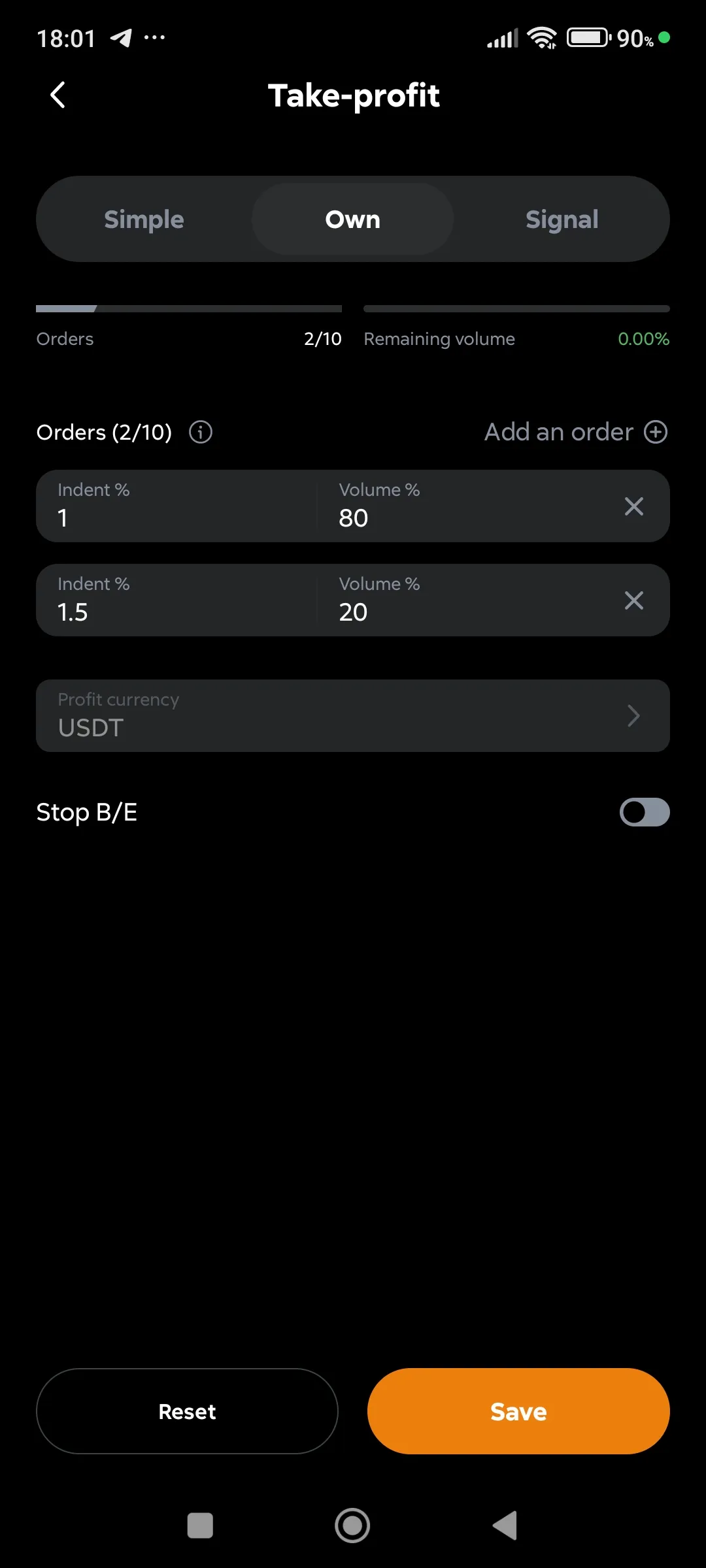
Take profit Own, Stop loss at break-even from the average
Take profit Own, Stop loss at breakeven from take profit
Take Profit Signal
Take Profit Signal, Showing signals on a chart
-
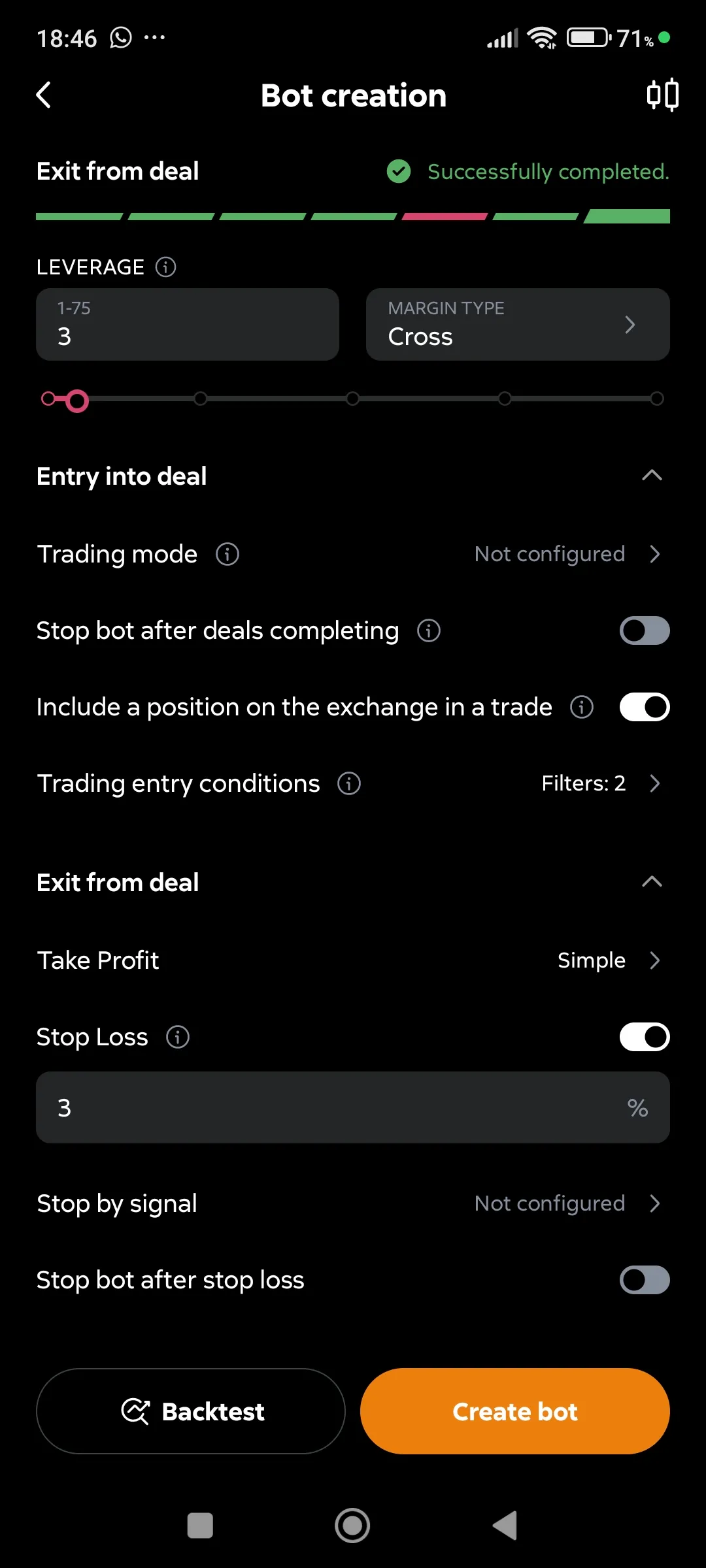
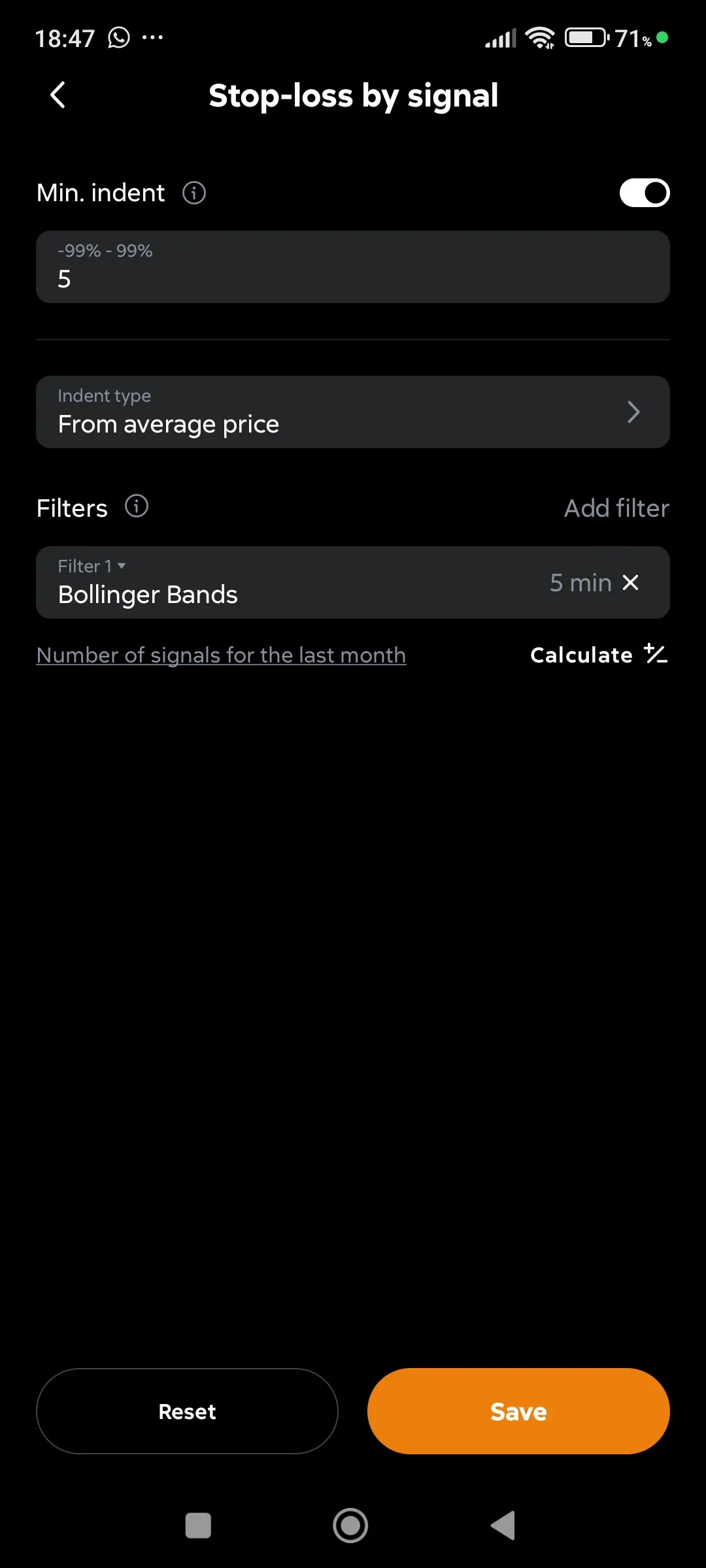
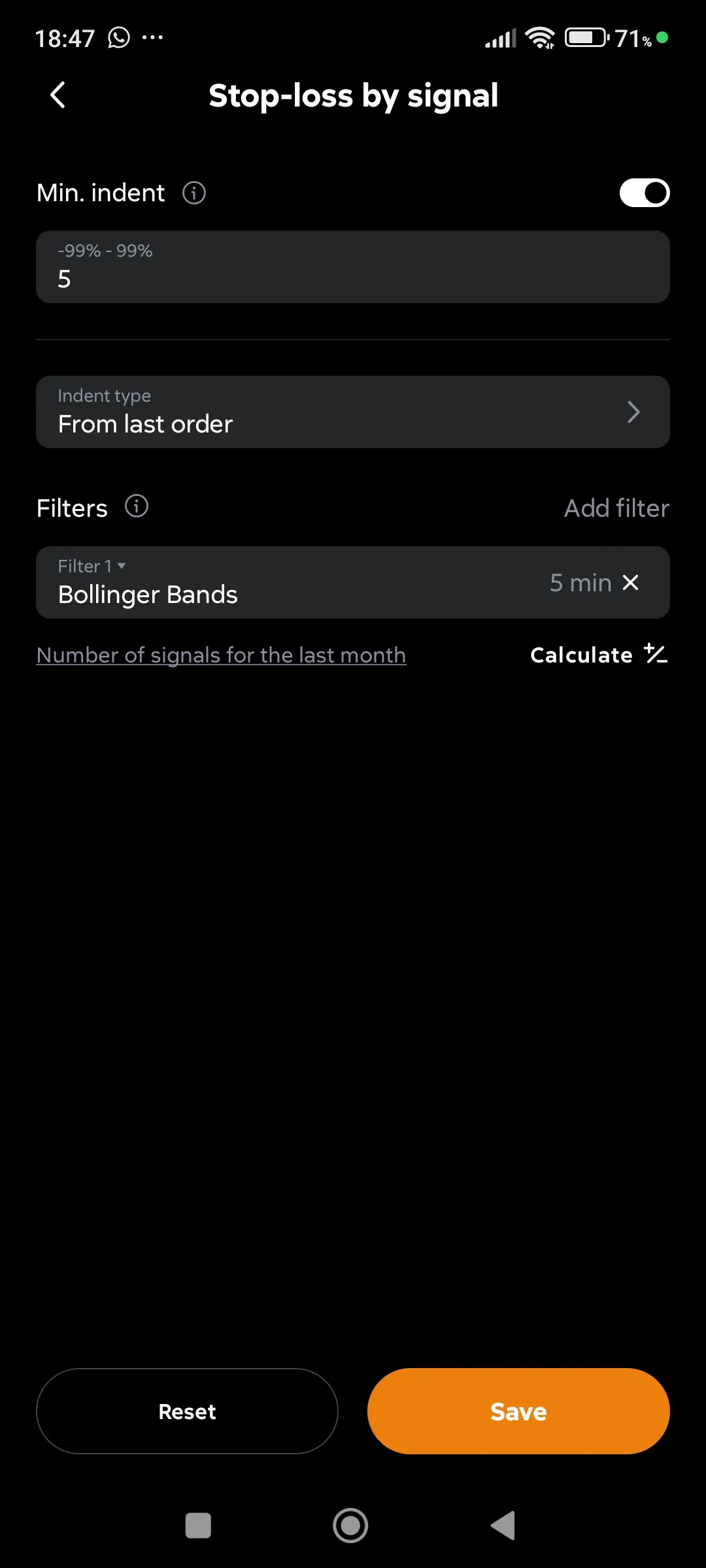
Set, if necessary, the exit conditions for the stop loss. Be sure to read the instructions before enabling this option!
Stop loss Simple
Stop loss by the indicator signal from the average price
Stop loss by the indicator signal from the last order
-
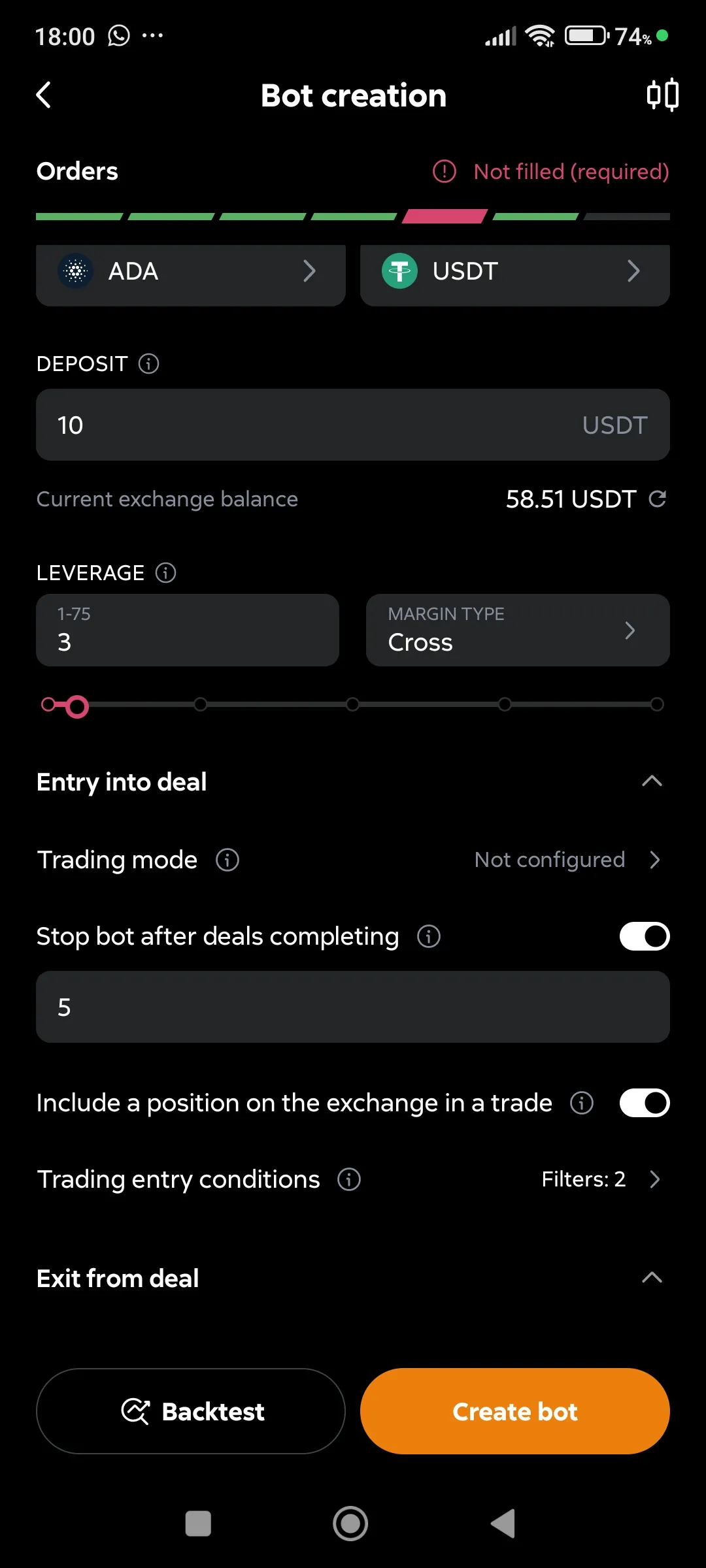
Specify how many deals the bot should make in a row.
Stop the bot after deals
-
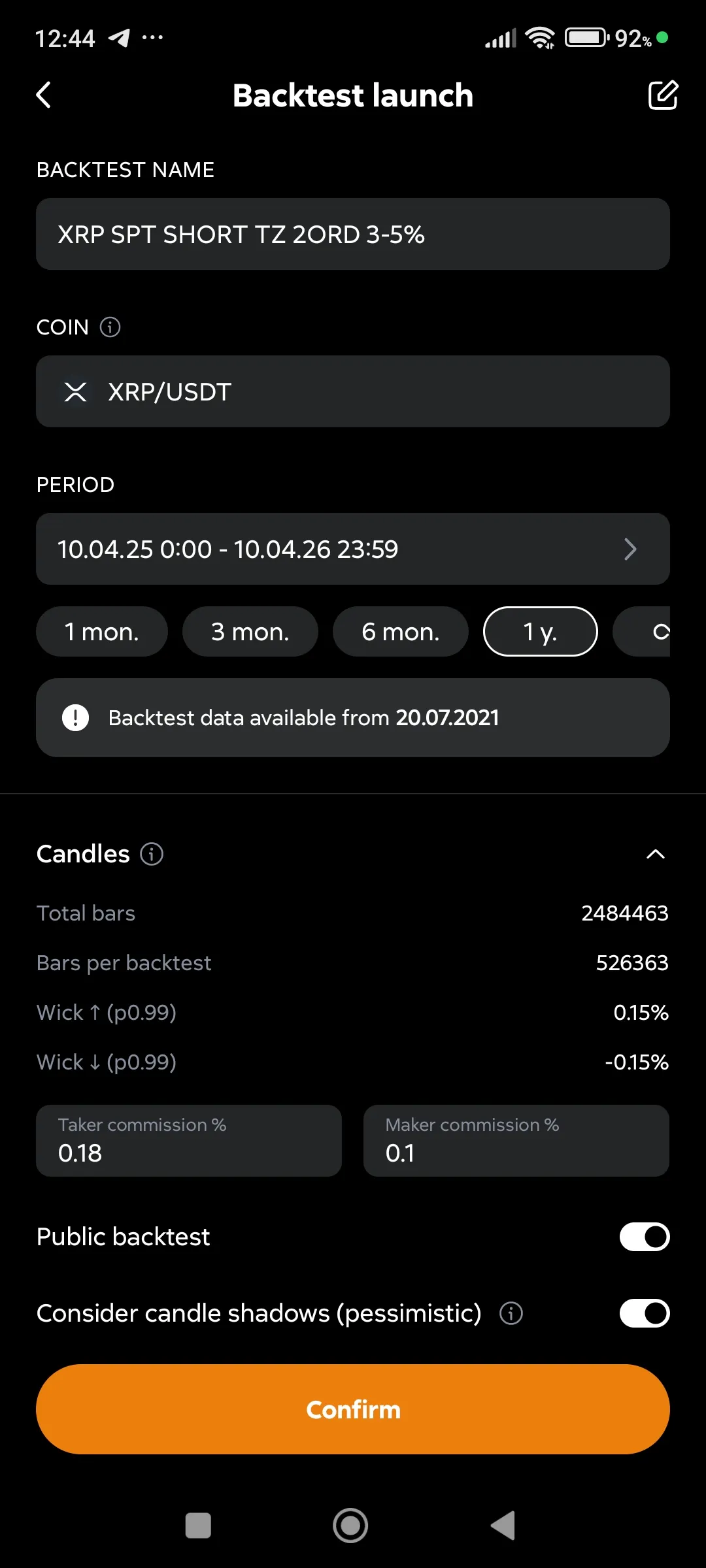
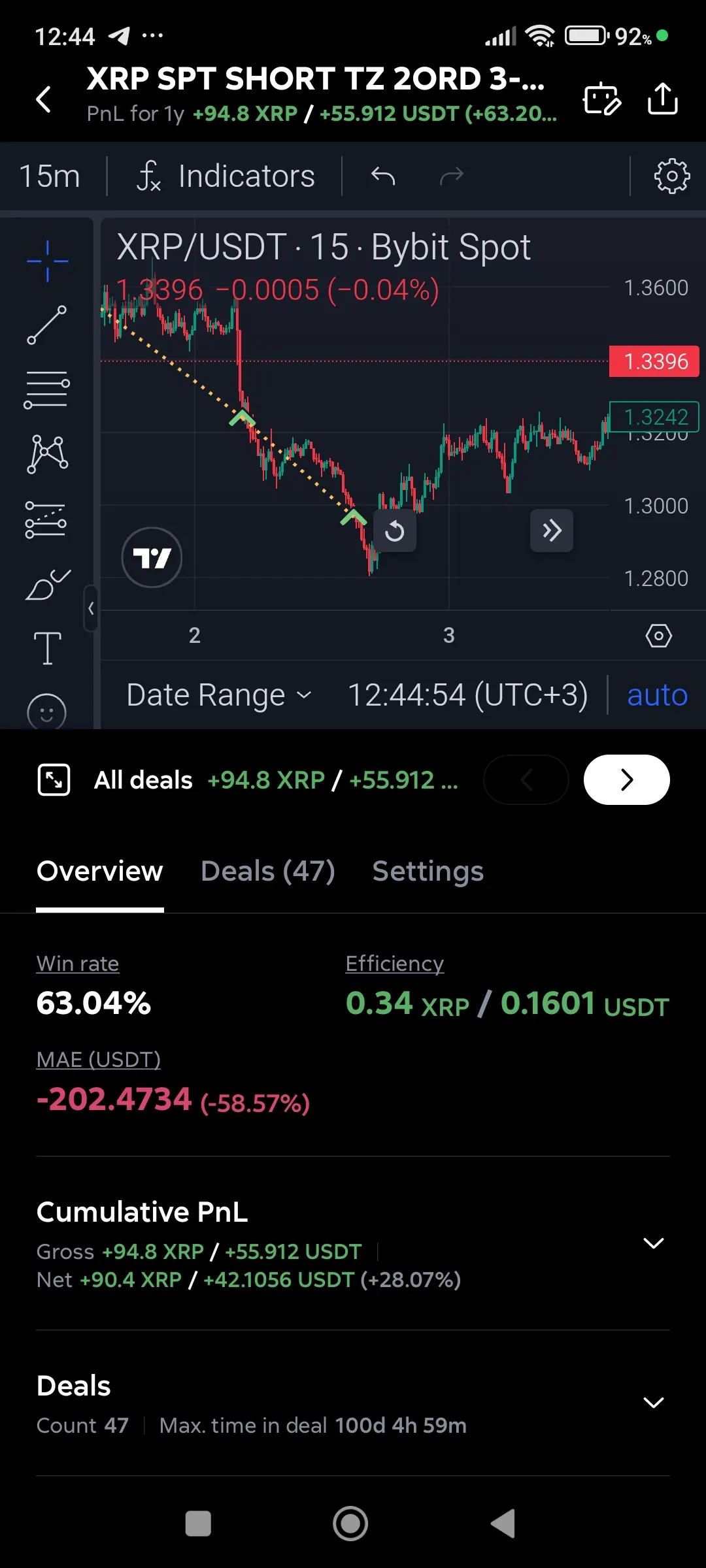
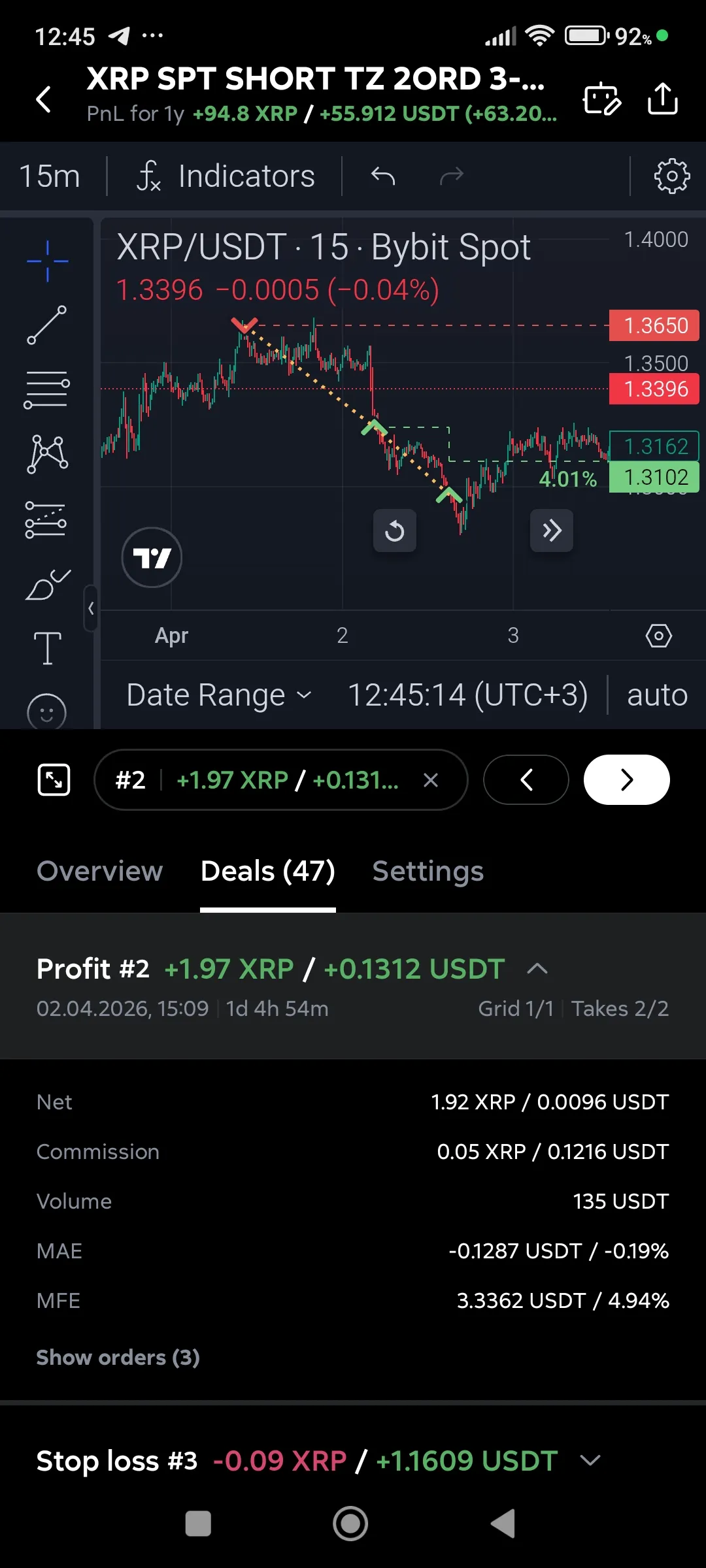
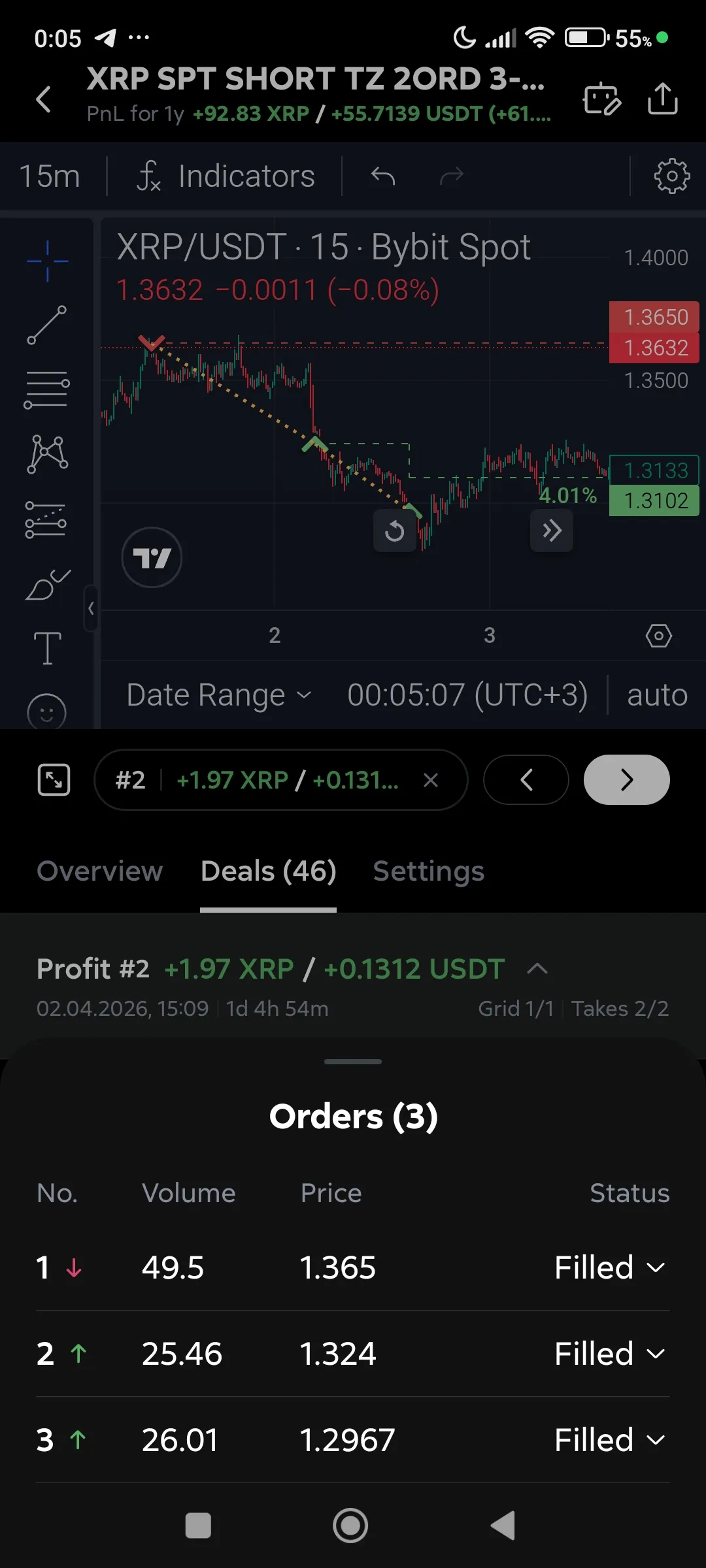
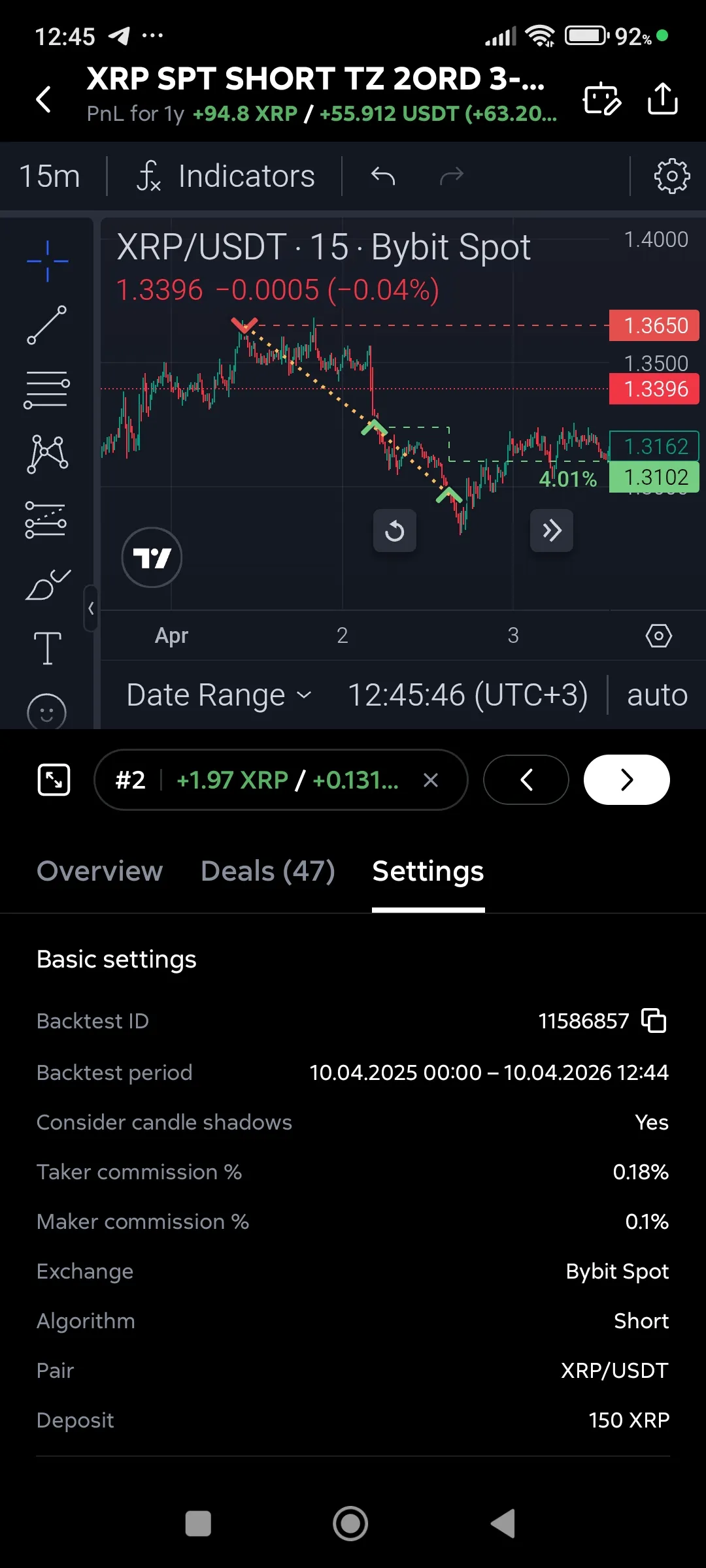
Before launching a strategy into real trading, it is critically important to run its backtest. How to properly launch a backtest and understand the results is described in our material. Contact support or make an appointment for a consultation to learn how to perform this important procedure.
Backtest, launch
Backtest, review of results
Backtest, list of deals
Backtest, a list of orders for the selected deal
Backtest, bot settings
Statistics
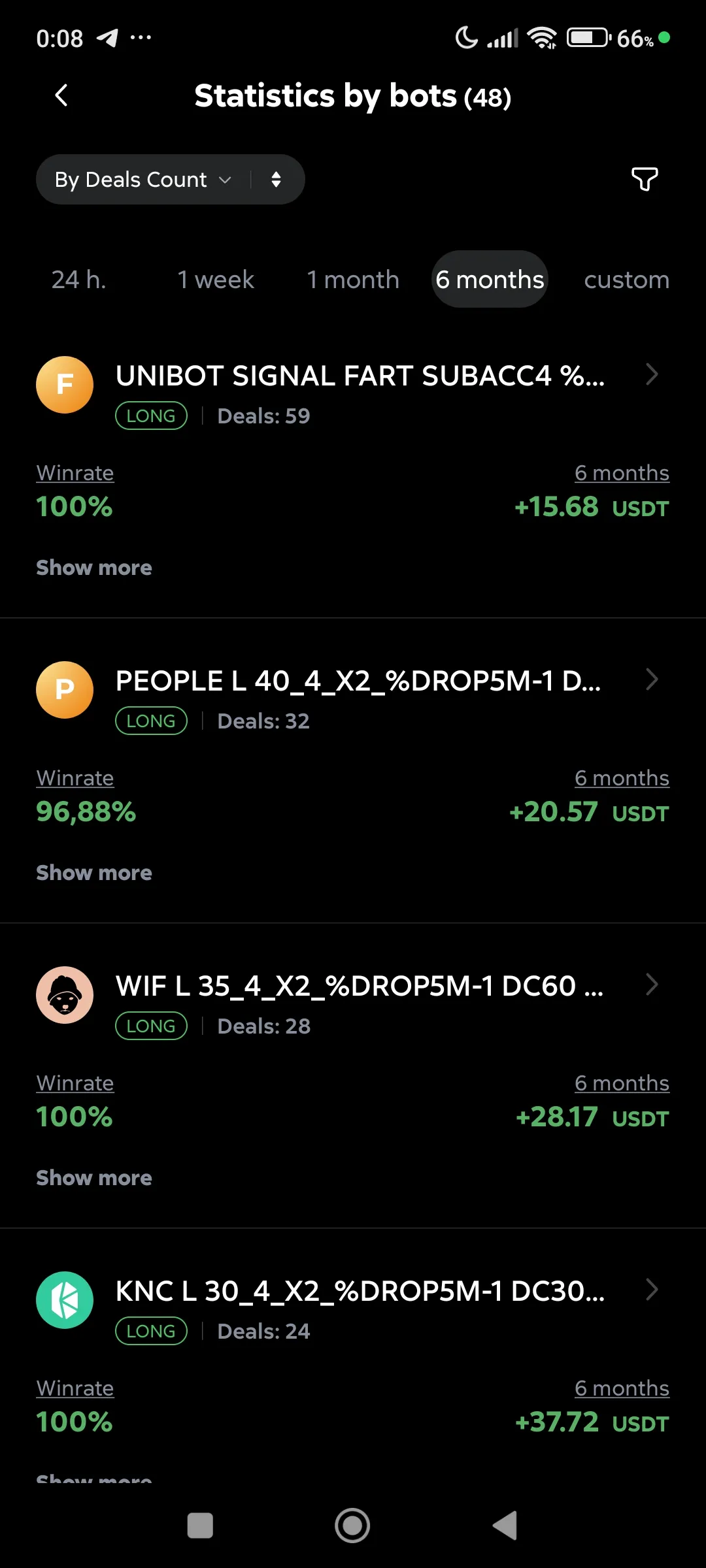
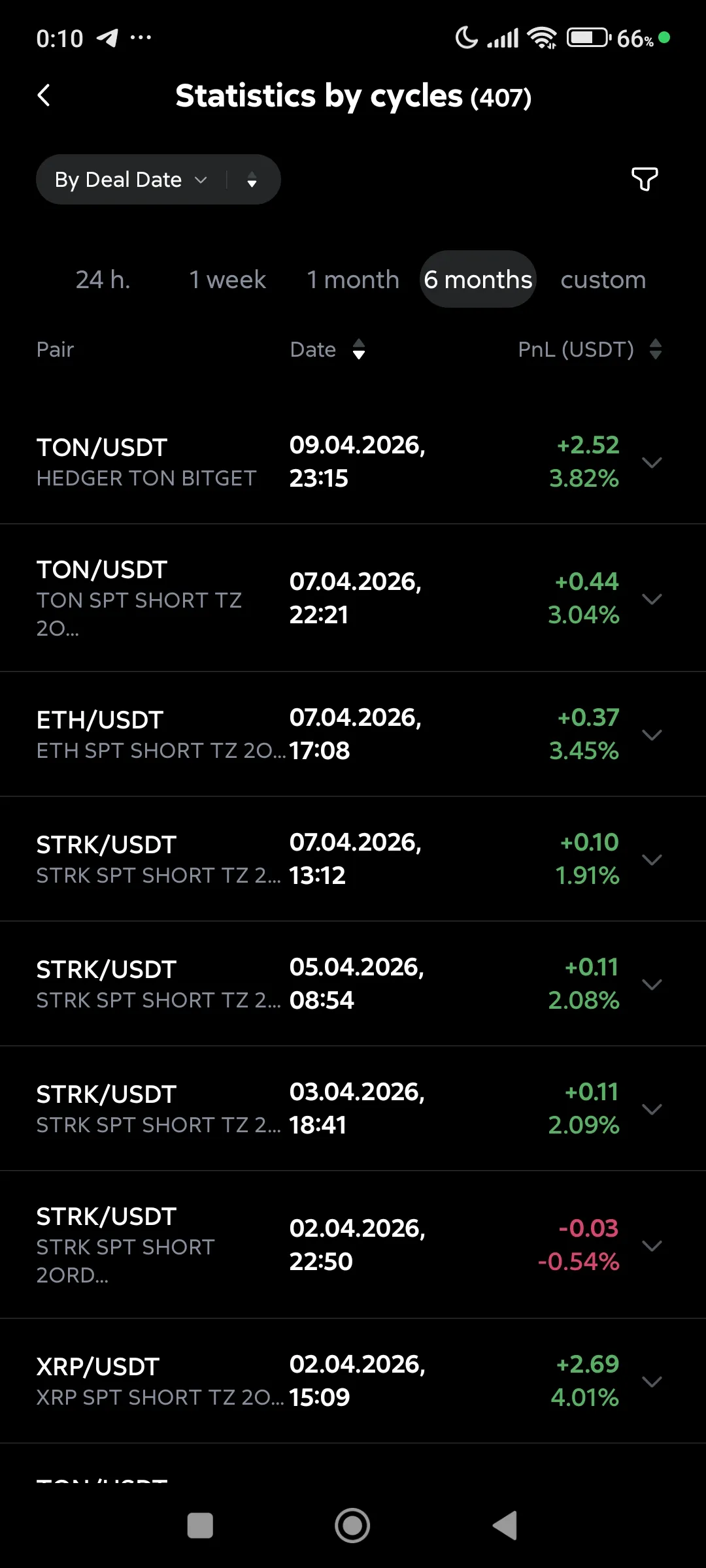
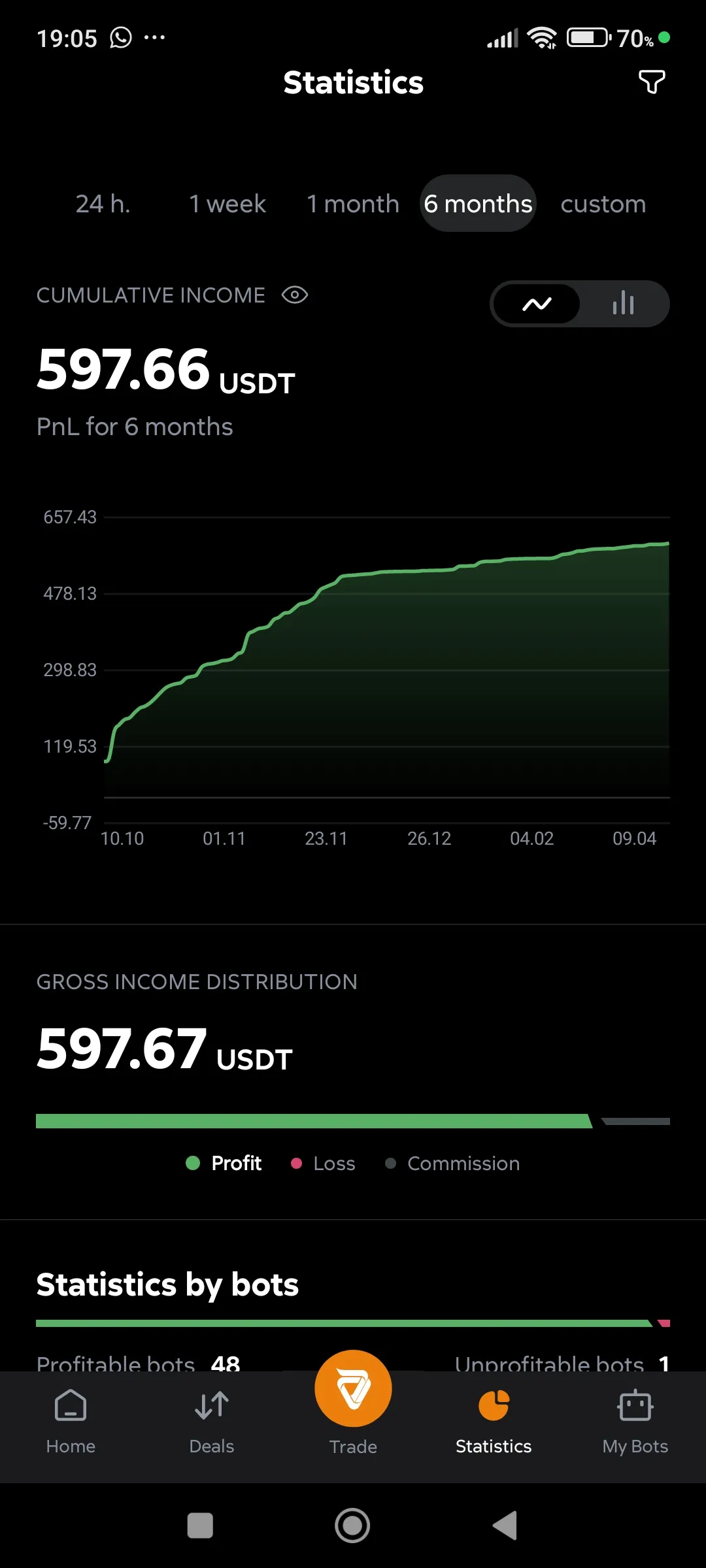
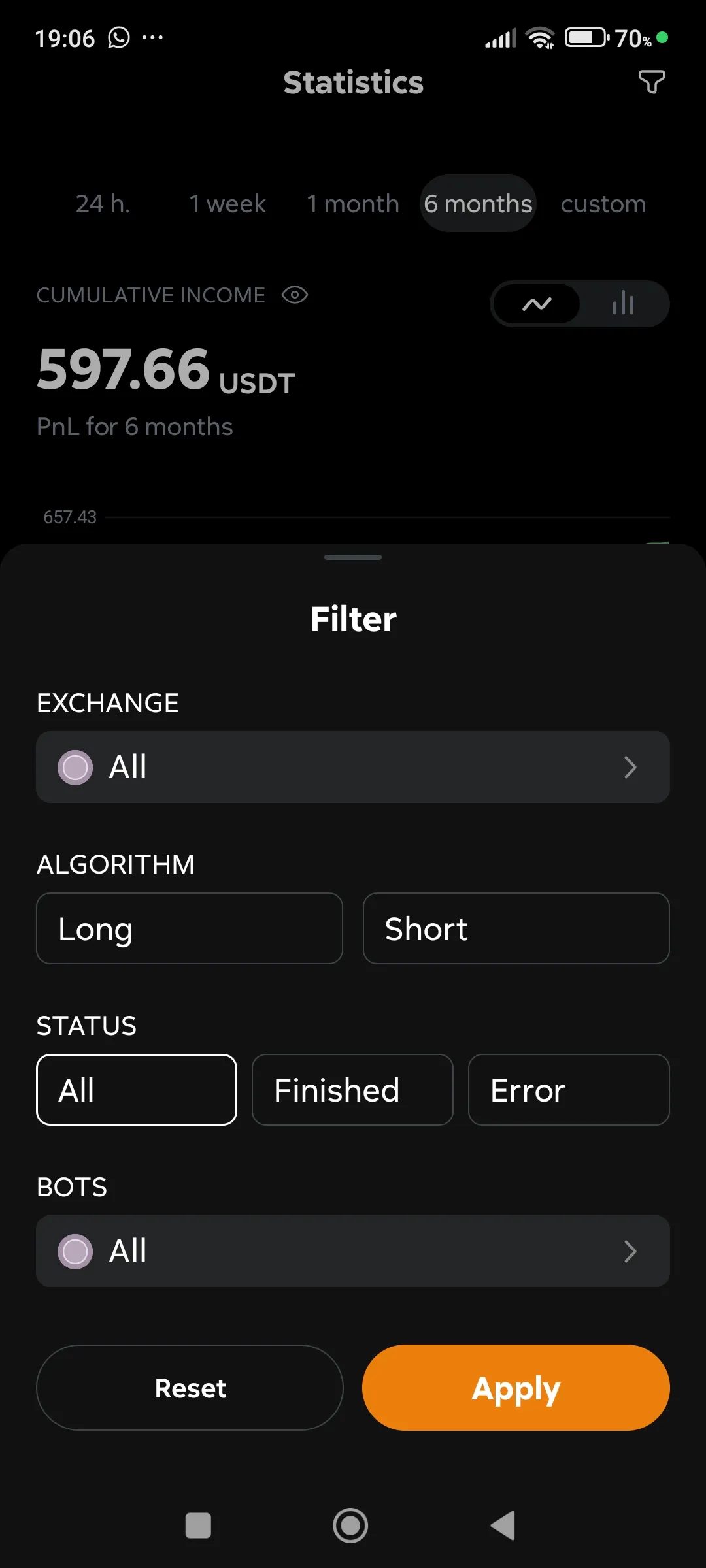
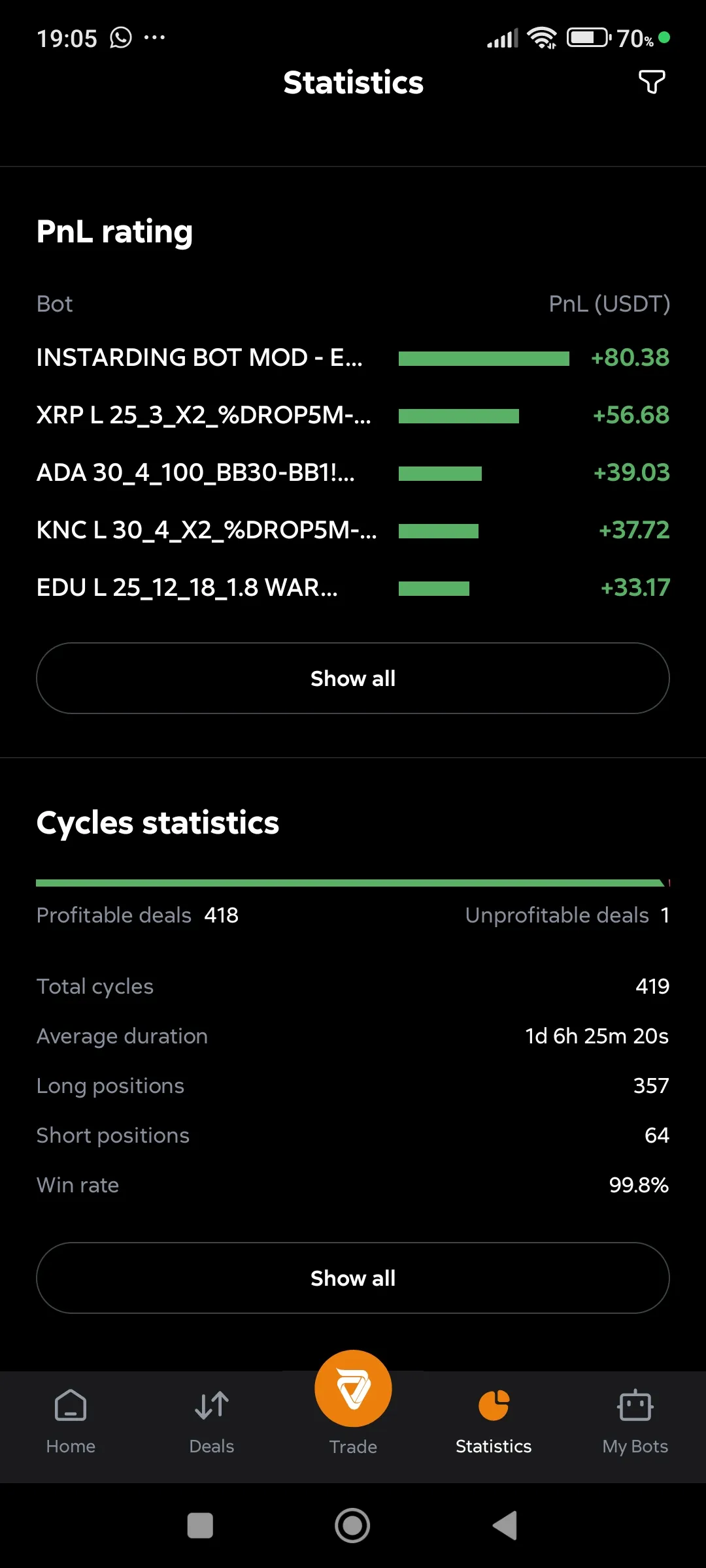
Section titled “Statistics”Summary of the results for all your bots and their deals.
Statistics on bots
Statistics on deals
Statistics on the chart
Statistics, filtering
Statistics, rating
My bots
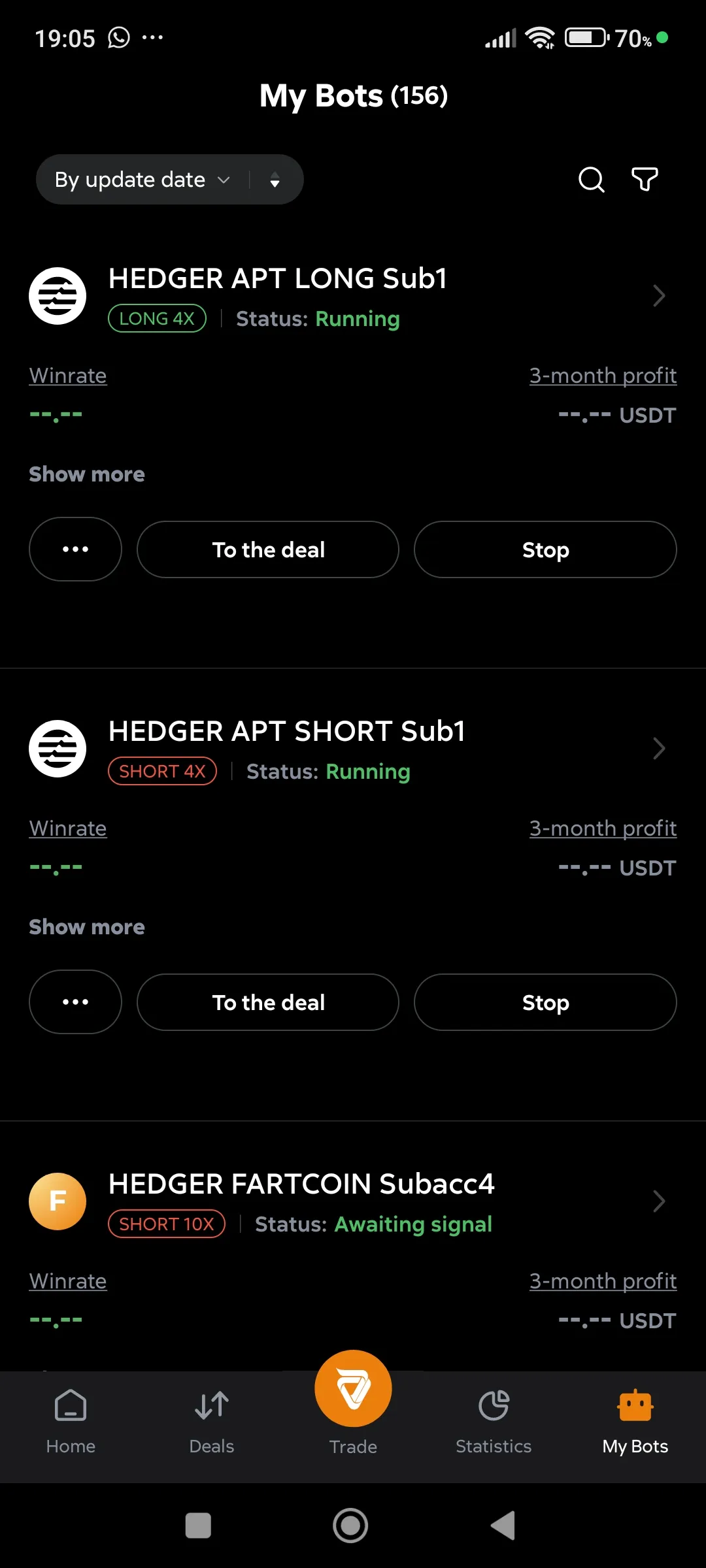
Section titled “My bots”A list of all bot cards, your saved configurations. For each bot, by opening its card, you can view the settings and results of its trading.
My bots, list
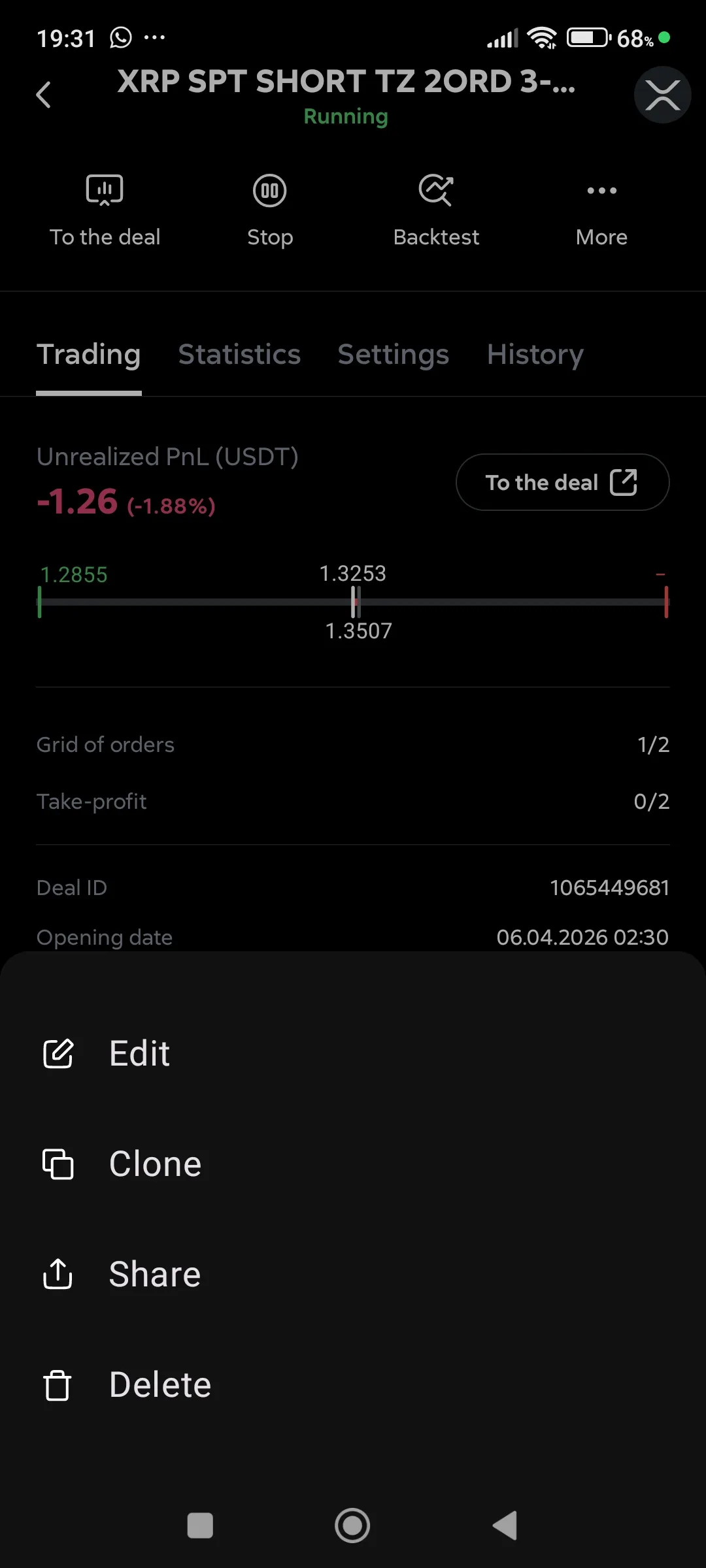
The buttons in the card may vary depending on bot status, and the ”…” button opens a menu with additional options.
My bots, additional options
-
“Edit”: open the bot settings in editor,
-
“Clone”: open a copy of the bot in editor,
-
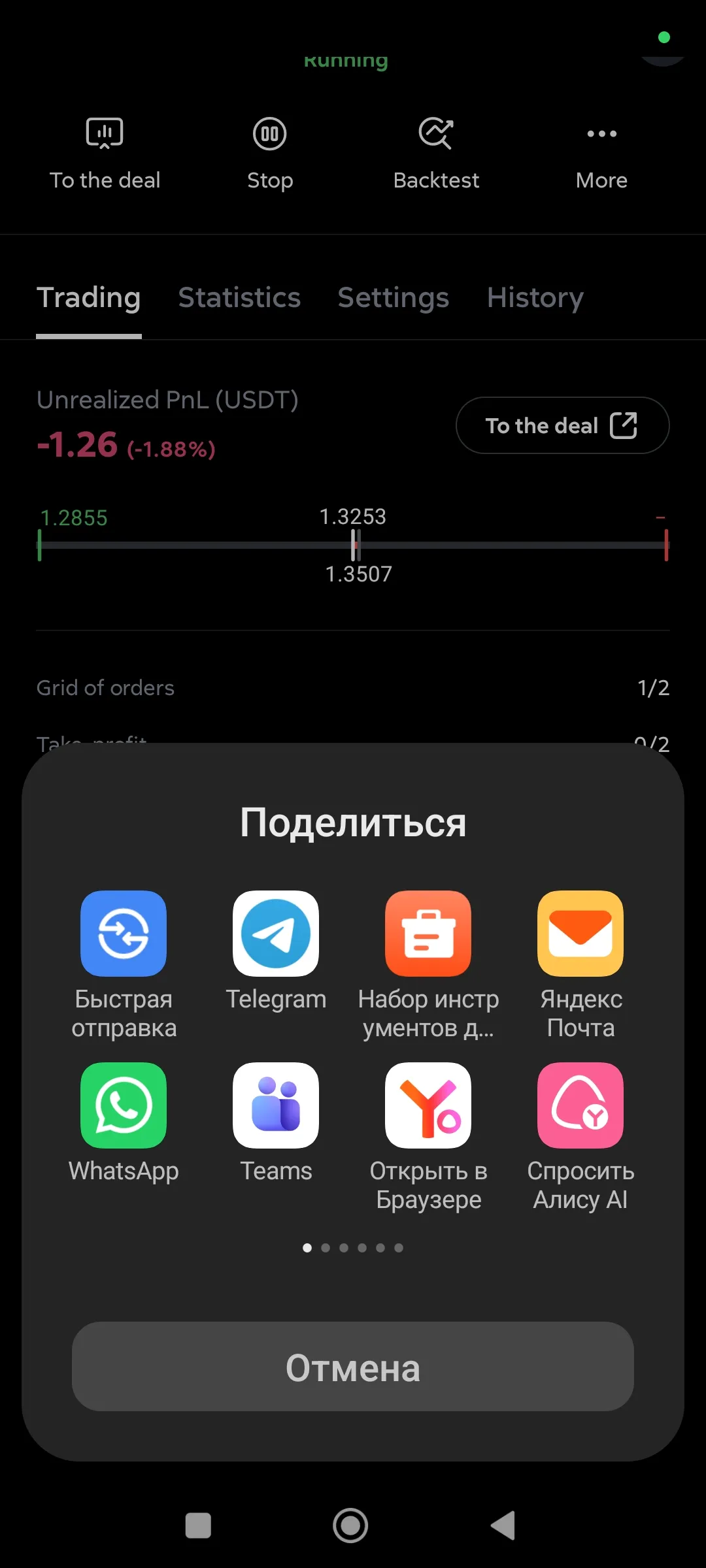
“Share”: create a link to the settings (to request support or distribution),
My bots, Share
-
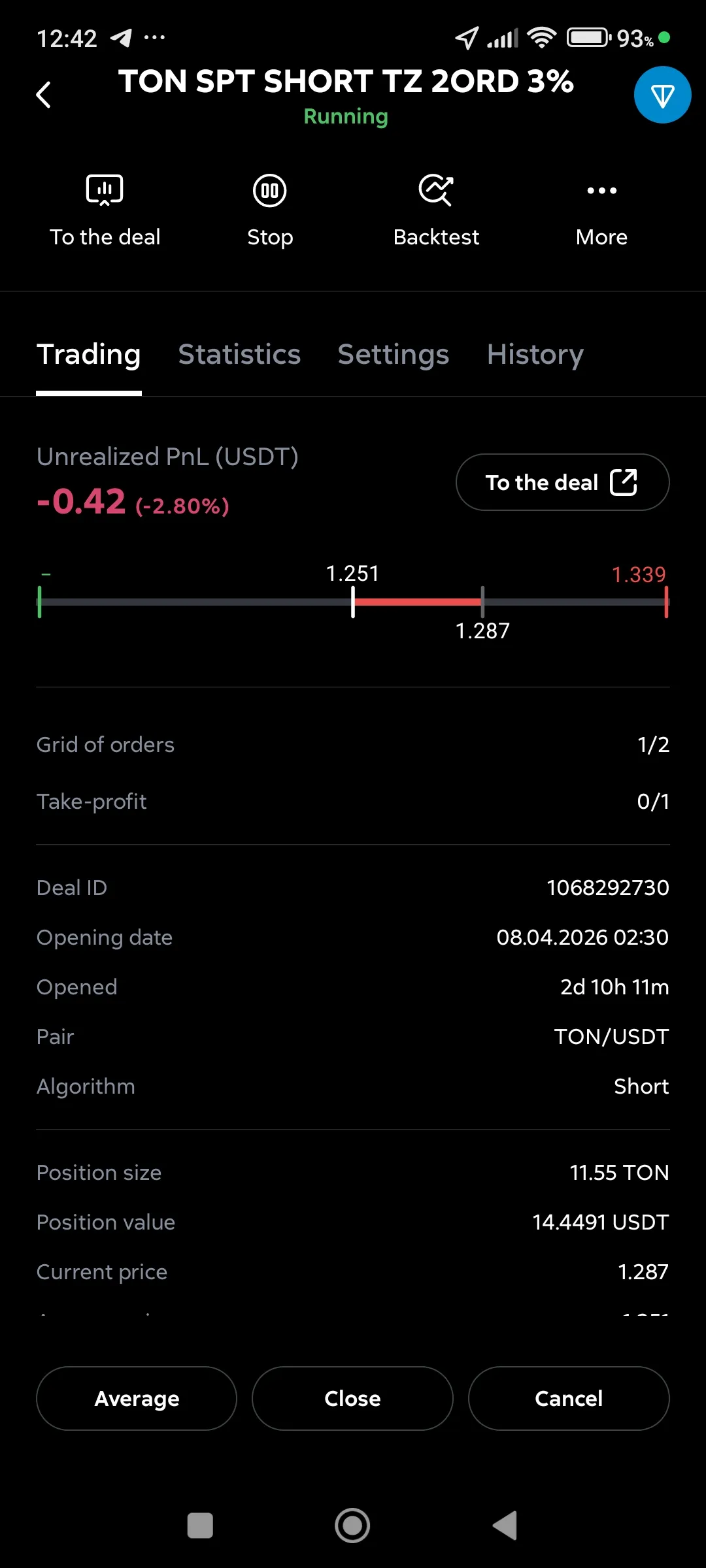
“To deal”: switch to open deal,
My bots, Trading
-
“Start”: start the stopped bot (also to restart the deal),
-
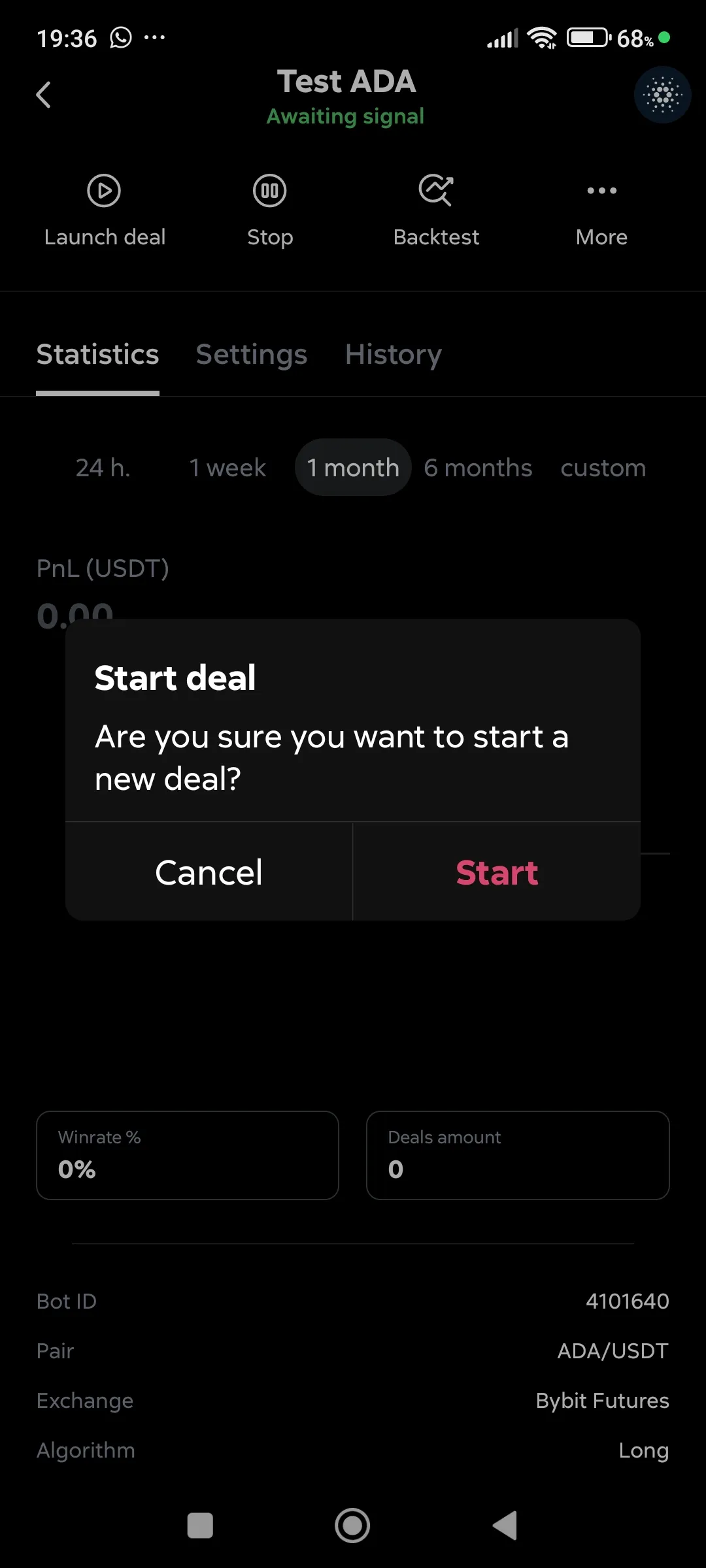
“Start a deal”: force the bot to open a deal (without waiting for the filters to trigger, not recommended),
My bots, forced entry into the deal
-
“Stop”: if the bot is running a deal, it will stop after it is completed,
-
“Delete”: Delete the bot (the button is available only after stopping the bot).