Connecting API OKX
A Fast One-click connection is available for main OKX accounts. Subaccounts can be connected manually only.
Fast connection to OKX
Section titled “Fast connection to OKX”-
Go to the API Key Management page or open the bot creation window on the Veles platform.
-
Click “Add API Key” and select OKX.
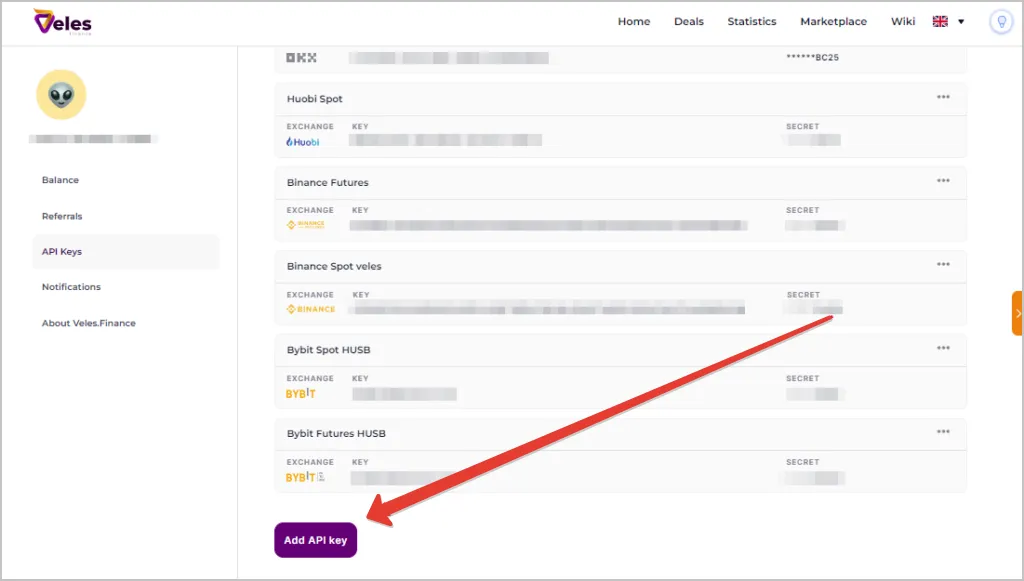
-
Click “One-click connection”.
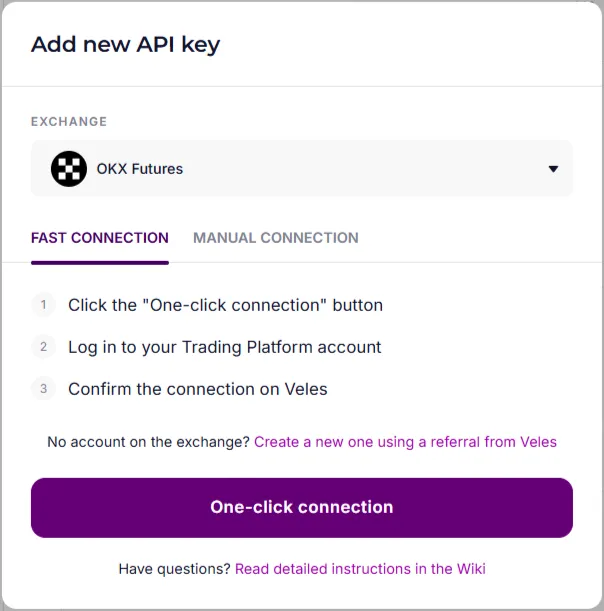
-
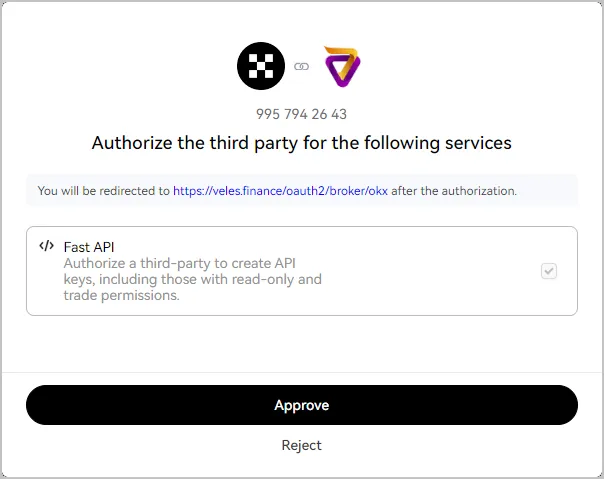
Log in to your OKX account.
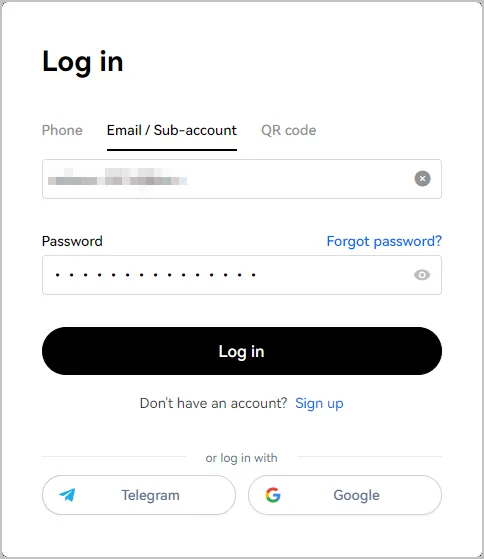
-
Click “Approve” to confirm the request.
How to recreate the key
Section titled “How to recreate the key”If your OKX account has already been linked to Veles, the exchange may reject the request when trying to create a new key. To recreate the key, follow these steps:
-
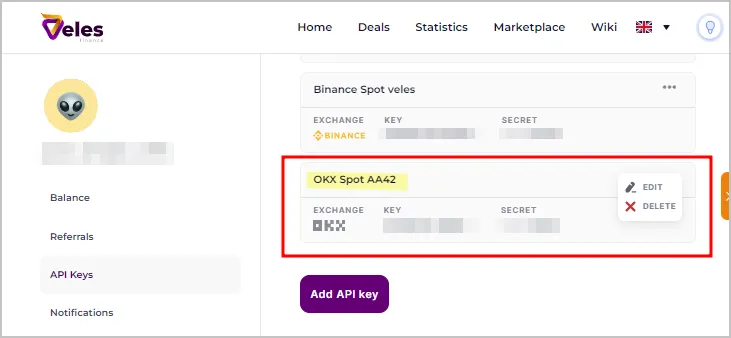
Remove the binding in Veles on the API Key Management page.
-
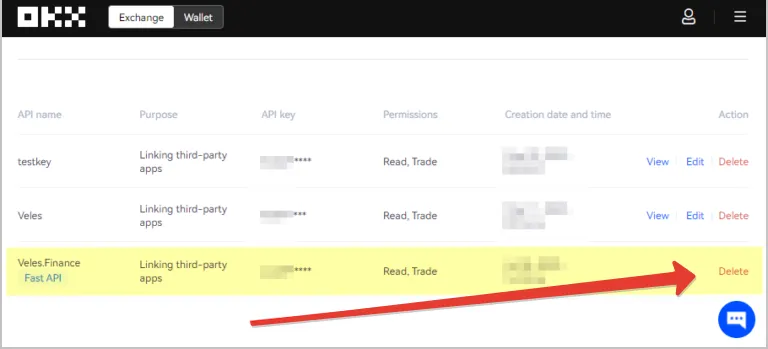
Delete the old key on the OKX API management page: https://www.okx.cab/ru/account/my-api.
-
Create a new key according to the instructions above.
How to Delete an API Key on OKX
Section titled “How to Delete an API Key on OKX”OKX API keys — deleting a key on the exchange should not be blocked by anything. Path: OKX → Profile → API → find the key → delete (https://www.okx.com/en/account/my-api).
If “Fast Connection” does not work, use the manual procedure.
Manually creating an API key on OKX and linking it to Veles
Section titled “Manually creating an API key on OKX and linking it to Veles”-
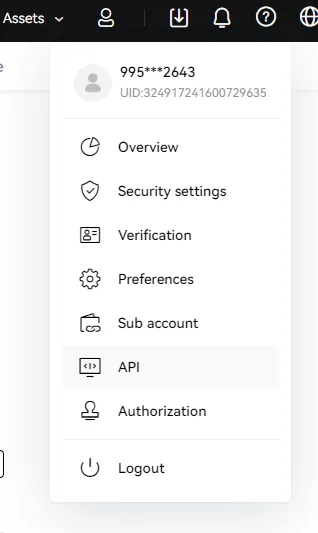
In the upper-right corner, click on the user icon, then select “API”.
-
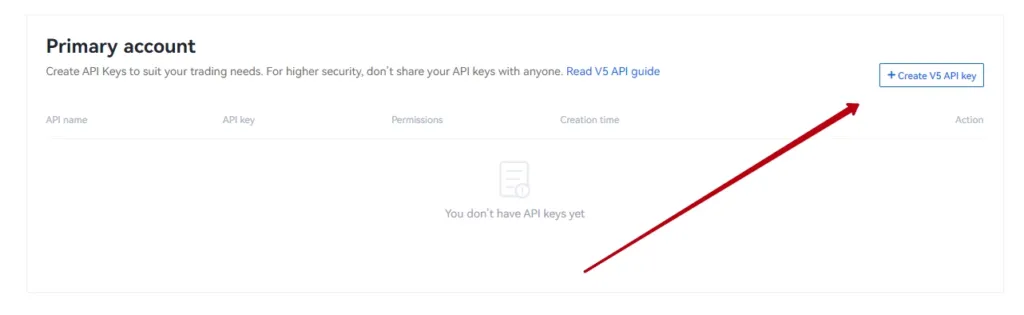
Click “Create API Key V5”.
-
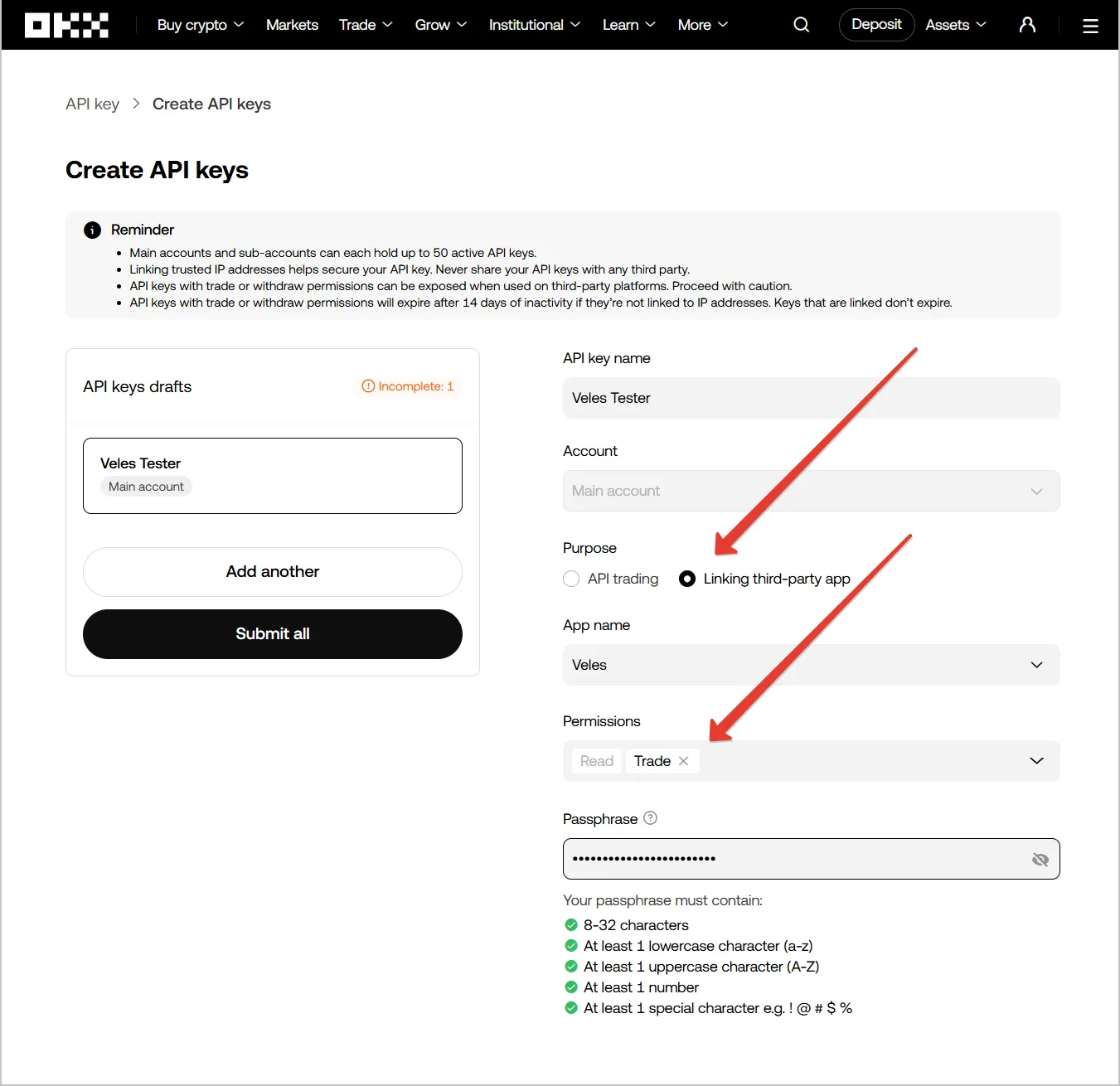
On the key creation page:
- use “Linking to a 3rd party application” - select “Veles”;
- enable the “Trade” permission;
- enter the passphrase (Latin letters only);
- press “Submit all”;
- save all the key data in a safe place (for example, in a password manager).
-
Enter the verification code sent to your phone to confirm the creation of the key.
Binding the API key to Veles
Section titled “Binding the API key to Veles”-
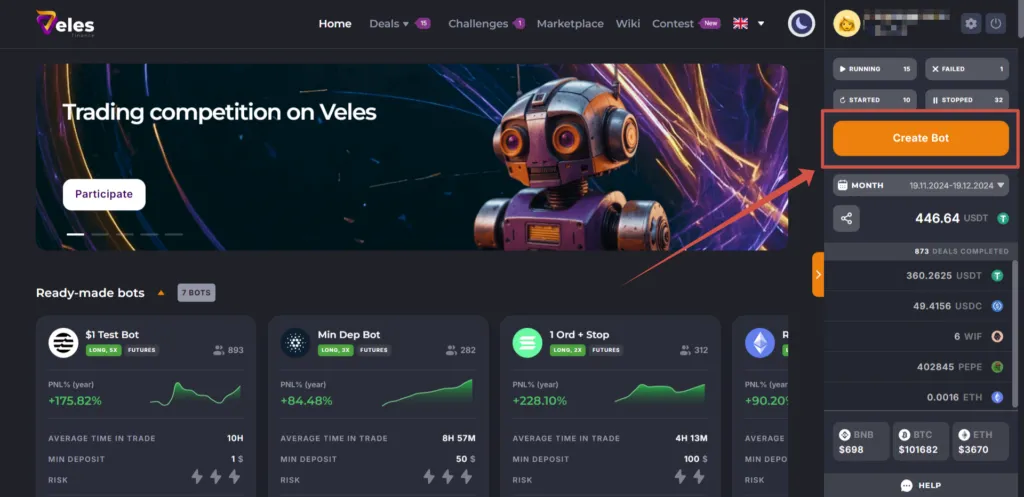
Log in to your Veles personal account and click “Create a bot”, alternatively, go to Settings → API Keys.
-
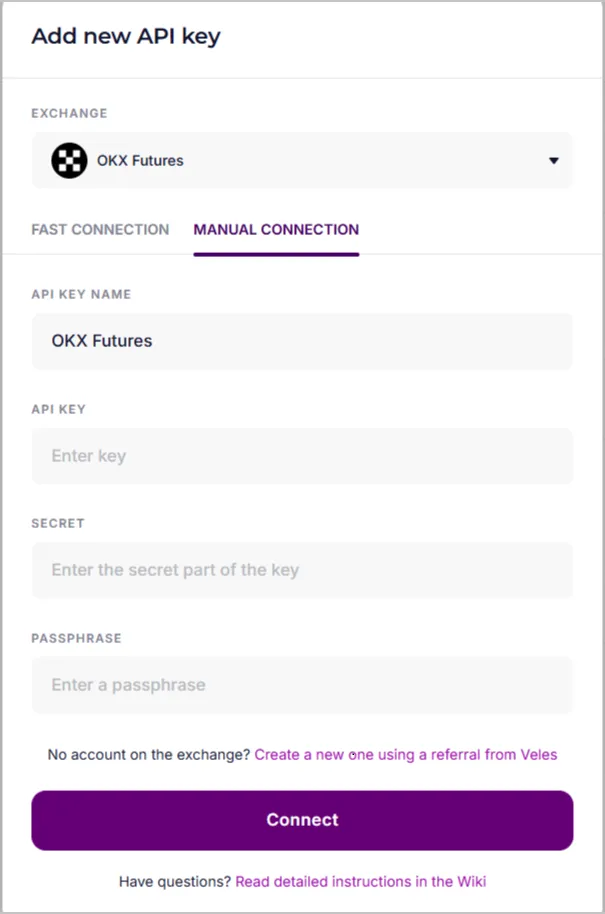
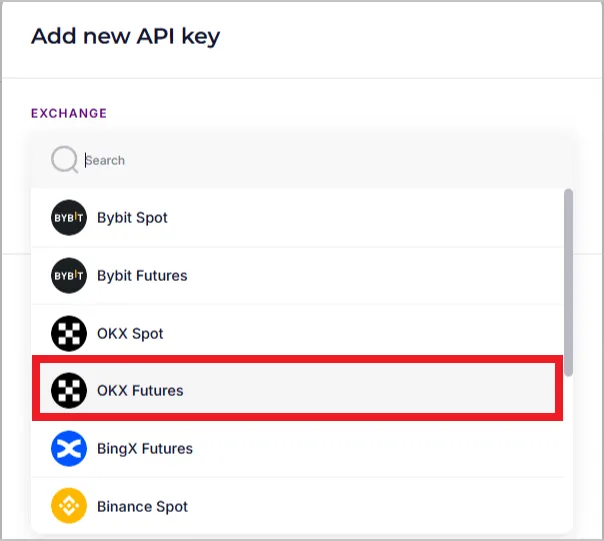
Select OKX exchange, then “Add new API key” → “Manual connection” and specify the type of binding (Spot or Futures).
-
Enter the API key data, give an informative name (for example, OKX Futures Main) and click “Connect”.