
TradingView
If you have a minimum paid subscription to TradingView, you can connect TradingView signals to Veles bots. Webhooks allow you to send signals to open, close, and average deals directly from TradingView.
Setup recommendations:
- For the first grid order, use the “Market” (=0) Indent to avoid missing entries due to price pulling up.
- Set up duplicate alerts: not only in the bot but also by email — this simplifies debugging and error diagnostics.
TradingView Signal
Section titled “TradingView Signal”To set up deal entry based on TradingView alerts:
-
Go to bot settings and find the “Trade entry conditions” section.
-
Select the TradingView filter and copy the generated link.

-
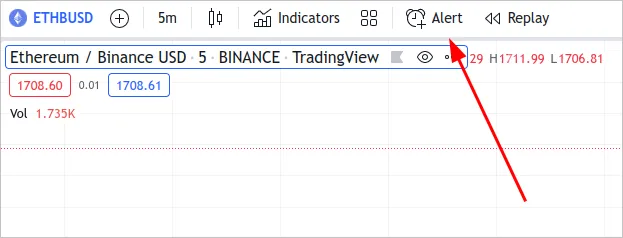
In TradingView, select the timeframe and instrument on the chart, and click the Alert button.
-
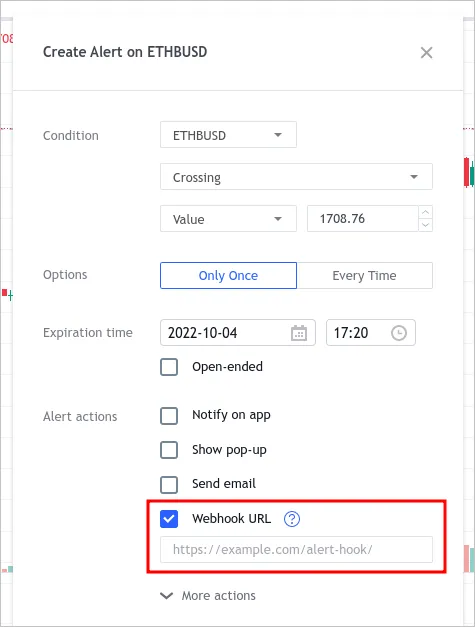
In the alert settings, paste the copied link into the Webhook URL field.
-
If the bot is a regular one, leave the Message field blank (its contents are ignored).
If the bot is a Multi-pair bot, enter the following in the field:
{{ticker}}Then the message will look like
BTCUSDT, and the bot will know which pair to open a trade on. -
Click the Create button.
To set up a trade closure based on TradingView signals, repeat the same steps in the Exit trade section.
⚠ Opening and closing a deal each require two different links and two different alerts in TradingView.
TradingView Strategy
Section titled “TradingView Strategy”-
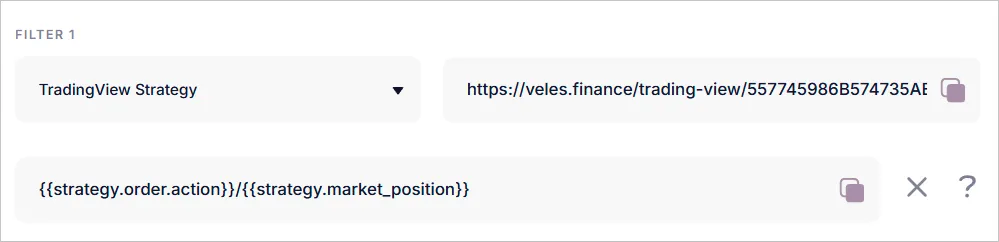
In the bot settings, select TradingView Strategy in the filters section and copy the link.
-
In TradingView, select a timeframe and strategy on the chart.
To do this, click the Indicators button, then open the Technical Analysis and Strategies tab.
Strategies are marked with an icon with two up/down arrows.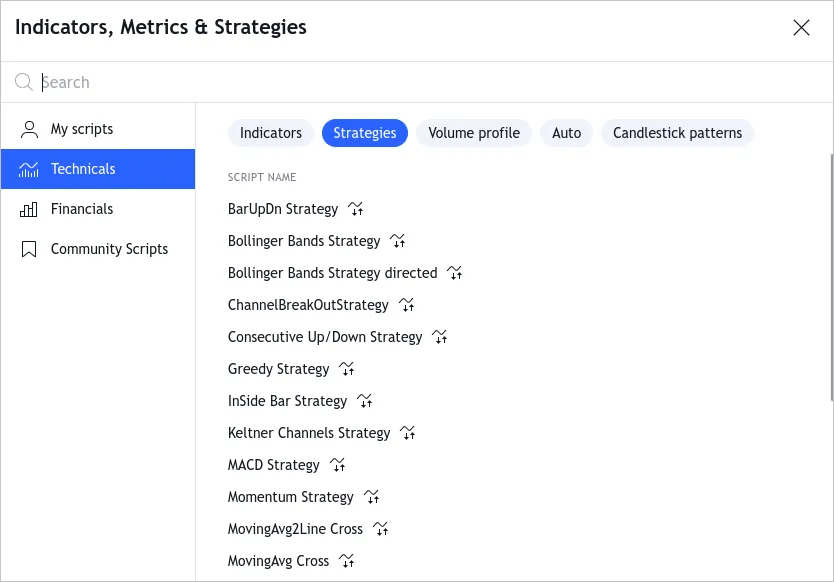
-
Click the Alert button.
-
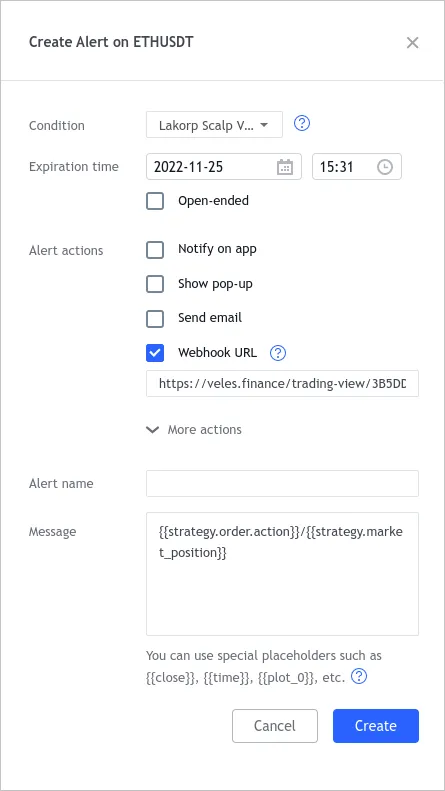
In the settings, specify:
- Condition = selected strategy
- Check the box next to Webhook URL and paste the link from Veles
- In the Message field, enter:
- for a regular bot
{{strategy.order.action}}/{{strategy.market_position}}- for a multi-pair bot
{{ticker}}:{{strategy.order.action}}/{{strategy.market_position}}
-
In the bot settings, in the Exit trade section, add the TradingView Strategy filter (the link will be the same).
Examples of messages the strategy sends to the bot:
- Open Long:
BINANCE:BTCUSDT:1h:buy/long - Open Short:
BINANCE:BTCUSDT:1h:sell/short - Close Long:
BINANCE:BTCUSDT:1h:sell/flat - Close Short:
BINANCE:BTCUSDT:1h:buy/flat
If the strategy uses two algorithms, the bot will only understand signals that align with its direction. That is, a long bot will only respond to the commands “buy/long” and “sell/flat”.
Combining TradingView signals with Veles indicators
Section titled “Combining TradingView signals with Veles indicators”TradingView signals can be combined with Veles indicators. The bot will only open a trade if all conditions are met.
Example:
- Current BTC price = $70,000
- TradingView signal: alert at $65,000, price reached → signal triggered
- Bollinger Bands condition also met
- ✅ Bot opens a long deal
Recommendations
Section titled “Recommendations”- Use TradingView for flexible conditions (levels, custom indicators), and Veles to filter out false signals.
- Test the accuracy of email alerts before the live launch.
- For multi-pair bots, always specify a message template (
{{exchange}}:{{ticker}}), otherwise the bot will not detect the trading pair.