What a Veles Bot Can Do
Veles Finance is a platform that takes care of all the routine cryptocurrency trading tasks for you. You create a strategy — the bot trades for you: opens positions, averages them down, takes profit, and does this 24/7. It’s suitable for both complete beginners and experienced traders who don’t want to spend all their free time glued to charts.
Spot and Futures Trading
Section titled “Spot and Futures Trading”A Veles bot can work on both spot and futures accounts.
- Spot — trading the asset itself. For example, the bot buys after a price drop and sells when the price rises.
- Futures — trading contracts on the asset, i.e., an obligation to buy or sell it at a pre-set price.
If you’re a beginner, start with spot. It’s easier to understand and much safer than futures.

Supported exchanges:
Binance (Spot, Futures) • BingX (Futures) • Bitget (Futures) • Bybit (Spot, Futures) • Gate (Spot, Futures) • HTX (Spot) • OKX (Spot, Futures)
Single Order or DCA Grid Trading
Section titled “Single Order or DCA Grid Trading”Veles bots can work in two modes:
- Single Order — the bot opens a trade in one entry and closes it once it hits the target profit or an indicator signal.
- DCA Grid — the bot places a chain of averaging orders to lower the average entry price. You can set up the grid manually or automatically (with Martingale % and logarithmic level spacing).
Entry signals:
- Technical indicators (RSI, MACD, etc.)
- Price filters
- Unconditional entry
Exit signals:
- Fixed % profit (in one or multiple orders)
- Indicator signals
- Price filters
If the platform doesn’t have the indicator you need, you can connect your bot to execute orders via TradingView alerts.
Long and Short Trading
Section titled “Long and Short Trading”Each Veles bot trades in one of two directions:
- Long — buy low, sell high.
- Short — sell high, buy back low.
There’s no neutral mode, but you can run two bots on the same asset: one Long, one Short.
They work independently if:
- On futures — hedge mode is enabled on the account.
- On spot — bot deposits don’t overlap (the Short bot must not sell coins bought by the Long bot).
How a Veles Bot Works
Section titled “How a Veles Bot Works”A Veles bot monitors the market 24/7 and, based on your chosen indicators, opens trades, averages them, and closes them at the right time — without your involvement.
A manual trader would have to:
- Choose the asset and trading direction.
- Set the price and trade size.
- Open the position manually and wait for execution.
- Monitor the market to close the trade with profit or an acceptable loss.
- If needed, add to the position or partially close it with extra orders.
This takes constant time and attention.
With a bot, you set up your strategy once (entry, management, exit), test it with a backtest, and then launch it live.
Once started, the bot:
- Creates a set of orders based on your parameters.
- Connects to the exchange via API keys.
- Automatically places and cancels orders as it trades.
On the exchange, all you’ll see are the bot’s orders and their execution results.
Example Bot Trade
Section titled “Example Bot Trade”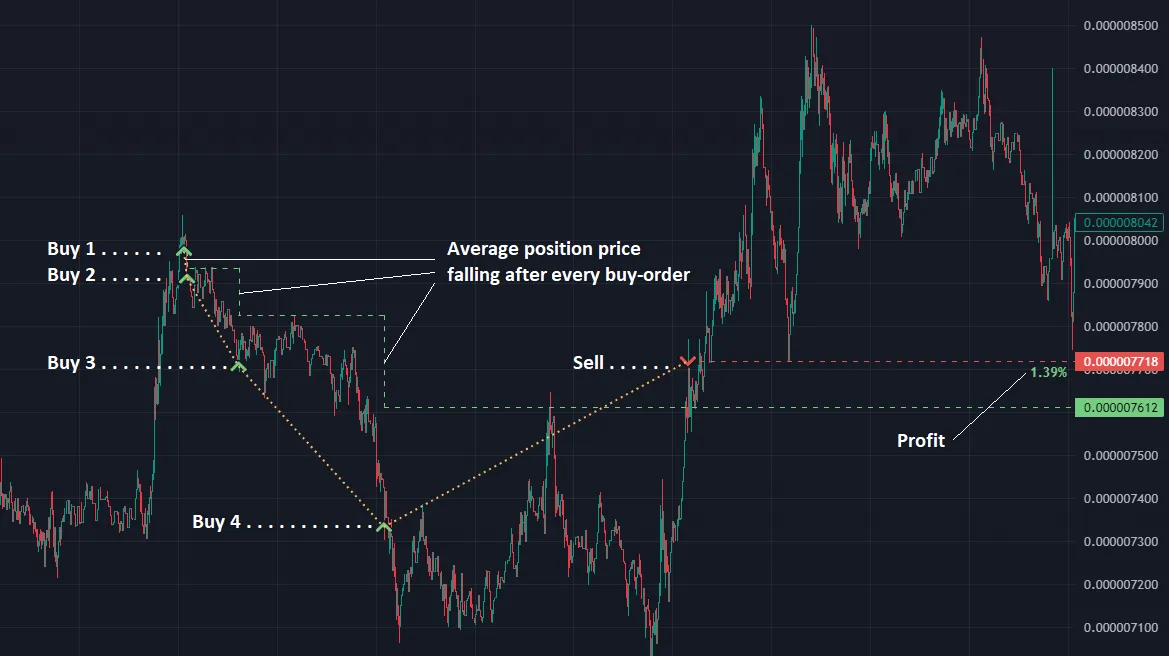
This was a Long trade (buy low → sell high).
The bot got a signal from indicators and started building a position using a 5-order DCA grid.
- Buy 1 — the first order. If the price had gone up, the bot would have closed the trade immediately. Instead, the price dropped.
- Buy 2 and Buy 3 — averaging with increased volume. After any of these orders, if the price hit the take-profit, the bot would close the trade.
- Buy 4 — the last executed order. The price reversed before hitting “Buy 5.”
- Sell — closing the trade for +1.39% profit on the deposit.
Averaging lowered the average entry price, making the trade profitable even though the first order’s price was higher than the sell price.
The bot closed the position in 2 days, canceled the unused “Buy 5,” and left the account clean — but with more USDT than it started with.
Veles Dashboard Overview
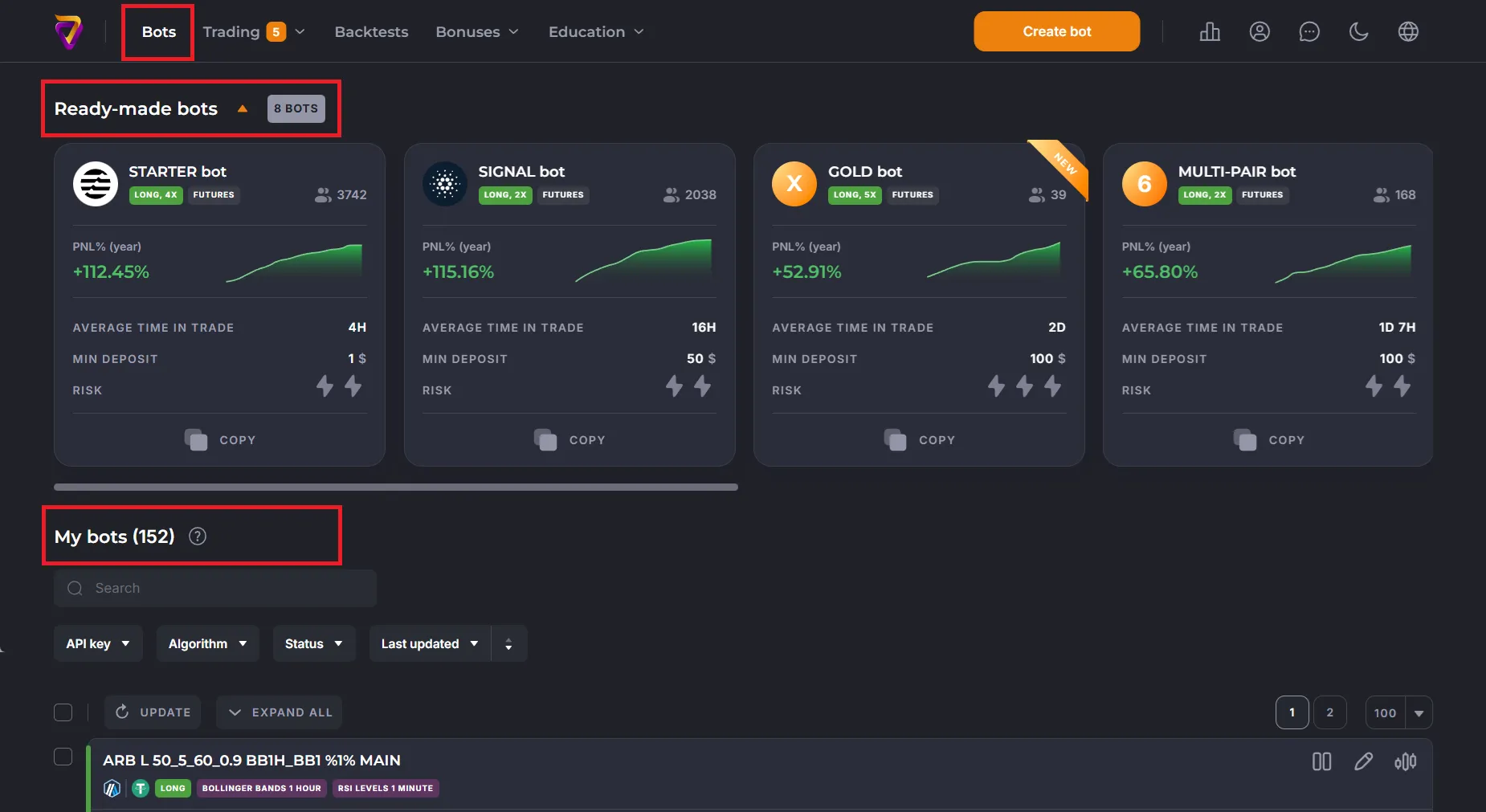
Section titled “Veles Dashboard Overview”The main page of your account is called “Bots”.
It contains two sections:
- a showcase of ready-made bots,
- your saved strategies.
“Ready-Made Bots”
Section titled ““Ready-Made Bots””The showcase contains sample strategies you can:
- Copy
- Study and customize
- Backtest
- Run live if the results are good
”My Bots”
Section titled “”My Bots””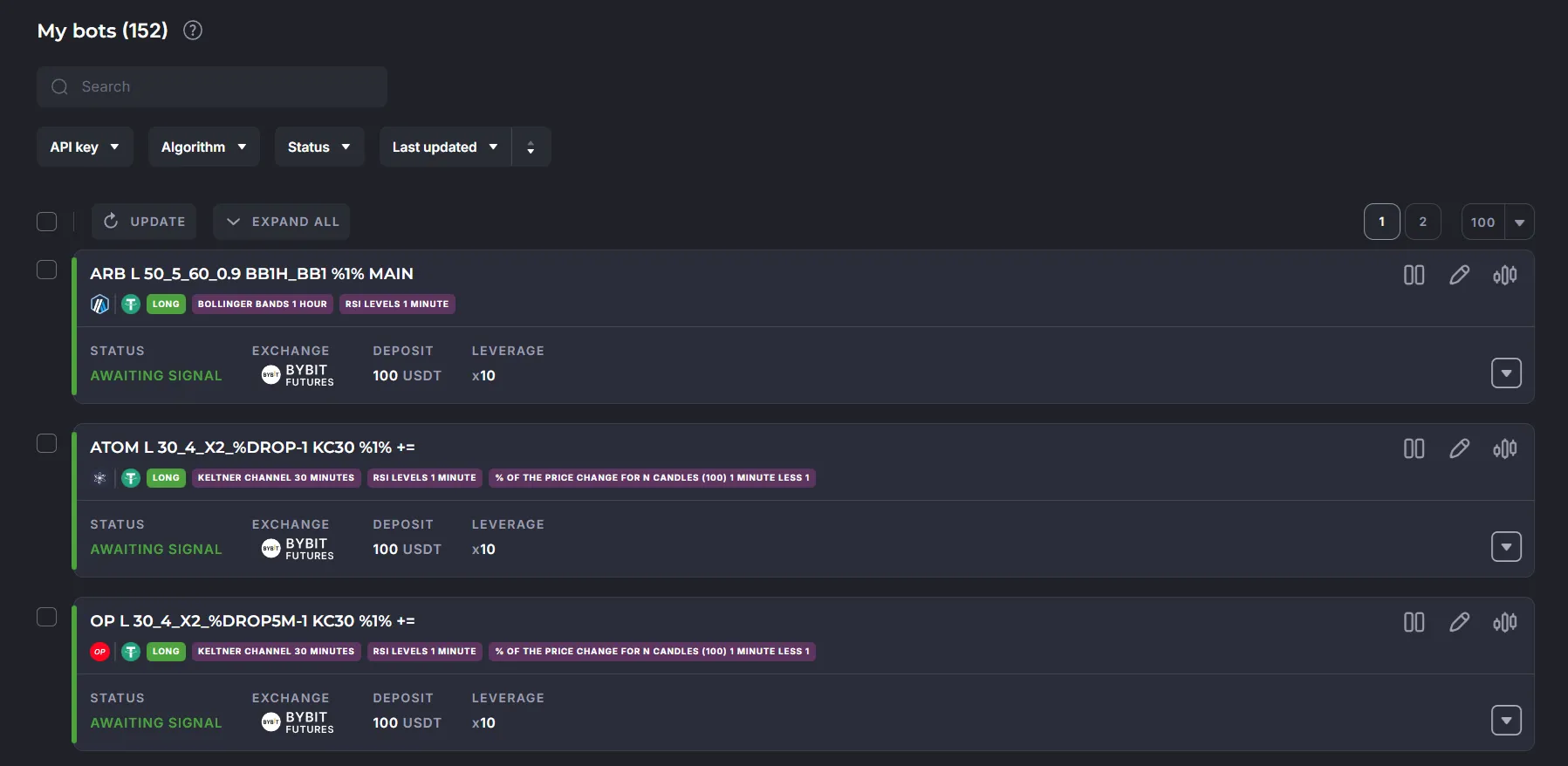
The “My Bots” list shows all bots you’ve saved. Over time, this list may grow long, so there are filters:
- API key — OR logic, shows bots with any selected bindings
- Algorithm — Long or Short
- Status — select multiple options
- Sort — by creation/update date, ascending or descending
”Trading”
Section titled “”Trading””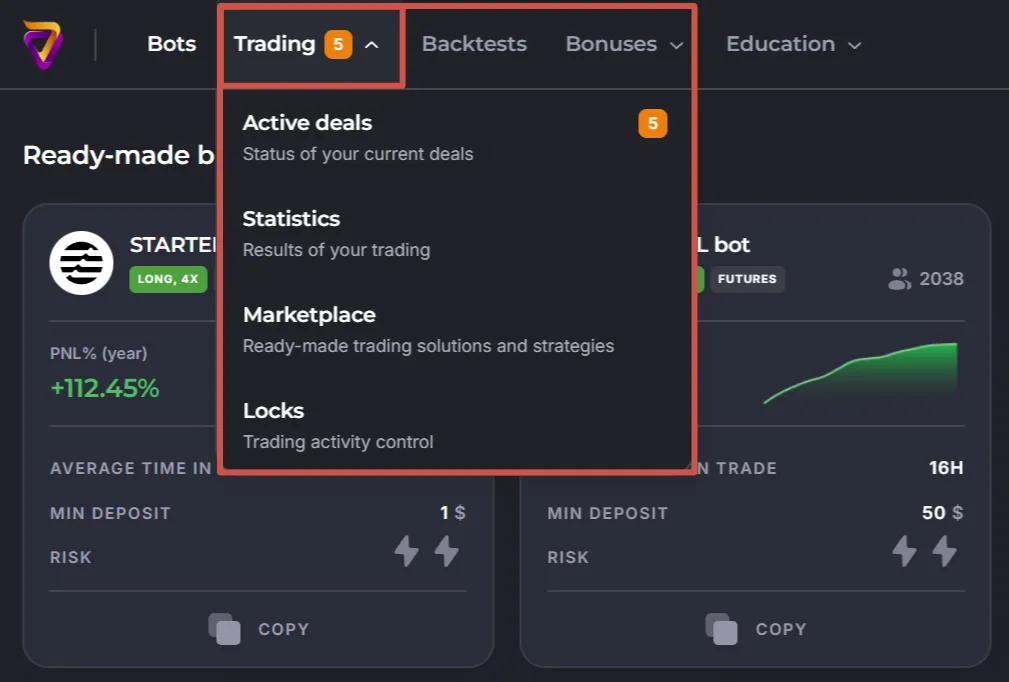
- Go to the Active Deals page, to bots that have received entry signals.
- Go to the Statistics section - trade summary.
- Go to the Marketplace.
- Go to the Locks settings - an important step in preparing for the start.
”Backtests”
Section titled “”Backtests””Switch to see the results of simulations for trading strategies.
”Bonuses”
Section titled “”Bonuses””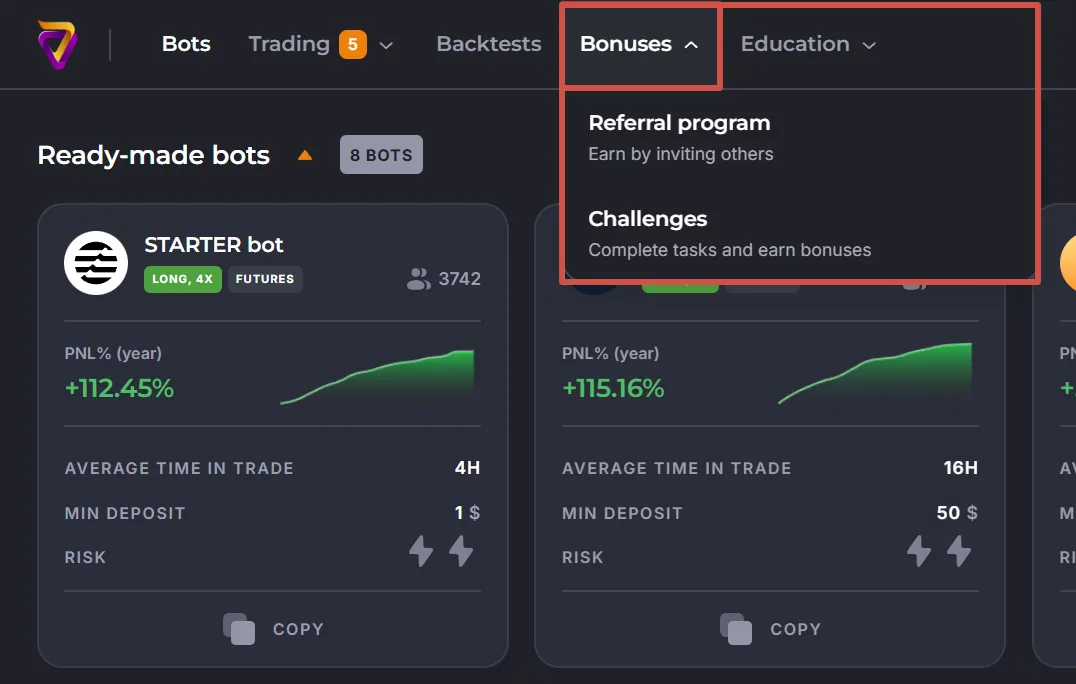
- Switch to the “Referral Program” page - invite friends and earn together.
- Switch to the “Challenges” page - to earn starting bonuses.
”Education”
Section titled “”Education””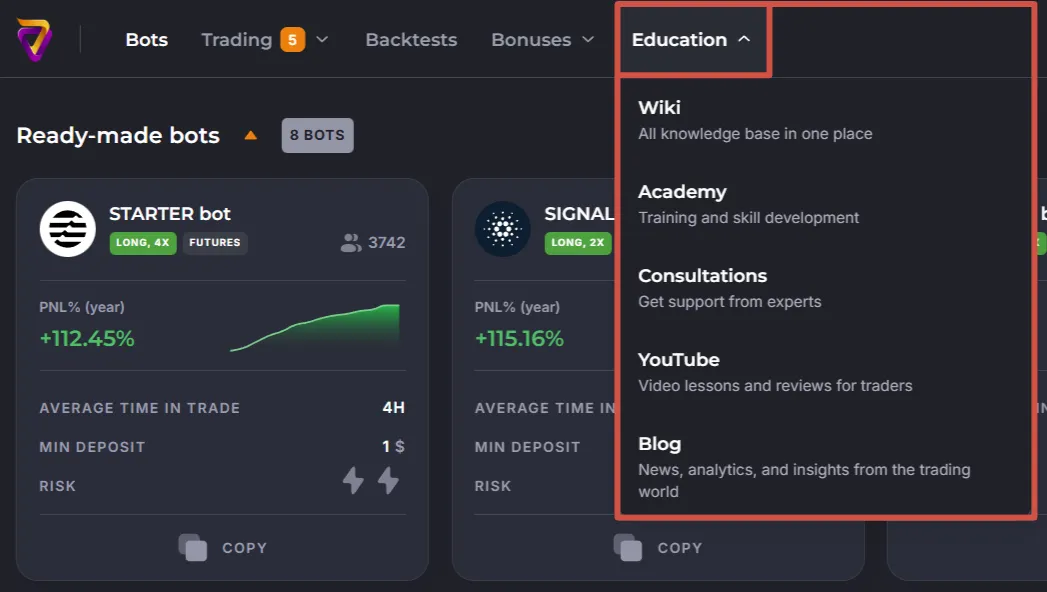
- “Wiki”, a help system describing all platform functions.
- “Academy”, an educational portal with lessons for beginners.
- “Consultations”, order a free online consultation.
- “YouTube” - our platform channel.
- “Blog” - news, analytics, examples of ready-made bots.
”Create Bot”
Section titled “”Create Bot””Open the bot editor to create a strategy from scratch.
”Bot Statistics”
Section titled “”Bot Statistics””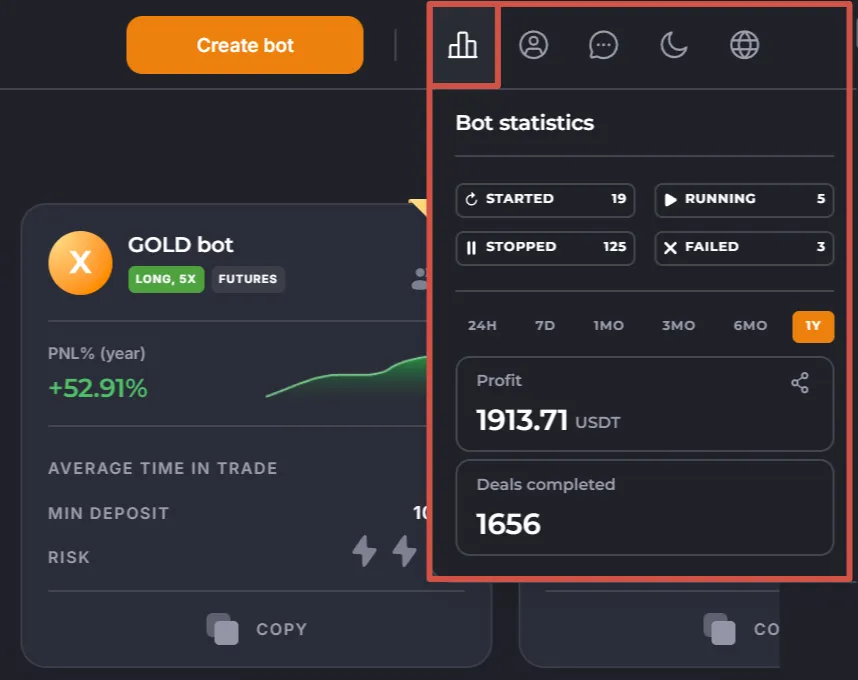
Bot status summary, Gross-profit, and number of trades for the selected period.
”Profile Settings”
Section titled “”Profile Settings””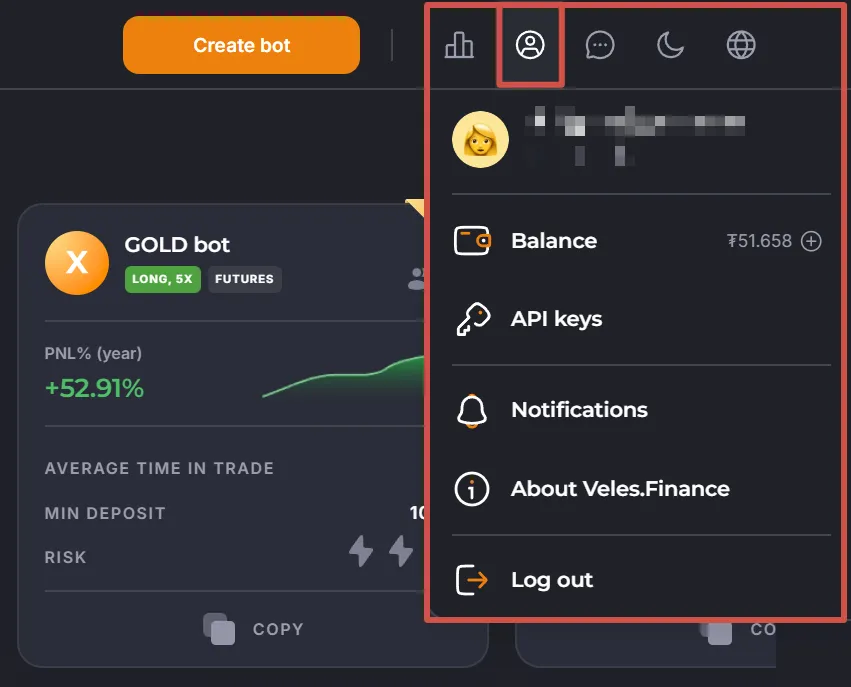
- Switch to your account settings,
- “Balance” section, your wallet for commission on the platform,
- “API Keys” section, set up connections to your exchanges,
- “Notifications” section, set up bot deals notifications,
- “About Veles” section, legal information about Veles.Finance,
- “Log out” from your account.
”Theme”
Section titled “”Theme””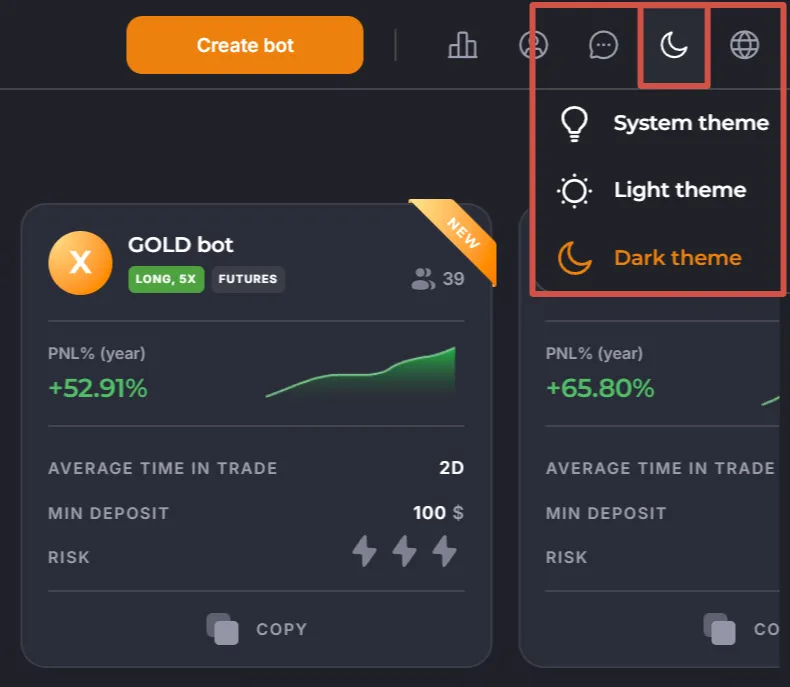
Changes the screen color scheme.
”Language”
Section titled “”Language””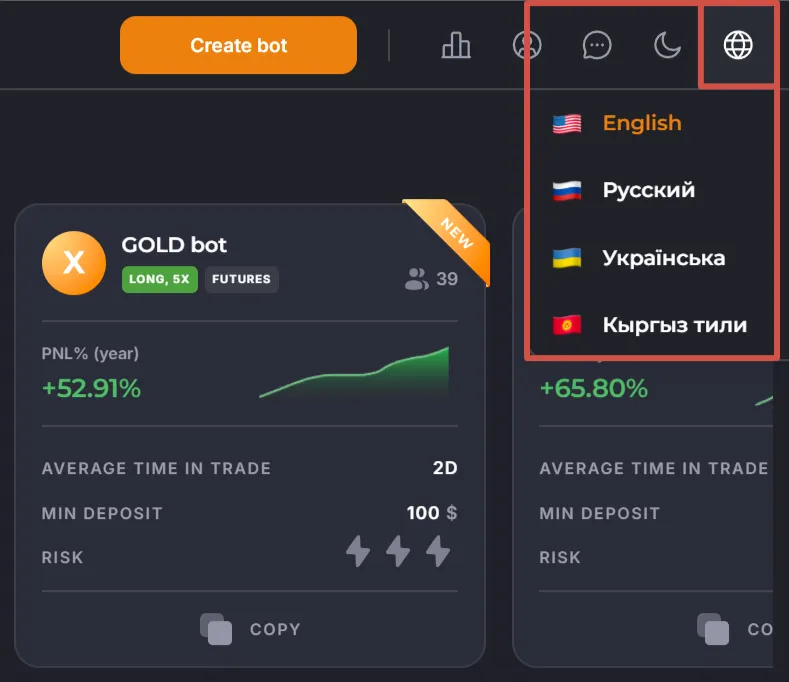
Selects the language for the dashboard.
We recommend using one of the pre-defined localizations and disabling auto-translation of the cabinet in your browser.
Support
Section titled “Support”If anything is unclear, we’re here to help:
- Telegram Community — always read pinned messages
- Personal Support Bot — add to contacts to avoid scammers
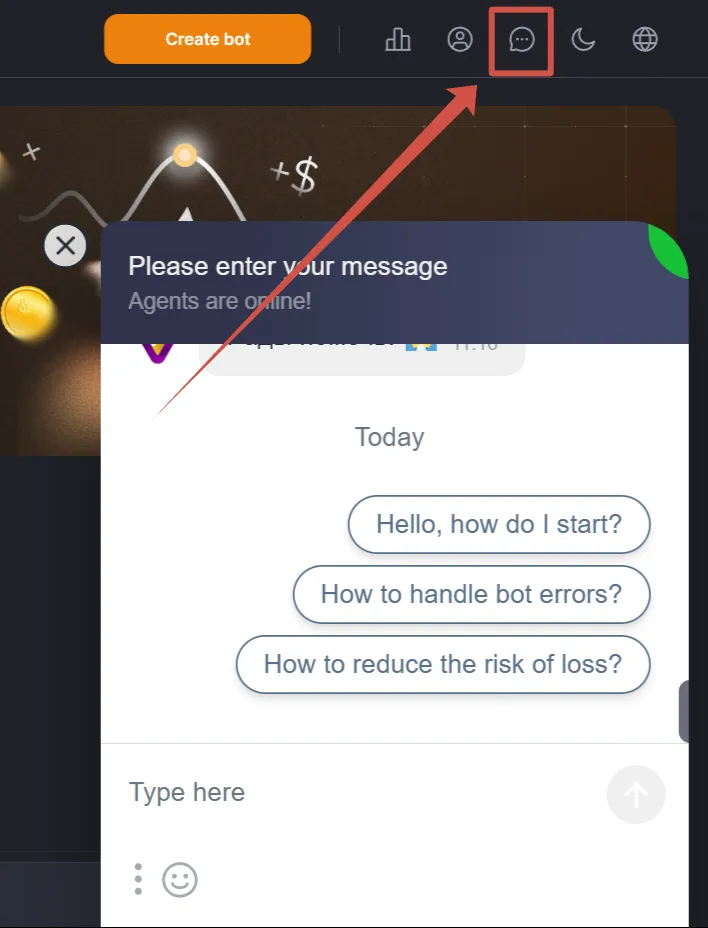
- “Chat with Support” button in the top menu
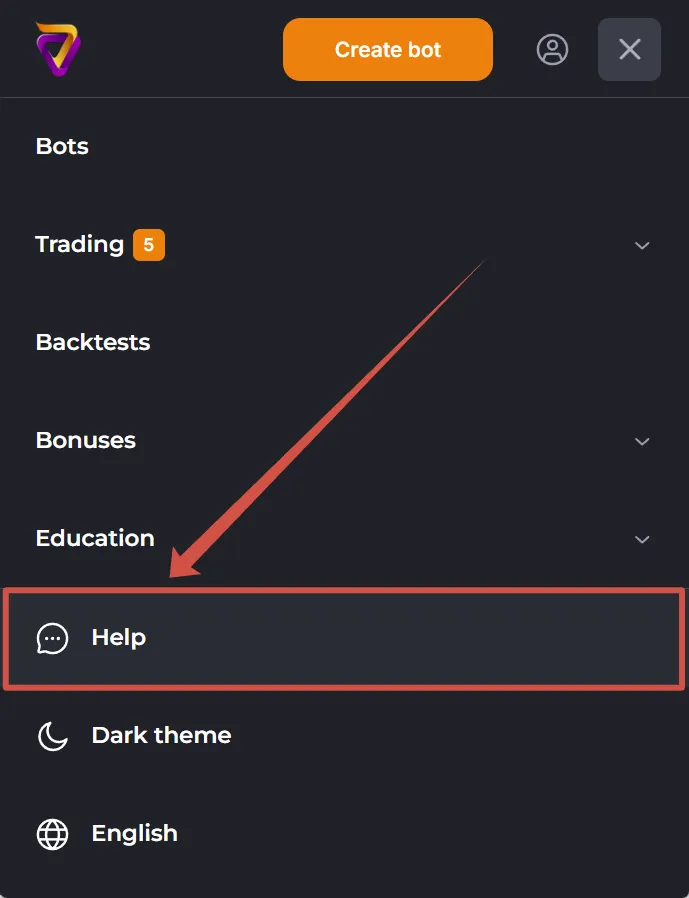
Mobile Version
Section titled “Mobile Version”On mobile:
- Open the menu via the top-right button
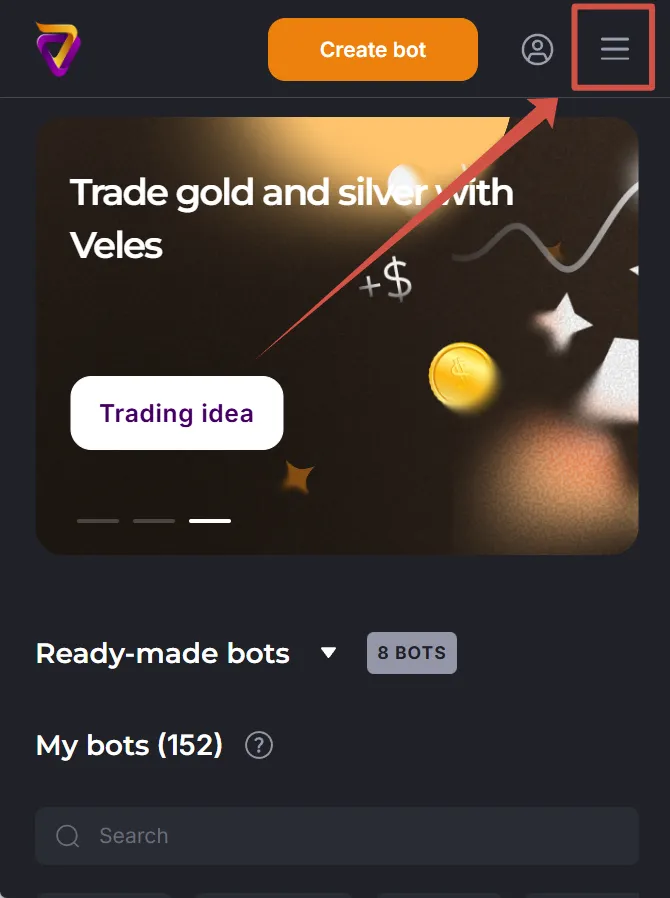
-
Scroll down to find:
- Help button,
- theme switcher,
- language selection for the site and notifications.