
Backtests
Backtest is a simulation of bot trading based on historical data (1-minute candles from exchanges). You set up the bot → run the test → see the drawdowns of the strategy, execution of the Stop Losses and what Net result it could bring you.
Backtest is a required step for any strategy: purchased, taken from the training bot showcase, or your own.
To run the backtest, you must have a connection to the exchange (an active API binding in the cabinet), but no real deposit is required (for simulation, you can specify any amount).
Limits and subscriptions
Section titled “Limits and subscriptions”- Free: 10 backtests in 24 hours (the counter starts at the moment of the first launch), a period of up to 3 months, the test result is stored for 1 week.
- Queue and frequency: ≥1 min between repetitions; max. 5 tests with status “In progress”/“Waiting” in the queue.
- “Backtests PRO”: period starting from listing date (depending on the exchange), unlimited tests per day, interval between tests ≥30 seconds, up to 5 tests in the queue, the test result is stored for 3 months.
- Pro subscribers get access to a weekly selection of successful public tests.
All your tests, counters and subscription purchase are in the “Backtests” section.
Strategy requirements to start the test
Section titled “Strategy requirements to start the test”For the test to pass correctly:
- The bot has filters to start the deal (except for TradingView — such tests cannot run).
- The calculation method in all filters is “At bar closing” (the “Once per minute” mode is not supported in the backtest).
- Trailing stop is not used in the bot (minute candles cannot be used to restore the intra-candle price movement).
If you want to test the bot without filters, temporarily set “Price > 0” as a filter to start.
Limitations of the model (must be taken into account)
Section titled “Limitations of the model (must be taken into account)”-
Price of the order execution in the test assumed as following:
- opening the deal (by market): at the opening price of the next candle,
- averaging/closing the deal: at the closing price of a 1-minute candle after the signal.
In real trading, the execution will take place between the opening/closing price — therefore the results will differ.
-
Minute candle wicks are not counted in the test by default.
In reality, averaging/SL/TP/liquidation can take place on the wicks. But in the test, long wicks do not “catch” orders → so the test will show less Stop Losses, than real trading. Enable the option “Consider candle shadows (pessimistic)” if you use fixed Stop Losses. -
See not only the numbers, but also the deals on the chart: this way the mechanics of the strategy and the causes of drawdowns are clearer.
-
A “Pulling up” in the backtest is calculated by the closing price of the candle (in real trading, by ticks).
-
In the very first trades during the testing period, there may be errors in entry, since there are not enough previous candles to calculate the indicators (for example, 200 are needed).
Recommendations for starting
Section titled “Recommendations for starting”- Check the start/end date of the period each time.
- Specify the correct commissions of the exchange (read more about rates).
- On the test start window, look at size of the wicks (p0.99) and adjust the SL: recommended SL ≈ 2 × corresponding wick.
- Give the tests informative names (for example:
BTC 1ord SL_6% DCA_30/60 BB_15).
How to run a backtest
Section titled “How to run a backtest”Start the test from the bot editor (“Test” button) or from the bot card.
It will open a window with the parameters:
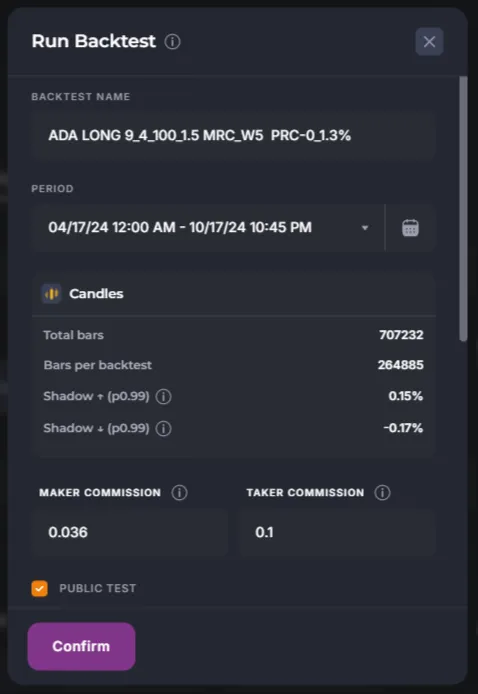
-
The name of the test should be unique and informative (it cannot be renamed later).
-
Period — up to 3 months (Free) / up to listing date (Pro).
-
Candles — how many candles are available, how many will be included in the test, wick lengths (important for SL).
If you have SL in the bot, take at least 2 × lower wick for Long algorithm (for more information, see the article about Stop Loss). It is better if SL lays beyond the longest wick in the period.
-
Commission — set the actual rates of your exchange.
-
Public test — test will be included in the public database (and can be shared in the newsletter/showcase). In Pro tariff, you can disable it.
-
“Consider candle shadows (pessimistic)” — includes a conservative scenario:
- limit grid orders are taken into account,
- limit Take Profits,
- simple Stop Losses (not the indicator-triggered ones). If TP and SL intersect in one minute, only Stop Loss will be counted.
Check the summary of parameters and click “Confirm”:
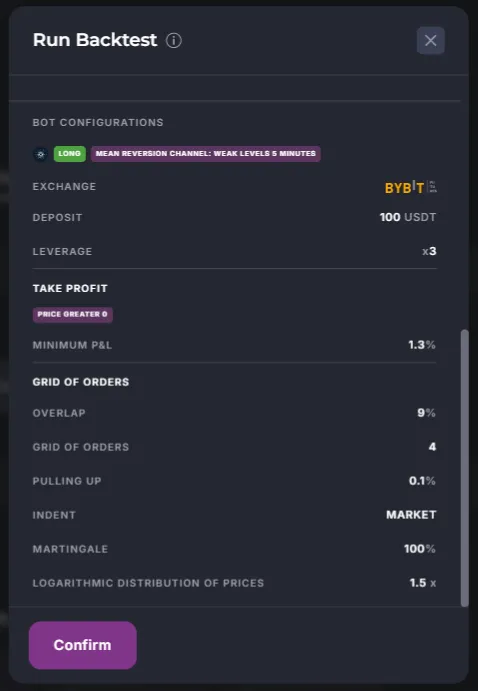
How to read the results
Section titled “How to read the results”When the test is finished, you will see a screen with a graph and tabs.
Switch the chart to the minimum timeframe that was used in the trade entry filters (here it is 5 minutes).
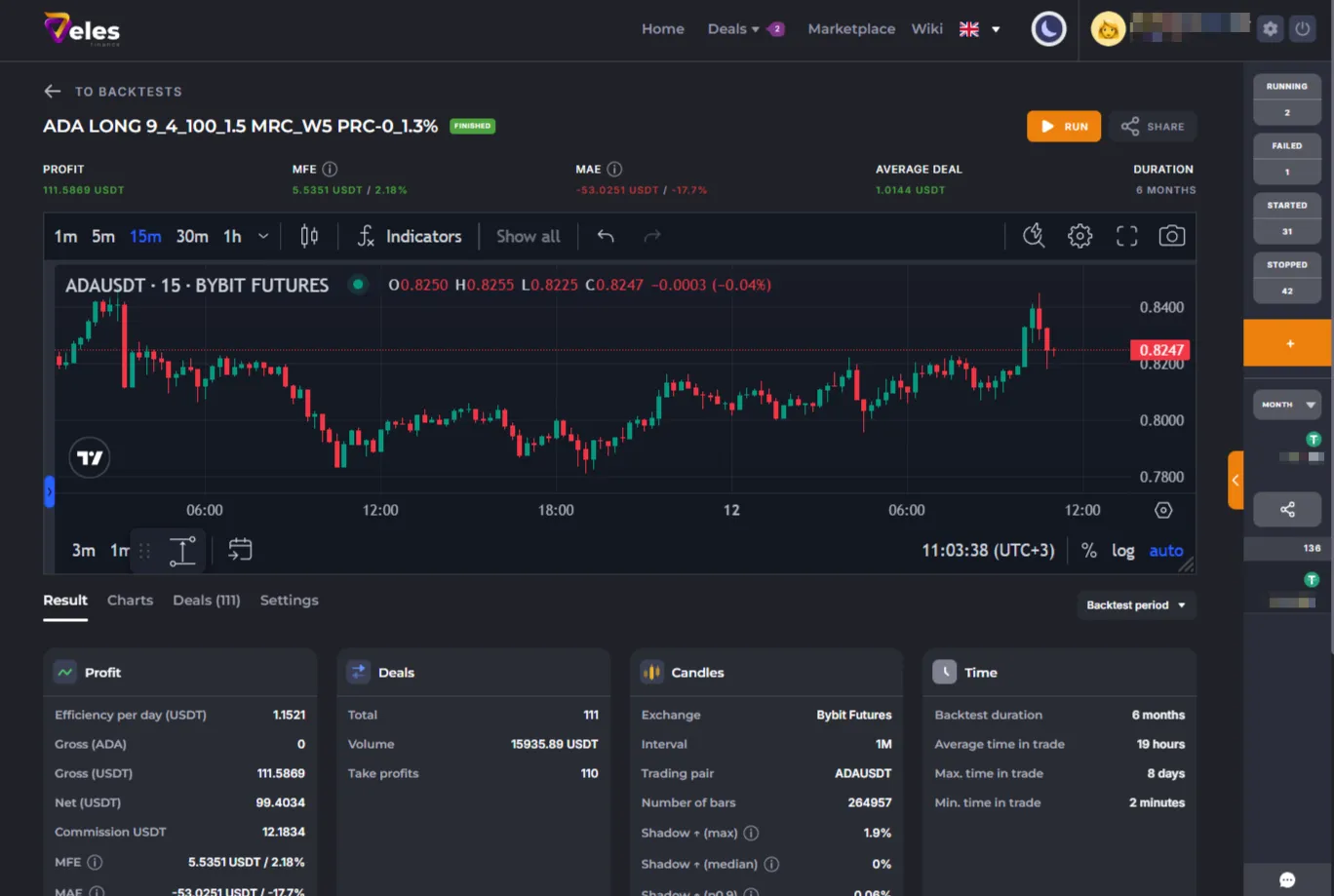
There is a “Share” button at the top — get a link to the test (attach it to the support questions).
For example: https://veles.finance/share/ybUIi.

Important: the value of Gross profit is intermediate; we focus on Net. For more information about results, see the Statistics section.
Examine the tabs under the chart:
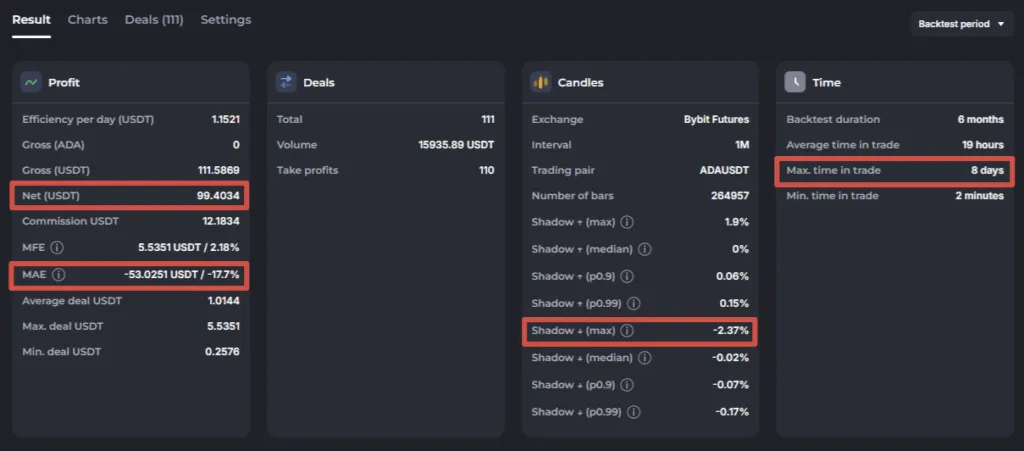
The “Result” tab
Section titled “The “Result” tab”- Net (Coin/USDT) — the main metric of the test: the result, taking into account trading commissions, but excluding funding.
- Gross (Coin/USDT) — result without commissions (neither trading nor funding). All deals results (TP and SL) are summed up.
- Commission — the amount of trading commissions for the entire period (read about rates).
- Efficiency per day — Net for the period divided by total time in deals. It is useful for evaluating strategies with rare signals.
- MFE (Maximum Favorable Excursion) — the peak of the positive PnL for the entire test (the biggest of all the deals).
- MAE (Maximum Adverse Excursion) — the percentage of drawdown from the average deal price and its absolute value (USDT) is a key risk indicator. Please note: in the test the shadow of a minute candle is not considered by default → in the real trade, the drawdown on the wick is deeper.
If there is a SL in the strategy and it was triggered in the test, the MAE is fixed by the minute SL. A high MAE indicates that the strategy fell into the drawdown — this is normal, take this value into account for allocating the supporting margin.
How to assess the risk of liquidation (simplified):
- Cross margin: liquidation ≈ when MAE ≥ account balance.
- Isolated margin, 1 order: liquidation ≈ when MAE ≥ deposit (in real trade earlier, ~75% drawdown).
- Isolated margin, grid: liquidation ≈ when MAE of the position ≥ Initial Margin in the position (IM depends on the number of executed orders).
How to calculate the supporting margin more accurately (recommended):
- Take %MAE from the backtest and the maximum wick % (lower one for Long / upper one for Short).
- Sum up: %MAE + %max. wick.
- Multiply the received % by position volume (deposit × leverage). You will receive the drawdown of the strategy.
- In fact, liquidation begins earlier, so we recommend keeping either 2xMAE or 2xDeposits on your balance - choose the value that is greater.
The “Deals” block in the “Result” tab is a summary of the following:
- TP, SL, Pull ups (cancelled deals). For more information about the Pulling up, see the article about Trading mode.
Often, the “Total” of deals are 1 deal less than the TP+SL amount — because the latest deal is not closed within the period.
Maximum time in the deal — look for abnormally long-lasting trades. Go to “Deals” tab and sort the list by duration.
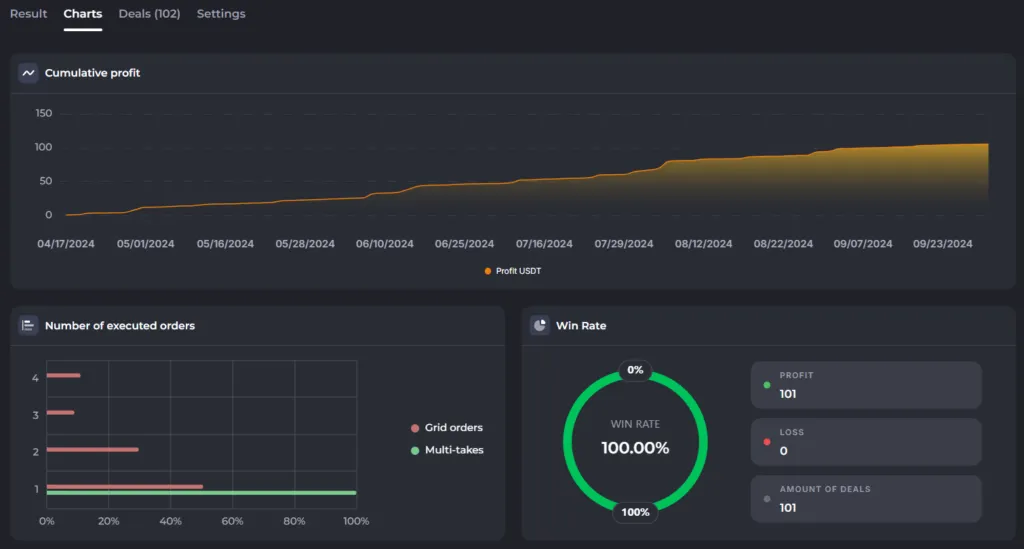
The Charts tab
Section titled “The Charts tab”- Win rate, distribution of outcomes, cumulative profit over time.
- Allows you to quickly see when the strategy earns and where it loses.
Deals tab
Section titled “Deals tab”Here is a detailed analysis of each simulated deal. The table is wide — scroll to the right. Typical columns: Start/End, Duration, Result, PnL, Commission, MAE/MFE, Orders executed/cancelled, etc.
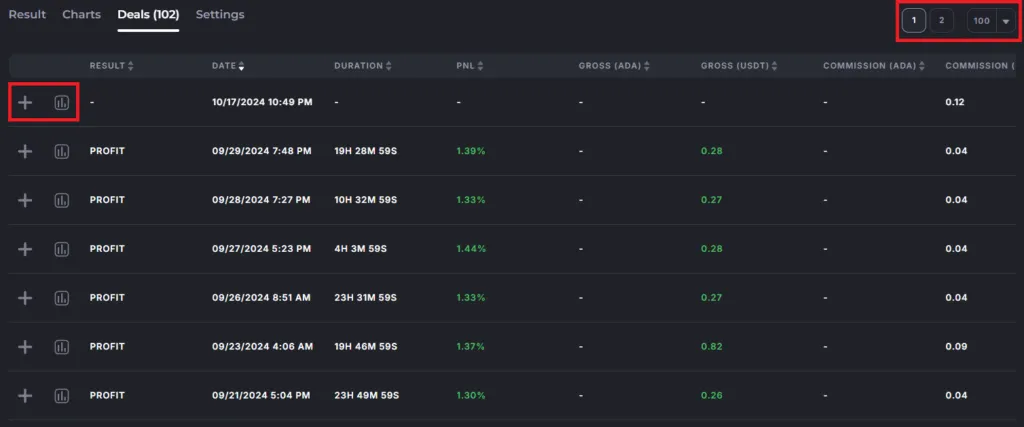
Example:
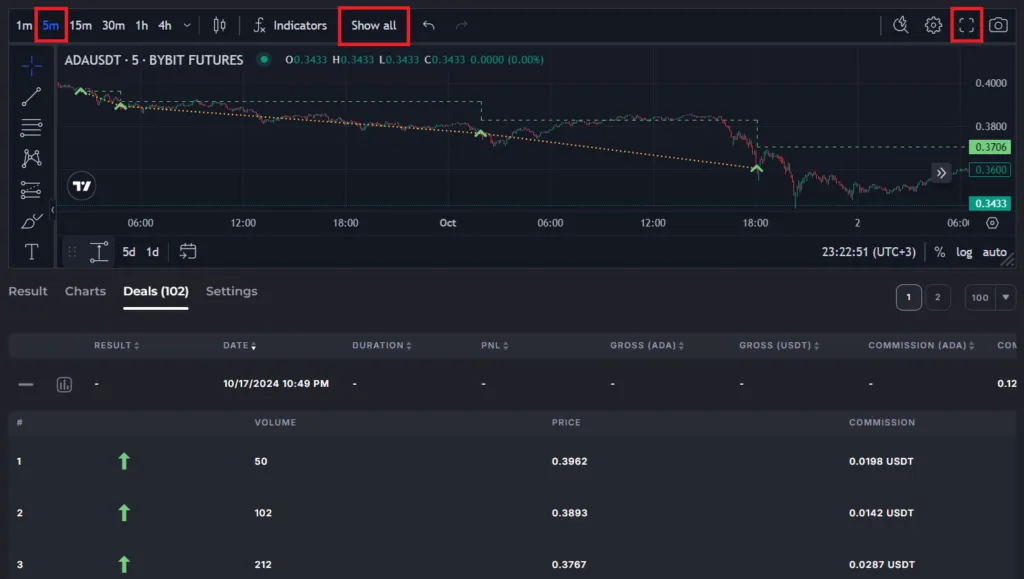
- Green arrows — executed averagings.
- Dashed line — average position price.
- Dotted line - connecting orders belonging to the same deal.
To lock in the profit, the price must reach above the average price — the deal in this example is in invest.
Chart can display all deals from the current page (up to 100) — click “Show all”. It is recommended to observe them in full-screen (‘corners’ button or use Shift+F).
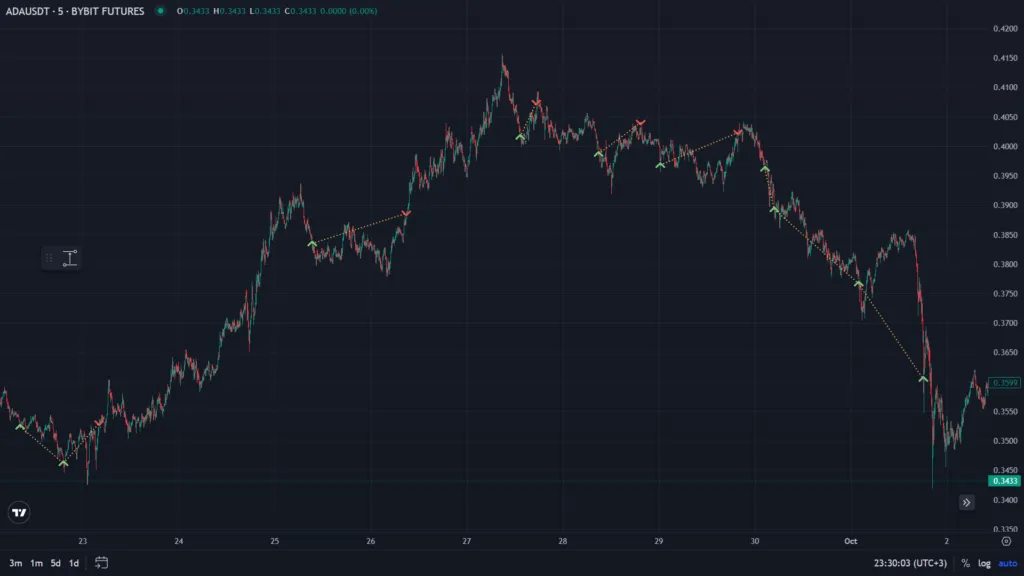
Scroll through the chart to the left to see the previous trades.
The “Settings” tab
Section titled “The “Settings” tab”Shows all parameters of the tested configuration and the exact dates of the test.
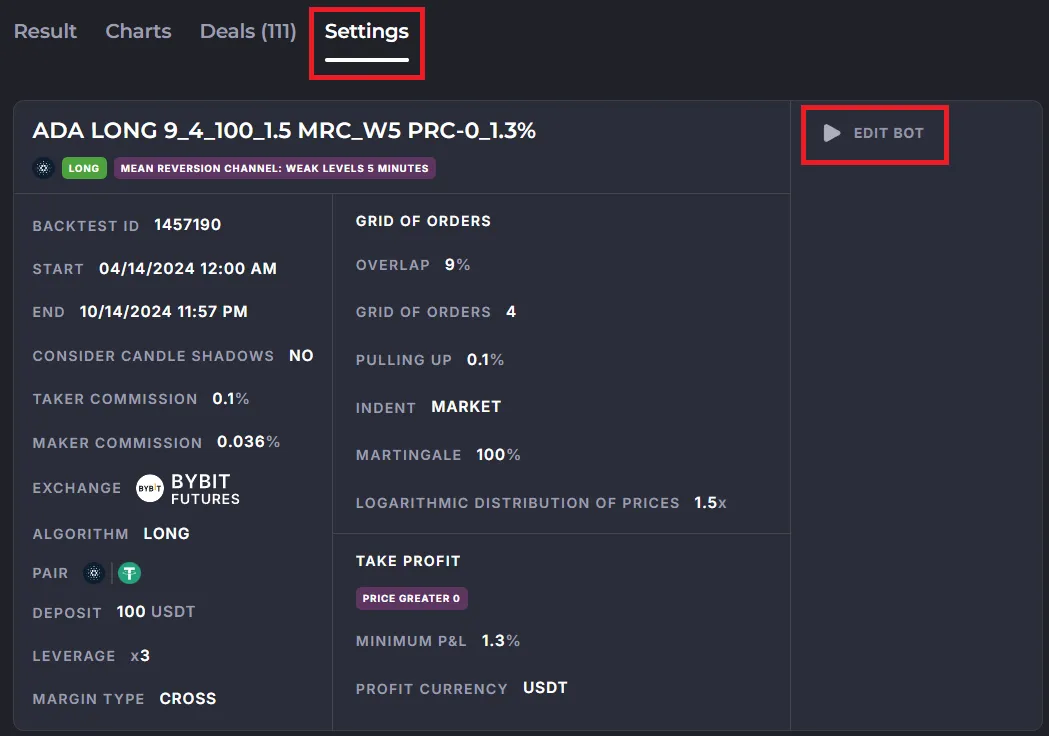
“EDIT BOT” button — transfers the settings to the bot editor: you can continue tuning, test again, or save the bot and launch it on the exchange.
Frequently asked questions and what to do about them
Section titled “Frequently asked questions and what to do about them”1. Deals are not visible for the entire test period.
Section titled “1. Deals are not visible for the entire test period.”- The coin got listed just recently — there is no data for the whole period.
- The selected exchange has not been connected to us long enough — 1 minute candles may be missing. Try another exchange in the backtests, and trade on the preferred one.
2. The bot opens deals not according to the indicators
Section titled “2. The bot opens deals not according to the indicators”Check the Indent of the first order and a Pulling up.
Check creation time of the first order and the values of the indicators at that moment. Because the bot may create limit orders according to the signals, but they are executed much later.
Also remember: Deal opens on the next candle after the signal is triggered.
If it doesn’t visually match, scroll the candles history to the left (see note above).
3. The MAE is not equal to the drawdown of the deposit
Section titled “3. The MAE is not equal to the drawdown of the deposit”The deposit is the highest amount of funds for the deal, and not the guaranteed volume of the position. Exchange restrictions (minimum order, price step) cause rounding, the total volume of the position differs from the “deposit × leverage”.
4. Deal is marked as “Profit” in the list of deals, but shows dashes instead of numbers
Section titled “4. Deal is marked as “Profit” in the list of deals, but shows dashes instead of numbers”Expand the deal (”+” button) and check the orders. If all orders are cancelled, means the exit was triggered by the indicator signal (and the minimum PnL is not checked here). Technically, it’s a profit, but the mechanics are similar to a Pulling up.
Set the Indent = 0 (Market) to avoid this effect.
If the orders were executed, it is possible that the reason is price rounding (too many decimal places) → increase % TP to avoid this effect.
Another option is that the exchange’s commission is debited in the 3rd currency (for example, BNB) — we do not have this data, so these numbers are not reflected in the backtests (and in Statistics also).
5. With the filter “Price > 0” there should be deals every minute, but there are fewer
Section titled “5. With the filter “Price > 0” there should be deals every minute, but there are fewer”The graph draws only the trades of the current list page. Check the sorting order (set it by date). Check the Pulling up — it may cancel some deals. Set Indent = 0 (Market) or increase the % of the Pulling up. Cancelled deals are visible in the list of deals, but not on the chart.
6. Why the %MAE does not correspond to the absolute value, and with partial averages the MAE is greater?
Section titled “6. Why the %MAE does not correspond to the absolute value, and with partial averages the MAE is greater?”MAE as a percentage depends on the average price of the position at each step (executed grid order).
MAE as an absolute value (in USDT) depends from the volume that we gained in the deal.
We show the maximum of % MAE for all stages and the maximum of absolute MAE next to it.
7. There is a deal in the backtest, but no deal in the real trading
Section titled “7. There is a deal in the backtest, but no deal in the real trading”- Check the start and end dates of the backtest. Was the bot launched during the backtest period?
- Check the locks in the profile. Could the bot have been restricted after receiving the signal?
- Write to support: attach a “Share” link to the backtest, Bot ID, date and exact UTC time you want us to check.
8. There is a deal in real trading, but it is not in the backtest.
Section titled “8. There is a deal in real trading, but it is not in the backtest.”- Check the start and end dates of the backtest. The deal might not have been included in the testing period.
- If you use the “Period” display filter in a long backtest, only deals that ended within the period will be visible. Entries and orders of unclosed trades are not shown.
9. Why do the same settings with different deposits result in a different number of deals?
Section titled “9. Why do the same settings with different deposits result in a different number of deals?”Different deal volumes allow for different averaging — where the bot was able to add more volume to the grid order within the allocated deposit, the average price dropped lower and the deal exit could be triggered earlier. Then, while the bot with a small deposit is still running the first deal, the bot with a large deposit can already start a new one.
10. Why did the deal entry occur in the backtest, but the deal was canceled, while in real life it continued?
Section titled “10. Why did the deal entry occur in the backtest, but the deal was canceled, while in real life it continued?”This is a simulation feature. In the backtest, if the take profit conditions are met before the first order is executed, the orders are canceled.
In real life, this doesn’t happen; the bot waits for the orders to be executed.
We recommend using configurations with a Market entry (with a zero first order indent).
Mini glossary (for quick answers)
Section titled “Mini glossary (for quick answers)”- Gross — total result without deduction of commissions.
- Net — the result, taking into account trading commissions (we look at this value first of all).
- MFE — Maximum Favorable Excursion of the deal/backtest.
- MAE — Maximum Adverse Excursion, deepest drawdown; the key to assessing the risk of liquidation.
- Wick (shadow) — the extreme of the candle.
- Pulling up — cancellation of the deal where no orders were executed because the price has gone too far.