
Bot card
After saving, the bot appears in the list on the main page:
https://veles.finance/cabinet
Example of a bot card:
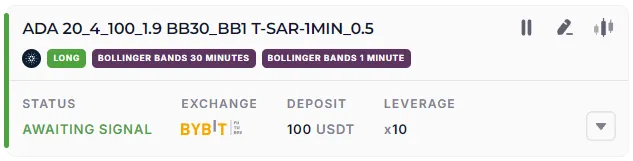
The card can be collapsed or expanded by clicking the arrow button (bottom right):
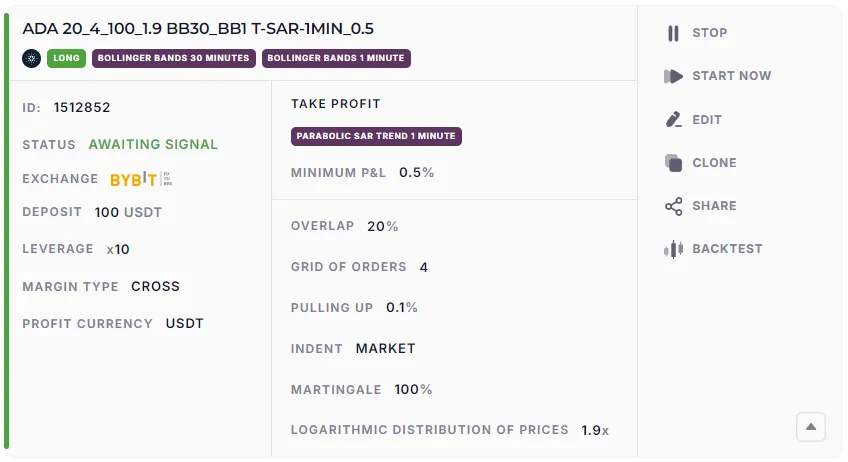
Basic elements
Section titled “Basic elements”- Bot ID is a unique number in the database. This number is required to contact support service.
- Status is the current condition of the bot (see below).
Bot statuses
Section titled “Bot statuses””Awaiting launch”
Section titled “”Awaiting launch””The bot is launched by the user, but has not yet subscribed to the indicator signals. This stage usually lasts for a fraction of a second.
”Awaiting signal”
Section titled “”Awaiting signal””Bot is:
- running,
- subscribed to the indicators,
- waiting for all conditions to open the deal.
If the bot has no filters, it opens a deal immediately (risky setup). With filters, bot waits until all the signals match. It can take hours or days, and that’s normal.
Functions in this status:
- You can calculate the signals for the last 30 days (Calculate → Show the signals).
- You can preview the entry points on the TradingView chart.
- If there are few signals, use more “aggressive” indicator settings.
”Running”
Section titled “”Running””The bot received the signal and placed the orders.
- If the limit orders are not triggered, a “Pulling up” may be activated (the bot cancels the deal and waits for a new signal).
- When the bot is running a deal, it ignores new signals.
In parallel, the Active deal card appears on the page https://veles.finance/cabinet/deals.
For more information see: Trading mode.
”Awaiting termination”
Section titled “”Awaiting termination””If you click “Stop”, the bot does not stop working immediately. It runs the current open trade to the end (Take Profit or Stop Loss), and only then will stop.
”Terminated”
Section titled “”Terminated””The bot is turned off and does nothing.
”Error”
Section titled “”Error””The card is highlighted with a red stripe. The bot stops and does not monitor the deal any more. It is necessary to check the balance, orders and position on the exchange.
All errors are described in the section “List of bot errors”.
After the cause is eliminated, two options are available:
- Start a new deal — if the old position has already been closed.
- Restart the deal — if the error happened due to the lack of balance or accidental deletion of the order.
Control buttons
Section titled “Control buttons”The set of buttons depends on the status of the bot.
- Start/Stop — turning the bot on or off. At startup, the settings are checked.
- Start a deal — forced entry into the deal (only in the “Awaiting signal” status).
- Edit — opens bot editor. The saved changes will apply from the next deal.
- Clone — create a copy of settings (for example, for another coin).
- Share — generate a link to the settings (convenient for support).
- Backtest — run a strategy check based on historical data. For more information, read about backtests.
- Delete — delete the bot (available only if it is terminated). Deleted bot cannot be restored, but you can take a copy of the settings using the deal ID (or from a backtest of this bot).