Managing an Active Trade
Managing an active deal in Veles allows you to quickly respond to market changes.
You can close a deal at market price, average a deal, or cancel a bot deal to take it under manual control.
Close Deal at Market Price
Section titled “Close Deal at Market Price”This function closes the deal immediately, without waiting for the Take Profit or Stop Loss to be executed.
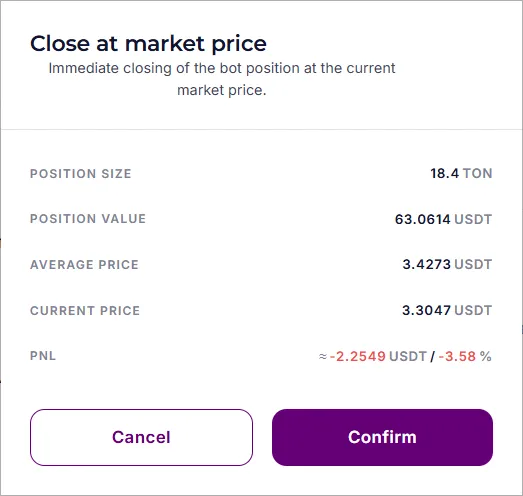
The dialog box displays the parameters of your deal (the data is static — close and reopen the window to see the updated values).
After confirmation, the system will:
- Close the deal on the exchange:
- on futures, the bot will close the contracts;
- on spot, the coin will be sold or bought back.
- Lock in the current PnL (profit/loss).
- Delete all remaining bot orders.
- Set the bot status to “Awaiting signal”.
Averaging a deal manually
Section titled “Averaging a deal manually”If the price has moved too far from the Take Profit, you can add an averaging order. This will bring the average deal price closer to the current price.
Averaging formula:
P = (Q1×P1 + Q2×P2) / (Q1+Q2)
- P — new average price,
- Q1, P1 — quantity and price of the first purchase,
- Q2, P2 — quantity and price of averaging.
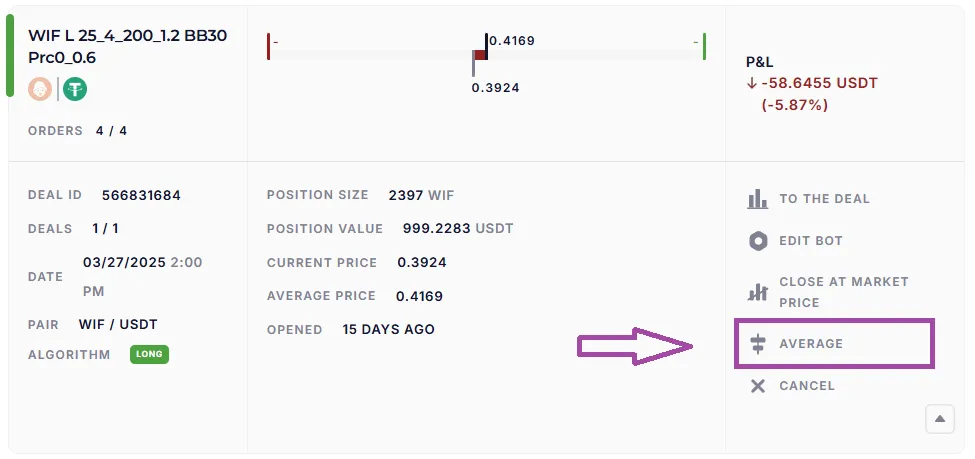
Important rules for averaging
Section titled “Important rules for averaging”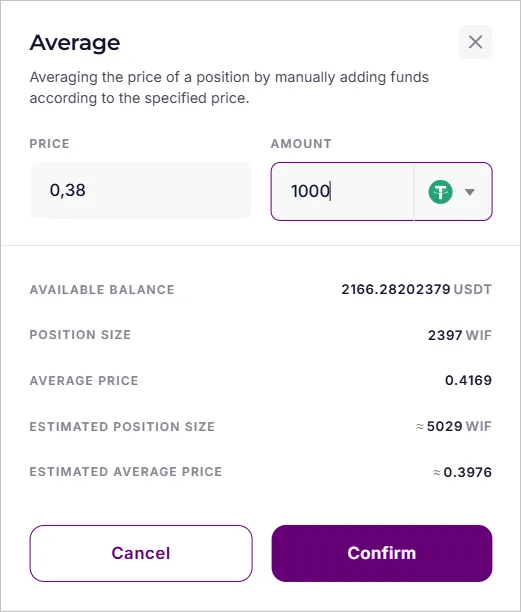
In the averaging window, specify:
- Price: the price for new averaging limit order.
- Amount: can be specified in coins or USDT.
To find out the amount of your own funds in the averaging order, divide the “Amount” by the leverage used in the bot.
Cancel the deal
Section titled “Cancel the deal”The “Cancel” function completely removes the bot from running the deal.
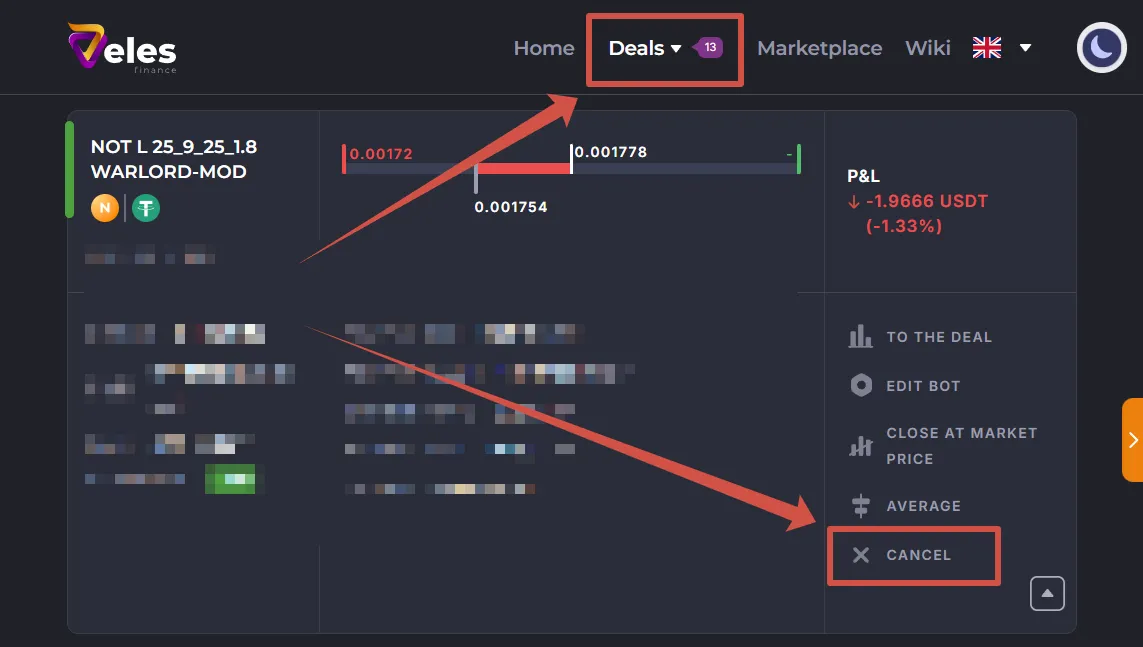
After cancellation:
- The bot will delete all its unfilled orders.
- The bot will switch to the “Terminated” status.
- The trade will disappear from the “Active Deals” section.
- The funds reserved for unfilled orders will be released.
- For futures, the liquidation price may shift.
How to manually close a position on the exchange
Section titled “How to manually close a position on the exchange”- Log into the exchange app or website.
- Open your trading account (Futures / Derivatives / Unified Trading Account).
- Go to the “Positions” tab and find the desired coin.
- Select “Close by” -> “Limit Order” and set the price (with a profit or an acceptable loss, the exchange will display the expected result).
- Confirm the order; it will appear in “Current Orders.”
- Wait for the limit order to fill, or close the position by market price if you need to immediately.
Difference between PnL
Section titled “Difference between PnL”- Realized PnL — already reflected on the balance of the trading account.
- Unrealized PnL — potential result after closing the position.
Why is it important to delete orders?
Section titled “Why is it important to delete orders?”Forgotten orders on the exchange can:
- block your funds,
- cause bot errors such as “Insufficient Balance”**,
- lead to unpredictable losses or even liquidation.
The bot automatically deletes unnecessary orders. However, if it stops with an error, the user is responsible for finding and deleting them.
Restart the deal
Section titled “Restart the deal”Sometimes, after stopping with an error, the bot can be restarted. It will continue trading from the place where it left off.
Examples:
- “Orders cancelled by 3rd party” due to accidental deletion of the order,
- “Insufficient balance” due to lack of margin for an order or coins for a Spot bot commission.
In such cases, the bot recreates orders, picks up a position on Futures, or continues to run the same volume that was traded on the Spot by that time.
After errors like “Liquidation”, “Position reduced” or “Unknown error”, the bot believes that there is nothing left to restart or it is dangerous.
To restart the deal:
-
Go to the main page of your personal account https://veles.finance/cabinet
-
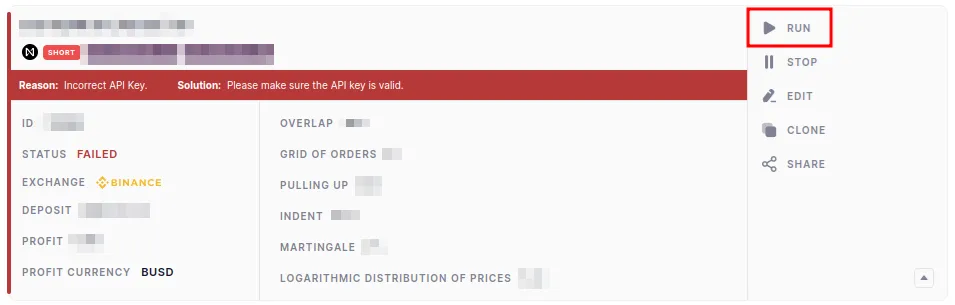
Find the stopped bot and expand its card.
-
In the drop-down list, click Run.
-
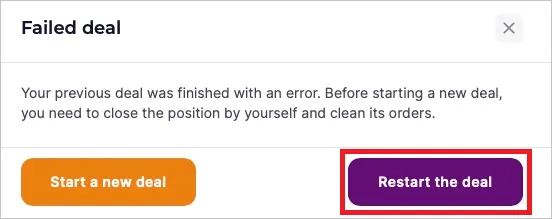
In the pop-up window, select Restart the deal.