
Setting up Two-Factor Authentication
Two-Factor Authentication (2FA) increases account security through additional verification when signing in.
We recommend enabling 2FA to protect your account.
How to check your account’s security level
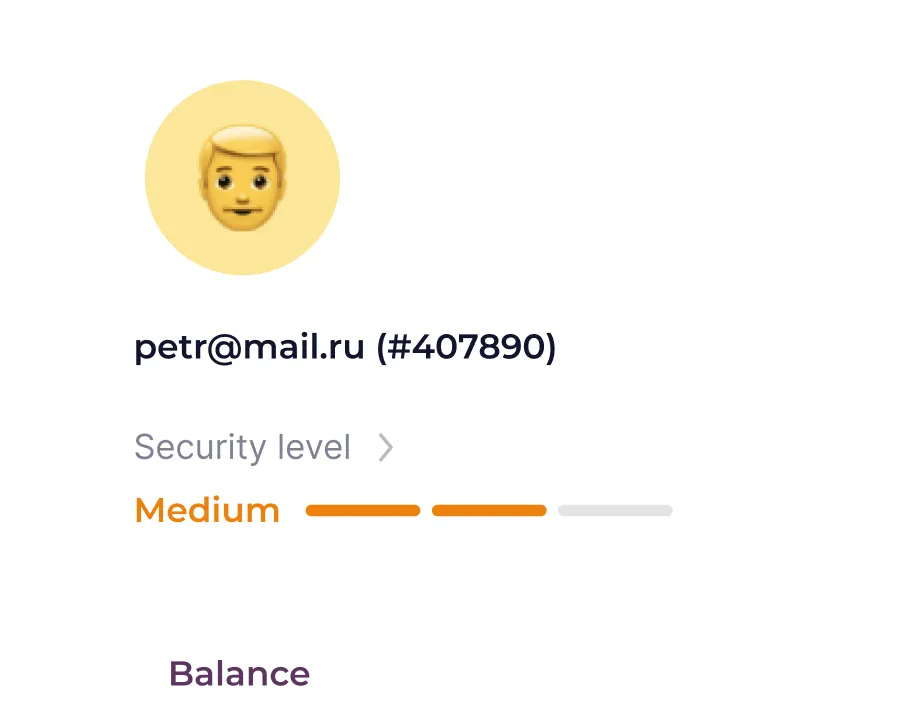
Section titled “How to check your account’s security level”The security level indicator in your profile shows how protected your account is.
To go to the security settings, click on “Security level”:
Enabling Two-Factor Authentication
Section titled “Enabling Two-Factor Authentication”-
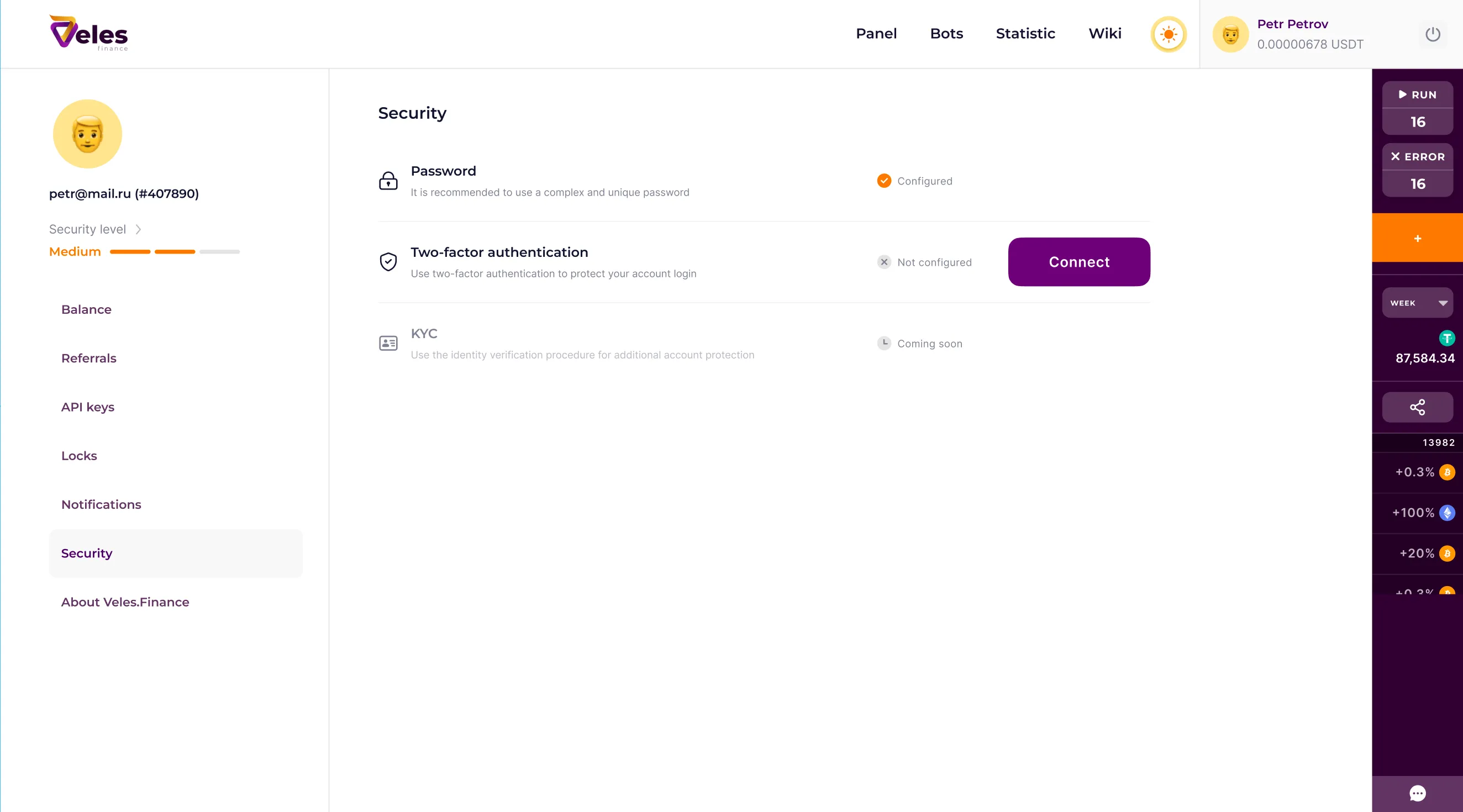
In the “Security” section, find the item “Two-Factor Authentication”.
-
Press the “Connect” button.
-
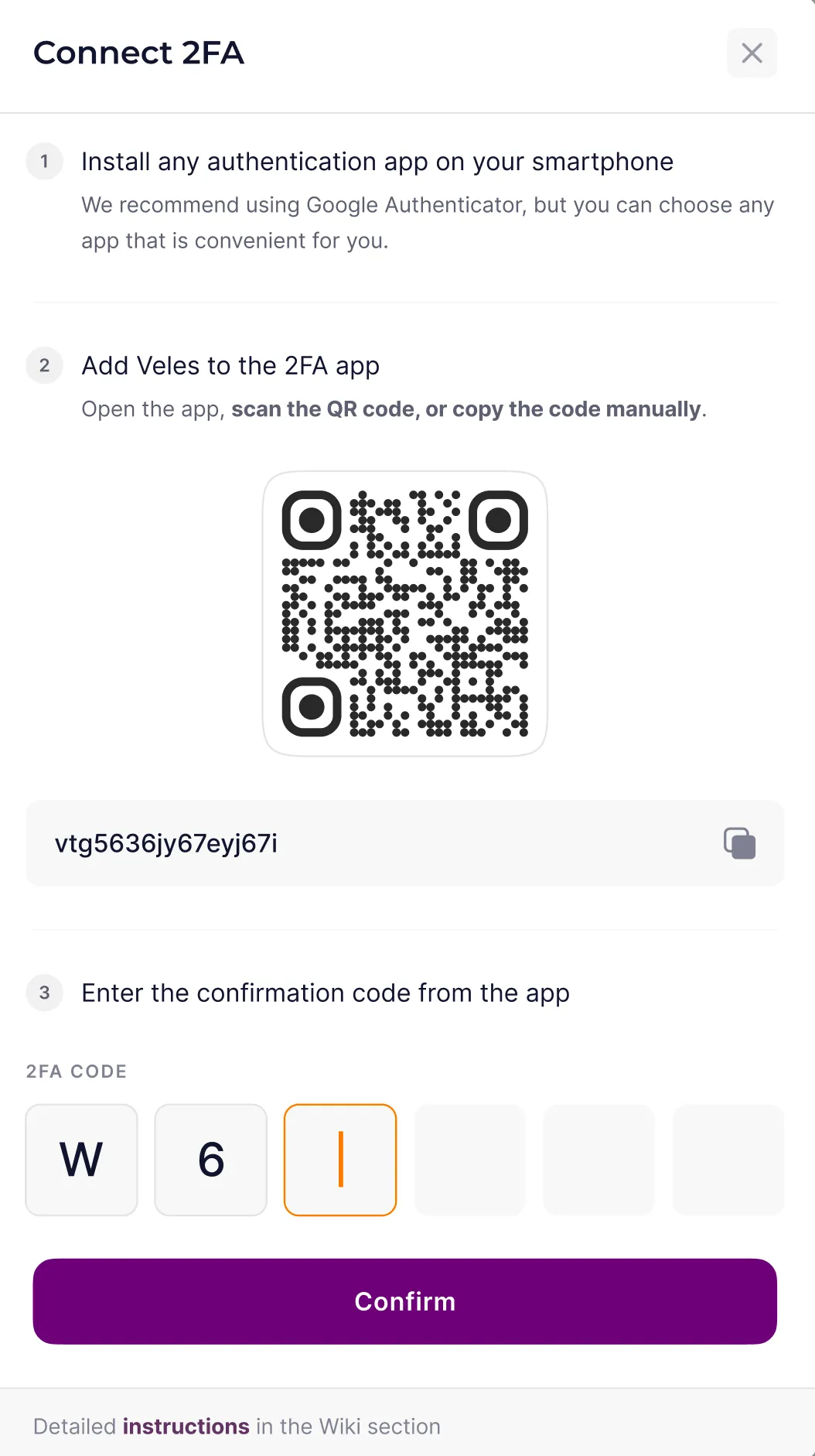
The Two-Factor Authentication settings window will open.
Configuring the Authenticator application
Section titled “Configuring the Authenticator application”-
Scan the QR code using the authentication app.
Alternatively, you can copy the code and manually add it to the application. -
After adding a Veles account to your 2FA application, a six-digit code will be generated in the application.
-
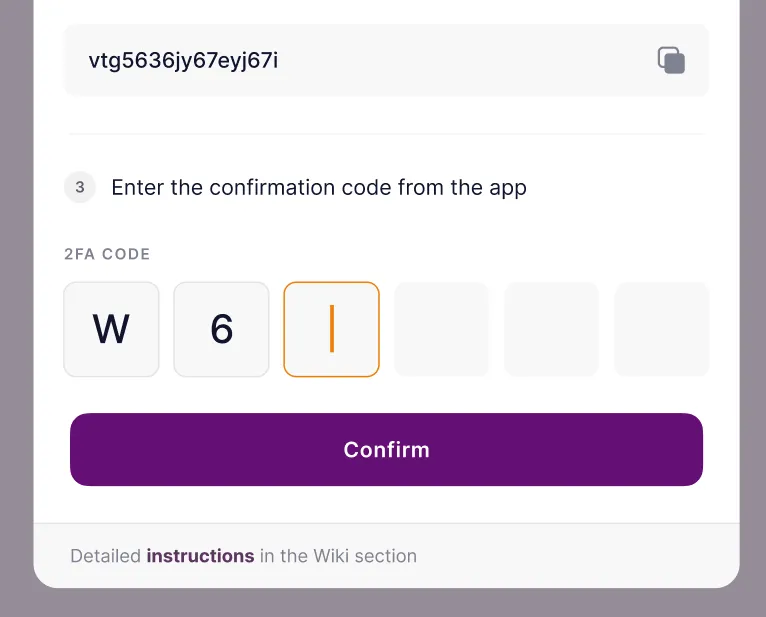
Enter this code in the Veles personal cabinet.
-
Press “Confirm”.
Emergency Recovery Codes
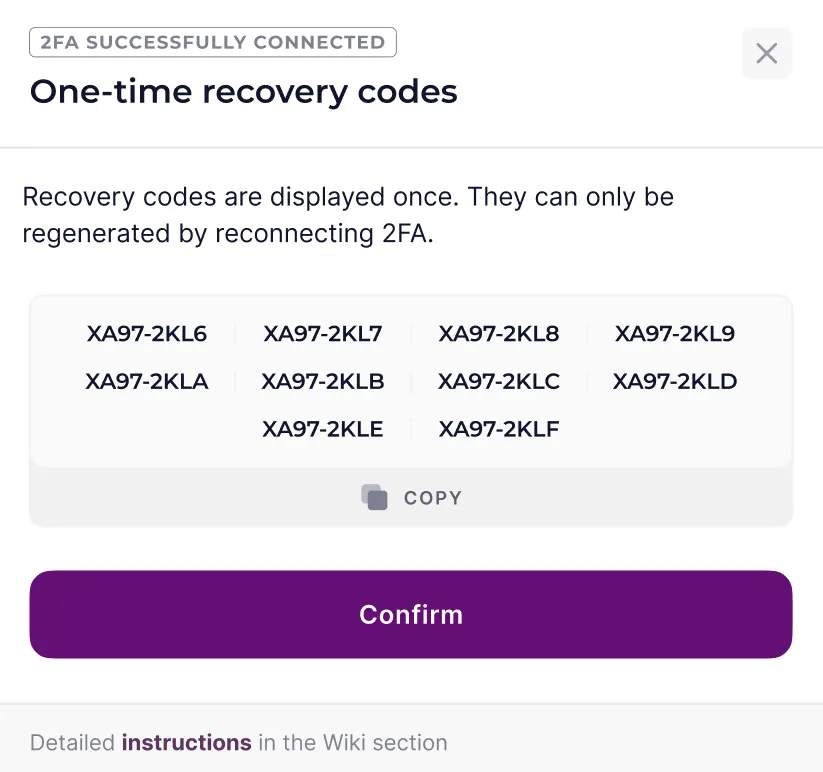
Section titled “Emergency Recovery Codes”After successfully connecting 2FA, the system will display a set of one-time recovery codes. You will need them:
- to log into the Veles user’s cabinet if access to the authenticator application is lost,
- to disable Two-Factor Authentication.
Sign in to your account with 2FA enabled
Section titled “Sign in to your account with 2FA enabled”After enabling Two-Factor Authentication when logging into your Veles account:
-
Enter your username and password, confirm.
-
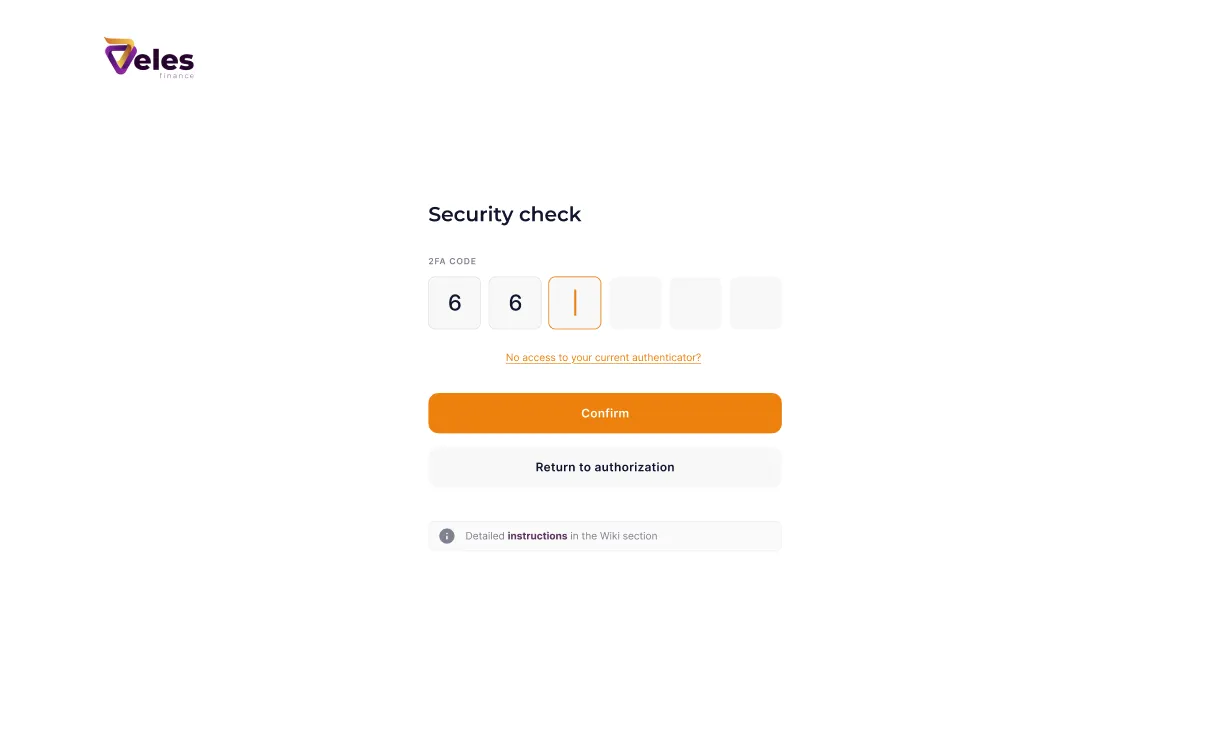
Enter the six-digit code from the authenticator application.
-
If the authenticator application is unavailable, click on the link “No access to the current authenticator” and enter the free emergency recovery code. Mark it in the list as used.
How to disable Two-Factor Authentication
Section titled “How to disable Two-Factor Authentication”-
In the profile section “Security”, click “Disable” in the “Two-factor authentication” parameter line.
-
Enter the six-digit code from the authenticator application.
-
If the authenticator application is unavailable, click on the link “No access to the current authenticator” and enter the free emergency recovery code. Mark it in the list as used.