
Mobile App
Veles mobile app lets you manage trading bots directly from your smartphone. The official app is available for iOS (iPhone) and Android.


The functionality available in the web cabinet may be partially missing in the app, but all missing features will be added in future versions.
Sign in to the mobile app
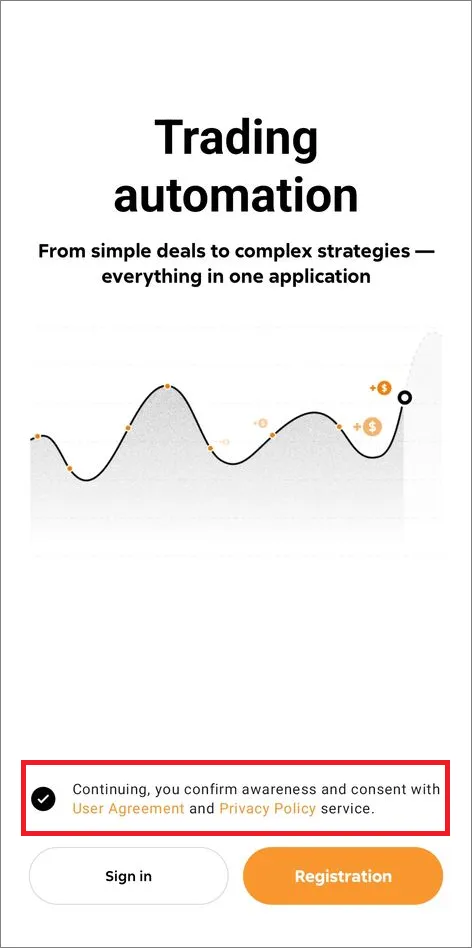
Section titled “Sign in to the mobile app”To launch the app, agree to the User Agreement and Privacy Policy:
If you have lost (or do not know) your account password, use the password reset form:
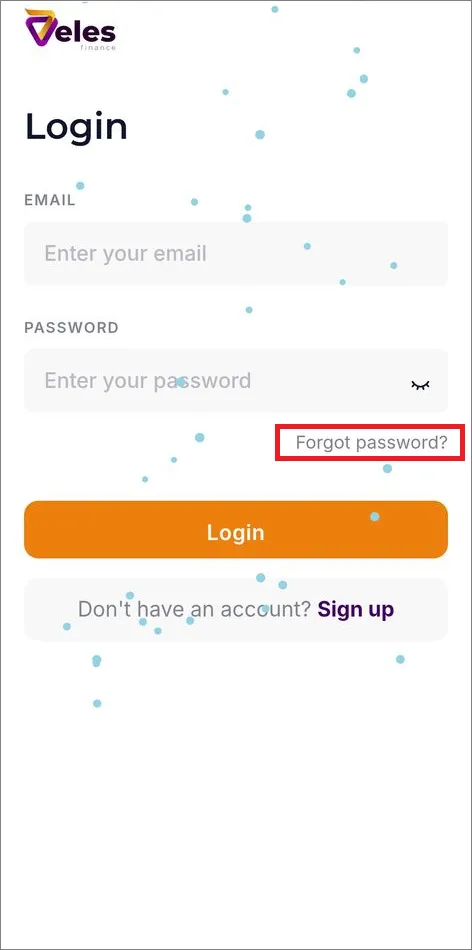
The “Remember me” checkbox saves your login session for 14 days from the last sign-in. The session is only active on the device where you most recently logged in — all other sessions are reset.
Home page
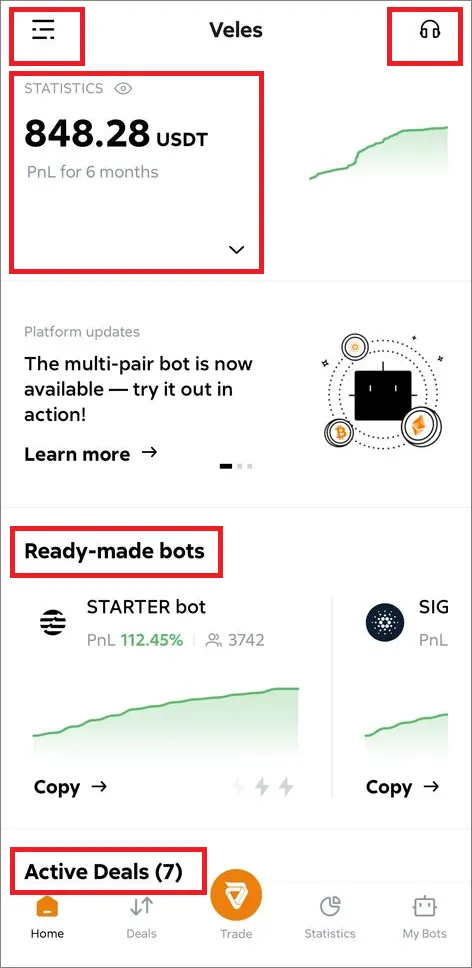
Section titled “Home page”The most important elements:
- Top left — link to profile settings.
- Top right — link to the Telegram chat with Support.
- Trade statistics for the selected time period (24 hours, 1 week, 1 month, 6 months, custom interval).
- Showcase of ready-made bots. Tap a card and swipe left to see all sample strategies.
- Active trades (total count and recently updated ones). Tap “Show all” to go to the section.
Active deals
Section titled “Active deals”Cards of all active deals, with search and filtering:
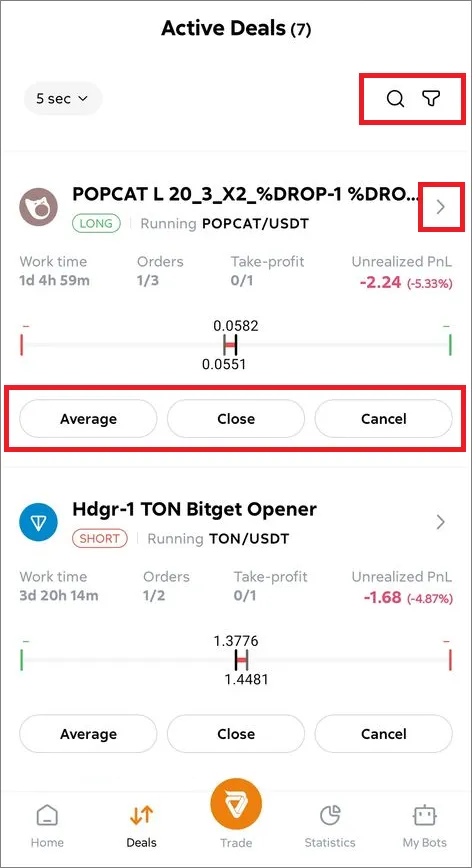
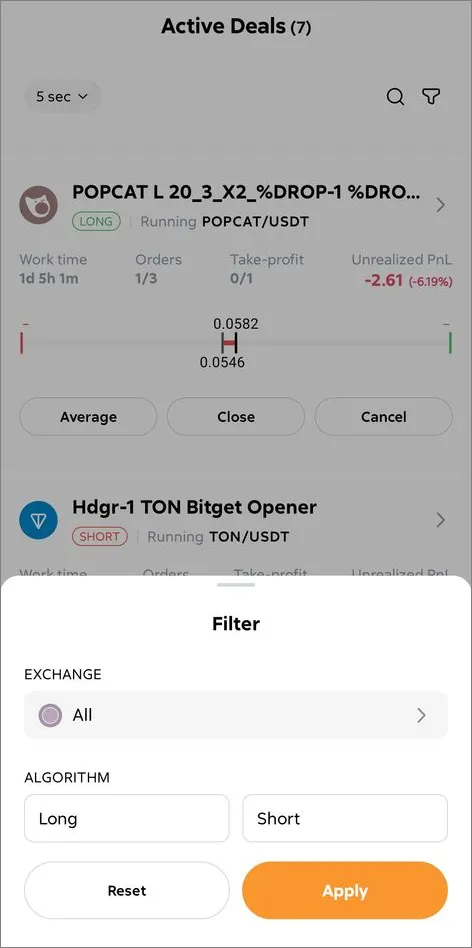
Available deal management buttons:
- Average: add a new order to the deal,
- Close (at market): lock in the current PnL and look for a new entry point,
- Cancel: delete the bot’s orders from the exchange and stop the bot,
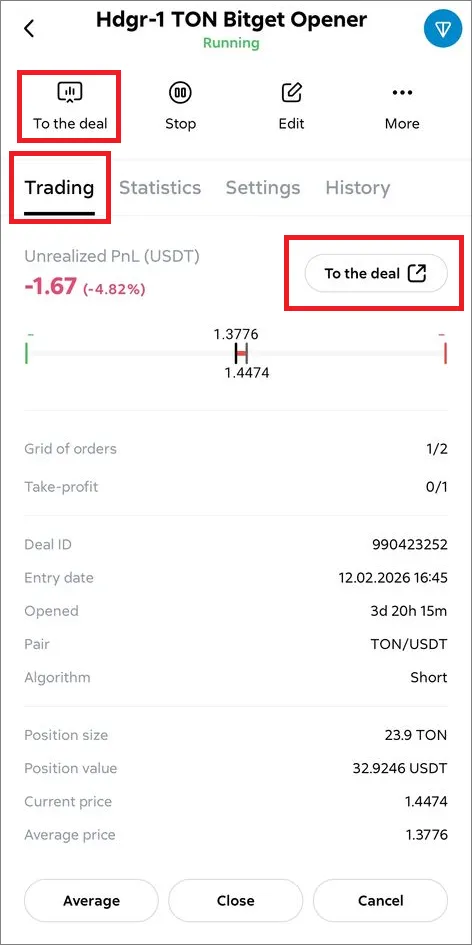
- Arrow ”>”: go to the bot card with the added “Trading” tab and “To the deal” button, where the progress of the active deal is visible:
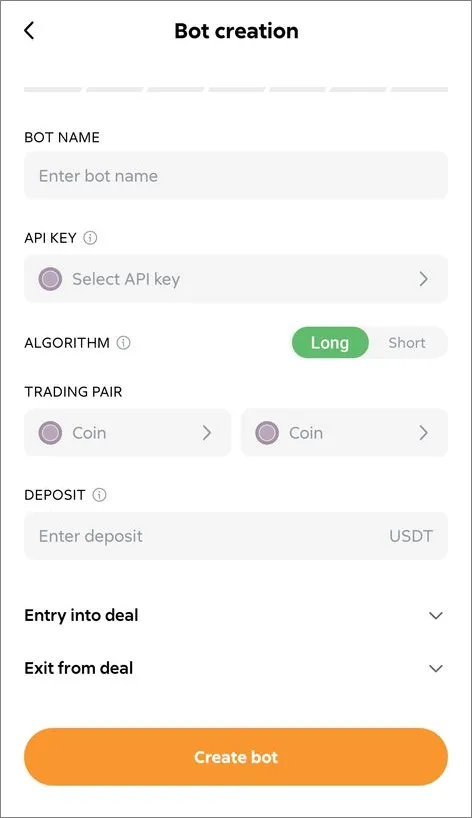
Opens the bot editor to create a strategy from scratch:
Statistics
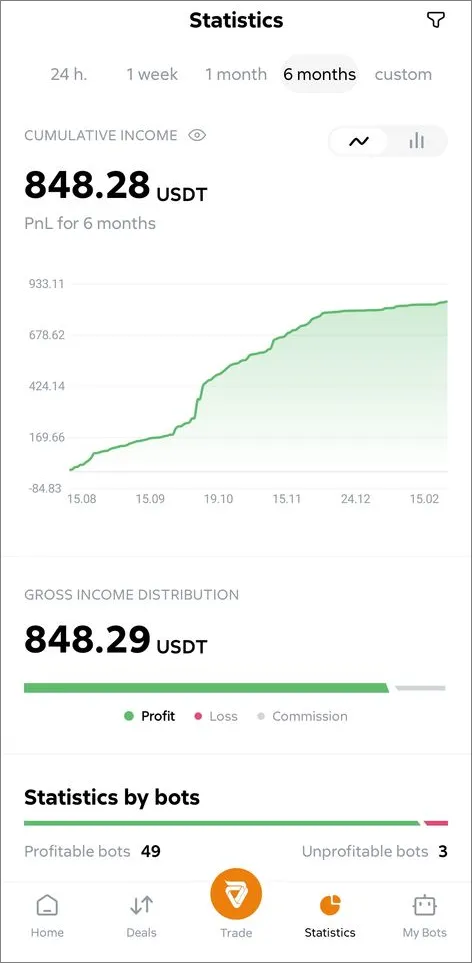
Section titled “Statistics”Summary of results for all your bots and their deals:
My bots
Section titled “My bots”List of all bot cards:
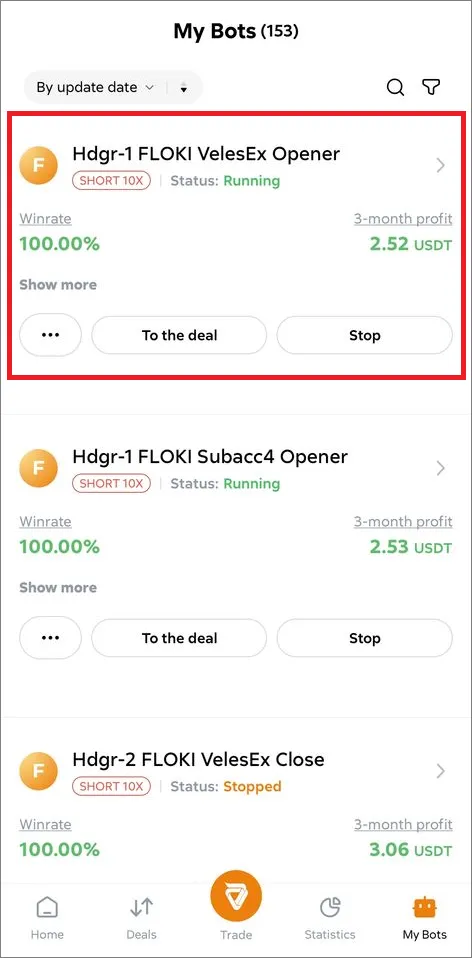
The buttons on the card may vary depending on the bot status.
- ”…” opens a menu with options:
- “To the deal”: go to the open deal,
- “Run”: start a stopped bot (also used to restart a deal),
- “Stop”: if the bot is running a deal, it will stop after the deal closes,
- “Delete”: delete the bot (available only after stopping).
Profile settings
Section titled “Profile settings”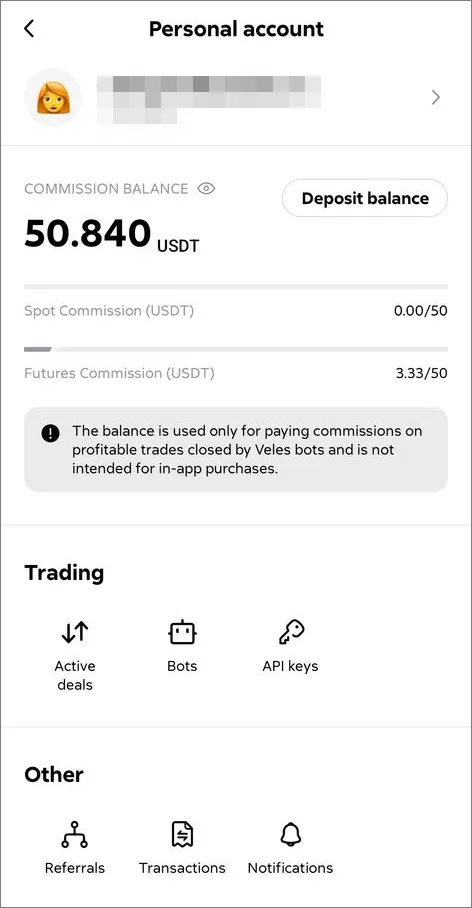
Menu ”>”
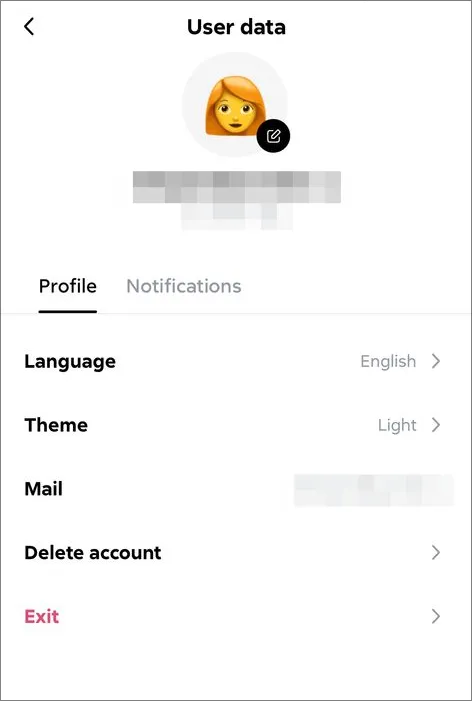
Section titled “Menu ”>””Profile tab
- Select the cabinet language,
- Color theme of the cabinet,
- Delete account (submit a request),
- Sign out of the cabinet session.
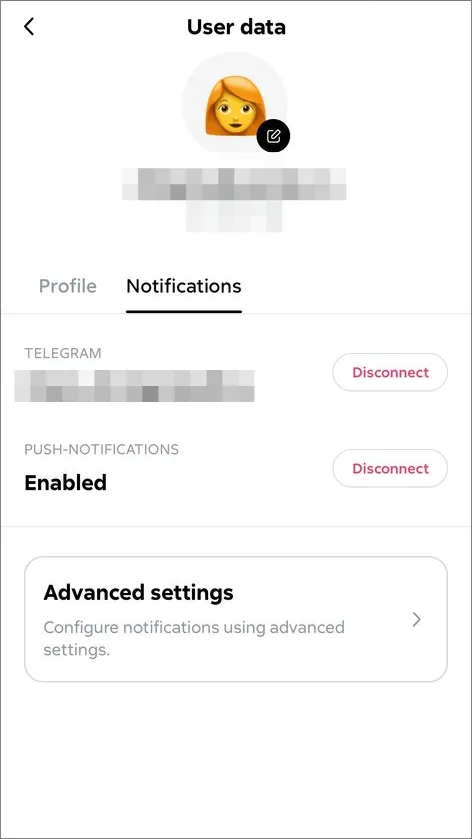
Notifications tab
- Bind and unbind your Telegram username to the Veles account.
- All: enable push notifications for all events in the app,
- Settings: subscribe to Telegram notifications by event types.
Service balance and commission counters
Section titled “Service balance and commission counters”Displays the status of your wallet for platform commission (must be greater than 0 for bots to launch).
To top up your balance:
- Click the “Top up the balance” button,
- Select the deposit currency (it will be converted to USDT after crediting),
- Select the deposit network,
- Use the issued address in the transaction (carefully verify all transfer parameters before sending).
”Trade”
Section titled “”Trade””- Active deals: go to the list of deals,
- Bots: go to the list of saved bots,
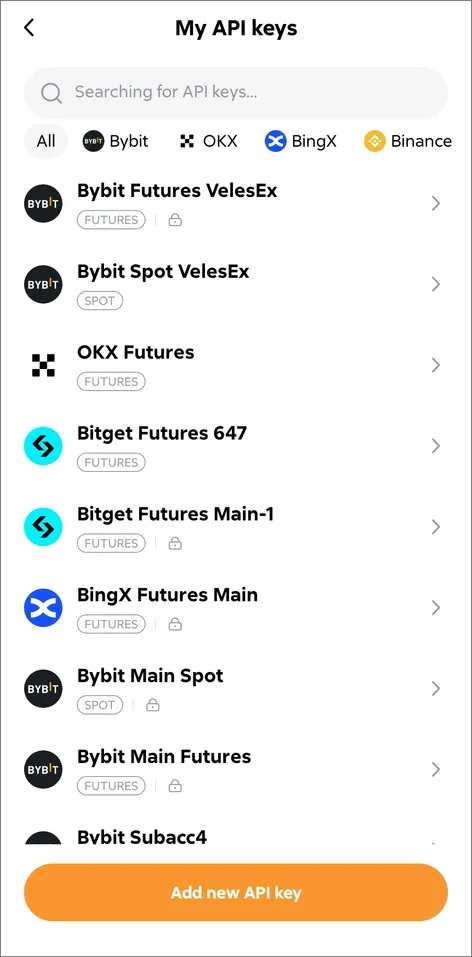
- API keys: manage API bindings (connections to exchanges).
”Other”
Section titled “”Other””- Referrals: manage referral settings (links and referral list),
- Transactions: all changes to service balance,
- Notifications: go to push and Telegram notification settings.
”Help and community”
Section titled “”Help and community””- Reference: link to Wiki,
- Support: link to the support chat via Telegram,
- Consultations: link to the booking page,
- About Veles: legal information.