On this page
GRID-bot card
After saving, the bot appears in the “GRID” list on the main page:
https://veles.finance/cabinet
Example of a bot card:

The card can be collapsed or expanded using the arrow button (at the bottom right):
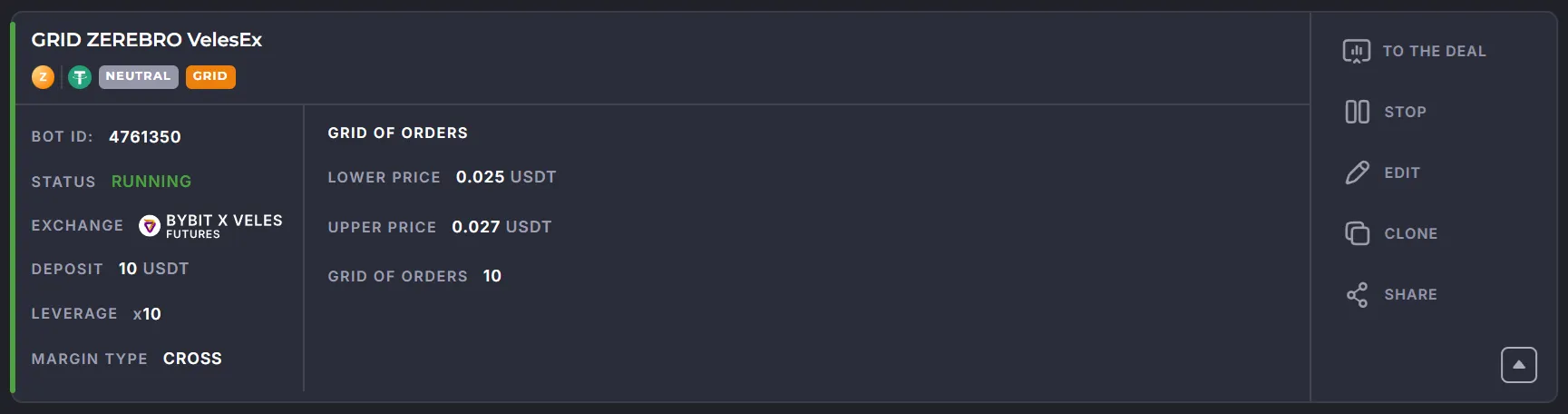
Main Elements
Section titled “Main Elements”- Bot ID — a unique number in the database. Required when contacting Support.
- Status — the bot’s current operational state (see below).
GRID Bot Statuses
Section titled “GRID Bot Statuses”“Terminated”
Section titled ““Terminated””The bot is turned off and is not performing any actions.
“Awaiting Launch”
Section titled ““Awaiting Launch””The bot has been started by the user. This stage typically lasts less than a second.
“Running”
Section titled ““Running””The bot has started, placed orders, and is awaiting their execution.
As soon as the opening order of the pair is executed, the [Active GRID Trade card] appears(../grid-trade-card/).
“Error”
Section titled ““Error””The card is highlighted with a red bar. The bot stops and does not monitor anything.
You need to check your balance, orders, and position on the exchange.
All errors are described in the “Bot Errors” section.
Once the cause has been resolved, two options are available:
- Start a new deal — if the previous position has already been closed.
- Restart the deal — if the error was caused by the lack of balance or the accidental deletion of an order.
Control Buttons
Section titled “Control Buttons”The available buttons depend on the bot’s status.
- Start / Stop — start or stop the bot. Bot settings are validated after start.
- To the Deal — navigate to the deal chart screen, displaying active and completed cycles.
- Edit — open settings. Changes will take effect starting with the next deal.
- Clone — create a copy (e.g., for a different coin).
- Share — generate a link to the settings (useful for support).
- Backtest — run a strategy test using historical data. Learn more about backtests.
- Delete — delete the bot (only possible if bot is stopped). This action is irreversible, though a copy of the bot can be recreated using the deal ID.