On this page
Connecting the Crypto.com API
Fast connection to Crypto.com
Section titled “Fast connection to Crypto.com”“One-click connection” is the most convenient and fastest way to simultaneously create an API key on the exchange and set up the corresponding API-Bindings within your Veles account for both spot and futures trading.
If it fails to work for any reason, please use the manual connection method (described below).
-
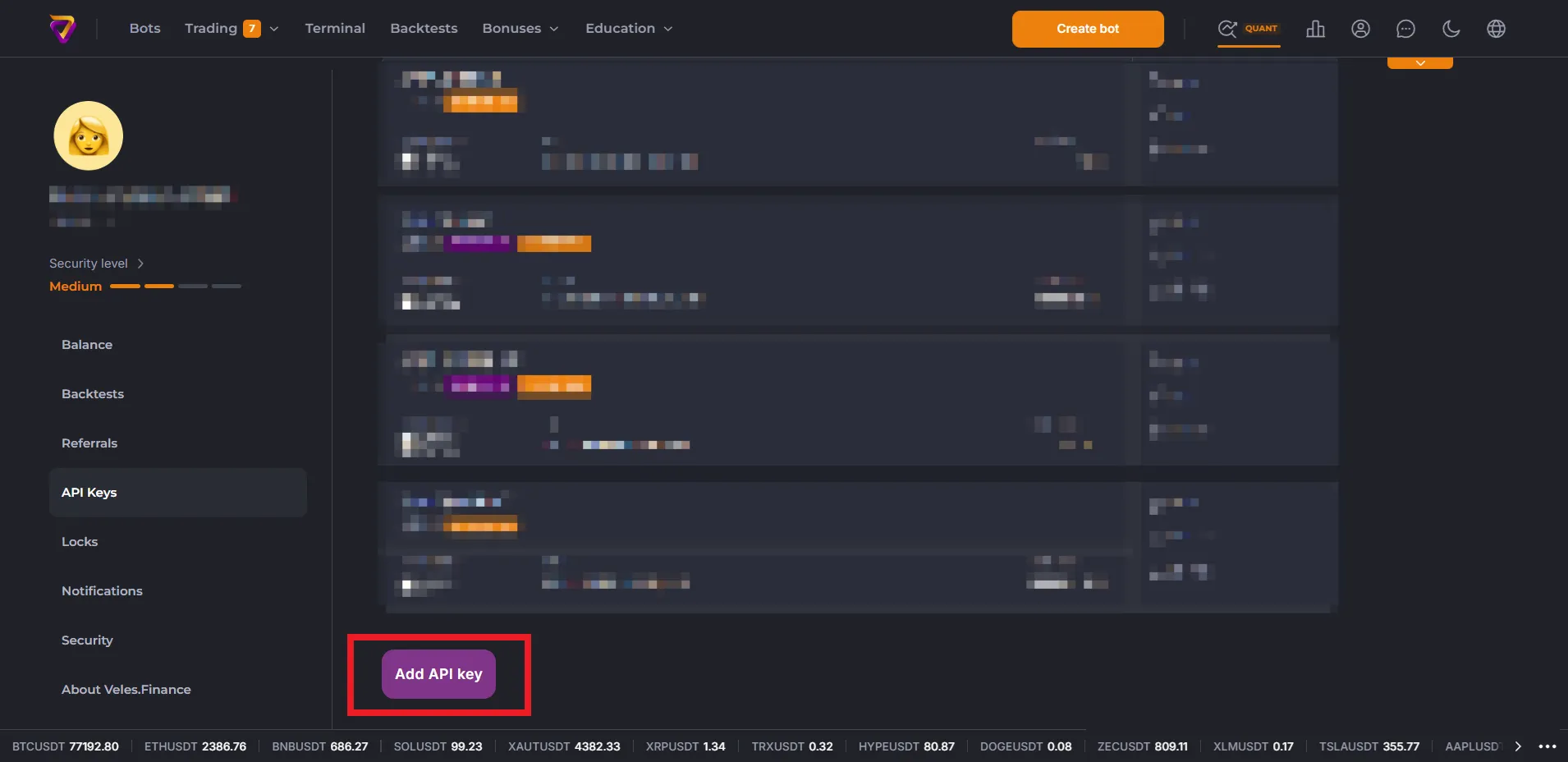
Go to your profile settings on the API key management page and click “Add API key”.
-
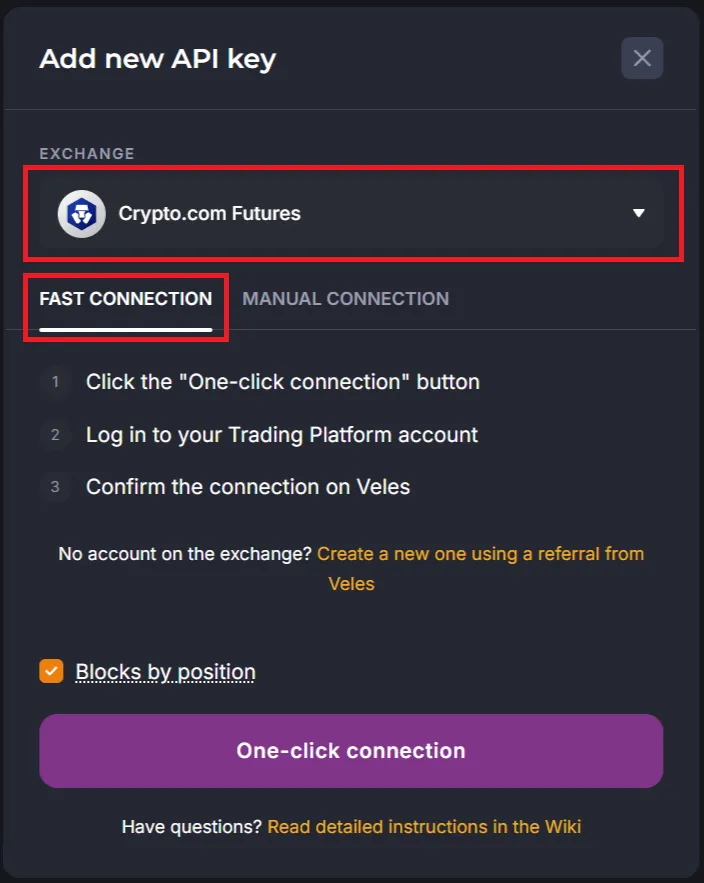
Select “Crypto.com Spot” or “Crypto.com Futures” on the “Fast connection” tab and click “One-click connection” below.
-
Log in to your Crypto.com account.
-
Specify which account you need to connect to (the main account or a sub-account).
-
Check the permissions granted for the API key and confirm your action.
-
The key will be created on the exchange, and the new API Binding will appear in your Veles cabinet, available for using in bots.
Manually creating an API key on Crypto.com and linking it to Veles
Section titled “Manually creating an API key on Crypto.com and linking it to Veles”Open the exchange website in a browser on your PC or tablet.
How to create an API key on Crypto.com
Section titled “How to create an API key on Crypto.com”-
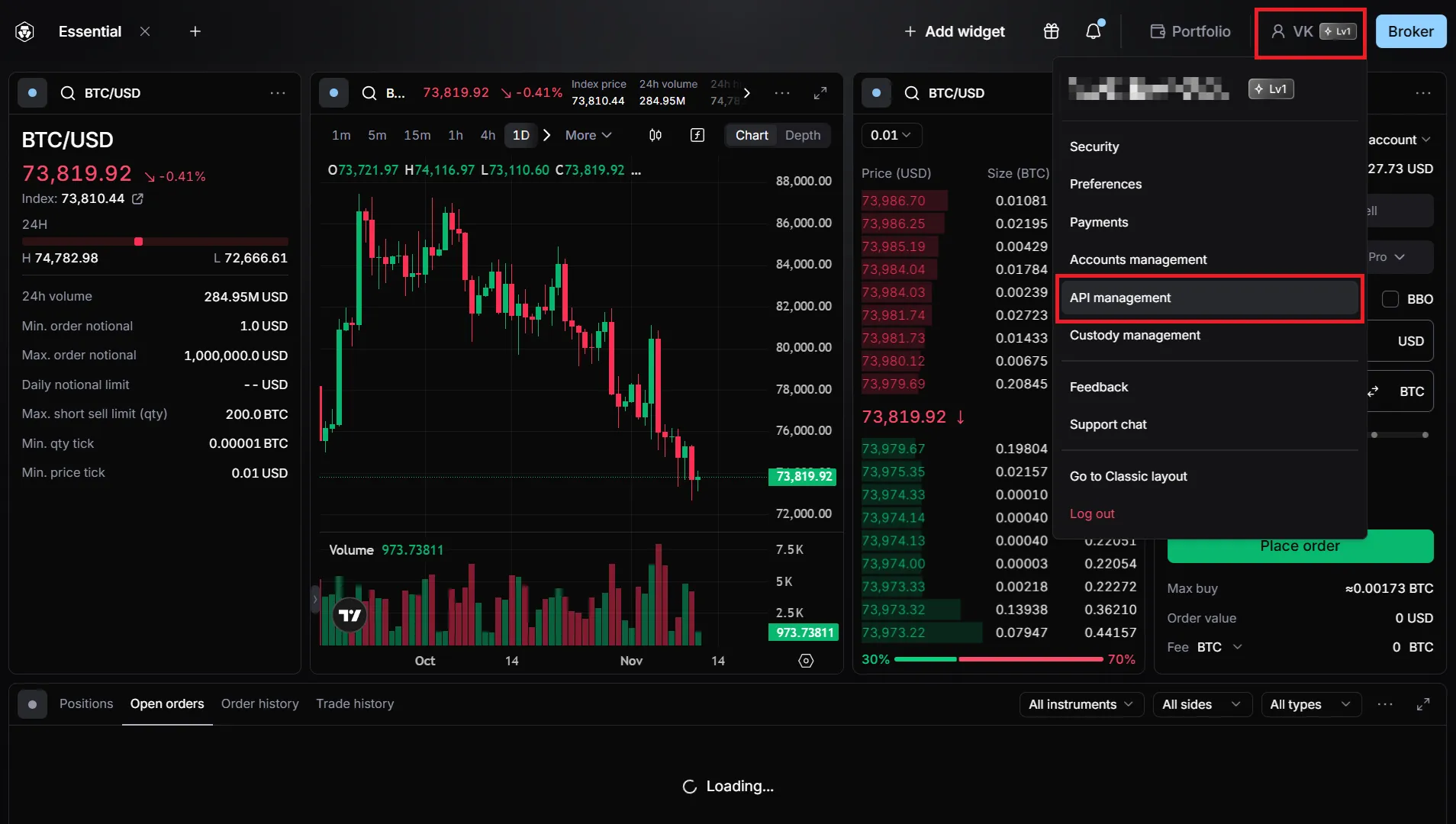
To create a key, open the “User account” menu and select “API Management”. In this section, you can create, edit, and delete API keys.
-
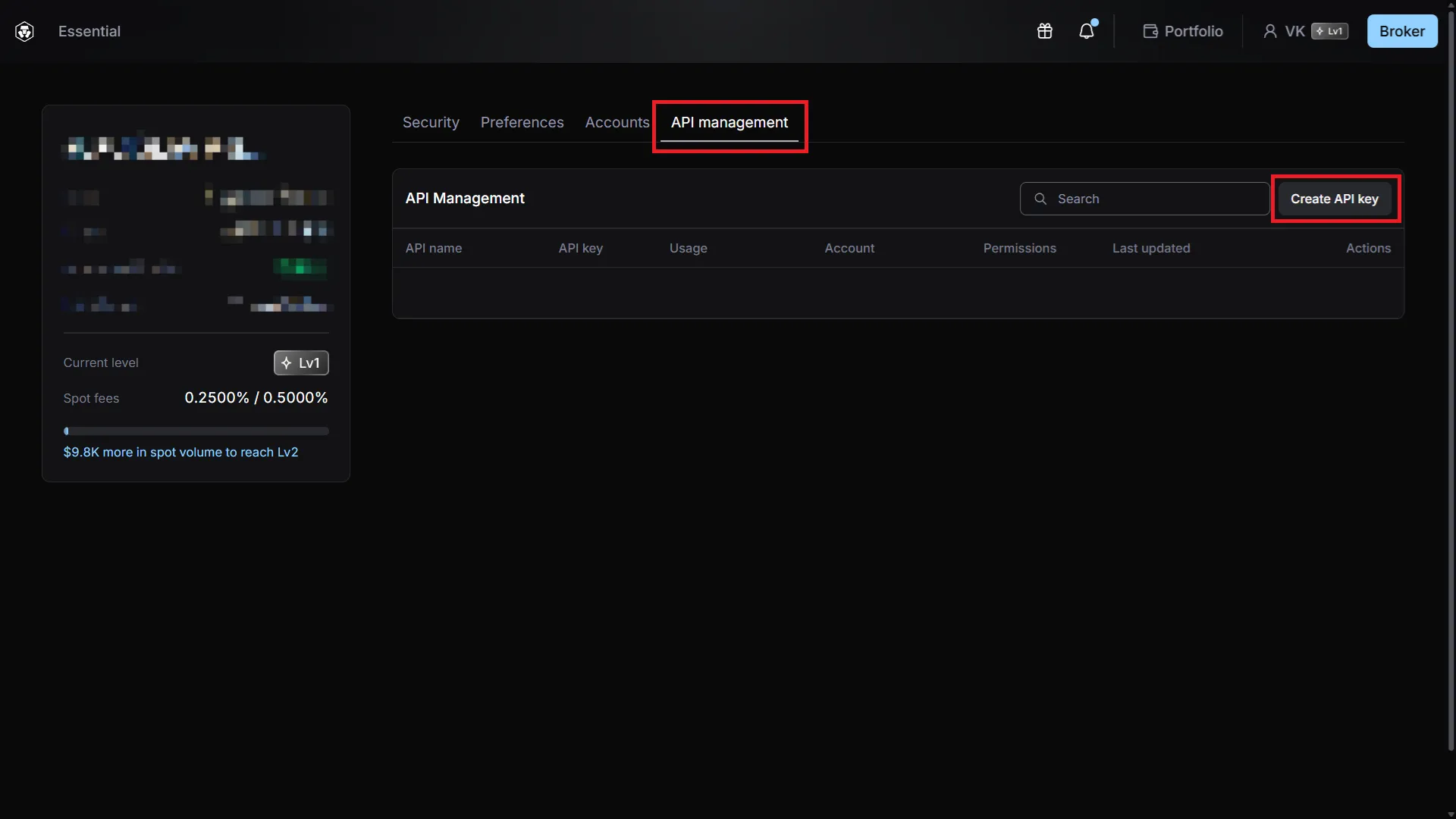
Click “Create API key” on the “API Management” page.
-
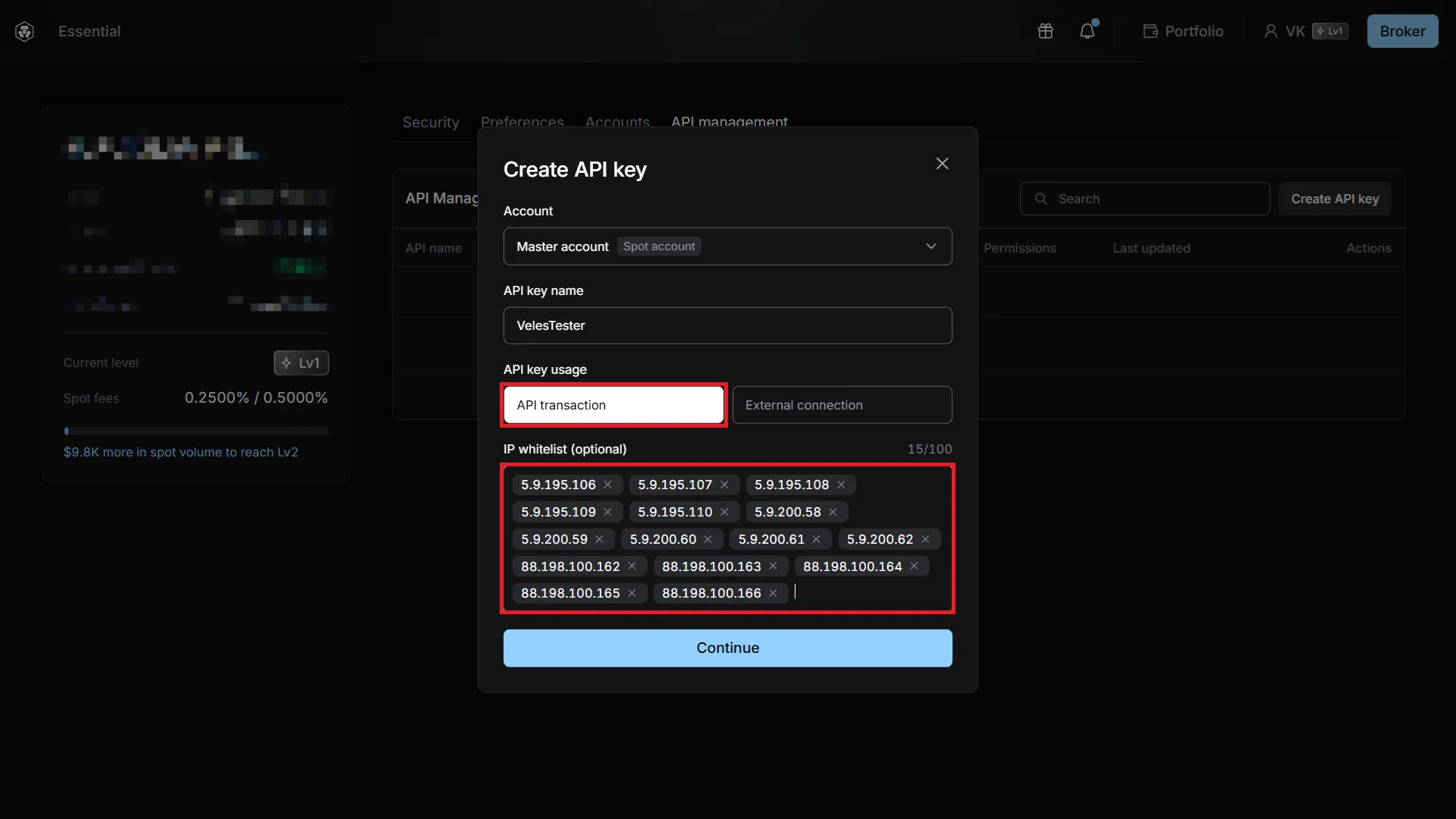
Use the “API transaction” toggle, create a name for the key, and add the Veles platform addresses to the “IP whitelist”. You can copy the comma-separated list of addresses from our article.
-
Click “Continue” and enter your two-factor authentication code.
-
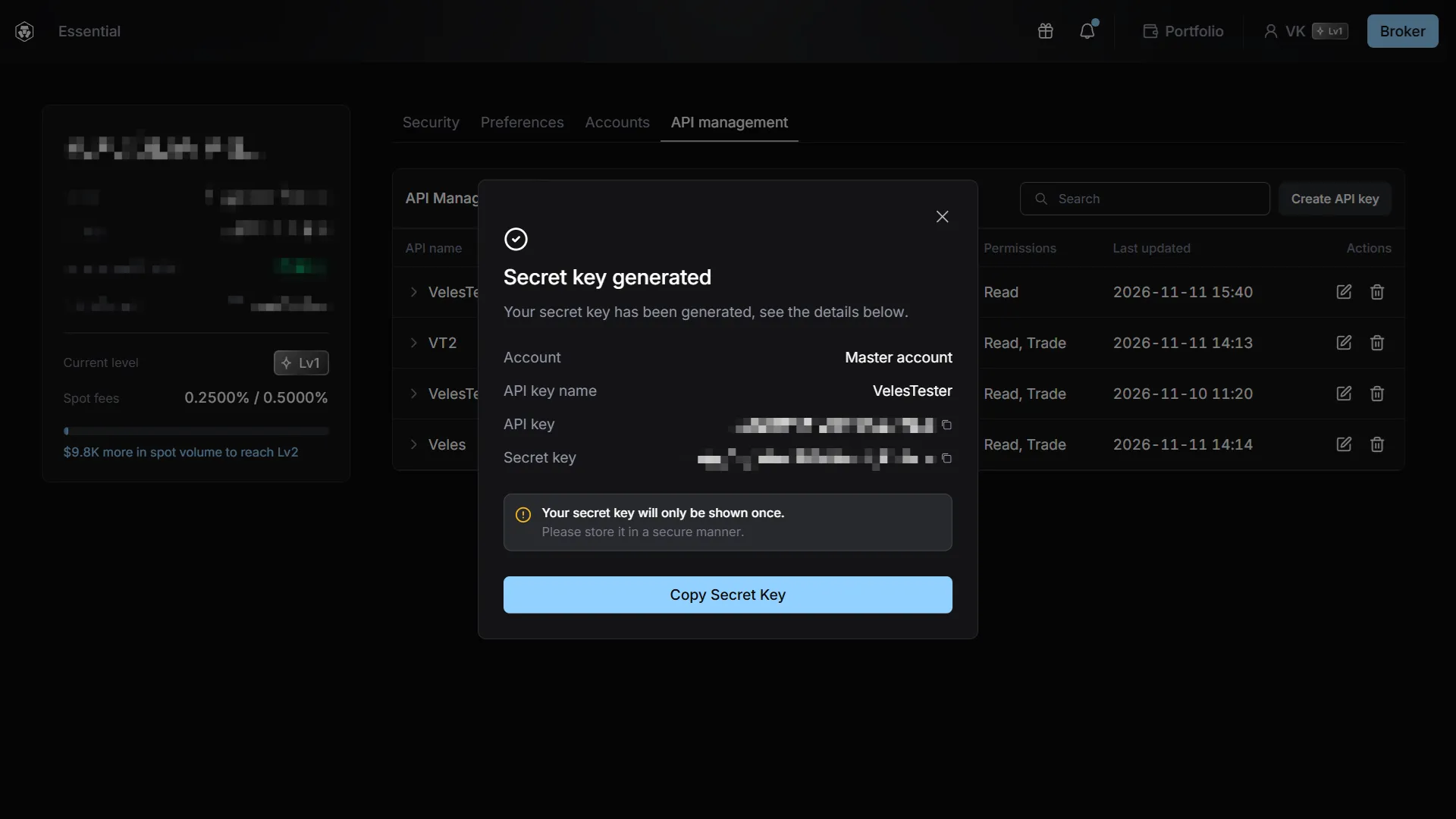
Afterward, you will receive an API key (public) and a secret key for connecting to Veles. Save them in a secure place (for example, in a password manager).
-
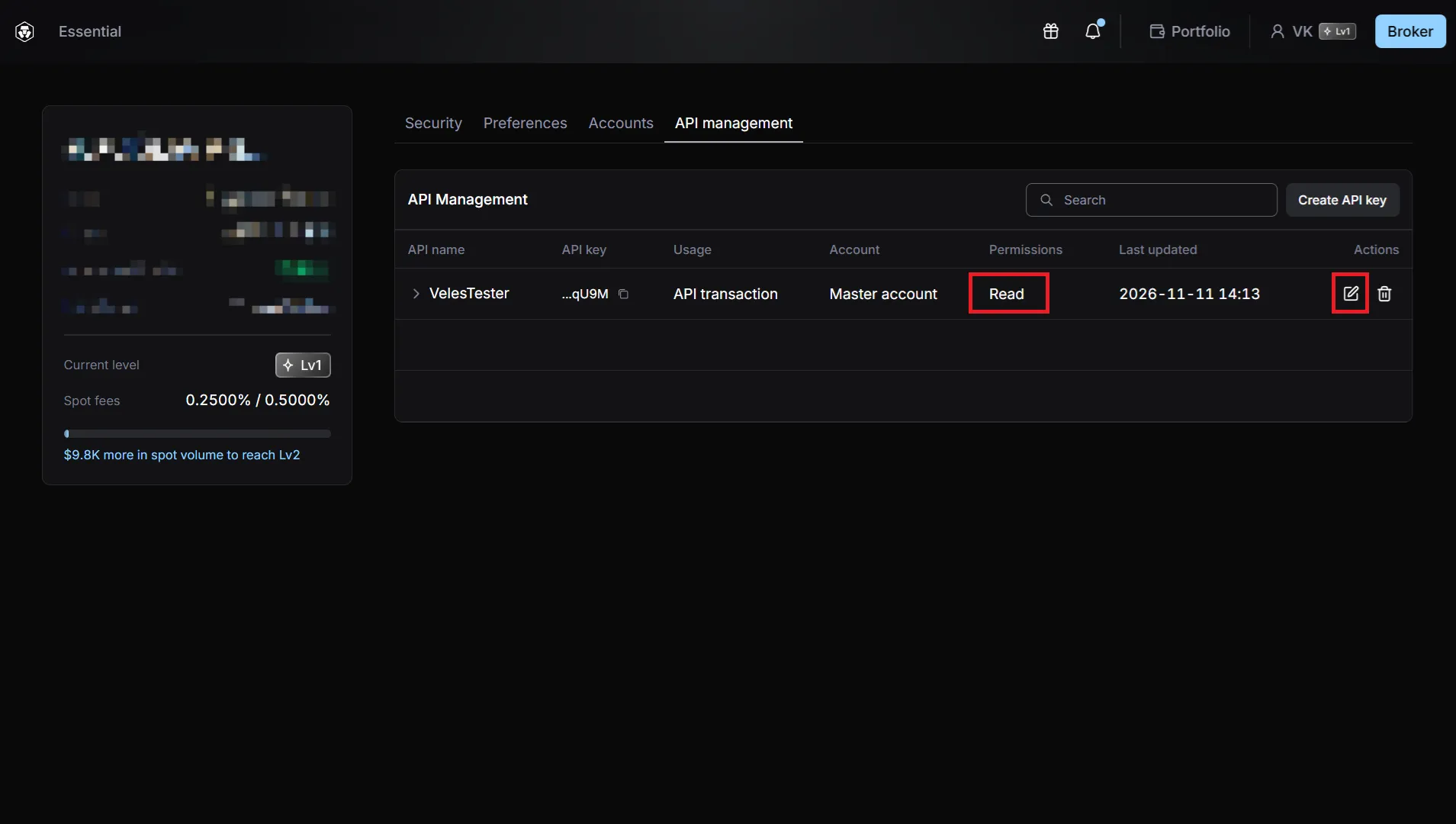
The created key will have read-only permissions. To use it with Veles, you need to edit it. Click on the “Pencil” icon in the “Actions” column.
-
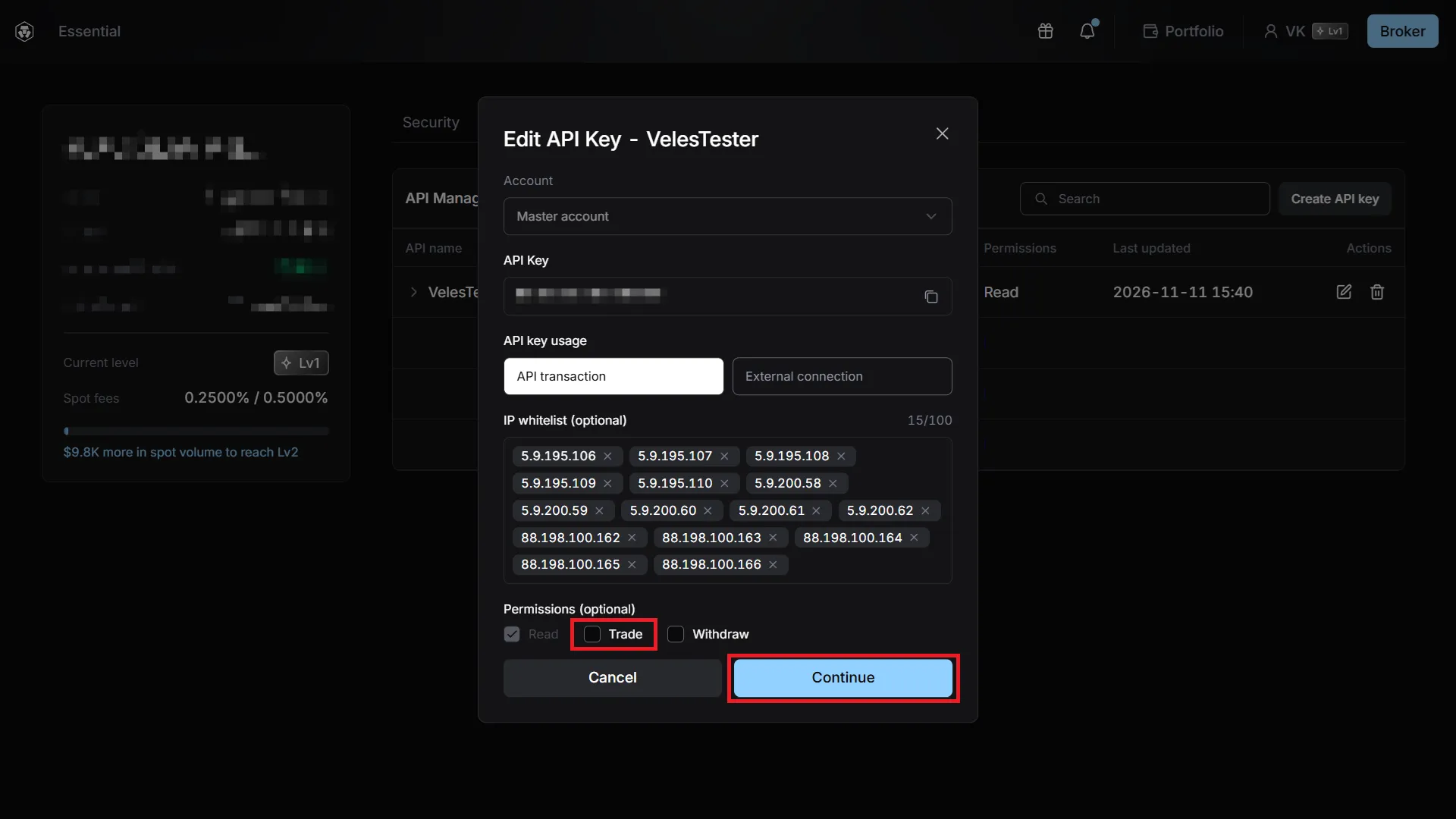
Add a “Trade” permission, save your changes, and enter your two-factor authentication code.
Binding an API key to Veles
Section titled “Binding an API key to Veles”-
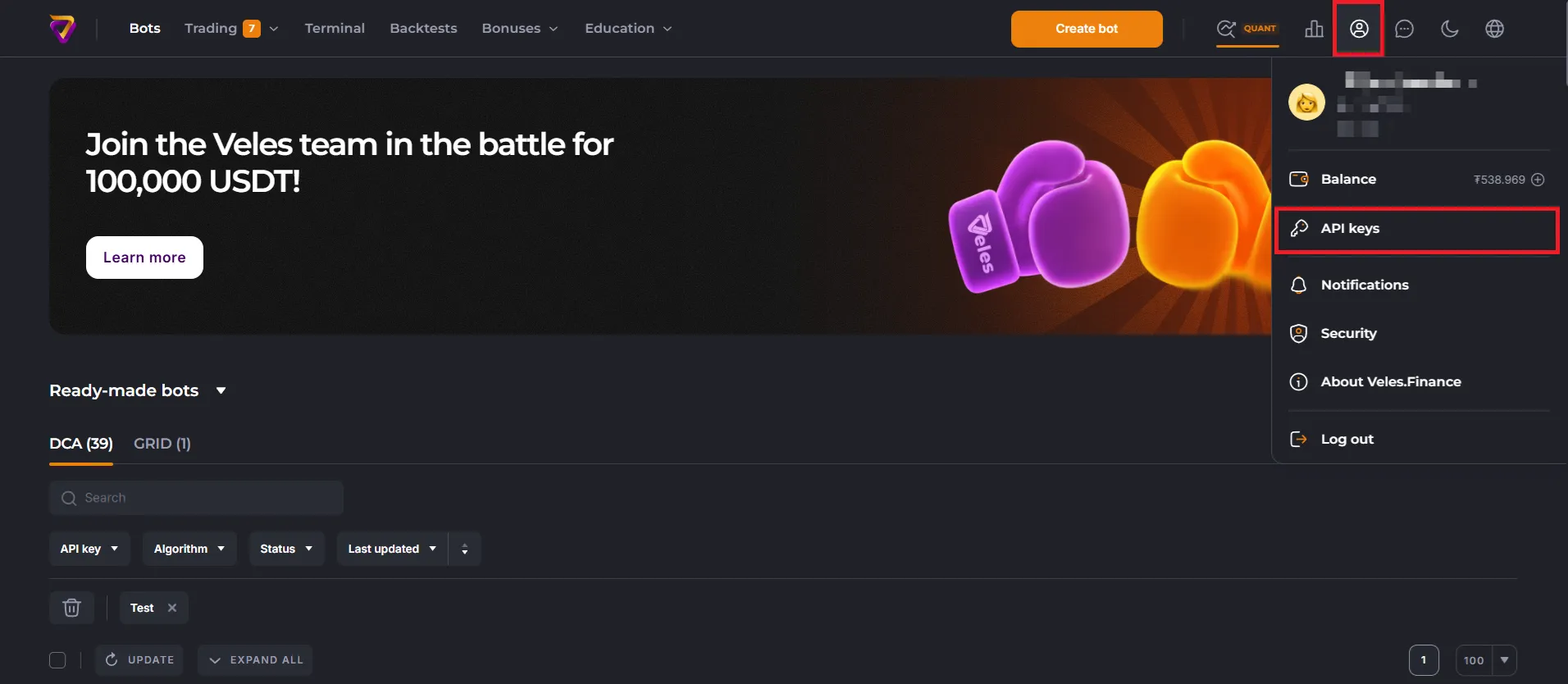
Log in to your Veles personal account, go to the user profile menu, and select the “API keys” section.
-
In this section, you can create, delete, and edit all API-Bindings used by Veles bots. Click “Add API key”.
-
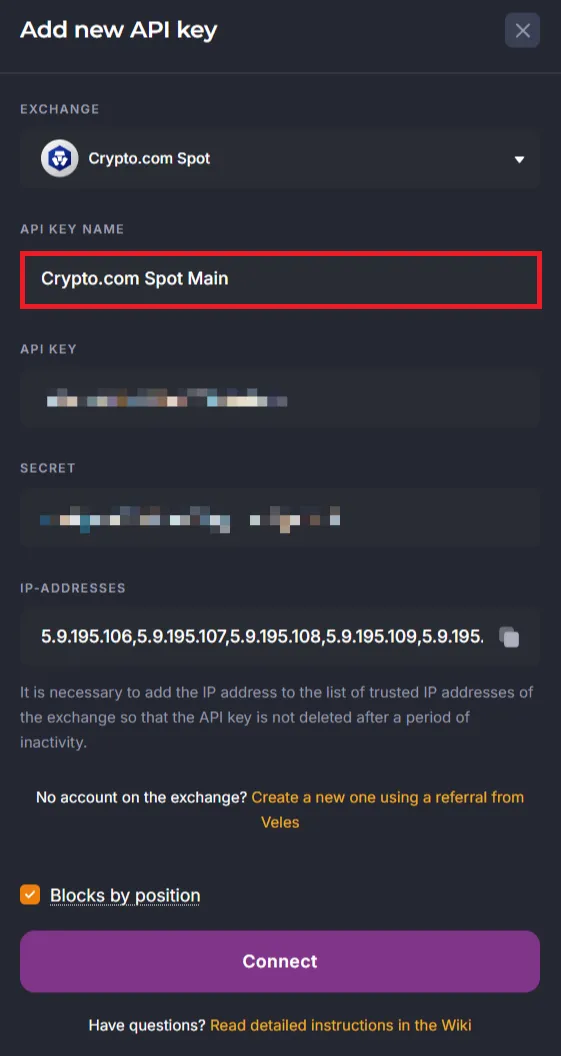
Select an exchange (for example, “Crypto.com Spot”) and the “Manual connection” option. Give the connection a recognizable name (for example, “Crypto.com Spot Main”). Enter your API key details and click “Connect”.
How to recreate a key
Section titled “How to recreate a key”-
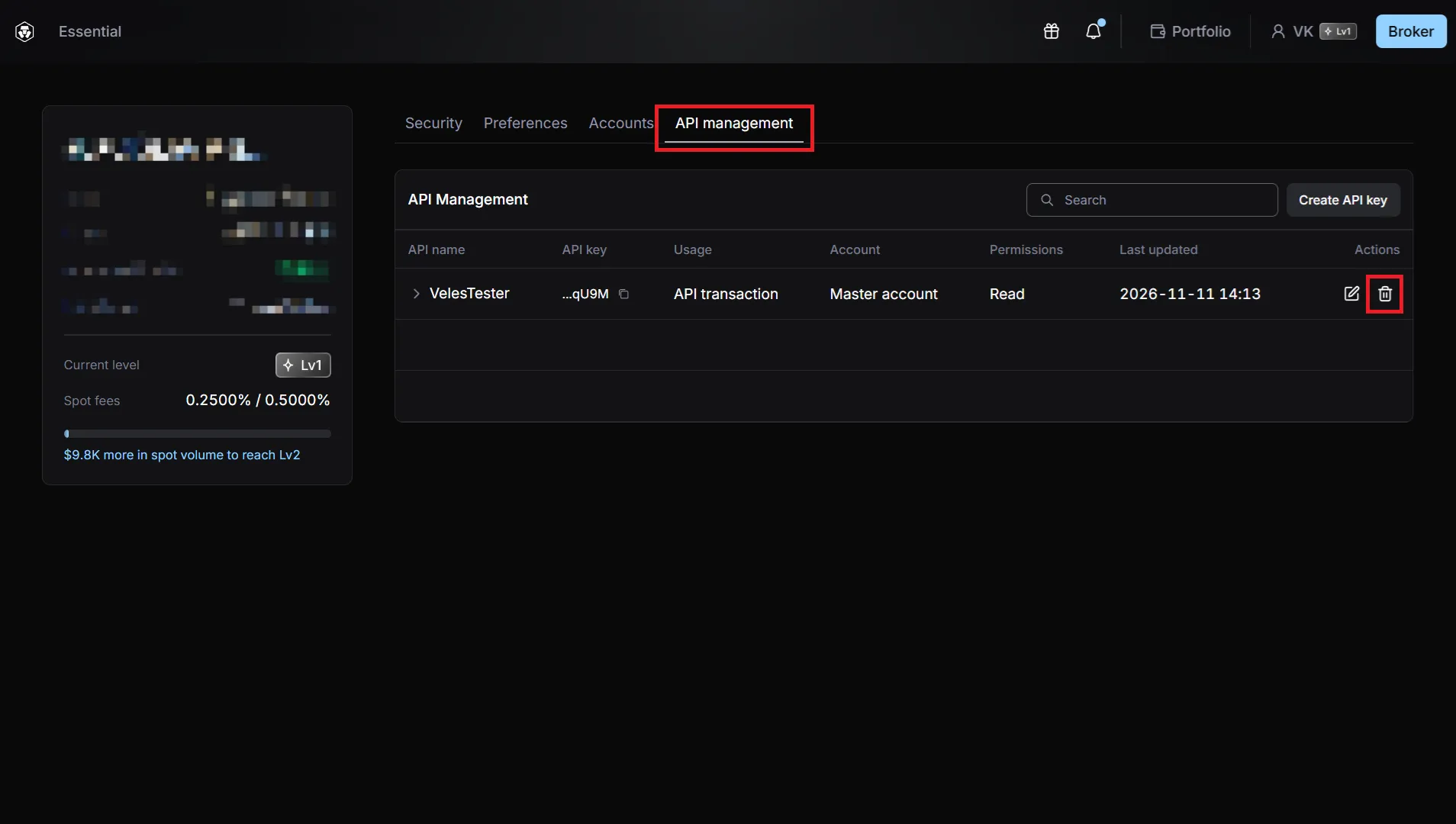
Delete the key on the API key management page on the exchange:
-
Create a new key on the exchange manually, using the instructions above.
-
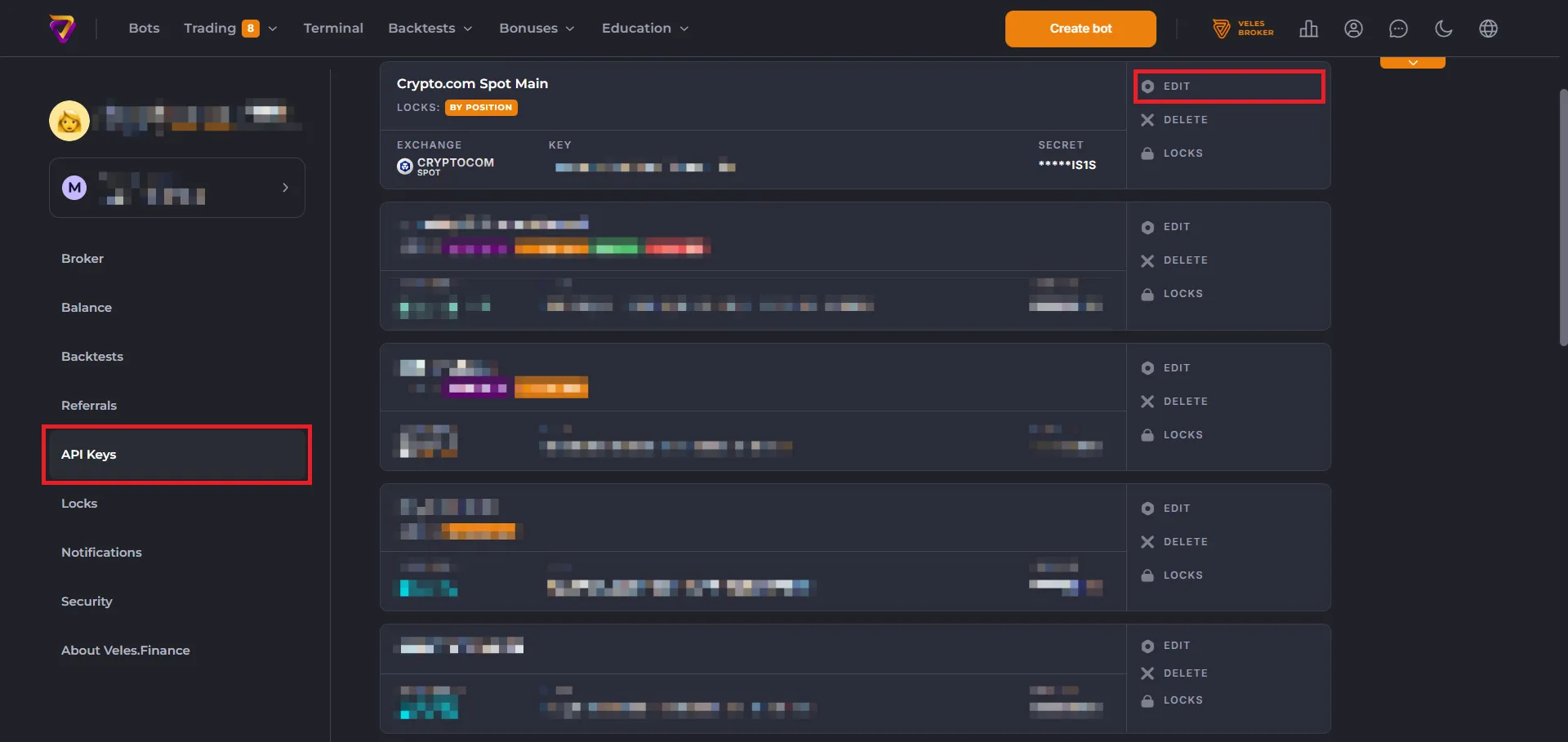
Edit the Binding in Veles on the API key management page: enter the details of the new key and save your changes.
-
Bots that use this Binding will continue to run.